
Adrenalin and OBS conflict: how to fix game capture
Why AMD Adrenalin conflicts with OBS "Game Capture"
The "Game Capture" source in OBS hooks into the game's graphics process and receives frames before they are output to the monitor. AMD Software: Adrenalin Edition may use a similar hook for the in-game menu, performance metrics, instant replay, recording, and notifications. When several modules interfere with rendering at the same time, OBS sometimes gets a black screen, a frozen frame, or doesn't see the game process at all.
The failure often appears after a driver update, a change of graphics API, enabling clip recording, or switching the game to exclusive fullscreen. But Adrenalin isn't always the only cause. Different access rights for OBS and the game, hybrid graphics on a laptop, third-party FPS counters, game overlays, and the game's protection against process injection can produce a similar result.
Which AMD Adrenalin features to disable for testing
For diagnostics you don't need to uninstall the driver or reset all game profiles. Disable only what draws elements over the game, records the picture in the background, or starts a stream through the driver. In different Adrenalin versions the names and locations of the items differ, so focus on the features rather than the exact menu path.
- In-Game Overlay or the in-game interface.
- Metrics Overlay with FPS, temperature, and GPU load.
- Instant Replay and background clip saving.
- Gameplay recording and built-in streaming.
- Notifications about screenshots, replays, and hotkeys.
- Filters and features enabled in a specific game's profile.
The metrics panel may be hidden on screen, but its module can still be active. For the same reason, it's not enough to remove only the FPS counter: check recording, instant replay, and streaming through Adrenalin separately.
How to properly restart OBS, the game, and Adrenalin
After disabling the overlay, don't run the test right away in an already open game. Close the game, quit OBS, and fully exit AMD Software: Adrenalin Edition. Make sure the program hasn't stayed in the notification area and isn't still running in the background. Then launch OBS first, and the game after it.
After changing Adrenalin features, you need to restart all three applications: the driver interface, OBS, and the game. Otherwise the game may keep the already hooked overlay module, and OBS will check capture in the old process state.
If the picture appears after this, turn the Adrenalin features back on one at a time. Start with metrics, then check hotkeys, and only after that test Instant Replay or recording. This makes it easier to find the specific module instead of leaving the entire set of driver features disabled.
Configuring "Game Capture" in OBS for a specific process
Create a separate test scene and add a single "Game Capture" source to it. During testing, don't use a complex main scene with multiple captures, browser sources, plugins, and filters: they can hide the image or create unnecessary load.
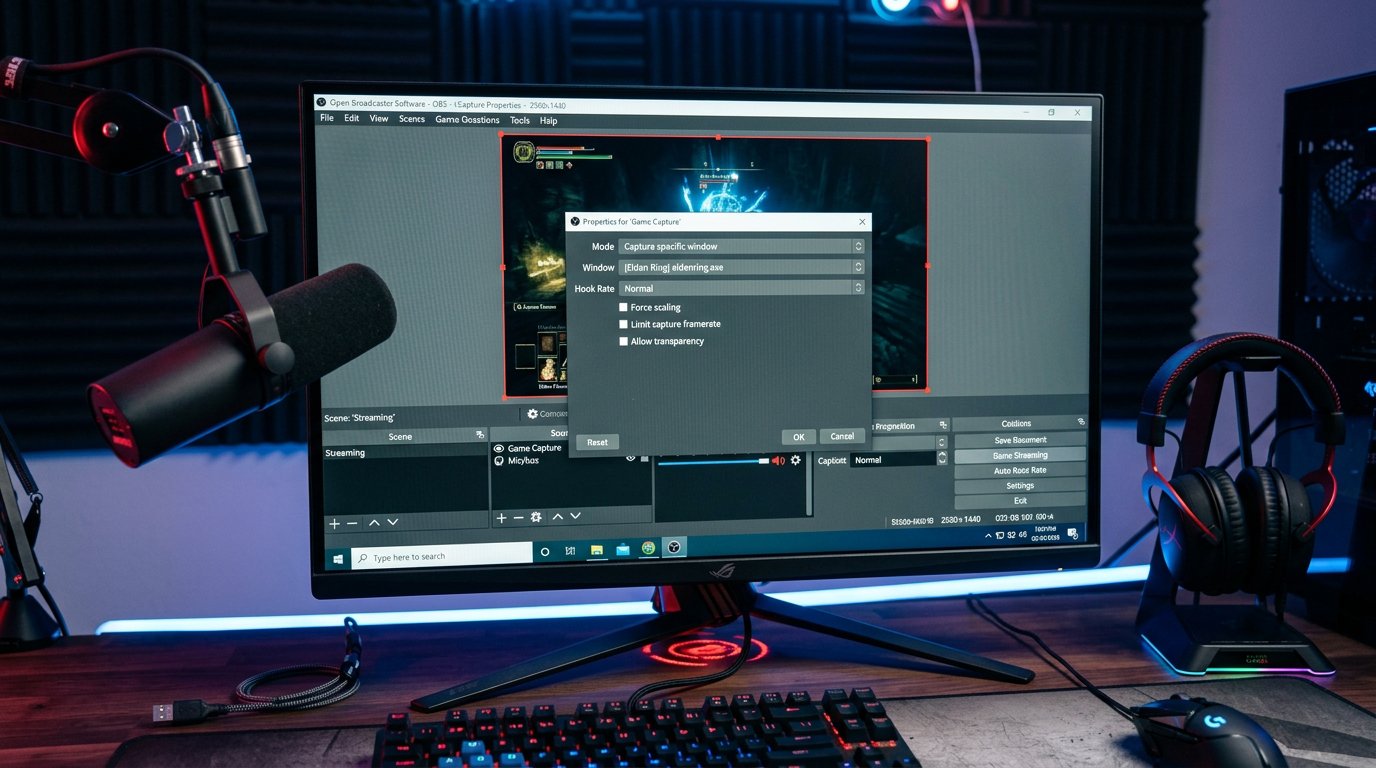
In the source properties, select Capture specific window mode, that is, capturing a specific window. Launch the game up to the main menu or until the map loads, then select its executable process in the Window field. If the game isn't in the list, close the source properties, wait for the game window to fully load, and open the settings again.
This mode prevents OBS from accidentally capturing the launcher, the anti-cheat window, game settings, or another program. However, some games recreate the window after a match starts, the screen mode changes, or a server connection is made. If the picture disappears at exactly that moment, reopen the source properties and check the selected process.
When to switch the capture mode to fullscreen or window
If Capture specific window doesn't produce an image, check the Capture any fullscreen application mode. It's useful for games that create the window in a non-standard way, change the process after launch, or don't appear in the OBS list. Before testing, minimize other fullscreen applications so OBS doesn't hook into them instead of the game.
Don't start diagnostics with automatic capture. In a permanent scene it's convenient, but when troubleshooting a conflict it's hard to tell which window the source hooked into. First achieve a stable picture through capturing a specific process, then switch to the any fullscreen application mode if needed.
Check the game's screen mode separately. If the black screen appears only in exclusive fullscreen, switch the game to borderless window and fully restart it. This mode is usually easier for OBS, the driver, and overlays to interact with. Regular windowed mode is also suitable for testing, but it's better not to consider it the final solution until borderless mode has been tested.
How to use Hook Rate in the "Game Capture" properties
The Hook Rate parameter determines how actively OBS tries to hook into the game's graphics process. With a conflict with the driver overlay, a non-standard game launch, or late window creation, the default value may not produce a result. Start with Normal: it's the baseline for comparison, especially if the problem appeared recently.
If the game isn't captured, close it, change Hook Rate to a more active option, save the source settings, and launch the game again. In different OBS builds the list of values and their names may differ. Don't change Hook Rate, capture mode, and access rights at the same time: check the result separately after each step.
More frequent hooking doesn't help in every case. If OBS still shows a black screen, return the parameter to Normal and move on to checking administrator rights, window mode, and overlays. With protected games, the "Game Capture" source may be limited by the protection itself, and changing Hook Rate doesn't remove that limitation.
Administrator rights for OBS and the game
OBS won't be able to hook into the game process if the game or its launcher is running with elevated rights while OBS runs as a regular program. This often looks like a conflict with Adrenalin: the overlay is disabled, the game runs fine, but the source stays black.
To test, close both programs and launch OBS as administrator. Then open the game normally. If the game, launcher, or anti-cheat themselves use elevated rights, OBS must also have an equal or higher access level. Check the shortcut properties: always running as administrator is sometimes enabled for the game after installation or compatibility configuration.
Don't enable elevated rights for every program in a row. It's enough to achieve a compatible access level for OBS and the process it's trying to capture. If the picture appears after launching OBS as administrator, the cause was access to the process, not the disabled AMD overlay.
What to check on a laptop with hybrid graphics
On a laptop, the game may run on the discrete Radeon while OBS runs on the integrated graphics. In this configuration, a black screen in "Game Capture" is easy to mistake for the effects of Adrenalin, even though the problem is related to GPU distribution between applications.
Check the system graphics settings and the adapter assignment for OBS and the game. After changing, fully quit OBS and the game, then repeat the capture. Sometimes OBS needs to use the graphics adapter that drives the display, not just the most powerful GPU. The right option depends on the laptop's design and which adapter the panel or external monitor is connected to.
For testing, don't limit yourself to the game's main menu. Load a match, a map, or another scene with full rendering, then minimize and restore the window. If the image disappears after changing the screen mode, go back to the "Game Capture" settings and check the window mode and Hook Rate.
Third-party overlays and recording programs
Even if all in-game features are disabled in Adrenalin, other programs can interfere with the game's rendering. Often the conflict is created not by a single overlay but by a combination of a game client panel, voice chat, GPU monitoring, and background clip recording.
- Overlays of game clients and launchers.
- Voice communication, chat, and invitation panels.
- FPS, temperature, and component load counters.
- Background recording, clip saving, and streaming programs.
- Overclocking, fan control, and on-screen display utilities.
During the test, leave only the game and OBS running, and in Adrenalin keep recording, metrics, and the in-game interface disabled. Once capture becomes stable, bring third-party programs back one at a time. After enabling each one, check launching the game, changing resolution, minimizing, entering a match, and starting recording in OBS.
When to use "Display Capture" instead of "Game Capture"
"Display Capture" works as a temporary workaround if a specific game doesn't allow OBS to hook into its process or keeps showing a black screen after checking rights, Hook Rate, and overlays. This source takes the final picture from the monitor and doesn't depend on injecting into the game's rendering.
Select the correct display in the source properties and make sure the game is open on that display. Prepare a scene for pauses, disable pop-up notifications, and remove personal chats, the browser, and other windows from the game screen. With display capture, everything visible on the monitor can potentially end up on stream.
If "Display Capture" works but "Game Capture" doesn't, this narrows down the search. Check once more the administrator rights, the game's window mode, the assigned GPU, and the programs that inject into the process. Don't try to bypass anti-cheat or game protection restrictions: for such a project it's safer to leave display capture or use an allowed capture mode provided by the game itself.
AMD and OBS hotkeys
Hotkeys rarely become the direct cause of a black screen, but they can start AMD recording, open metrics, hide an OBS source, or switch a scene. As a result, it seems the capture disappeared on its own, even though an overlapping command was triggered.
Check the key combinations in the Adrenalin settings, including the commands for the overlay, metrics, screenshots, recording, and instant replay. Then open the hotkey settings in OBS and compare the assignments. Pay special attention to combinations with Alt, Ctrl, Shift, function keys, and the numeric keypad: they may also be used by the game, voice chat, and launcher.
Separate the OBS and AMD commands so that one key doesn't trigger two actions. For testing, you can temporarily disable Adrenalin hotkeys, and after stable capture, assign new combinations that aren't used by the game.
OBS log with a persistent black screen
If the source didn't work after all the steps, save the log right after reproducing the problem. Launch OBS, open the game, wait for the black screen in the preview, and only then generate the log. A log from an old session where the game wasn't open or the source was already reconfigured won't help much.
In the OBS messages, look for signs of a process hook error, mismatched graphics adapters, insufficient rights, or problems with the Game Capture source. Before publishing the log, review its contents: it may contain folder paths, device names, plugin names, and your configuration parameters.
Checklist for resolving the AMD Adrenalin and OBS conflict
- Close the game, OBS, and AMD Software: Adrenalin Edition.
- In Adrenalin, disable In-Game Overlay, Metrics Overlay, Instant Replay, recording, streaming, and clip saving.
- Fully exit Adrenalin, including the icon in the notification area.
- Create an empty test scene in OBS with a single "Game Capture" source.
- In the source properties, select Capture specific window and specify the running game's process.
- Set Hook Rate to Normal and check capture after the game has fully launched.
- If there's no picture, restart the game and test another available Hook Rate level.
- Launch OBS as administrator, especially if the game, launcher, or anti-cheat uses elevated rights.
- Switch the game from exclusive fullscreen to borderless window and restart it.
- On a laptop, check which GPUs OBS and the game are running on.
- Disable third-party overlays, FPS counters, clip programs, and recording programs.
- If "Game Capture" doesn't work with only one game, temporarily use "Display Capture".
- After a successful test, bring back Adrenalin features and third-party programs one at a time.
Last Articles
What has changed in design and functionality We have updated the website to make working with it faster and more convenient. The main changes affect ..
Good afternoon, I've collected all the news during this time.: 1. The main news is that prices for twitch viewers have been greatly reduced, while Tw..
1. Use promo code "December2025" for a 15% discount for all our viewers2. We have reduced the base prices for our configurator and the most affordable..
Twitch services are working stably, so we are ready to cooperate with squads, resellers, service owners, bot owners, and many others.Individual te..
We have completely updated our Twitch viewer services, and they are now working stably. We only use high-quality IP addresses for the viewers.The ..
Hello everyone! Today, we are announcing a new feature—"Twitch Viewer Configurator". Now, you can customize any plan for your Twitch channel. Choo..
Greetings, I have compiled a guide for streamers, which will be very relevant at the moment. Now YouTube and twitch have disabled monetization from vi..
We have finally developed the APINow it will be more convenient for our partner sites to work with us.To update the maximum tariffs for YouTube, an up..
Due to the huge popularity of the partnership services and referral program, we have made a cooperation table. The essence is very simple: more live a..
Our Services for Streamers








Our Services for Content Creators






