
How to enable the "Starting Soon" scene when OBS starts
How OBS chooses a scene after launch
OBS usually restores the last active scene from the open collection. If you enable "Starting Soon" before closing the program, it will remain selected on the next launch without plugins, shortcuts, or commands.
This works for a single consistent stream format: after the stream, you return to the splash screen, stop the broadcast, and close OBS. The drawback of this method is that the program remembers not the startup scene but the last selected one. After recording a clip, adjusting the camera, or capturing a game, OBS may open on a working scene.
How to set up saving the startup scene
Create a "Starting Soon" scene in the collection from which you launch your streams. Add the splash screen, music, timer, chat, or other sources you need. Then switch to it in the main OBS window and close the program normally.
- Open the desired scene collection.
- Select "Starting Soon" in the scenes list.
- In studio mode, send it to the program output rather than leaving it only in the preview.
- Stop the broadcast and recording if they are running.
- Close OBS and open the program again to verify.
It's convenient to make this scene the final one as well: switch to it at the end of the stream, say goodbye to viewers, stop broadcasting, and close OBS. For quick switching, you can assign a hotkey. Its drawback is that an accidental press can change the scene right during a stream, so don't use a combination that's taken by a game, browser, or other programs.
Advanced Scene Switcher macro for a mandatory startup scene
If "Starting Soon" must be enabled on every launch regardless of the previous state, set up a macro in Advanced Scene Switcher. This option is useful when OBS is closed on different scenes but the same splash screen is needed before every stream.
Create a new macro with a clear name, for example "Startup scene". In the conditions block, add Startup or OBS start: the name depends on the plugin version and interface language. The condition refers to OBS launching, not to the start of a broadcast or the opening of a specific scene.
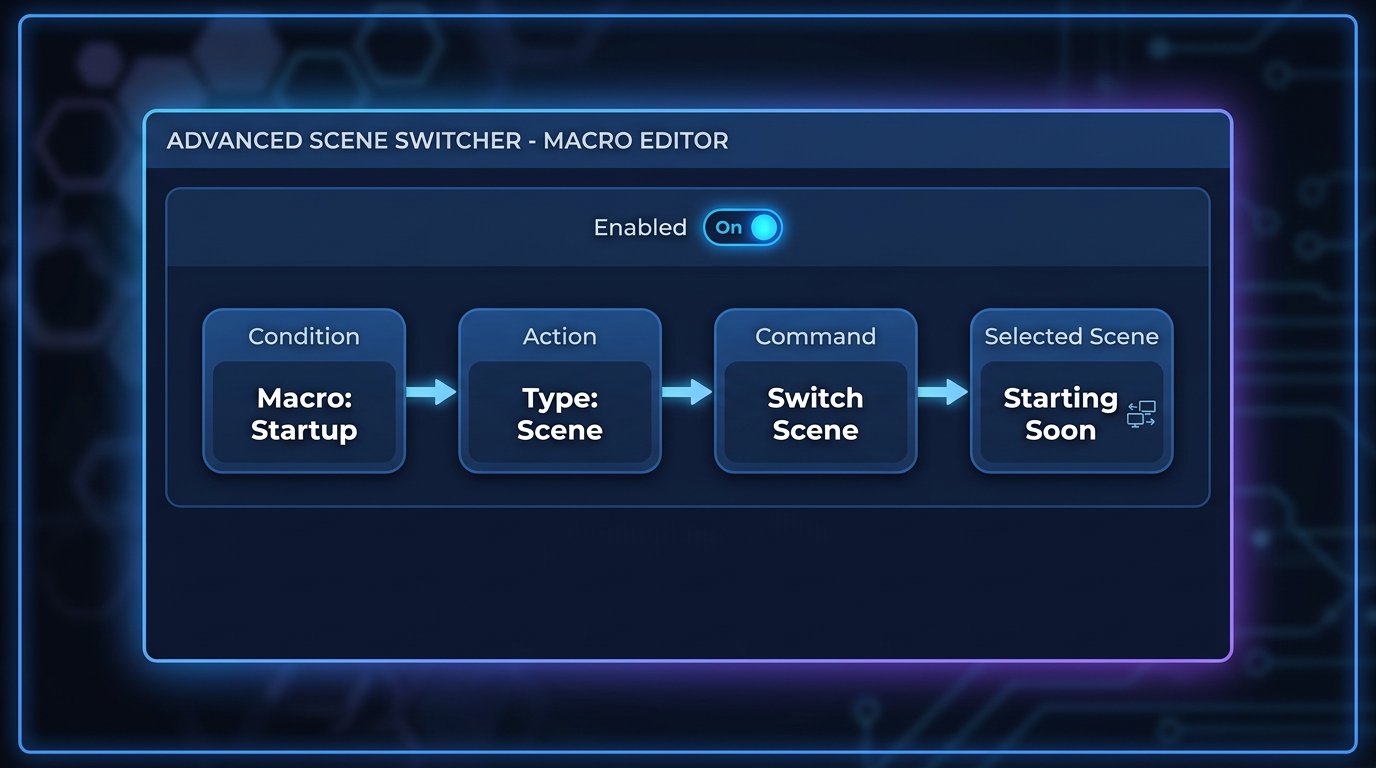
Macro setup order
After the launch condition, add a scene-switching action. The sequence should be: Startup or OBS start, then the Scene action, the Switch scene command, and selecting "Starting Soon" from the current collection. Save the macro and make sure it is enabled.
- Open the Advanced Scene Switcher window.
- Create a new macro.
- In the Conditions section, select Startup or OBS start.
- In the Actions section, add the Scene action.
- Select the Switch scene command.
- Specify the "Starting Soon" scene.
- Close OBS completely and check the result after a new launch.
The drawback of the plugin is an extra dependency in your working setup. After updating OBS or the plugin itself, renaming a scene, or changing the collection, the macro needs to be tested again. If the specified scene is deleted or is in another collection, no switching will occur.
Launching OBS via a shortcut with the --scene parameter
No plugin is needed if OBS is opened by a separate shortcut, batch file, or scheduled task. In the launch command field, after the path to the executable, specify the --scene parameter and the scene name in quotes.
The full command for Windows might look like this:
"C:\Program Files\obs-studio\bin\64bit\obs64.exe" --scene "Starting Soon"
In the shortcut properties, this line is entered in the "Target" field. Quotes around the path are mandatory if the path contains spaces. Quotes around the scene name are needed if it contains spaces, which is almost always the case for "Starting Soon". If OBS is installed in a folder with Cyrillic characters or a non-standard name, the path must also be enclosed in quotes, and you should verify launching specifically through this shortcut.
The name in the parameter must match the scene name in the active collection: account for spaces, symbols, language, and keyboard layout when typing. If the name is wrong, OBS may launch without switching to the desired scene and restore its normal state. The parameter is also not supported in all builds and launch methods of OBS, so testing after setup is mandatory.
Selecting a scene collection in the launch command
If OBS has multiple collections, the collection selection parameter is used alongside the scene selection. The command must first open the desired collection and then reference the scene within it. Otherwise, the same name in another collection or a missing scene will result in launching with the wrong layout.
Test such a command separately after changes to collection names. The drawback of a shortcut with parameters is that it only works when launched through it. If you open OBS via the Start menu, another shortcut, or autostart without parameters, the program will again restore the last saved scene.
Script and scheduled launch
A script is needed when OBS launches with the system, receives a command from another program, or must enable a scene before an automatic stream start. The logic is: launch OBS, wait for sources to be ready, select "Starting Soon" via OBS control or WebSocket, then start recording or broadcasting if needed.
Don't start broadcasting at the same moment OBS opens. Browser sources, videos, cameras, network folders, and plugins may load later than the program itself. The drawback of a script is that it has to be maintained: checking the OBS path, WebSocket access, scene names, launch order, and operation after system updates.
Checking the scene before an automatic stream start
Automatic scene switching doesn't guarantee that the splash screen is ready to be shown. A media source may lose the path to its file, a browser widget may take a long time to load, and music may remain muted from the previous session. Check the scene after restarting OBS, not just right after setting it up.
- Make sure videos, images, and audio files open from their saved paths.
- Check the timer, chat, notifications, and other browser sources.
- Listen to the music through the program output and check the levels in the mixer.
- Make sure the media doesn't start playing from a technical frame.
- In studio mode, check the program output: it may differ from the preview.
- Remove personal notifications, settings windows, file paths, and other technical data from the scene.
Which method to choose for different scenarios
For a single streaming format, it's enough to save "Starting Soon" as the last active scene. This is the simplest option, but it depends on which scene you left before closing OBS.
If the startup splash screen is needed every time the program opens, the Advanced Scene Switcher macro will work. It doesn't depend on the last scene but requires an installed and verified plugin.
For a separate shortcut, scheduled launch, or batch file, use the --scene parameter. This method is convenient for a fixed launch scenario but won't work if OBS is opened another way. For integration with automatic stream start, external programs, and load delays, you need a script that checks source readiness.
Last Articles
What has changed in design and functionality We have updated the website to make working with it faster and more convenient. The main changes affect ..
Good afternoon, I've collected all the news during this time.: 1. The main news is that prices for twitch viewers have been greatly reduced, while Tw..
1. Use promo code "December2025" for a 15% discount for all our viewers2. We have reduced the base prices for our configurator and the most affordable..
Twitch services are working stably, so we are ready to cooperate with squads, resellers, service owners, bot owners, and many others.Individual te..
We have completely updated our Twitch viewer services, and they are now working stably. We only use high-quality IP addresses for the viewers.The ..
Hello everyone! Today, we are announcing a new feature—"Twitch Viewer Configurator". Now, you can customize any plan for your Twitch channel. Choo..
Greetings, I have compiled a guide for streamers, which will be very relevant at the moment. Now YouTube and twitch have disabled monetization from vi..
We have finally developed the APINow it will be more convenient for our partner sites to work with us.To update the maximum tariffs for YouTube, an up..
Due to the huge popularity of the partnership services and referral program, we have made a cooperation table. The essence is very simple: more live a..
Our Services for Streamers








Our Services for Content Creators






