
The !game Command with the Current Stream Category in a Chat Bot
Where the Bot Gets the Current Game Name
The !game command usually shows not the application running on your computer, but the current channel category on Twitch. The streamer changes the game or category in the broadcast control panel, and the bot receives this value through a built-in variable or an API request.
If the previous game is still set in the Twitch panel, the "Just Chatting" category is selected, or the field is empty, the bot will output the same value. The chat bot itself does not recognize the game on screen: it works with the data provided by the platform or external automation.
First, Update the Channel Category on Twitch
Before setting up the command, check where you change the category: in the Creator Dashboard, through streaming software, or through a bot integration. What matters is the final channel status that viewers see on the stream page.
After changing the game, don't expect instant updates across all services. The bot may cache the last value, and the platform may transmit updated data with a delay. For the !game command, it's best to change the category before going live and to check the response in chat separately.
The !game Command in Nightbot
In Nightbot, open Custom Commands, create the !game command, and specify a message with the Twitch variable. For the current channel, the following response is typically used: "Now playing: $(twitch game $(channel))".
The $(channel) variable substitutes the channel where the command is invoked, and $(twitch game ...) requests its category. If the bot serves multiple channels, this option is more convenient than manually entering the streamer's login in each command.
- Command: !game
- Message: Now playing: $(twitch game $(channel))
- Userlevel: Everyone
- Cooldown: set a delay so you don't flood chat with identical responses
The downside of Nightbot is its limited response logic. Handling an empty category, multiple text variants, or data from your own schedule without additional workarounds will be difficult.
The Category Command in StreamElements
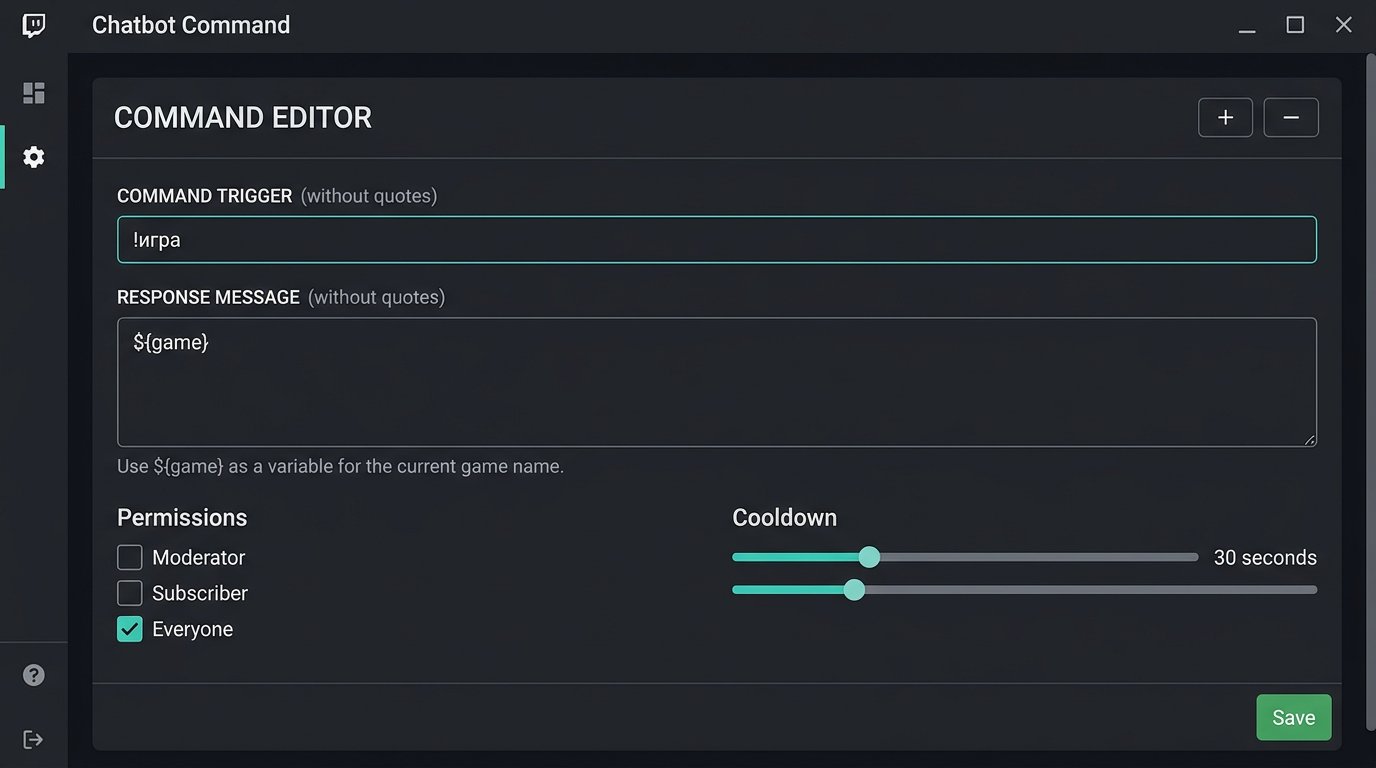
In StreamElements, the current game variable is usually added to the command response as ${game}. In the Chat bot section, create the !game command and set the text: "Current game: ${game}".
Before saving, test the command in chat with a viewer account. If the bot is not connected to the right channel or the channel category hasn't updated, the variable may return the old value or empty text. Permission and cooldown settings are located in the same place, in the command parameters.
- Command: !game
- Response: Current game: ${game}
- Permission: Everyone
- Cooldown: adjust to chat activity
The downside of StreamElements is that the command depends on the service's own integration with Twitch. If authorization fails or synchronization is delayed, you won't be able to manually fix the response without editing the command.
How to Output the Category via Streamer.bot
In Streamer.bot, it's more convenient to build the command through an Action. Create an action that retrieves Twitch channel information and then sends a message to chat. After the sub-action for getting channel data, the game name gameName is usually available in the action arguments.
In the Send Message sub-action, specify, for example: "Now playing: %gameName%". Then link the Action to the !game command in the Commands section. If the argument name differs in your Streamer.bot build, first run the action in test mode and look at the list of arguments returned by the Twitch sub-action.
The downside of Streamer.bot is more manual setup. You need to link the command, action, bot chat access, and Twitch authorization yourself, so an error at any stage will leave the command without a response.
Requesting the Category via the Twitch API
A custom bot, script, or Action in Streamer.bot can retrieve the category directly via the Twitch API. To do this, first find the channel's numeric identifier: the request GET https://api.twitch.tv/helix/users?login=channel_login returns user data, including the id.
Next, use the request GET https://api.twitch.tv/helix/channels?broadcaster_id=CHANNEL_ID. The API response contains the game_name field — this is the name of the current category, which can be sent to chat in response to !game.
The request requires the Client-ID and Authorization headers with an access token. Do not paste the token and application identifier into the command's plain text, a public repository, or a browser widget: this data must be stored in the bot settings or in environment variables.
Steps for Setting Up an API Command
- Create an application in the Twitch developer panel and get the Client ID.
- Obtain a token with access to channel data and save it in your bot or script settings.
- Determine the channel's broadcaster_id via the users endpoint by login.
- Send a request to the channels endpoint with the broadcaster_id.
- Take the game_name field from the response and form the chat message.
- If game_name is empty, output neutral text instead of an empty response.
Don't poll the API on every chat message. It's more practical to update the value on the first !game invocation, store it for the duration of the command cooldown, and re-fetch the data after the cache expires. After manually changing the category, you can force an update with a separate moderator command.
How to Update the Category and Avoid Getting an Old Response
If you change the game right during the stream, first update the category on Twitch, then wait until the new value appears on the channel page, and only then check !game. If the bot uses a cache, clear it or wait for the next API request.
For a single channel, it's usually enough to update the category on command invocation rather than running constant polling. If you need automatic monitoring, check at a moderate interval and keep API limits in mind. Frequent requests won't make the data more accurate but may lead to restrictions from the platform.
The downside of the direct API approach is that you need to monitor the token. After access is revoked, a password change, an application permission change, or an authorization error, the command may start outputting the old category or stop responding.
Game Detection on Your Computer and Its Limitations
A separate detection tool is only needed when the Twitch category isn't changed manually. Such automation tracks the running process, game platform data, the active window, or telemetry, matches the game to a Twitch category, and updates the channel via the API.
After that, the bot still reads the Twitch category, not the screen contents. The automation merely changes the channel data for you. It can make mistakes if the game is launched through a launcher, a browser version is used, the process name doesn't match the game, or the streamer has switched to another program.
The downside of detection is that it needs to be set up and monitored separately. For streams with multiple games, mods, emulators, and technical scenes, manually changing the category is often more reliable.
Empty Category, Multiple Games, and Manual Text
The platform transmits only one current category. If there are multiple games in the stream, the !game command should show the one currently being played, and the stream plan is better placed in a separate !schedule command or in the channel description.
For an empty category, prepare a clear response: "The current category hasn't been set yet" or "It's a talk stream right now". In Nightbot and StreamElements, such handling may require a separate command or manually changing the text. In a custom API script, you can check whether the game_name field is empty and substitute a fallback.
A manual command remains a working backup: "Now playing: game name". The downside is obvious — it's easy to forget to update it after changing the game, and viewers will get incorrect information.
Permissions, Cooldown, and Pre-Stream Checks
The main !game command is usually left available to all viewers but with a cooldown added. This reduces repeated identical messages when several people ask about the game at the same time. Leave the command for clearing the cache, manually updating the text, or restarting the Action to moderators and the channel owner.
Test the command after changing the bot, token, or Twitch integration. Even a correct variable won't help if the bot is connected to a different channel or has lost permission to read data.
- Set the desired game or category in the Twitch panel.
- Make sure the new name is visible on the channel page.
- Verify that the chat bot is connected to your channel specifically.
- Invoke !game from a regular viewer account.
- Change the category and invoke it again after the cache updates or the command cooldown passes.
- Check the response with an empty category and during a talk stream.
- If the API is used, check the token's expiration and the request error log.
Last Articles
What has changed in design and functionality We have updated the website to make working with it faster and more convenient. The main changes affect ..
Good afternoon, I've collected all the news during this time.: 1. The main news is that prices for twitch viewers have been greatly reduced, while Tw..
1. Use promo code "December2025" for a 15% discount for all our viewers2. We have reduced the base prices for our configurator and the most affordable..
Twitch services are working stably, so we are ready to cooperate with squads, resellers, service owners, bot owners, and many others.Individual te..
We have completely updated our Twitch viewer services, and they are now working stably. We only use high-quality IP addresses for the viewers.The ..
Hello everyone! Today, we are announcing a new feature—"Twitch Viewer Configurator". Now, you can customize any plan for your Twitch channel. Choo..
Greetings, I have compiled a guide for streamers, which will be very relevant at the moment. Now YouTube and twitch have disabled monetization from vi..
We have finally developed the APINow it will be more convenient for our partner sites to work with us.To update the maximum tariffs for YouTube, an up..
Due to the huge popularity of the partnership services and referral program, we have made a cooperation table. The essence is very simple: more live a..
Our Services for Streamers








Our Services for Content Creators






