
Setting Up the !schedule Command for Twitch Chat
Why You Need the !schedule Command
The !schedule command replies in chat when a viewer is looking for the time of the next stream. The bot posts the schedule without a moderator's involvement, so the question doesn't get lost in an active chat and the team isn't distracted from the broadcast.
It's most useful for regular streams. If the schedule often changes because of tournaments, work, or how you're feeling, don't try to fit every possible date into the response. Give the usual stream days and a link to where changes appear.
An outdated schedule is worse than no command at all. After moving a stream, update the text right away or temporarily replace it with a link to announcements.
How to Choose a Bot for the Command
Nightbot, StreamElements, and Streamlabs Cloudbot all work for !schedule. Don't pick a service just for one command: first check which bot is already in chat and responding to existing triggers. Adding a schedule to it is usually easier than connecting a second bot.
- Nightbot works if you need simple text responses, basic cooldowns, and setup through a separate commands dashboard.
- StreamElements is convenient if the bot is already used for messages, moderation, and channel commands in the StreamElements dashboard.
- Streamlabs Cloudbot is worth choosing if the rest of your chat automation is already handled through Streamlabs.
Nightbot's drawback is that its settings exist separately from StreamElements and Streamlabs tools. The drawback of StreamElements and Cloudbot is that when you switch to another bot, commands have to be transferred manually. Don't connect several bots with the same trigger: the viewer will get several responses in a row.
Response Text: Schedule, Time Zone, and Link
In the message, include the regular days, time, time zone, and one current link. A long month-long plan is inconvenient: it quickly scrolls up in chat and becomes wrong after a single reschedule.
A working template: "Streams are usually Tue, Thu, and Sat at 7:00 PM MSK. Changes and announcements: [link]." The word "usually" matters for channels where the time depends on matches, collab streams, or other circumstances.
Instead of a vague "in the evening," write a specific time and time zone. The link can point to your Twitch schedule, an announcements channel, or a public calendar. The drawback of a Discord link is that a new viewer won't see the information if the channel is private or requires a role.
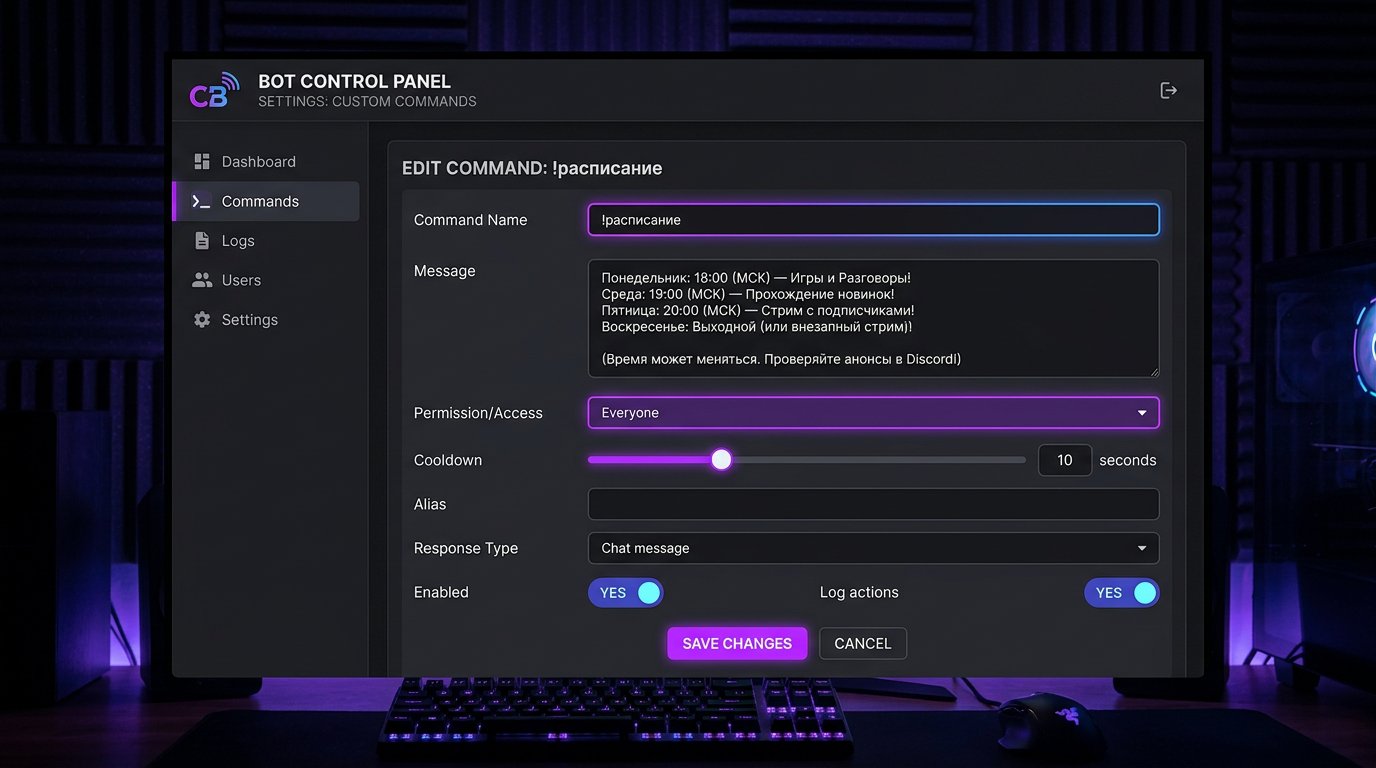
Static Response and Variables in the Message
A regular command stores static text: when the schedule changes, you have to edit it in the bot dashboard. This is a reliable option because the response doesn't depend on an external source. Its drawback is manual updating after every reschedule.
Variables don't replace the calendar automatically, but they make the response more personal. For example, in Nightbot you can write: "$(user), streams are usually Tue, Thu, and Sat at 7:00 PM MSK. Announcements: [link]." Instead of $(user), the bot will insert the name of the person who called the command.
Before saving, check the variable syntax in the documentation of the bot you chose: the set of variables and the format differ between services. Don't paste untested variables into a live command — viewers will see service text instead of the response.
How to Create !schedule in Nightbot
In the Nightbot dashboard, open the Commands section, then Custom. Click Add Command. This is the exact path for creating a custom command: Commands → Custom → Add Command.
- In the Command field, enter !schedule.
- In the Message field, paste the response text, the link, and the $(user) variable if needed.
- In Userlevel, select Everyone so regular viewers can call the command.
- In Cooldown, set the overall delay between bot responses.
- Save the settings with the Submit button.
Make sure Nightbot has joined your channel and has permission to write in chat. After saving, test the command from a viewer account. Testing from the channel owner's account doesn't always show the restrictions a regular user will see.
Setting Up the Command in StreamElements
In the StreamElements dashboard, open Chat Bot, then Chat Commands and Custom Commands. Click Add New Command, enter the name, message, access level, and cooldown.
For a standard call, enter !schedule with the ! symbol in the command name field. After saving, send the same trigger in chat: !schedule. Don't assume the dashboard will add the prefix itself: if only the word "schedule" is entered in the field, test the command in chat first and fix the name if needed.
If you've changed the bot's default prefix in the general settings, use your actual prefix and test it from a regular account. The drawback of a non-standard prefix is that new viewers will type commands with ! out of habit and won't get a response.
Adding !schedule to Streamlabs Cloudbot
In Streamlabs, open Cloudbot, go to Commands, and select custom commands. Create a new command, set the trigger !schedule, the response text, the access level, and the cooldown. Check that Cloudbot is enabled: a saved command won't work while the bot itself is turned off.
You can create aliases, such as !schedule or !stream, if viewers actually use those words. Aliases have a drawback: when the schedule changes, you have to check every variant. If the bot doesn't update the alias text along with the main command, it's better to keep one clear trigger.
Don't use the !schedule alias in another bot. Even if the main trigger is different, overlapping aliases will again lead to duplicates in chat.
Access Levels and Limits to Protect Against Spam
The Everyone level is usually suitable for a schedule: the command is needed by new viewers too. Restricting it to subscribers, VIPs, or moderators is only justified for a private team schedule or private streams.
If the bot supports a per-user limit and a global limit, set both. The per-user limit stops one viewer from calling the command repeatedly. The global limit keeps several accounts from filling chat with identical messages.
Too short a pause creates flooding. Too long a pause prevents a viewer from getting a response if the command was already called recently. Choose a delay that fits the pace of your chat and test it during a stream, not just in an empty chat.
If !schedule starts getting spammed, increase the global and per-user limits, keep the response on only one bot, and ask moderators to delete repeat calls. If abuse persists, temporarily restrict the command for regular viewers or disable it until the end of the stream. The drawback of restricting access is that new viewers will have to look for the schedule via the link in your profile or announcements.
Testing the Command Before a Stream
After setting up, call !schedule from a regular account or ask a moderator to run a test. Check the command spelling, time, time zone, variables, link, and access level. Separately, make sure only one bot responds to a single trigger.
Open the link from a phone and without being logged in to the service where the schedule is stored. A private calendar, a deleted post, or a Discord channel without access won't help a viewer who's visiting your channel for the first time.
Update the command before changing the time zone, season, or regular stream days. If you cancel a stream, replace the standard response with a message showing the date of the next broadcast and a link to announcements, then restore the main schedule once you're back.
Last Articles
What has changed in design and functionality We have updated the website to make working with it faster and more convenient. The main changes affect ..
Good afternoon, I've collected all the news during this time.: 1. The main news is that prices for twitch viewers have been greatly reduced, while Tw..
1. Use promo code "December2025" for a 15% discount for all our viewers2. We have reduced the base prices for our configurator and the most affordable..
Twitch services are working stably, so we are ready to cooperate with squads, resellers, service owners, bot owners, and many others.Individual te..
We have completely updated our Twitch viewer services, and they are now working stably. We only use high-quality IP addresses for the viewers.The ..
Hello everyone! Today, we are announcing a new feature—"Twitch Viewer Configurator". Now, you can customize any plan for your Twitch channel. Choo..
Greetings, I have compiled a guide for streamers, which will be very relevant at the moment. Now YouTube and twitch have disabled monetization from vi..
We have finally developed the APINow it will be more convenient for our partner sites to work with us.To update the maximum tariffs for YouTube, an up..
Due to the huge popularity of the partnership services and referral program, we have made a cooperation table. The essence is very simple: more live a..
Our Services for Streamers








Our Services for Content Creators






