
Configuring Chatbot Commands for Different Chat Roles
Which Commands Viewers and Moderators Should Have
Viewer commands answer frequently asked questions and don't change anything in chat: !rules, !schedule, !socials, !donate, !commands. They can be run without risk if the response contains no internal links, personal data, or actions in external services.
Moderator commands are needed for working with chat: !warn, !timeout, !clear, !slowmode, !remind. They either change the communication mode or help record a violation. A viewer should not get access to such calls, even through an alias.
Permissions are set based on the consequences of a command, not its name. The !help command can be open to everyone, while !helpmod with internal instructions is for moderators only. If the response contains a link to a private document, it's already an internal command.
The downside of an overly granular system is that a newcomer to the moderation team takes longer to memorize the calls. Don't create a separate command for every little thing: keep only the actions that repeat during streams.
First, Build a Working Command Table
Before configuring, open the list of already created commands and transfer it to a working document. For each row, specify the call, the text or action, the access role, the cooldown, aliases, and the person responsible for updates. This makes it faster to find old links, duplicate responses, and commands that moderators have already forgotten about.
- Viewers: !rules, !schedule, !socials, !donate, !game, !commands.
- Subscribers: !request, !track, commands for participating in a closed activity, if the channel format provides for one.
- VIP: only bonus commands that don't moderate chat and don't change settings.
- Moderators: !warn, !timeout, !clear, !remind, !slowmode.
- Owner and bot editor: creating commands, changing permissions, webhooks, responses, and the moderator list in the bot panel.
Don't confuse a chat role with panel access. A user can be a Twitch moderator but not have the right to change commands in Nightbot or StreamElements. This is a normal setup: moderating chat and editing the bot shouldn't be done by the same people by default.
Setting Permissions in Nightbot
In Nightbot, open the Custom section, then Commands. Find the needed command in the list and click Edit. The main fields for separating access are in the command's own settings: Userlevel, Cooldown, and User Cooldown.
In the Userlevel field, select the role allowed to run the command. For !rules, !schedule, and !socials, Everyone is usually set. For !remind, where the bot posts a long message about the rules, Moderator is suitable. A command that changes the bot's response, triggers an external action, or posts an internal link should be left to the owner or not created as a chat command at all.
In Nightbot, you can use the levels Everyone, Subscriber, Regular, Moderator, Owner, and other options available in a specific panel. The Regular role is not the same as a moderator: it's the level of a loyal viewer, not the right to manage chat. Don't give Regular access to !timeout, !clear, and similar commands.
The downside of Subscriber-only access for useful reference info is that part of the audience won't see the schedule or rules. Restrict only bonus features to subscribers, not information without which a viewer can't properly participate in the stream.
Setting Permissions in StreamElements
In StreamElements, open Chat Bot, then Chat Commands. Select an existing command or create a new one via Add New Command. In the command card, check the User Level field: it's what determines who can trigger the response or action.
For open calls like !socials, set the level for all viewers. For !rules, if moderators also use it during a conflict, also leave it publicly accessible but set delays. For the !modrules command, which shows the internal procedure, select the moderator level.
In the same card, check Global Cooldown and User Cooldown. Global Cooldown limits repetition for the entire chat. User Cooldown prevents a single viewer from triggering the command again before the specified delay. If you leave only the user restriction, several accounts can flood chat with the same response. If you leave only the global one, a single viewer will keep trying to trigger the command after each unblock.
The downside of a strict Global Cooldown is that viewers may not get the link exactly when they need it. For !donate or !socials, choose a delay based on chat activity rather than copying settings from another channel.
How to Assign the VIP Role and Regular Viewers
VIPs often get their status for supporting the channel, participating in the community, or long-standing presence. It's not a technical moderation role. VIPs can be given a command with extra information, game participation, or the right to trigger a rare entertainment mechanic, if repeating it doesn't cause problems.
Don't give VIPs punishment commands, chat clearing, mode changes, awarding points to other users, or bot management. If a VIP needs access to a moderator action, appoint the person as a moderator and separately explain the operating rules. Mixing support status with moderator authority leads to conflicts: a viewer may see internal rights as a reward rather than a responsibility.
The downside of a separate set of VIP commands is that it needs maintenance after every format change. If there's no clear, useful scenario for VIPs, it's better not to create an access level just for the sake of having one.
Cooldowns for Open Commands and Spam Protection
Even safe commands need a cooldown. When several viewers trigger !rules or !schedule in a row, chat turns into repeated bot messages, and regular replies get pushed up. This is especially noticeable during a raid, giveaway, or fast-chat activity.
For each public command, set two limits: a global one for chat and a personal one for the user. The global one suits long messages, links, and multi-line responses. The personal one protects against a single viewer who repeats the call after every available attempt.
- For !rules, use a global cooldown so the bot doesn't duplicate a large text several times in a row.
- For !socials and !donate, add both global and user cooldowns: links quickly clutter chat when repeated.
- For !game, !points, and other mechanics with participation, check whether the command awards a reward on every trigger.
- For !commands, make a short response with a link to the full list rather than posting the entire list in chat.
- For !remind, limit the global trigger so two moderators don't send the same text at the same time.
Moderator commands have a different priority. A cooldown on !timeout and !clear can get in the way during a spam wave. If the bot allows it, don't set a delay on them or make it minimal. But the !remind, !links, or !giveaway command for moderators may also require a global limit.
The downside of cooldowns that are too lenient is that the bot becomes a source of spam. The downside of ones that are too long is that the command looks broken, and the moderator tries to trigger it again. Document in the instructions which commands have a delay and why it's set.
Aliases Must Not Bypass Restrictions
An alias triggers the same response under a different word. For !schedule, you can add !streams or !sched. This is useful when the audience is used to different variants. In Nightbot, aliases are usually added in the main command's settings, while in StreamElements you need to check whether a similar command was created separately.
For internal actions, don't use short aliases like !m, !t, or !to. They read poorly in the message log, overlap with game calls, and are more often triggered by mistake. Instead, use clear variants: !warn, !timeout, !clear.
After adding an alias, test it from an account without permissions. A real mistake from practice: the main !timeout is restricted to moderators, but the old !to remained a separate open command with a template action. The owner doesn't notice this because they test the bot from their own account with maximum permissions.
The downside of a large number of aliases is that maintenance becomes harder. When a link or text changes, you have to check every variant, and an old call may keep sending viewers to an outdated page.
What Actually Breaks Without Permission Separation
An open command with a variable that accepts a username can become a source of text or mention substitution. For example, a viewer triggers !hello with someone else's username, and the bot posts a message as if the channel mentioned that person. For an entertainment command this is unpleasant; for an internal one, it's already a risk of moderation errors.
Another common problem is that the !clear command is set up as a regular text response, while moderators believe it clears chat. During a violation, they trigger it, the bot writes a template phrase, and the spam remains. All commands related to punishments and chat modes need to be verified by their actual action, not their name.
Another case is when Moderator access is selected in the bot panel, but the needed person was added as a moderator only on the platform and isn't synced with the bot. The command doesn't trigger, and the moderator decides the bot is frozen. After assigning a role, always test the specific account with a test call.
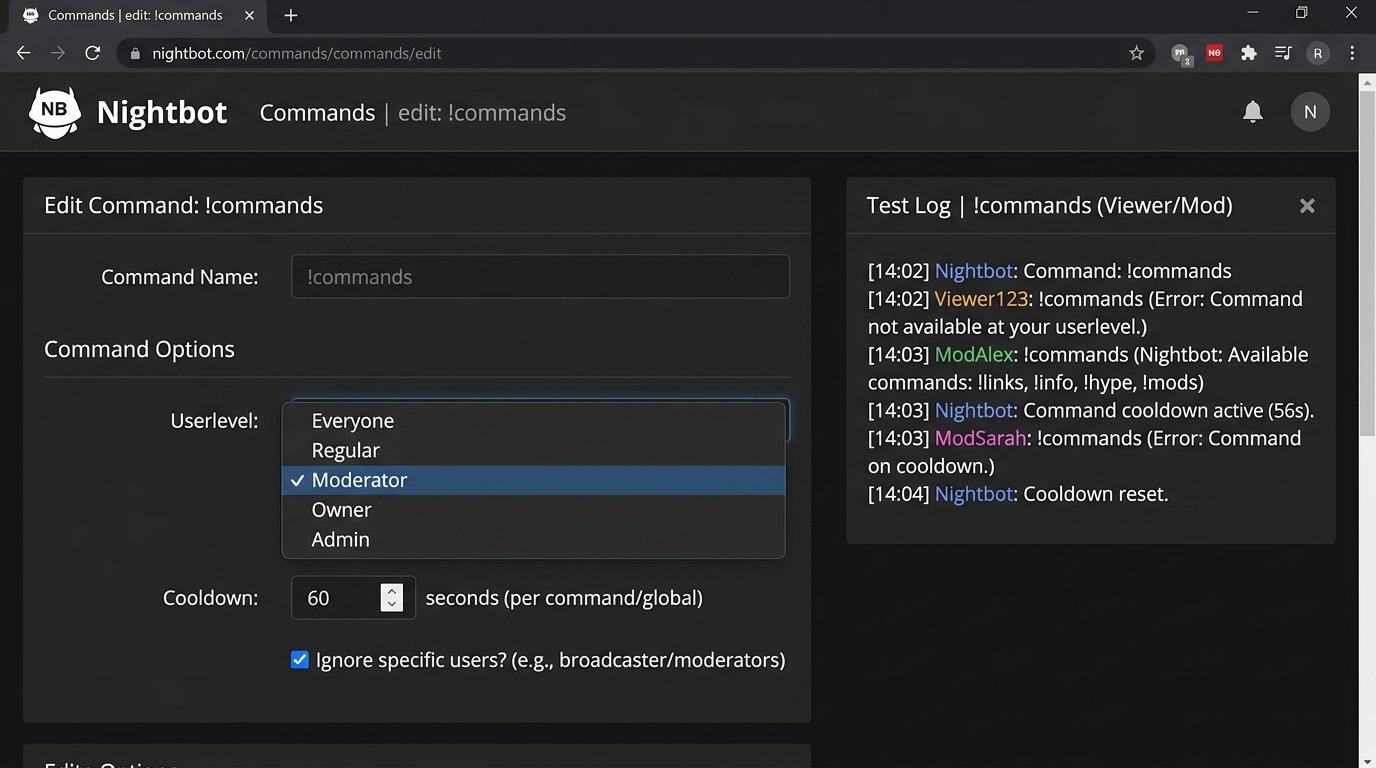
Testing Commands Before Going Live
Don't test settings from the channel owner's account. You need at least a regular viewer account and a moderator account. If subscribers, VIPs, or regular viewers are used, test those levels too. It's best to test off-stream: an accidental timeout, clear, or test link won't end up in live chat.
- As a viewer, trigger !rules, !schedule, !socials, and all their aliases.
- Try to trigger !warn, !timeout, !clear, and mode-change commands without permissions.
- Check that a VIP can't trigger internal calls unless they've been specifically granted moderator rights.
- Trigger a public command several times from one account and from different accounts to test both types of cooldown.
- Test invalid arguments: an empty username, a username without the mention symbol, an overly long reason, extra spaces.
- Check the bot's action log if available: it makes it easier to find the command that fired and the conflicting alias.
The rejection text also matters. It shouldn't expose internal command names, panel links, or a description of the owner's permissions. A neutral response or no response at all is enough, if the bot provides for that.
Instructions for Moderators and Reviewing Settings
Give moderators a short list of only the commands they're supposed to use. Specify the call, the argument format, and the situation for use. For example: !timeout username duration reason; before triggering, check the username and message, and don't apply the command at another viewer's request without checking the context.
Don't store passwords, tokens, connection keys, or links with administrative access in such instructions. A chat command shouldn't replace logging into the Nightbot panel, StreamElements, or the platform account.
Re-check permissions after changing moderators, connecting a new bot, running a giveaway, moving commands, and changing the stream format. The downside of regular review is obvious: it takes time. But without it, the channel is left with old aliases, unnecessary links, and access for people who no longer work with chat.
Last Articles
What has changed in design and functionality We have updated the website to make working with it faster and more convenient. The main changes affect ..
Good afternoon, I've collected all the news during this time.: 1. The main news is that prices for twitch viewers have been greatly reduced, while Tw..
1. Use promo code "December2025" for a 15% discount for all our viewers2. We have reduced the base prices for our configurator and the most affordable..
Twitch services are working stably, so we are ready to cooperate with squads, resellers, service owners, bot owners, and many others.Individual te..
We have completely updated our Twitch viewer services, and they are now working stably. We only use high-quality IP addresses for the viewers.The ..
Hello everyone! Today, we are announcing a new feature—"Twitch Viewer Configurator". Now, you can customize any plan for your Twitch channel. Choo..
Greetings, I have compiled a guide for streamers, which will be very relevant at the moment. Now YouTube and twitch have disabled monetization from vi..
We have finally developed the APINow it will be more convenient for our partner sites to work with us.To update the maximum tariffs for YouTube, an up..
Due to the huge popularity of the partnership services and referral program, we have made a cooperation table. The essence is very simple: more live a..
Our Services for Streamers








Our Services for Content Creators






