
Setting Up VOD Audio Track in OBS for Twitch Without Music in the Archive
What VOD Audio Track Does in OBS
VOD Audio Track lets you send two different audio mixes to Twitch. The main track goes to the live stream: viewers hear it during the broadcast. A separate track is used for the broadcast archive — the VOD.
The VOD track is assembled from selected sources before the stream is sent to Twitch. You can leave music out of it while keeping the microphone, game, alerts, and other needed sounds. Music will still play in the live stream if it's left on the main stream track.
What to Enable Before Setting Up Tracks
VOD Audio Track works for streaming to Twitch. Past broadcast saving must be enabled in the channel settings, otherwise no archive will appear and there will be nothing to check. OBS must also be streaming specifically to Twitch, not just recording video to your computer.
The feature does not change existing archives or local recordings. If music has already made it into a published VOD, setting up new tracks won't remove it from there. You'll need a new short stream or a new local recording to test.
Separate Music from Game and System Sound
Music must come into OBS as a separate source. If the player, game, browser, and Discord all end up in a single "Desktop Audio" channel, you won't be able to remove just the music from the archive: you'd have to exclude all system sound along with it.
To separate them, use application audio capture, a separate output device, or virtual routing. Application capture is easier to set up, but it may stop working after the player restarts or the device changes. Virtual routing gives more control, but it's harder to maintain after updates and system changes.
Check That Music Isn't Being Captured Twice
Open your streaming scene and play music. A separate music source should react in the OBS audio mixer. If the "Desktop Audio" indicator or another shared channel moves at the same time, music is already being captured in two places.
In that setup, it's not enough to remove the music source from the VOD track: its copy will still remain in the archive through system capture. Disable suspicious sources one by one and watch the indicators. If music is still audible after disabling its separate channel, a duplicate remains in the mixer.
Enable a Separate VOD Track in Output Settings
In OBS, open the output settings and switch to advanced mode. In the streaming tab, select the track for the live stream, then enable Twitch VOD Track and assign a different track to it.
You can choose track numbers according to your own scheme, but they must differ. The number matters not on its own: it's needed so that in the advanced audio properties you mark exactly the track that OBS will send to Twitch as the VOD.
The downside of this scheme is that it's easy to forget to add a new source to the archive track. Then the microphone, game, or alert will be missing from the VOD, even though everything sounds fine in the live stream.
Assign Tracks to Sources in the Audio Mixer
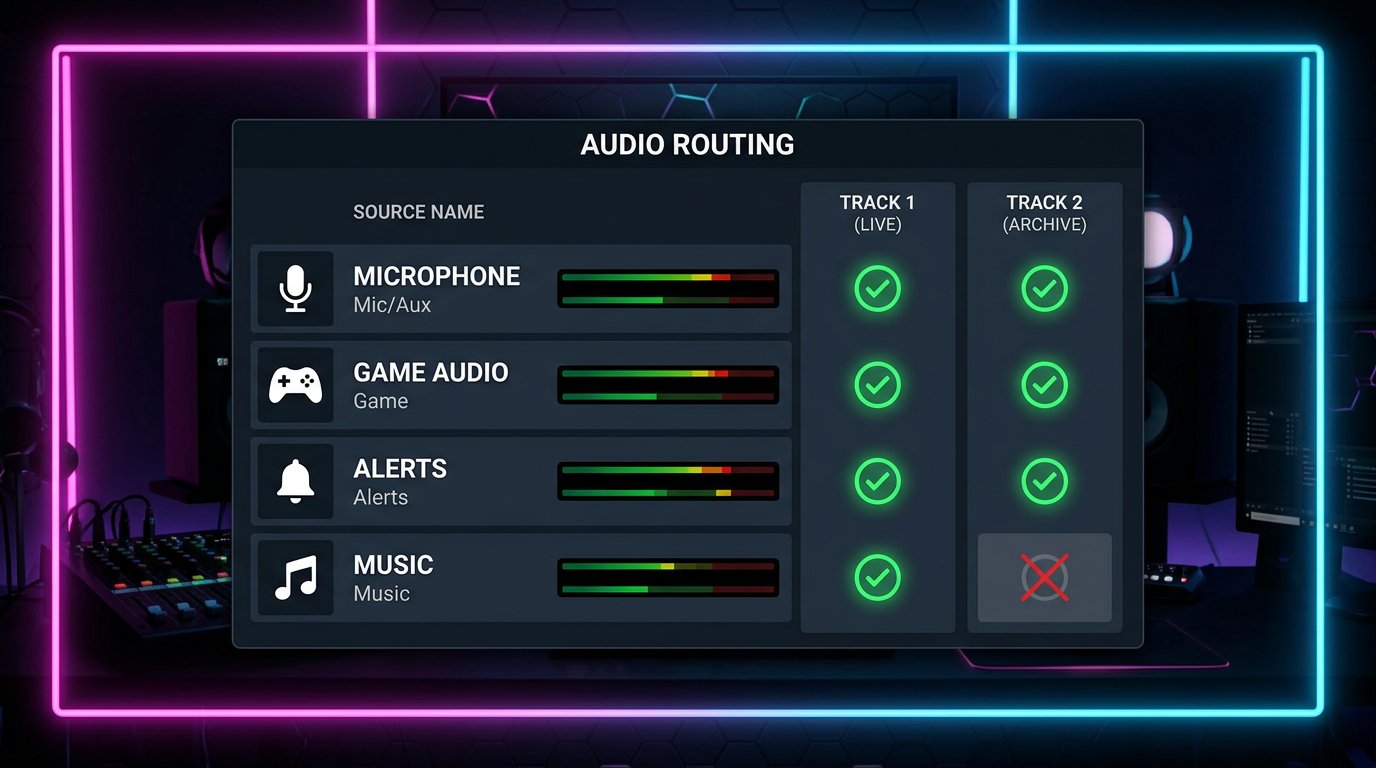
In the audio mixer, open the advanced audio properties. For each source, mark the live track and the VOD track. The main track should contain all the sound viewers need in the live stream. On the archive track, leave only permitted and needed sources.
- Microphone: live track and VOD track.
- Game sound: live track and VOD track.
- Alerts: live track and VOD, if they're needed in the recording.
- Voice chat: live track and VOD, if it can be saved.
- Music: live track only, without the Twitch VOD track.
Don't disable music on the main track if viewers need it. You only need to uncheck the track selected for the Twitch archive.
Don't Leave the VOD Track Empty
The archive track must have at least one source. If you uncheck it from all channels, Twitch may save the VOD without sound. The minimum option is to keep the microphone, but usually the game and other important stream sounds are also added to the archive.
Check not only for the absence of music but also for the presence of useful audio. Complete silence in the VOD usually means the track is empty or the needed source was accidentally unchecked. This isn't necessarily a problem on Twitch's side.
Account for Monitoring, Browser, and Capture Card
Music can return to the archive through source monitoring, the browser, a capture card, or an output device. For example, the player is added as a separate channel, but its sound simultaneously goes to the headphones and is captured again by "Desktop Audio."
Pay especially close attention to sources with monitoring mode. If monitoring is routed to a device that OBS captures as system sound, duplication occurs. The downside of manual routing is that after changing headphones, the output device, or the scene, you have to check it again.
Set Up Local Recording Separately from Twitch VOD
Twitch VOD Track applies to the stream for Twitch, not to the file on your computer. In the OBS recording tab, the audio tracks that go into the local file are selected separately. These settings don't sync with the VOD settings automatically.
To test, you can record the track used for the archive and listen to it in a player or editor with manual audio track selection. It should contain voice and game, but not music. The downside of this check is that a local recording confirms OBS routing but doesn't replace checking the finished Twitch VOD.
How to Check the Finished VOD After a Test Stream
Start a short test stream with the microphone, game, music, alerts, and voice chat enabled. After the broadcast ends, wait for Twitch to process the archive. Processing time depends on the stream's length and the platform's load.
Open the saved broadcast in the channel archive or through the creator dashboard and listen to a few segments: the beginning, the middle, and a moment with music. A working setup looks like this: voice, game, and selected sources are heard continuously, and music is absent. If voice and game are both missing at the same time, the VOD track is set up incorrectly or is empty.
Don't rely on the OBS preview, the sound in your headphones, or the live stream: those use the main live mix. If Twitch separately flagged or muted a VOD segment, that doesn't confirm the routing worked. The archive still needs to be listened to and its audio composition checked.
Can You Keep Voice Chat and Alerts in the Archive
Voice chat and alerts can be kept on the VOD track if viewers need them when watching the recording. Voice chat by itself doesn't make the archive problematic, but you should consider the platform's rules, participants' consent to being recorded, and the content of conversations.
Alerts also don't need to be automatically excluded from the VOD. Check whether they contain music, sounds from other people's videos, or other materials you don't have rights to. The downside of excluding alerts is simple: the archive will lose stream events and may look incomplete. If alerts contain risky sound, it's safer to replace it or separate it from the VOD.
What to Do If Music Remains or Needed Sound Disappears
If music is in the archive, first check whether the VOD track is unchecked for the music source. Then check "Desktop Audio," the browser, the capture card, and monitoring. Most often music remains because of a second copy of the signal, not because of an incorrectly selected track.
If the VOD is missing voice, game, or alerts, open the advanced audio properties and make sure the archive track is enabled for the needed source. After adding a new scene, device, or source, repeat the test: OBS doesn't assign tracks for you.
Pre-Stream Checklist
- Past broadcast saving is enabled on Twitch.
- Twitch VOD Track is enabled in OBS and a separate track is selected for it.
- Music comes in as a separate source and isn't duplicated through system sound.
- Only the VOD track is unchecked for music, while it's enabled for the microphone and game.
- A local check and a short test stream with a review of the finished VOD have been done.
Last Articles
What has changed in design and functionality We have updated the website to make working with it faster and more convenient. The main changes affect ..
Good afternoon, I've collected all the news during this time.: 1. The main news is that prices for twitch viewers have been greatly reduced, while Tw..
1. Use promo code "December2025" for a 15% discount for all our viewers2. We have reduced the base prices for our configurator and the most affordable..
Twitch services are working stably, so we are ready to cooperate with squads, resellers, service owners, bot owners, and many others.Individual te..
We have completely updated our Twitch viewer services, and they are now working stably. We only use high-quality IP addresses for the viewers.The ..
Hello everyone! Today, we are announcing a new feature—"Twitch Viewer Configurator". Now, you can customize any plan for your Twitch channel. Choo..
Greetings, I have compiled a guide for streamers, which will be very relevant at the moment. Now YouTube and twitch have disabled monetization from vi..
We have finally developed the APINow it will be more convenient for our partner sites to work with us.To update the maximum tariffs for YouTube, an up..
Due to the huge popularity of the partnership services and referral program, we have made a cooperation table. The essence is very simple: more live a..
Our Services for Streamers








Our Services for Content Creators






