
Updating the NVIDIA Driver Before a Stream Without Losing OBS Settings
What a driver update changes in OBS
A regular NVIDIA driver update does not delete OBS scenes, sources, profiles, or scene collections. The program's configuration is stored separately from the video driver files. After installing a new version, NVENC behavior, game capture, the list of available resolutions, monitor settings, and GPU load may change.
The risk is higher with a clean install, a reset of NVIDIA Control Panel settings, or a switch to a different driver branch. Your OBS scenes will usually stay in place, but your previous output settings may behave differently: encoder availability, preset, capture method, or color settings may change.
Back up your OBS profile and scene collection
Before updating, export your working configuration through the OBS interface. A profile contains your streaming and recording settings: encoder, bitrate, resolution, frame rate, and output settings. A scene collection saves your scenes, sources, and their layout.
- Open the OBS profile menu and export the current profile.
- Open the scene collection menu and export the collection you use.
- Save the files to another drive or to cloud storage.
- Repeat the export for all profiles if you use different settings for different platforms or formats.
The downside of exporting is that it doesn't always include plugins, fonts, local media files, scripts, and browser source data. If your scenes contain videos, images, alerts, or local web pages, make sure the source files aren't sitting in a temporary folder.
Make a full copy of your OBS configuration
Exporting your profile and scenes helps you restore the basics, but a full backup is more reliable. It preserves additional settings, source filters, some plugin data, and the program's service files.
Close OBS completely, including the icon in the system tray. Then copy the %APPDATA%\obs-studio folder to a separate location. You can paste this path into the Windows File Explorer address bar. Don't delete the original folder or replace it with the backup unless necessary.
Don't copy the configuration over a running instance of OBS. When the program closes, it may overwrite the files with current data, and the restore will be incomplete. The downside of a full copy is that restoring your working settings can also bring back an old plugin issue, a corrupted source, or a browser widget problem.
Record your output settings before installing
Take screenshots of the "Output," "Video," and "Advanced" sections in the OBS settings. They don't replace a backup, but they let you quickly compare the configuration after the update and manually restore any changed values.
- the selected encoder: NVENC, x264, or another;
- the rate control mode and the bitrate itself;
- the keyframe interval;
- the preset, encoding profile, and number of B-frames;
- the canvas resolution and output resolution;
- the frame rate;
- the color format, space, and range;
- your local recording settings, if you record alongside the stream.
The downside of screenshots is that you'll have to compare and restore the settings manually. On the other hand, it makes it easier to spot a change in the NVENC preset, resolution, color range, or recording tracks.
Game Ready vs. Studio: which driver branch to choose
NVIDIA releases the Game Ready Driver and the Studio Driver. Game Ready usually gets optimizations and fixes for new games faster. This option is useful if the main reason for updating is a fresh release or a specific game issue.
The downside of Game Ready is that new changes can affect your usual combination of game, capture, and OBS. Don't update the driver on the day of an important broadcast just for the sake of being current if your existing version works reliably.
The Studio Driver is aimed at creative applications and has a more conservative update cycle. For a streamer who values predictable operation of OBS, NVENC, editing, and multiple displays, this branch is often more convenient. The downside of the Studio Driver is that optimizations for new games and game bug fixes may arrive later.
When not to change a working driver
If OBS detects NVENC, the game captures properly, there are no dropped rendering or encoding frames, and the new driver release doesn't fix your problem, you can postpone the update. A stable version matters more than a version number before a sponsored stream, a tournament, or a paid integration.
An update is justified when you have NVENC errors, capture problems, crashes in a specific game, incorrect operation of multiple monitors, or a need to support new hardware. In that case, leave time for a test recording and a possible rollback. The downside of postponing the update is that you may miss a needed fix for a game or program.
Download the driver and prepare for installation
Download the driver only from the official NVIDIA website or through the official NVIDIA app. Select your graphics card model, Windows version, and the branch you need: Game Ready or Studio. If you know a stable previous version, save its installer in advance: this will speed up a rollback if problems arise.
Before launching, close OBS, the game, browser sources, capture programs, overlays, and monitoring utilities. They may be using driver, capture, or encoder components. Check the system tray: OBS and related apps sometimes keep running in the background.
A regular installation is suitable for a routine update when NVENC and capture are already working properly. Its downside is that it keeps some components and settings from the previous version, so an old conflict or a corrupted component may remain.
Regular vs. clean NVIDIA installation
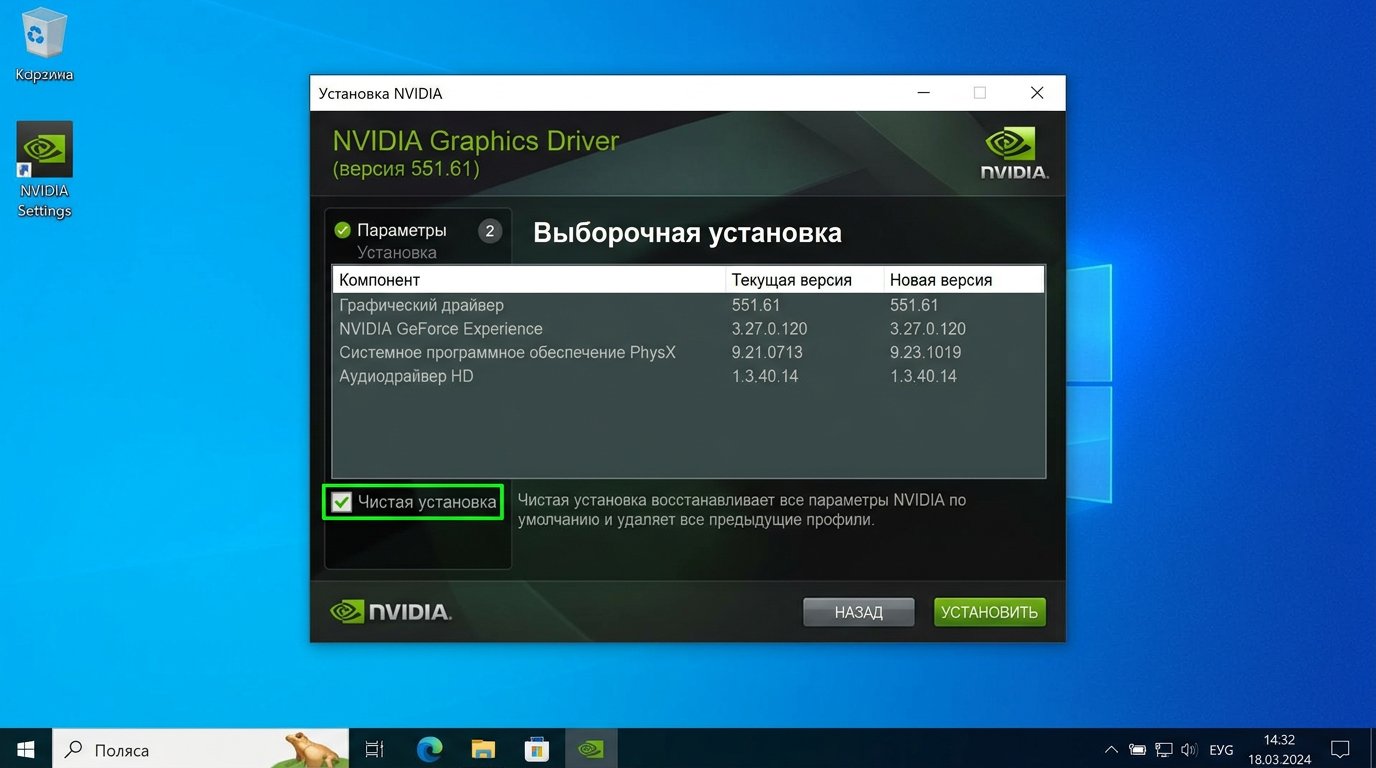
In the NVIDIA installer, choose a custom installation if you want to manage components and access the "Perform a clean installation" option. This checkbox removes previous NVIDIA Control Panel settings and reinstalls the selected driver components.
A clean installation doesn't delete OBS profiles and scenes, but it resets settings related to the driver and displays. Afterward, resolution, refresh rate, scaling, color range, multi-monitor settings, and 3D settings in the NVIDIA Control Panel may change.
A clean installation is chosen if a regular update didn't help, NVENC disappeared, OBS shows a black capture screen, or the driver was previously installed with errors. The downside of this method is that some graphics card settings will have to be restored manually. For a routine update without issues, it's usually not needed.
Restart your PC and check your display settings
After installation, restart your computer even if the installer doesn't explicitly require it. Before launching OBS, make sure Windows is using the correct resolution and refresh rate on each display. Check the monitor order, interface scaling, and HDR settings if they're part of your setup.
After a clean installation, open the NVIDIA Control Panel and compare the settings against your screenshots. Pay particular attention to scaling settings, color range, and game modes. The downside of manual comparison is that it takes time, but otherwise the cause of capture or image problems may go unnoticed.
Check NVENC and your OBS profile after the update
Open OBS and make sure the correct profile and scene collection are selected. Go to the output settings and check whether NVENC is available in the encoder list. Compare the preset, rate control, keyframe interval, profile, and recording settings against your screenshots.
If NVENC is missing, can't be selected, or OBS reports an encoder startup error, don't start your stream. First restart OBS and your computer, make sure the program is using the discrete graphics card, then check the driver version. The downside of this check is that it won't catch errors that only appear under game load.
Do a local test recording
Use a copy of your working scene or a separate test scene: add game capture, a webcam, browser sources, alerts, and the audio tracks you need. Launch the game in the mode you use for streaming: fullscreen, borderless, or windowed. After a driver update, the display mode can affect capture.
- check whether the game appears in the OBS preview;
- make sure the microphone and game audio go to the correct tracks;
- check the OBS stats for dropped rendering and encoding frames;
- assess the GPU and encoder load during gameplay;
- record a clip and watch it in full, including fast-moving scenes.
The downside of a local recording is that it doesn't test the network, the platform's server, chat bots, or widgets that only run during a live broadcast. But it lets you catch a black screen, audio desync, GPU overload, and NVENC failures before you go live.
Run a short test stream
If the platform allows it, run a private test or send the stream to a test channel. Leave it running long enough for overheating, memory leaks, frame drops, or a driver conflict with the game to show up after the map loads and active scenes are running.
The downside of a test stream is that it takes time and may leave an extra recording on your channel. Testing is more useful than watching the OBS preview: some problems only appear when gaming, encoding, network transmission, and browser sources all run at the same time.
How to roll back the driver via Device Manager
If NVENC disappeared after the update, dropped frames increased, or capture stopped working, first compare your OBS settings against your screenshots. Check the screen resolution, refresh rate, Windows scaling, and the discrete graphics card assignment for OBS.
The first rollback method is through Windows Device Manager. Open the display adapters section, select the NVIDIA graphics card, go to properties, and click "Roll Back Driver" on the driver tab. This method is convenient when Windows has saved the previous version.
The downside of rolling back via Device Manager is that the button may be inactive. This often happens after a clean installation, deletion of old files, or several updates in a row. In that case, use the saved installer for the previous driver.
How to restore the previous version using the NVIDIA installer
Close OBS, the game, and capture programs. Run the installer for the last stable driver version, select the components you need, and complete the installation with a restart. If components conflict, you can use a custom installation with the "Perform a clean installation" option.
The downside of a manual rollback is that the previous driver may not include a fix for a new game or support for recently added features. Don't install a random old version: go back to the one on which you've verified OBS, NVENC, and the games you use.
When you need DDU for a rollback
DDU, or Display Driver Uninstaller, isn't used for every update. The utility is needed when a regular reinstall and a clean NVIDIA installation don't fix the error: the driver won't install, NVENC stays unavailable, the system reverts to a different version, or crashes persist after a rollback.
Before running DDU, prepare the installer for the driver you need and a backup of OBS. Download the utility only from the developer's official resource. DDU is usually run in Windows Safe Mode; it removes the NVIDIA components, then you install the chosen driver version and restart your PC.
The downside of DDU is that it removes the driver more thoroughly than the standard installer. After the procedure, resolution, multi-monitor settings, and NVIDIA Control Panel settings may reset. Don't use this option right before a stream: afterward, you'll need to recheck NVENC, capture, local recording, and display settings.
What to save for diagnosing an NVENC error
If the rollback didn't help, save the OBS log before resetting your settings and note which game, scene, and action trigger the failure. Specify whether the error appears when starting a recording, starting a stream, capturing a game, or only under load. This will help distinguish a driver problem from a plugin, source, or OBS settings conflict.
Don't uninstall OBS or reset all your scenes at the first error. That step can wipe out your working configuration, plugins, and source settings without fixing the driver or NVENC problem.
Last Articles
What has changed in design and functionality We have updated the website to make working with it faster and more convenient. The main changes affect ..
Good afternoon, I've collected all the news during this time.: 1. The main news is that prices for twitch viewers have been greatly reduced, while Tw..
1. Use promo code "December2025" for a 15% discount for all our viewers2. We have reduced the base prices for our configurator and the most affordable..
Twitch services are working stably, so we are ready to cooperate with squads, resellers, service owners, bot owners, and many others.Individual te..
We have completely updated our Twitch viewer services, and they are now working stably. We only use high-quality IP addresses for the viewers.The ..
Hello everyone! Today, we are announcing a new feature—"Twitch Viewer Configurator". Now, you can customize any plan for your Twitch channel. Choo..
Greetings, I have compiled a guide for streamers, which will be very relevant at the moment. Now YouTube and twitch have disabled monetization from vi..
We have finally developed the APINow it will be more convenient for our partner sites to work with us.To update the maximum tariffs for YouTube, an up..
Due to the huge popularity of the partnership services and referral program, we have made a cooperation table. The essence is very simple: more live a..
Our Services for Streamers








Our Services for Content Creators






