
How to Add a Telegram Channel QR Code to Your Stream in OBS and Streamlabs
Which link you need for a Telegram channel QR code
A QR code contains the link that takes a viewer to your Telegram channel. For a public channel, a public address like t.me/channel_name works. You can use it in a permanent overlay: the link doesn't change, and the viewer immediately sees the channel page.
For a private channel, you need an invite link. It grants access to anyone who scans the code during the stream. The downside of this option is that the link can be forwarded beyond your audience. If access should be temporary, create a separate invite and revoke it after the stream.
Before generating the QR code, open the link on another device or in a browser without logging in. Check that it leads to the right channel and not to a personal profile, chat, or an old invite.
How to create a QR code file for the overlay
You can get a QR code using Telegram's built-in tools, if this feature is available in your version of the app, or through a QR code generator. Paste only the channel link, without any explanatory text. For OBS and Streamlabs, it's more convenient to save the result as a PNG: this file keeps crisp module edges when scaled.
- Copy the public or invite link to your Telegram channel.
- Paste the address into a QR code generator.
- Choose a square code with black elements on a white background.
- Save a PNG at least 800 by 800 pixels.
- Scan the file with your phone camera before adding it to the scene.
Don't crop the white margin around the QR code. This clear zone helps the camera separate the code from the background. A border is acceptable only on the outside: it must not overlap the white area or the code modules.
QR code design and size for streaming
For a Full HD scene with a 1920 by 1080 pixel canvas, aim for a code size of at least 200 by 200 pixels. This is the lower limit for a permanent overlay. A more reliable working range is 240–320 pixels per side, or roughly 12–17% of the frame width.
If the QR code is shown only during pauses, on the ending screen, or on a separate scene with a subscribe call-to-action, you can increase it to 350–500 pixels per side. The downside of a large block is obvious: it covers the game, camera, or subtitles. On the main scene, it's better to use a compact version and save the large one for pauses.
When streaming at 1280 by 720 pixels, don't scale the code down proportionally too much: try to keep at least 160–200 pixels per side. In this case, it's better to use a PNG file larger than the displayed size so the edges stay sharp after video encoding.
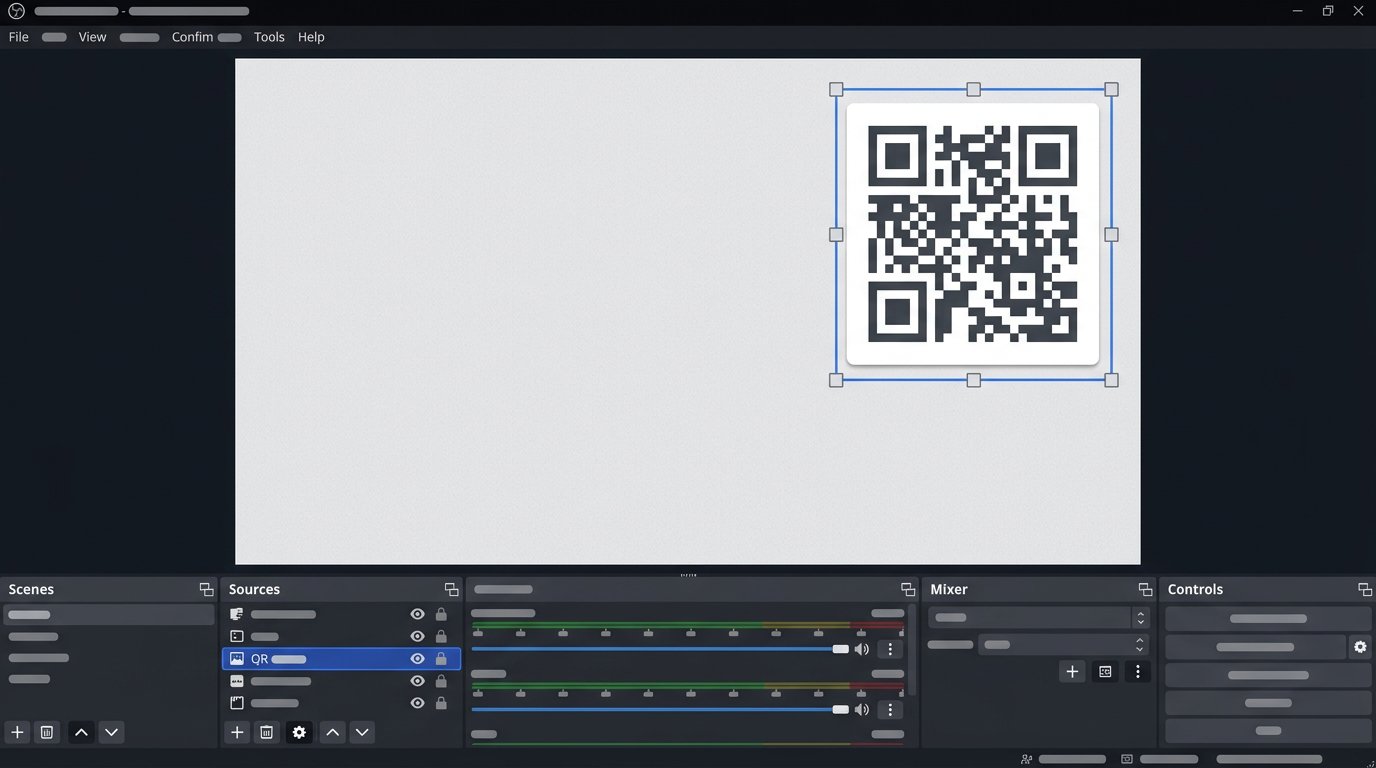
Where to place the QR code on the scene
Usually the QR code goes in a free upper or lower corner. Leave a margin from the frame edges: for 1920 by 1080, starting with 30–50 pixels is enough. Don't overlay the code on faces, the game interface, subtitles, subscription alerts, or the active chat.
The background behind the code should be solid. If the image in the chosen corner changes frequently, add an opaque light plate behind the PNG or move the block to another part of the scene. Transparency, gradients, neon colors, and animation behind the QR code make it harder to scan.
- Don't place text, icons, or frames over the QR code.
- Don't stretch the code by width or height separately.
- Don't use transparent modules or a light pattern on a dark background.
- Don't display several QR codes for different links next to each other.
How to add a QR code to OBS
First, create a folder for your stream design and put the PNG file there. Don't move it after setup: if OBS can't find the file at the same path, the source will become empty. It's convenient to keep variants for the main scene, pause, and ending screen nearby.
- Open the desired scene in OBS.
- In the Sources panel, click the add button and select Image.
- Name the source, for example "Telegram QR," and confirm creation.
- In the properties window, click to browse for the file and select the saved PNG.
- After adding, select the source in the preview and drag it to a free corner.
For precise adjustment, right-click the source, open the transform section, and select Edit Transform. On a 1920 by 1080 canvas, you can set the size to 280 by 280 pixels. For the upper-right corner with a 40-pixel margin, set the position to X 1600 and Y 40. Coordinates are measured from the upper-left corner.
How to scale and lock the QR code in OBS
Resize using the corner handles, not the side ones: this keeps the square proportional. If the original PNG has the correct shape but becomes rectangular after edits, reset the transform and scale again. A distorted QR code may look almost normal but stop scanning.
Once the position is set, enable the lock icon next to the source in the OBS list. This protects the QR code from accidental movement while working with the scene. The downside of locking is that when changing the design or canvas resolution, you must remember to unlock it and check the coordinates again.
If you only need the code periodically, toggle the eye icon off for the source or prepare a separate scene. A permanent code is easier to set up, but viewers quickly stop noticing it. A separate scene draws more attention but requires switching during the stream.
How to add a QR code to Streamlabs
In Streamlabs Desktop, the principle is the same: open the desired scene, add an image source in the sources list, and select the PNG file with the QR code. Once it appears on the canvas, move it to a corner and resize it using the corner handle.
For Full HD, set the displayed size within 240–320 pixels per side. If the editor shows position and size parameters, use the same guidelines as for OBS: with a 280 by 280 code and a 40-pixel margin, the upper-right corner will be at approximately X 1600 and Y 40.
After setup, lock the layer using the lock icon in the sources list. The downside is that a locked element is easy to forget when updating the scene. After changing the resolution, camera frame, or chat position, check that the QR code doesn't cover an important part of the frame.
Caption next to the QR code and display time
The code itself doesn't always explain to the viewer why they should scan it. Add a short caption nearby: "Announcements and recordings — on Telegram" or "Scan to subscribe." Place the text beside or below the code, but not over it. You don't need to duplicate the long Telegram address next to it.
Say the call-to-action out loud when the QR code appears on screen. The viewer needs time to open the camera, point it at the screen, and confirm the transition. A too-short insert between scenes may not produce results, even if the code itself is technically scannable.
A link in the stream description is needed as a fallback. Some viewers watch the stream on their phone and won't be able to scan the QR code from the same device. A regular link lets them go to the channel without a second screen.
How to check the QR code after Twitch or YouTube compression
Check the code not only in the OBS or Streamlabs preview window. Open a test recording or the actual stream on another device, select a standard viewing quality, and try scanning the code with your phone camera. Then repeat the check at a lower video quality.
- Check the QR code on a phone, tablet, and monitor screen.
- Make sure the camera reads it against both light and dark game scenes.
- Check that notifications, chat, or subtitles don't cover the code.
- Verify that the correct Telegram channel opens after scanning.
- If using an invite, make sure it isn't revoked or restricted.
If the code doesn't scan after platform compression, first increase it to 280–320 pixels for 1080p. Then remove transparency, background effects, and the thin border. If the problem persists, create a new PNG without a logo inside and check that OBS isn't stretching the image along one axis.
Mistakes when showing a QR code on stream
Don't show the code without context in the first minutes of the stream when the audience is still gathering. It's better to show it after a useful segment, during a pause, while talking with chat, or before ending the broadcast. Repeat the call-to-action at the right moment instead of keeping several competing links on screen.
Don't promise on Telegram what the channel doesn't have. If it publishes announcements, recordings, materials, or news, say so directly. An empty or rarely updated channel won't retain subscribers, even if the QR code is clearly visible and scans quickly.
To track conversions, you can use a separate link for streams if the chosen publishing method allows you to control it. For a public channel, the main link is often left without redirects: it's clearer to the viewer. The downside of third-party shorteners is that they can raise suspicion or open with a delay.
Last Articles
What has changed in design and functionality We have updated the website to make working with it faster and more convenient. The main changes affect ..
Good afternoon, I've collected all the news during this time.: 1. The main news is that prices for twitch viewers have been greatly reduced, while Tw..
1. Use promo code "December2025" for a 15% discount for all our viewers2. We have reduced the base prices for our configurator and the most affordable..
Twitch services are working stably, so we are ready to cooperate with squads, resellers, service owners, bot owners, and many others.Individual te..
We have completely updated our Twitch viewer services, and they are now working stably. We only use high-quality IP addresses for the viewers.The ..
Hello everyone! Today, we are announcing a new feature—"Twitch Viewer Configurator". Now, you can customize any plan for your Twitch channel. Choo..
Greetings, I have compiled a guide for streamers, which will be very relevant at the moment. Now YouTube and twitch have disabled monetization from vi..
We have finally developed the APINow it will be more convenient for our partner sites to work with us.To update the maximum tariffs for YouTube, an up..
Due to the huge popularity of the partnership services and referral program, we have made a cooperation table. The essence is very simple: more live a..
Our Services for Streamers








Our Services for Content Creators






