
OBS Break Scene: Setting Up a Return Timer
Why You Need a Separate Break Scene
A break scene separates a technical pause from the main part of the stream. Viewers can see that the broadcast is still running, understand why you're away, and keep track of when you'll be back. Instead of an empty frame, a frozen game, or an accidentally turned-on webcam, the stream shows a designed screen.
Typically, such a scene includes a background, a short message, a countdown, and music if needed. The main requirement is that switching should take a single action. If you have to manually change text, launch a separate website, or hunt for the right source before a pause, it's easy to put up the wrong timer.
How to Build a Basic Break Scene in OBS
Create a new scene in the Scenes panel and give it a clear name: "Break," "Pause," or BRB. The name won't appear in the stream, but it will help you avoid confusing it with your starting screen, ending scene, or technical template.
Add a background source: an image, a color plate, a short looping video, or an animation. Then place text with your break message and the timer. Leave some free space between elements, especially around the numbers. The timer should be readable not only on a monitor but also on a phone screen.
For vertical streams, it's better to make a separate scene. Moving a horizontal layout into a narrow frame usually results in text that's too small and elements that get cut off.
Which Sources Work for a Pause Screen
A minimal scene consists of a background, a message, and a countdown. That's enough for viewers to understand the state of the stream. Add extra elements only when they don't distract from the return time.
- An image works for a static background, frame, or branded design.
- A media file is used for a video background, animation, or a pre-made countdown clip.
- A text source is needed for static messages: "Break" or "Back soon."
- A browser source displays a timer widget or a local HTML page.
- A separate audio source lets you play music only during the pause.
The downside of a complex scene is the load on your computer. Multiple videos, animations, and browser pages can cause lag when switching or dropped frames. If your stream is already pushing your resources to the limit, stick with a static background and a single timer source.
A Static Message Instead of a Precise Timer
The simplest option is a text source with the phrase "Back in a few minutes." You can style it using OBS tools: choose a font, color, outline, shadow, and alignment. This approach works for very short pauses when precision doesn't matter.
This solution has a clear downside: the message doesn't change on its own. If the break runs long or ends early, viewers will see outdated information. Plus, you'll have to edit the text before every pause if you include a return time.
Avoid writing an exact time as plain text if your plans change often. A message like "I'll be back at a specific time" looks worse than an empty timer when the promise doesn't match how the stream actually goes.
Timer via an OBS Browser Source
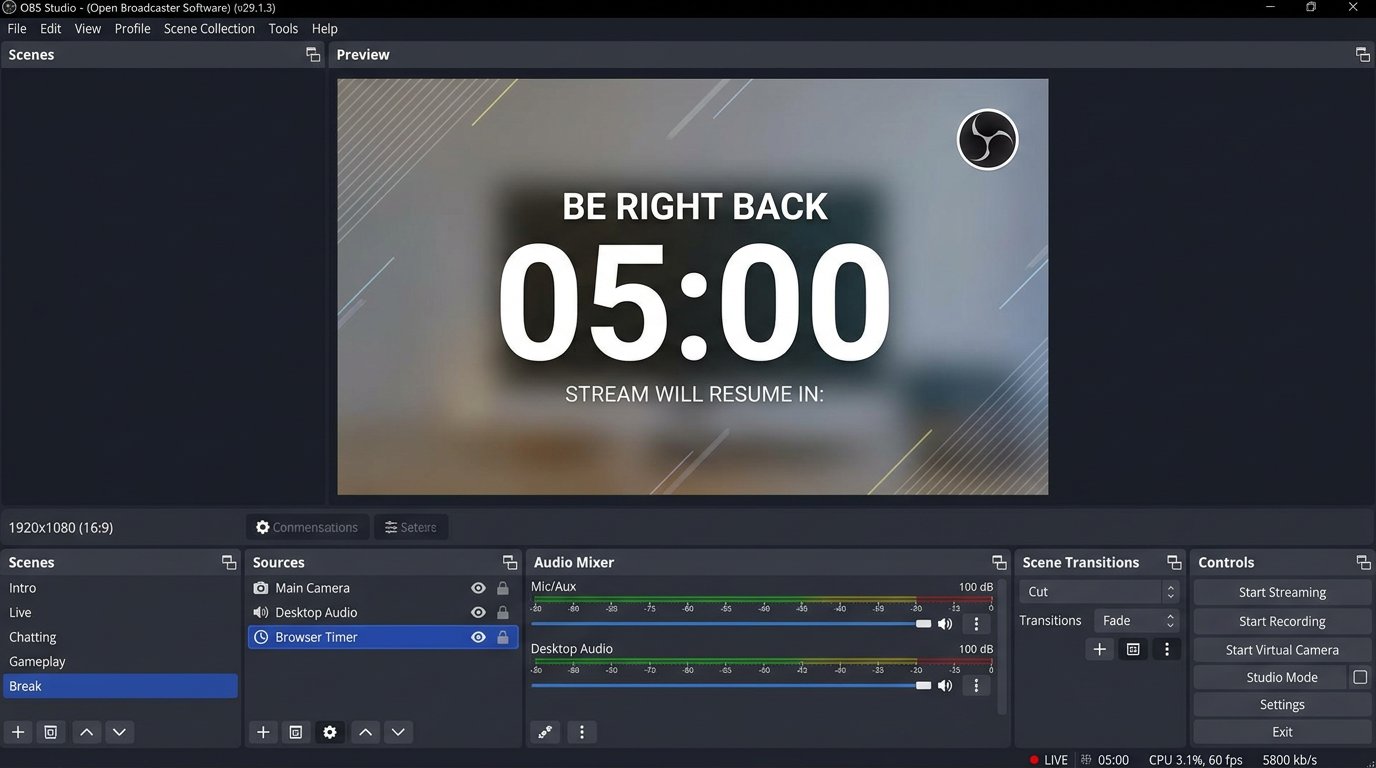
A browser source lets you display a countdown in OBS from a widget or web page. In the settings of the chosen service, you usually set the duration, font, colors, and background transparency, then get a link to paste into OBS.
Add a new "Browser" source, paste the page address, and set the dimensions to match the timer area in your layout. Don't stretch a small widget across the entire screen: the numbers may lose clarity, and hidden page interface elements sometimes become visible in the frame.
- Set the duration and appearance of the timer in your chosen widget.
- Copy the link for the browser source.
- Create a new browser source in OBS and paste the address.
- Set the width and height to match your layout.
- Check the background, number size, and element position in the preview.
- Do a short local recording and review the final frame.
Check when the countdown starts. Some pages start the timer immediately after loading, while others save its state. If the source runs in the background, the countdown may finish before you even switch to the break scene.
Restarting the Timer When Switching to the Scene
For pauses of the same length, configure the browser source so the page refreshes when the scene is activated and, if needed, unloads when the source is hidden. The exact wording of the settings may differ between OBS versions, but the idea is the same: on a new switch, the page opens fresh and starts a new countdown.
Assign a separate hotkey for the break scene and another for returning to the game, camera, or talk scene. That way, you can start a pause without searching for the right item in the OBS interface.
The downside of automatic restart is the fixed duration. If you need a short pause today and a longer one next time, you'll have to change the widget setting, switch to another source, or use separate scenes for different intervals.
Manually Refreshing the Source for Pauses of Different Lengths
If your break lengths vary, you can refresh the browser source manually. First change the value in the widget or local file, then refresh the source page, and only then switch to the scene.
This approach gives you more control: you can set the desired pause length each time. But it has a downside — during a live stream, it's easy to skip a step. For example, you change the timer value but forget to refresh the browser source. As a result, the old countdown ends up in the stream.
To avoid checking this while already live, enable preview mode or do a short local recording. Make sure the timer starts from the right value and doesn't show the remainder from a previous break.
Local HTML Timer Without an External Service
A local HTML page is stored on your computer and opened in an OBS browser source. It doesn't need the internet, and you can change its appearance and duration in a regular text editor. This is convenient if you don't want to depend on a third-party site being available.
In the file, you create a block for displaying the time and a script that decreases the seconds count once per second. The starting value is set in seconds: for example, for a five-minute pause, you specify the corresponding number of seconds. After the countdown ends, you can display a "Back soon" message instead of the numbers.
Add a browser source, enable the use of a local file, and select the HTML page you created. If the page's styles specify a transparent background, only the numbers and text will remain in the stream, and the scene background will show through underneath.
How to Change the Duration of a Local Timer
For a new break, open the HTML file, change the starting number of seconds, save your changes, and refresh the browser source in OBS. If refresh on scene activation is enabled, the new version may load when you switch to it. This needs to be checked separately: the behavior depends on the source settings and the page itself.
The local file must be checked after every code change. A script error, an incorrect path, or a disabled local file mode can leave an empty area on the scene instead of a timer.
The downside of this method is having to edit the file manually. It's not as convenient for a streamer who doesn't want to deal with HTML and JavaScript. For simple tasks, a ready-made widget is faster to set up.
Countdown to a Return Time and a Pre-Made Video
A timer can count down not to a fixed duration but to a specific time. This option is useful for a long scheduled pause. The page compares the computer's system time with the set return time and shows the remaining interval.
The downside of counting down to an exact time is its dependence on the system clock and the streamer's plans. If the computer's time is set incorrectly or the break has to be extended, the data on the scene will be wrong. For short pauses, a fixed countdown is usually simpler and more reliable.
Another option is a pre-made video with a background, animation, and countdown. Add it as a media source and enable restart on scene activation. The advantage is a minimum number of sources in OBS. The downside is that the video's duration can't be changed quickly, and after the video ends, you'll need a loop, a new scene, or another source.
Audio, Microphone, and Privacy During a Break
Switching to a break scene doesn't always turn off global audio devices. The microphone, system sound, voice chat, and notifications can stay in the stream even if the camera and game are hidden. Check how your sources behave in the mixer in advance.
If you need silence during the break, mute or disable the microphone with a separate action or a scene setting. If you plan to play music, use only content you have the rights to stream. The downside of music is that it can interfere with communication in voice channels, distract viewers, and create problems for stream recordings.
Also make sure the scene doesn't capture your desktop, a messenger window, the notification panel, or a camera source. The break screen should hide not only the picture but also everything you don't plan to show viewers.
Checking the Scene Before Going Live
- The timer is readable on a phone and isn't covered by other elements.
- The countdown starts after switching to the scene, not in the background.
- The browser source refreshes correctly before a new break.
- Hotkeys don't conflict with the game, capture software, or audio controls.
- The scene has no webcam, desktop, private messages, or notifications.
- The microphone, system sound, and music work as intended for the pause.
- After the countdown ends, viewers can tell that the stream is still running.
Last Articles
What has changed in design and functionality We have updated the website to make working with it faster and more convenient. The main changes affect ..
Good afternoon, I've collected all the news during this time.: 1. The main news is that prices for twitch viewers have been greatly reduced, while Tw..
1. Use promo code "December2025" for a 15% discount for all our viewers2. We have reduced the base prices for our configurator and the most affordable..
Twitch services are working stably, so we are ready to cooperate with squads, resellers, service owners, bot owners, and many others.Individual te..
We have completely updated our Twitch viewer services, and they are now working stably. We only use high-quality IP addresses for the viewers.The ..
Hello everyone! Today, we are announcing a new feature—"Twitch Viewer Configurator". Now, you can customize any plan for your Twitch channel. Choo..
Greetings, I have compiled a guide for streamers, which will be very relevant at the moment. Now YouTube and twitch have disabled monetization from vi..
We have finally developed the APINow it will be more convenient for our partner sites to work with us.To update the maximum tariffs for YouTube, an up..
Due to the huge popularity of the partnership services and referral program, we have made a cooperation table. The essence is very simple: more live a..
Our Services for Streamers








Our Services for Content Creators






