
Setting up NVIDIA NVENC AV1 in OBS and checking platform compatibility
When the NVIDIA AV1 encoder is available in OBS
AV1 in OBS is encoded through the NVIDIA NVENC hardware block. Having an NVIDIA graphics card doesn't by itself mean the format is supported: many models can encode H.264 and HEVC but don't have a hardware AV1 encoder.
On NVIDIA consumer graphics cards, hardware AV1 encoding appeared in the GeForce RTX 40 lineup. You also need an up-to-date NVIDIA driver and a version of OBS Studio that recognizes the encoder.
If NVIDIA NVENC AV1 isn't in the OBS encoder list, you can't enable it with a separate setting. The cause is usually the graphics card model, an old driver, or an outdated version of OBS.
What to update before setting up AV1
Close OBS, update the graphics card driver from the official NVIDIA website, and restart your computer. After the restart, OBS will detect the available NVENC capabilities again.
Then update OBS Studio. This matters for portable builds: the program installed on the system and OBS from a separate folder can turn out to be different versions. An old build may not show AV1, may not support the required streaming protocol, or may lack current output settings.
You shouldn't add AV1 through third-party plugins if the graphics card doesn't support it in hardware. A software AV1 encoder puts a serious load on the CPU. In a game, this can cause dropped frames, increased latency, and lower FPS.
How to select NVIDIA NVENC AV1 in OBS
Open OBS and go to "Settings" — "Output". In simple mode, the encoder selection is in the streaming settings. To manually configure bitrate, preset, and keyframes, switch the output mode to advanced and open the "Streaming" tab.
- Select the service in OBS or enter the server from the platform's official documentation.
- Configure the streaming protocol that the platform accepts.
- In the "Encoder" field, select NVIDIA NVENC AV1.
- Set the resolution, FPS, and bitrate within the service's limits.
- Save the settings and run a private or test stream.
Don't confuse NVIDIA NVENC AV1 with AOM AV1 and x264. AOM AV1 runs on the CPU and is better suited for recording or leisurely encoding. x264 is a software H.264 encoder. NVENC AV1 uses a dedicated block on the graphics card and usually has less impact on game performance.
Which platforms accept AV1 from OBS
AV1 support needs to be separated into accepting the incoming stream and delivering video to viewers. A platform may use AV1 for recordings, VOD, or browser playback but not accept AV1 directly from OBS through an ingest server.
YouTube Live accepts AV1 for live streams as long as stream parameter requirements are met. The codec, connection status, and incoming signal quality are checked in the stream control panel. The platform may transcode the stream for viewers, so AV1 on the input doesn't mean AV1 in every viewer's player.
Twitch uses AV1 through Enhanced Broadcasting. This isn't just selecting AV1 in OBS: the mode can send multiple stream variants for different viewer devices. The downside is that the feature depends on OBS compatibility, the graphics card, channel settings, and the availability of the mode itself on Twitch.
Why you can't assume AV1 is available on any platform
On many services, AV1 may only be available for playback, uploaded videos, or internal transcoded versions. Standard RTMP ingest, meanwhile, may accept only H.264. A mention of AV1 in a platform's news doesn't confirm support for an incoming AV1 stream.
For live streams, rely on the official requirements of YouTube Live and Twitch Enhanced Broadcasting. If another service's documentation doesn't list AV1 among supported incoming video codecs, assume AV1 ingest isn't declared. Experimenting with your main stream in that situation is risky: the server may reject the connection or stop the broadcast after it starts.
The downside of H.264 compared with AV1 is that at the same bitrate, the picture more often loses detail in motion. But H.264 remains the most predictable option for platforms that don't publish AV1 ingest requirements.
How to check AV1 support for a specific service
Open the official creator help, the encoder setup section, or the ingest server documentation. Look for AV1, encoder settings, ingest, live streaming, RTMP, Enhanced RTMP, SRT, or Enhanced Broadcasting. You need the requirements for live streams specifically, not for uploaded videos.
- Confirm whether the service accepts AV1 for live streaming.
- Check the allowed delivery method: RTMP, Enhanced RTMP, SRT, or another protocol.
- Verify the permitted resolution, FPS, and maximum bitrate.
- Find out the required keyframe interval and bitrate control mode.
- Check the audio requirements: codec, sample rate, and number of channels.
- See whether beta access, Enhanced Broadcasting, or a separate ingest server is required.
If the documentation lists AV1 only as a playback codec, that isn't ingest support. If the platform doesn't publish requirements at all, you can run a test, but it doesn't replace official compatibility: the service's parameters may change without warning.
Bitrate and basic NVENC AV1 settings
AV1 is more efficient than H.264 at the same bitrate, but it doesn't remove platform limits or internet connection constraints. To start, take the bitrate from the service's requirements rather than carrying over values from H.264 settings without checking. Fast-paced games require more data than a talk stream or a static scene.
For most platforms, constant bitrate — CBR — is suitable. It makes the stream predictable for the ingest server. The downside of CBR is that the encoder can't significantly save bandwidth on static scenes and must not exceed the set limit during complex moments.
The keyframe interval is often set within the range the platform requires. Don't set the value at random: keyframes that are too infrequent can worsen viewer connection, seeking, and server-side stream processing.
How to choose the preset and NVENC options
A faster preset reduces the load on the graphics card. It's useful when the game uses the GPU almost fully. The downside of this option is that fine details are lost faster in motion: grass, particles, textures, and thin interface lines.
A quality-focused preset preserves the picture better at the same bitrate but requires more GPU resources. If OBS stats show encoding-related dropped frames, first choose a faster preset. If that isn't enough, lower the FPS or resolution rather than raising the bitrate above the platform's limit.
Enable look-ahead, psycho-visual tuning, and multi-pass encoding only after a separate test. These options can improve detail but increase the load on the GPU. For a competitive game, a stable stream matters more than a small difference in quality.
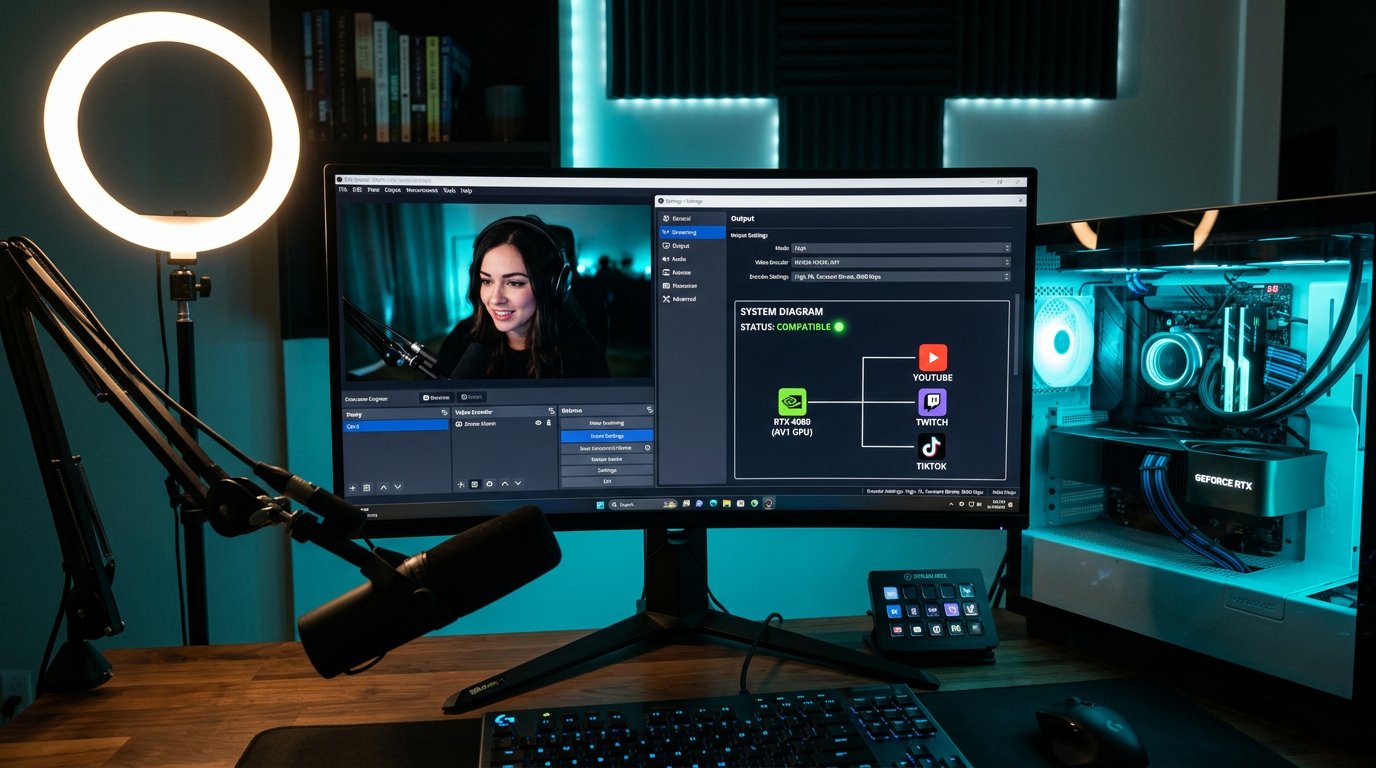
Test stream and signs of ingest server rejection
Start a private stream, a stream with limited visibility, or a test on a separate channel if the platform allows it. First make sure OBS has established a connection and the creator panel shows an incoming video signal. Then check which codec the service detected.
Signs of AV1 ingest problems: OBS can't connect to the server, the platform shows an unsupported codec error, the stream stays without video, the creator panel doesn't see the signal, or the broadcast ends shortly after starting. Such errors also occur with a wrong server URL, stream key, protocol, or audio codec, so verify the entire configuration.
In OBS, open the stats window. Rendering drops indicate GPU overload. Encoding drops point to NVENC settings that are too heavy. Dropped network frames are related to upload, the route to the server, or an unstable connection. These are different problems and are fixed differently.
How to check the codec and playback for viewers
After starting, open the stream from another device and check the resolution, FPS, audio, latency, and player stability. On YouTube, the player menu offers stats for nerds: AV1 is usually labeled av01. On other platforms, look for player stats, the creator diagnostic panel, or incoming signal details.
Don't confuse the incoming codec with the viewer codec. The platform may accept AV1 from OBS and then deliver H.264, VP9, or another variant to the viewer after transcoding. This is a normal scheme: the service selects the stream for the device, browser, resolution, and available connection.
Check the stream not only on your main computer but also on an old phone, TV, or browser without up-to-date hardware AV1 decoding. If the platform doesn't create compatible versions, the viewer may see a black screen, constant buffering, high device load, or no available quality.
What to do if you have problems with AV1 streaming
If OBS lets you select NVENC AV1 but the service rejects the stream, first check the protocol and the ingest server address. Some platforms accept AV1 only through a separate mode or a special server, while the standard OBS profile sends the stream through the usual scheme.
If the stream starts but encoding drops appear, lower the NVENC preset and limit the game's FPS. Don't leave the graphics card with zero headroom: the game, browser, screen capture, OBS filters, and the encoder all use the same GPU.
When the stream looks worse than expected, don't change resolution, FPS, bitrate, and preset all at once. First compare a recording of the same fragment with identical settings, then check the result on the platform. Server-side transcoding can change the picture more than the choice of a specific NVENC option.
Last Articles
What has changed in design and functionality We have updated the website to make working with it faster and more convenient. The main changes affect ..
Good afternoon, I've collected all the news during this time.: 1. The main news is that prices for twitch viewers have been greatly reduced, while Tw..
1. Use promo code "December2025" for a 15% discount for all our viewers2. We have reduced the base prices for our configurator and the most affordable..
Twitch services are working stably, so we are ready to cooperate with squads, resellers, service owners, bot owners, and many others.Individual te..
We have completely updated our Twitch viewer services, and they are now working stably. We only use high-quality IP addresses for the viewers.The ..
Hello everyone! Today, we are announcing a new feature—"Twitch Viewer Configurator". Now, you can customize any plan for your Twitch channel. Choo..
Greetings, I have compiled a guide for streamers, which will be very relevant at the moment. Now YouTube and twitch have disabled monetization from vi..
We have finally developed the APINow it will be more convenient for our partner sites to work with us.To update the maximum tariffs for YouTube, an up..
Due to the huge popularity of the partnership services and referral program, we have made a cooperation table. The essence is very simple: more live a..
Our Services for Streamers








Our Services for Content Creators






