
Displaying a Twitch Poll in OBS: Widget Setup and Pre-Broadcast Check
What You Need to Display a Twitch Poll in OBS
A poll is created and launched in the Twitch dashboard. The overlay doesn't run the vote itself: it receives data from the active poll and displays the question, options, voting progress, or the final result on screen.
OBS doesn't receive poll results directly, so you need a widget in an overlay service, your own web page, or a window capture of a browser with the Twitch dashboard. For regular broadcasts, a widget added as a browser source is usually used.
The widget only receives data after a poll is launched on Twitch. Without an active vote, it may be empty, hidden, or show a placeholder — this depends on the selected template.
How to Launch a Poll in the Twitch Dashboard
Open the Twitch creator dashboard and find the viewer engagement tools. In the polls section, set the question and answer options, and launch the vote. Item names in the interface may change, but the order stays the same: first the poll is launched on the channel, then the overlay picks it up.
Make sure the vote is created on the same channel that's connected to the overlay service. If the widget is authorized through a different Twitch account, OBS will show an empty block or data from another channel.
Ways to Show Voting Results
- A widget in an overlay service. You can configure it in the editor, get a display link, and add it to OBS. The downside is that styling, states, and animations are limited by the template's capabilities.
- Your own browser overlay. The page receives Twitch events and is styled to match the channel. The downside is that it requires development, authorization support, and bug fixes after API changes.
- Window capture of the Twitch dashboard. Suitable for a one-time display of the result. The downside is that service elements, notifications, and personal data may end up in the frame.
Setting Up the Poll Widget in an Overlay Service
Connect your Twitch account to the chosen service via authorization. In the overlay editor, add a Twitch poll widget and open its settings. It's more convenient to create a separate layer or a separate overlay scene for it: that way the block is easier to disable without changing other design elements.
Typically, the widget lets you configure the font, colors, background, padding, percentages, progress bars, and animation. For a gaming stream, readability matters more than elaborate styling: long answer options don't look good on a small card.
Choose the display scenario in advance. The widget can show the voting progress, switch to the winning option after completion, or hide itself. Automatic hiding is convenient, but the result may disappear before you have time to discuss it with viewers.
How to Add the Widget Link to an OBS Browser Source
After saving the overlay, copy the link for browser display. Don't use the editor page URL: such a link opens the settings, not the ready-to-broadcast layer.
In OBS, add a new browser source to the desired scene, paste the display link, and set the canvas size specified in the widget settings. Place the source above the game and camera in the sources list, then check it in the preview.
If the source is only needed for polls, don't merge it with a permanent overlay unless necessary. A separate source is easier to hide quickly when the card is empty or there's a styling error. The downside is that the scene ends up with more elements to keep track of.
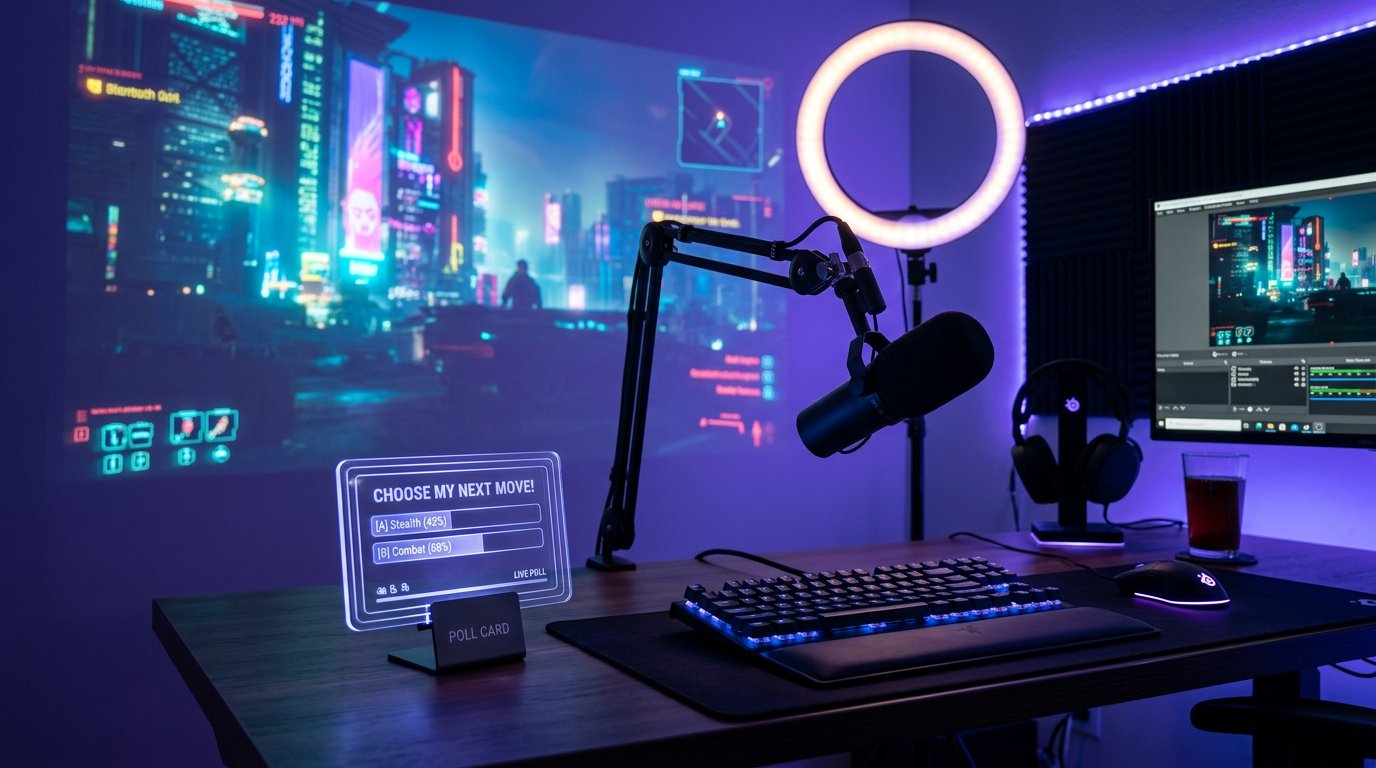
Source Size, Cropping, and Transparent Background
The browser source size sets the page's working area, not necessarily the size of the card itself. Some widgets are rendered on a large transparent canvas, so there may be empty space around the poll. This is normal as long as the empty area doesn't cover other sources.
If the card is positioned awkwardly, move the source itself or crop the excess edges in OBS. Cropping is useful for a compact block, but after changing the font, text, or template, the boundaries may need to be adjusted again.
Transparency is set in the widget settings, not by the browser source size. Choose a transparent background if the template supports it. If a solid rectangle is visible, check the card background and the page background in the editor. Not every template allows you to remove the backing — that's a direct downside of it.
Where to Place the Poll on the Stream Screen
Don't place the card over the game interface: the map, health bars, subtitles, game hints, or notifications. On a talk show, the block is often placed next to the camera, while on a gaming stream — in the free upper part of the frame.
Check the placement with a long question and several options. A compact template saves space but may wrap wording onto several lines, cut off names, or squeeze the percentages. If the text is hard to read, first shorten the options in the poll itself.
How to Test the Widget Before Going Live
Don't limit yourself to viewing the card in the service editor. Create a test poll on Twitch, launch it, and open the scene in the OBS preview. It's the active vote that shows whether the widget has connected to the channel and is receiving events.
- Launch a test poll with a short question and two options.
- Make sure the card appears in OBS after the vote starts.
- Check whether the percentages or bars change after votes.
- End the poll and see whether the final screen appears.
- Create a new test poll to make sure the old data has been cleared.
Additionally, check a poll with no votes, long options, and a tie between several answers. Such states may look messy: the template sometimes shows zero bars, empty fields, or strange animation.
How to Tell the Widget Has Picked Up the Active Poll
After launching a test vote, the card should appear in the OBS browser source without manually entering the question. If the widget shows the poll name, options, and changing values, the connection is working. You don't have to broadcast the scene to check: the OBS preview is enough.
If the widget shows the poll in a regular browser but stays empty in OBS, the problem is most often related to the browser source. Refresh the source page, restart OBS, or create a new source with the same display link.
It's better to run a test poll before going live, not in front of viewers. That way you can spot an empty card, incorrect placement, and stale data before they make it into the broadcast.
Why the Widget Doesn't Show the Poll or Doesn't Update
- The poll isn't launched in the Twitch dashboard. The widget doesn't create a vote itself and doesn't receive data without an active event.
- The wrong Twitch account is connected to the overlay service. Double-check the channel in the authorization settings and reconnect it if necessary.
- The editor link was pasted into OBS instead of the display link. Copy the address intended for the browser source or view mode.
- The browser source has cached an old version of the page. Clear its cache, reload the page, or delete the source and add it again.
- The previous poll is still displayed in the dashboard, or the widget hasn't processed its completion. End the vote, wait for it to update, and run a new test.
- The source is below the game capture, camera, or another overlay. Move it higher in the scene's sources list.
Showing and Hiding the Card During the Broadcast
Even with automatic hiding, it's useful to keep manual control in OBS. The browser source's visibility can be toggled in the sources list. This helps remove a placeholder, keep the final result on screen longer, or hide the card before the next poll starts.
For quick control, assign a hotkey to show and hide the source, or prepare a separate scene with the poll. A hotkey is convenient on top of the main scene, but it can be pressed by accident. A separate scene gives you more control, but you'll have to keep the current game, camera, and other sources up to date in it.
Channel Access and the Overlay Link
The browser overlay link may contain a unique identifier. Don't show it on screen, post it in chat, or add it to public documents. If the address has become publicly available, create a new link in the service and replace it in OBS.
Periodically check the connected apps in your Twitch settings and disconnect services you no longer use. Displaying a poll requires access to channel data, but it's better not to leave extra permissions active.
Last Articles
What has changed in design and functionality We have updated the website to make working with it faster and more convenient. The main changes affect ..
Good afternoon, I've collected all the news during this time.: 1. The main news is that prices for twitch viewers have been greatly reduced, while Tw..
1. Use promo code "December2025" for a 15% discount for all our viewers2. We have reduced the base prices for our configurator and the most affordable..
Twitch services are working stably, so we are ready to cooperate with squads, resellers, service owners, bot owners, and many others.Individual te..
We have completely updated our Twitch viewer services, and they are now working stably. We only use high-quality IP addresses for the viewers.The ..
Hello everyone! Today, we are announcing a new feature—"Twitch Viewer Configurator". Now, you can customize any plan for your Twitch channel. Choo..
Greetings, I have compiled a guide for streamers, which will be very relevant at the moment. Now YouTube and twitch have disabled monetization from vi..
We have finally developed the APINow it will be more convenient for our partner sites to work with us.To update the maximum tariffs for YouTube, an up..
Due to the huge popularity of the partnership services and referral program, we have made a cooperation table. The essence is very simple: more live a..
Our Services for Streamers








Our Services for Content Creators






