
Bitrate drops for some viewers during a stable broadcast
Why a stable broadcast doesn't give everyone the same quality
A stable outgoing signal means the platform receives your stream without noticeable loss, drops, or encoder overload. But after ingestion, the broadcast goes through processing, is distributed across delivery servers, travels through provider networks, and only then reaches the viewer's player.
So when part of the audience watches at maximum quality while another part gets reduced resolution or bitrate, that doesn't prove a problem in OBS, the encoder, or your outbound internet. Often the player lowers quality on its own to keep playback going without long stalls.
How adaptive bitrate selects quality
The platform may generate several renditions of a single broadcast: with different resolution, frame rate, or bitrate. The viewer's player assesses how quickly video segments load, how much data remains in the buffer, whether there are losses, and whether the device can handle decoding.
Auto-selection is based on actual segment delivery, not on the speed in the viewer's plan. Fast home internet doesn't rule out an overloaded Wi‑Fi, a poor route to the server, or brief packet loss.
- After several slow segments, the player usually switches to a lighter rendition.
- Returning to high quality may happen with a delay to avoid triggering new buffering.
- With unstable speed, quality can change even for a single viewer during a broadcast.
First, separate a low selection from a missing rendition
It's important to understand whether the desired quality exists on the platform at all. Ask the viewer to open the list of available options in the player and, if the platform allows, the technical stats. You need the current resolution and bitrate, buffer state, dropped frames, and the time when quality dropped.
Compare the data from at least several viewers. If everyone sees the same set of renditions but one person stays on low quality in automatic mode, the source and transcoding are probably working. Then you need to check stream delivery and that specific person's viewing conditions.
If some viewers don't have the high rendition even in manual selection, check the broadcast dashboard and the stream recording. Perhaps the platform didn't generate all quality options, restricted them for a specific region, or stream processing ran with an error.
Check outbound stream settings and keyframes
Even if complaints don't come from everyone, check the broadcast metrics: network-related dropped frames, encoder overload, outbound bitrate fluctuations, reconnects, and warnings in the platform dashboard. A brief hiccup on your side may not interrupt the broadcast but can affect the processing of individual segments.
Verify the codec, resolution, frame rate, keyframe interval, and bitrate mode against the platform's recommendations. For adaptive delivery, a predictable stream structure is especially important: it's easier for the platform to prepare renditions when keyframes arrive at the expected interval.
Don't change all parameters at once. The downside of that approach is that you won't know which change affected the result, and the picture for the whole audience may get worse due to an attempt to fix a local complaint.
Check the available quality renditions
Before the next broadcast, make a short list of what the platform actually serves to viewers. Open the stream from several devices or ask acquaintances on different networks to check the quality menu. Separately note whether the source rendition is available, whether there are options below it, and whether their set changes after the broadcast starts.
- Compare the quality list in a browser, an app, and on a TV device if your audience watches there.
- Check whether the set of renditions differs for viewers from different regions.
- Look at the recording after the broadcast: sometimes renditions in the live player and in VOD behave differently.
- Don't assume that manually selecting the maximum will solve the viewing problem.
Forcing high quality is useful as a test. Its downside is that the player stops compensating for network instability: instead of lowering the bitrate, the viewer may get constant buffering.
CDN and routes to the viewer: how to tell the problem apart
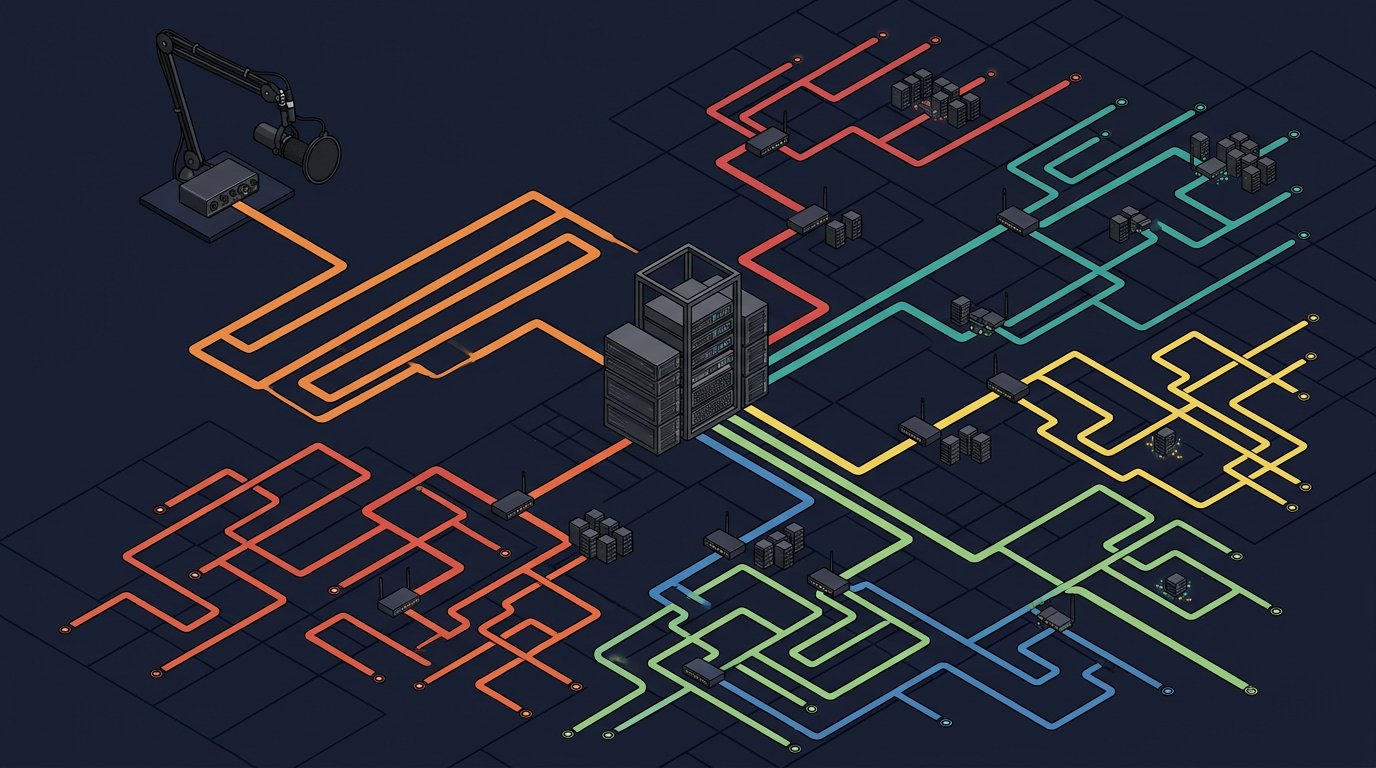
After transcoding, the platform distributes the broadcast through a network of delivery servers. The viewer lands on one of the CDN nodes and then receives segments through their provider's network. The problem may be at the delivery node itself or on the segment between the CDN and the provider. To a streamer, these cases often look the same: complaints come from one region or from subscribers of one network.
A sign of a delivery problem is when viewers with a different provider or from another city watch the same broadcast in high quality, while the affected group sees bitrate drops or the buffer fills too slowly. A regular speed test isn't always useful here: it may test a server that traffic reaches via a different route.
Changing the broadcast server sometimes changes the path from you to the platform and indirectly affects further processing. The downside of this action is that the route may get worse for you, while the problem for a specific viewer provider remains the same.
How to check a viewer's network without complex diagnostics
To check, you don't need to make the viewer figure out traces and network logs. A reproducible comparison is enough: the same broadcast, the same time, the same selected quality, and two different networks. For example, home internet and a mobile network without a VPN.
- Ask the viewer to note the time, the selected quality, and whether buffering occurs.
- Have them open the stream via the home network and wait for quality to drop or playback to stop.
- Then repeat viewing via another network without changing the device or browser.
- If quality is noticeably better on the second network, note the first network's provider and region.
- Repeat the test with another viewer on the same provider if possible.
Such a test helps identify a network dependency but doesn't pinpoint the exact faulty node. Its downside is that a mobile connection can also be unstable and changes the route along with delivery conditions.
Wi-Fi, VPN, and the viewer's home load
Low bitrate isn't always related to the external provider. Home Wi‑Fi can lose stability due to distance from the router, a congested band, interference, old equipment, or simultaneous downloads. The situation is especially typical when games, backups, updates are being downloaded on the same network, or other video is being watched.
To check, the viewer should temporarily disable VPN, proxies, and extra downloads, move closer to the router, or switch to a wired connection. If possible, it's useful to compare viewing over Wi‑Fi and over cable. The downside of the check is that it requires access to the viewer's network and won't help if the problem is on the platform side.
Browser extensions, blockers, antivirus filters, and corporate networks can also interfere with segment loading. Don't declare them the cause without comparison: first you need a test in a clean browser profile, another browser, or the official app.
Browser and device can limit quality
If the network looks fine but the player stats show dropped frames, the cause may be the device. An old processor, overheating, lack of memory, driver conflicts, or disabled hardware decoding prevent playback of a heavy rendition. In this situation, the player sometimes lowers quality even though segments load fast enough.
The viewer should close heavy applications and extra tabs, restart the browser, update it, and compare viewing on another device. For TVs and consoles, it's useful to check the stream in another app or on a computer via the same network. If quality is higher on the second device, that doesn't prove the first one is faulty but narrows the search to the client.
The downside of such a test is that a new device often differs not only in performance but also in browser, codec, and network settings. The result is better considered together with the player stats, not separately.
How to collect data from viewers for support
A single complaint doesn't show a pattern. You need the same data from several people, otherwise you can't distinguish a random home network dip from a recurring delivery problem. It's more convenient to collect it in one table or form so you don't have to search for messages in chat.
- Time the problem started and the time zone.
- A link to the stream or recording with the problematic moment.
- Country, city, and internet provider.
- Network type: cable, Wi‑Fi, mobile internet.
- Device, browser, or app.
- Automatic or manual quality selection.
- A screenshot of the player stats if available.
For support, matches by time, region, provider, and specific quality rendition are especially valuable. The phrasing "viewers are lagging" doesn't allow checking the route, delivery node, or stream processing.
When to contact platform support
Contact support if your stream is stable, quality renditions are generated, and complaints repeat among viewers from the same network, region, or on the same type of device. In the request, include the broadcast ID or link, exact problem intervals, viewer data, and player screenshots.
Separately describe what has already been checked: no VPN, a test via another network, a comparison of manual and automatic quality, the presence of renditions for viewers without complaints. This reduces the number of standard follow-up questions and helps pass the request to the technical team.
The downside of contacting support is that a temporary glitch may disappear before it's checked. So it's more important not to wait for the next complaint but to save data during the problematic broadcast.
Checklist before changing stream settings
- Check dropped frames, encoder load, and outbound bitrate stability in OBS or other software.
- Verify stream parameters against the platform's recommendations, including keyframes and codec.
- Make sure the platform has generated the required quality renditions.
- Compare available qualities among several viewers from different regions and networks.
- Ask the affected viewer to check the stream without a VPN and via an alternative network.
- Compare viewing in another browser, app, or on another device.
- Collect the time, provider, region, and player stats for recurring complaints.
- Change the broadcast server or encoding parameters only after recording the baseline data.
- If the problem is tied to a region, provider, or rendition, pass the collected data to platform support.
This order doesn't guarantee that the source of the issue will be found immediately, but it keeps you from spending broadcasts on random changes to bitrate, resolution, and broadcast server.
Last Articles
What has changed in design and functionality We have updated the website to make working with it faster and more convenient. The main changes affect ..
Good afternoon, I've collected all the news during this time.: 1. The main news is that prices for twitch viewers have been greatly reduced, while Tw..
1. Use promo code "December2025" for a 15% discount for all our viewers2. We have reduced the base prices for our configurator and the most affordable..
Twitch services are working stably, so we are ready to cooperate with squads, resellers, service owners, bot owners, and many others.Individual te..
We have completely updated our Twitch viewer services, and they are now working stably. We only use high-quality IP addresses for the viewers.The ..
Hello everyone! Today, we are announcing a new feature—"Twitch Viewer Configurator". Now, you can customize any plan for your Twitch channel. Choo..
Greetings, I have compiled a guide for streamers, which will be very relevant at the moment. Now YouTube and twitch have disabled monetization from vi..
We have finally developed the APINow it will be more convenient for our partner sites to work with us.To update the maximum tariffs for YouTube, an up..
Due to the huge popularity of the partnership services and referral program, we have made a cooperation table. The essence is very simple: more live a..
Our Services for Streamers








Our Services for Content Creators






