
FPS Drops When Streaming via AMD AMF: Causes and Settings
Why AMD AMF Can Lower FPS in Games
AMD AMF uses a hardware encoding block on the graphics card. This takes the main video compression work off the CPU, but it doesn't make streaming completely independent of the game. The frame must be captured, passed to the broadcasting software, assembled in the scene, processed by filters, and prepared for the encoder.
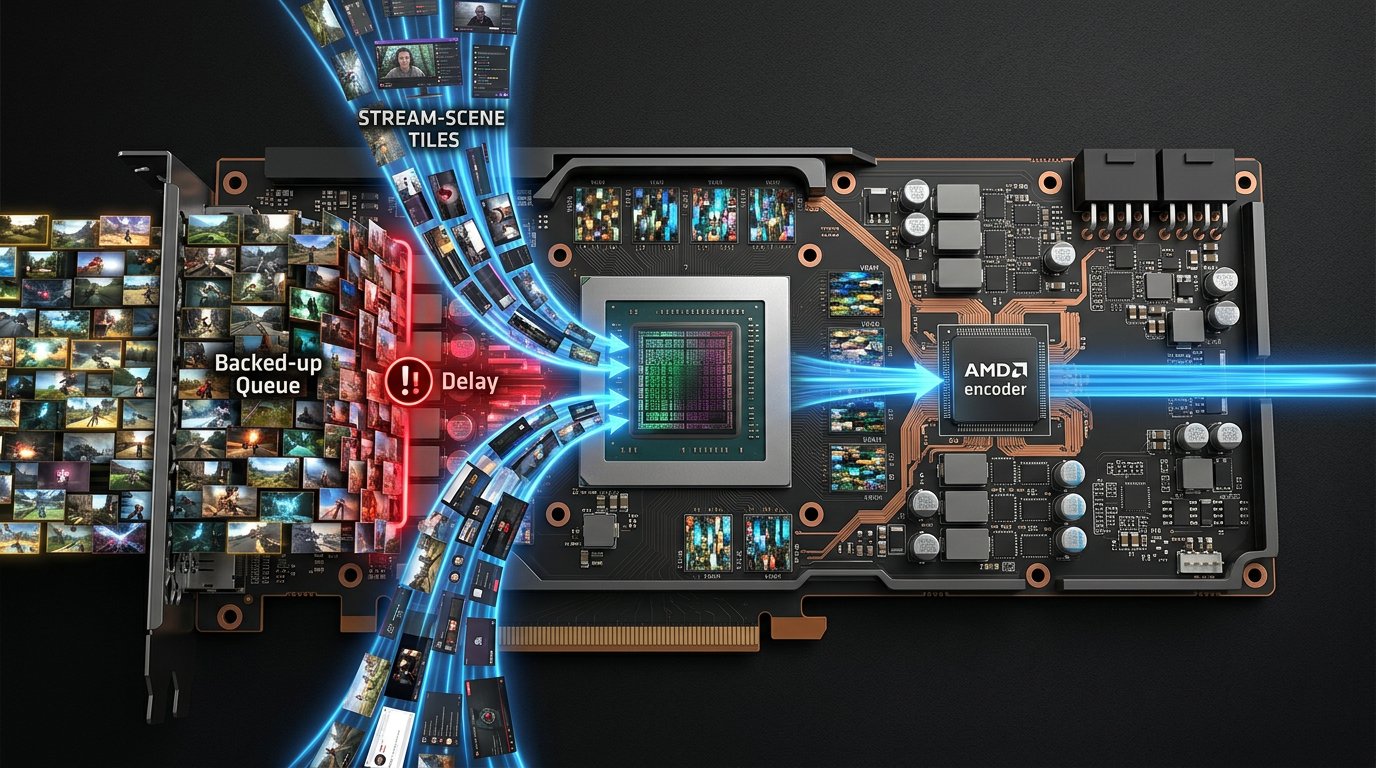
If the game is already using almost all of the graphics card's resources, the broadcasting software doesn't have enough time to render the scene and pass frames to AMF. The game starts receiving frames later: FPS drops, frame time increases, and micro-stutters appear. At the same time, dropped frames can occur in the broadcast, even though the hardware encoder itself doesn't appear overloaded.
First, Check for a GPU and Video Memory Bottleneck
The main reference point is not average FPS, but GPU load in demanding scenes. If the GPU stays at 98–100% for a long time, starting a stream almost always reduces smoothness. The game and the broadcasting software need headroom: a sustained load of up to 85–90% usually avoids frame queuing.
You need to check the load in the most demanding game moment and with the stream running. Combat, dense environments, a large map, rain, particle effects, or a location with ray tracing will work. Menus, a training area, and an empty room won't show the real situation.
- Limit FPS to a value the game can sustain in a demanding scene during streaming.
- Lower the internal resolution or render scale if GPU load remains at 100%.
- Disable ray tracing, heavy shadows, reflections, and volumetric fog.
- Lower texture quality if VRAM is nearly full.
Limiting FPS reduces the maximum frame rate in the game. Lowering resolution and graphics frees up resources, but the image becomes less detailed.
How to Identify the Source of Overload
In Windows Task Manager, open the graphics card graphs and switch between the 3D, Copy, Video Decode, and Video Encode engines. High 3D load indicates a bottleneck in the game, the scene, or capture processing. Active Video Encode confirms that AMF is working, but its high load doesn't always mean a problem: what matters more is whether there are dropped frames and render delay.
In a graphics card monitoring utility, compare GPU load, VRAM, clocks, temperature, and memory usage without streaming and with the broadcast running. If video memory fills up almost completely after starting the stream, the driver begins exchanging data with system RAM more actively. This shows up as stutters when loading textures, rotating the camera, and moving between locations.
The driver overlay is convenient for monitoring FPS and frame time, but it sometimes conflicts with other overlays. During diagnostics, disable it along with in-game overlays, replay recording, and third-party FPS counters.
Basic AMD AMF Settings for a Stable Stream
Start with a stable configuration, not maximum quality. For H.264 via AMF, choose a constant bitrate, a 2-second keyframe interval, and two B-frames. This set works for most streaming platforms, but the requirements of a specific platform always take priority over the software settings.
In the preset field, first select quality mode if the graphics card has GPU headroom. If 3D load stays at 95–100% during streaming, switch the preset to balanced or fast. The fast preset reduces the load of preparing frames, but at the same bitrate dynamic scenes will look worse: blocking and loss of detail may appear.
- For 1080p 60 FPS, start with a bitrate your platform allows; with a typical limit of around 6000 Kbps, do not raise the value above what is permitted.
- For 1440p 60 FPS, you need a noticeably higher bitrate than for 1080p. Use this mode only if the platform accepts this bitrate and viewers have access to quality above the source.
- If AV1 is available and the platform accepts it, it can provide a cleaner image at the same bitrate, but compatibility with viewing and broadcast settings must be checked in advance.
- HEVC is not suitable for every platform or every viewing scenario, so don't consider it a universal replacement for H.264.
What to Change in AMF When GPU Load Is 100%
Don't lower resolution, stream FPS, bitrate, and preset all at once: that way you won't be able to tell what actually helped. First free up resources for the game's rendering, then simplify encoding, and only after that reduce the broadcast parameters.
- Set an FPS limit in the game and make sure the GPU doesn't stay at 100% constantly.
- Switch AMF from quality mode to balanced. If the stutters don't disappear, choose fast mode.
- Disable additional quality enhancement features if they are available in your version of the broadcasting software.
- Keep the keyframe interval at 2 seconds and two B-frames. Don't increase the number of B-frames when resources are scarce.
- If the problem persists, lower the stream's output resolution or the stream frame rate.
Bitrate itself is usually not the main cause of GPU load, but it affects how difficult it is to compress a dynamic image. Too low a bitrate won't noticeably relieve the game, but it will worsen the image. First of all, change the game's FPS limit, the AMF preset, resolution, and stream FPS.
Game, Window, and Screen Capture Put Different Loads on the System
Game capture usually works directly with the application's rendering and most often provides the most predictable performance. Use it as the primary option for fullscreen and borderless games. The downside is that some games, anti-cheat systems, and non-standard graphics APIs may not pass the image or may show a black screen.
Window capture via Windows Graphics Capture is useful for games in windowed and borderless mode, as well as when there are problems with regular game capture. It can solve compatibility issues, but it uses Windows system composition. On an already loaded graphics card, this sometimes adds latency or worsens frame time.
Screen capture captures the entire monitor and works as a fallback when the game or window can't be captured. Its downsides are extra processing of the full desktop, the risk of showing notifications, and the need to keep an eye on other windows. Don't add game, window, and monitor capture to the same scene at once for a single image: each extra copy of the frame creates load.
Build a Test Scene Without Extra Processing
The FPS drop may be caused not by AMF but by the scene itself. The camera, animated alerts, chat, transparent elements, color correction, blur, masks, and browser sources are rendered by the graphics card. Several pages with animation, video, or hardware acceleration are especially noticeable.
Create a separate scene with only one game capture source and audio. Start recording or a short test broadcast in the same demanding game scene. Then add the camera, widgets, filters, and browser elements one at a time, checking frame time and dropped frames each time.
Disabling the preview can relieve the graphics card a little, but during the broadcast it will be harder to control the layout. Lowering the camera resolution and avoiding heavy filters will reduce the load, but it will worsen the image or processing quality.
When the Problem Is Related to the CPU, Not AMF
AMF is especially useful when the CPU is weaker than the graphics card: hardware encoding leaves the CPU more time for game logic, physics, networking, and frame preparation. But the broadcasting software, browser widgets, audio filters, and capture still use the CPU.
If the GPU is not fully loaded but one or more CPU threads are constantly hitting their limit, reduce the CPU load. Close the browser with extra tabs, disable heavy plugins and background programs, and reduce draw distance or object density in the game. The downside is that some game settings will worsen the image or reduce world detail.
Switching to software encoding can only help if you have a free, powerful CPU and an overloaded graphics card. This is not a universal solution: in CPU-sensitive games, a software encoder can cause even stronger stutters.
AMF Setup Checklist for FPS Drops
- Check FPS, frame time, GPU, CPU, and VRAM in a demanding scene without streaming.
- Start a broadcast with a test scene: one game capture source, no camera or browser widgets.
- Limit the game's FPS so that GPU load doesn't stay at 98–100% constantly.
- For AMF, set a constant bitrate, a keyframe every 2 seconds, and two B-frames.
- Start with the quality preset, and if you hit a GPU bottleneck, switch to balanced or fast.
- Compare game capture, window capture via Windows Graphics Capture, and screen capture.
- Disable overlays, background recording, a second recorder, and unnecessary apps with hardware acceleration.
- Add the camera, filters, and browser sources one at a time until you find the element after which frame time increases.
Last Articles
What has changed in design and functionality We have updated the website to make working with it faster and more convenient. The main changes affect ..
Good afternoon, I've collected all the news during this time.: 1. The main news is that prices for twitch viewers have been greatly reduced, while Tw..
1. Use promo code "December2025" for a 15% discount for all our viewers2. We have reduced the base prices for our configurator and the most affordable..
Twitch services are working stably, so we are ready to cooperate with squads, resellers, service owners, bot owners, and many others.Individual te..
We have completely updated our Twitch viewer services, and they are now working stably. We only use high-quality IP addresses for the viewers.The ..
Hello everyone! Today, we are announcing a new feature—"Twitch Viewer Configurator". Now, you can customize any plan for your Twitch channel. Choo..
Greetings, I have compiled a guide for streamers, which will be very relevant at the moment. Now YouTube and twitch have disabled monetization from vi..
We have finally developed the APINow it will be more convenient for our partner sites to work with us.To update the maximum tariffs for YouTube, an up..
Due to the huge popularity of the partnership services and referral program, we have made a cooperation table. The essence is very simple: more live a..
Our Services for Streamers








Our Services for Content Creators






