
Viewers hear the game but not Discord: setting up audio in a stream
The game and Discord reach the stream through different paths
Game audio being on the air doesn't mean the streaming program is receiving all system sound. The game is often captured with a separate source: game capture, application capture, or an audio source for a specific process. With this setup, Discord stays outside the capture.
Another common situation: the game outputs to a device that's already added to OBS, while Discord outputs to a headset, audio interface, or virtual channel. Viewers hear the game, but the voice chat doesn't reach the broadcast. You need to check the entire route: from Discord's output to the stream track.
Check Discord's output device
In Discord, open Voice & Video settings and look specifically at the output device. You need to compare it with the device that OBS or another streaming program is capturing. If Discord is sent to headphones while Desktop Audio is listening to speakers, the system audio source won't receive your friends' voices.
- Make sure the correct physical or virtual device is selected in Discord.
- Compare it with the system's output device.
- Check which device is assigned to the Desktop Audio source in OBS.
- Restart Discord after changing the device if the audio didn't switch.
Automatic device selection is convenient, but it has a drawback: after connecting a headset, dock, or audio interface, Discord may switch to a different output. The game may stay on the previous device, so the problem only shows up on the air.
Choose how to capture Discord audio
The simplest option is to capture general system audio via Desktop Audio. The game, Discord, and other programs using the selected output device will all reach the broadcast. The drawback of this setup is that viewers may hear notifications, the browser, messengers, and accidentally playing videos.
A separate application audio capture for Discord gives you more control. You can adjust your friends' voices independently of the game, mute them on specific scenes, and route them to the right tracks. The drawback of this source is that it may lose the application after Discord restarts, an audio device change, or a change in capture settings.
Game capture doesn't pass Discord audio. Even when the Discord window is open on top of the game, its audio remains a separate stream. Voice chat needs Desktop Audio, an application capture source, or a properly configured virtual channel.
Check the audio mixer in OBS
Open the OBS audio mixer while talking in Discord. The meter for the Discord source, Desktop Audio, or virtual input should move when your friend speaks. If the meter is still, the problem is before OBS: the wrong device is selected, Discord is outputting to a different channel, or the source isn't capturing the application.
If the meter moves, check the volume, the mute button, and the filters on the source. A noise gate, expander, or aggressive noise suppression on a shared channel can cut off quiet remarks and the ends of phrases. Such filters can be useful for a microphone, but they often perform worse on Discord.
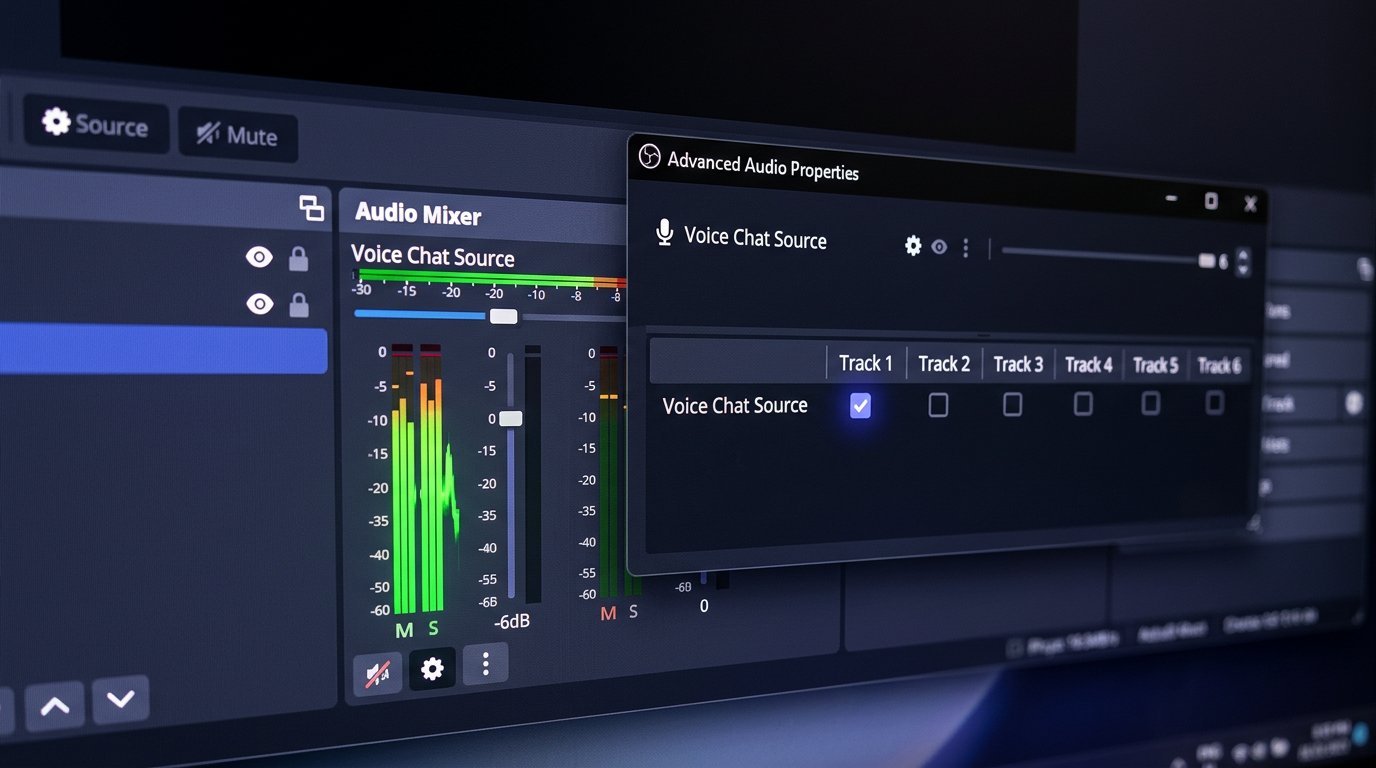
Set up tracks in Advanced Audio Properties
In OBS, click the three-dot icon in the audio mixer and open Advanced Audio Properties. Each source there has checkboxes for tracks 1–6. If Discord is checked only on track 2 while track 1 is selected in the streaming settings, viewers won't hear it. The game may be assigned to the first track and sound fine.
For a regular stream, check that Discord has the same track enabled that's selected in Settings → Output → Streaming as the Audio Track. This is often track 1, but you should go by the settings of the specific profile rather than a familiar setup. If you use separate recording, you can additionally send Discord to another track for local editing.
The mixer meter only shows the incoming signal in OBS. It doesn't show whether the source is assigned to the stream track, whether that track is selected in the output settings, or whether the audio reaches viewers after encoding.
Check source monitoring
Monitoring lets you hear a source in your own headphones, but it doesn't guarantee it's sent to the broadcast. In Advanced Audio Properties, you can select a monitoring mode for each channel: off, monitor only, or monitor and output.
The "monitor only" mode is for local checks, but it has a direct drawback: you hear Discord, but viewers don't. For the broadcast, the source must be enabled in the output and assigned to the streaming track. Don't route monitoring back into Desktop Audio unless necessary: it can create a duplicate, delay, or echo.
Check scenes and duplicate sources
The set of sources can differ between OBS scenes. Discord may be added to a "Chatting" scene but missing from the gameplay scene. A similar problem occurs when one source captures the old device and another captures the new one, but both are named almost the same in the mixer.
- Switch to the scene used during gameplay.
- Check that the Discord source or the needed Desktop Audio is present.
- Make sure the source isn't muted in the mixer of that specific scene.
- Delete or rename unused device duplicates.
Copying scenes speeds up setup, but its drawback is that old routes, filters, and track assignments are easily carried into the new scene. This is especially noticeable after changing a headset or switching to a virtual mixer.
Check virtual devices and the audio interface
When using virtual cables, a mixer, or an audio interface, Discord must output to a specific channel, and OBS must capture that same channel. One wrong assignment is enough for the game to stay on the air while your friends disappear.
This setup is convenient for separately managing the game, music, browser, and voice chat. The drawback is that routing can break after a driver update, a system reboot, or connecting a new device. It's best to give channels clear names and not leave several inputs with similar names.
Check the audio with a test recording
- Start the gameplay scene, the game, and Discord.
- Ask your friend to speak at normal volume, not just say one short phrase.
- Make sure the Discord or Desktop Audio meter is moving in the mixer.
- Check in Advanced Audio Properties that the track selected for the stream is checked.
- Make a short test recording with the same scene and the same track assignments.
- Listen to the file on another device and compare the volume of the game, Discord, and the microphone.
To check the track, the recording must contain exactly the track used for the broadcast. If Discord was recorded to a separate track but is missing from the streaming track, the local file can create a false impression that everything is set up correctly. A test recording shows not only whether the signal is present, but also whether Discord is lost after assigning tracks, filters, and switching scenes.
Last Articles
What has changed in design and functionality We have updated the website to make working with it faster and more convenient. The main changes affect ..
Good afternoon, I've collected all the news during this time.: 1. The main news is that prices for twitch viewers have been greatly reduced, while Tw..
1. Use promo code "December2025" for a 15% discount for all our viewers2. We have reduced the base prices for our configurator and the most affordable..
Twitch services are working stably, so we are ready to cooperate with squads, resellers, service owners, bot owners, and many others.Individual te..
We have completely updated our Twitch viewer services, and they are now working stably. We only use high-quality IP addresses for the viewers.The ..
Hello everyone! Today, we are announcing a new feature—"Twitch Viewer Configurator". Now, you can customize any plan for your Twitch channel. Choo..
Greetings, I have compiled a guide for streamers, which will be very relevant at the moment. Now YouTube and twitch have disabled monetization from vi..
We have finally developed the APINow it will be more convenient for our partner sites to work with us.To update the maximum tariffs for YouTube, an up..
Due to the huge popularity of the partnership services and referral program, we have made a cooperation table. The essence is very simple: more live a..
Our Services for Streamers








Our Services for Content Creators






