
How to switch OBS to the break scene when the internet drops
What viewers see during a complete connection loss
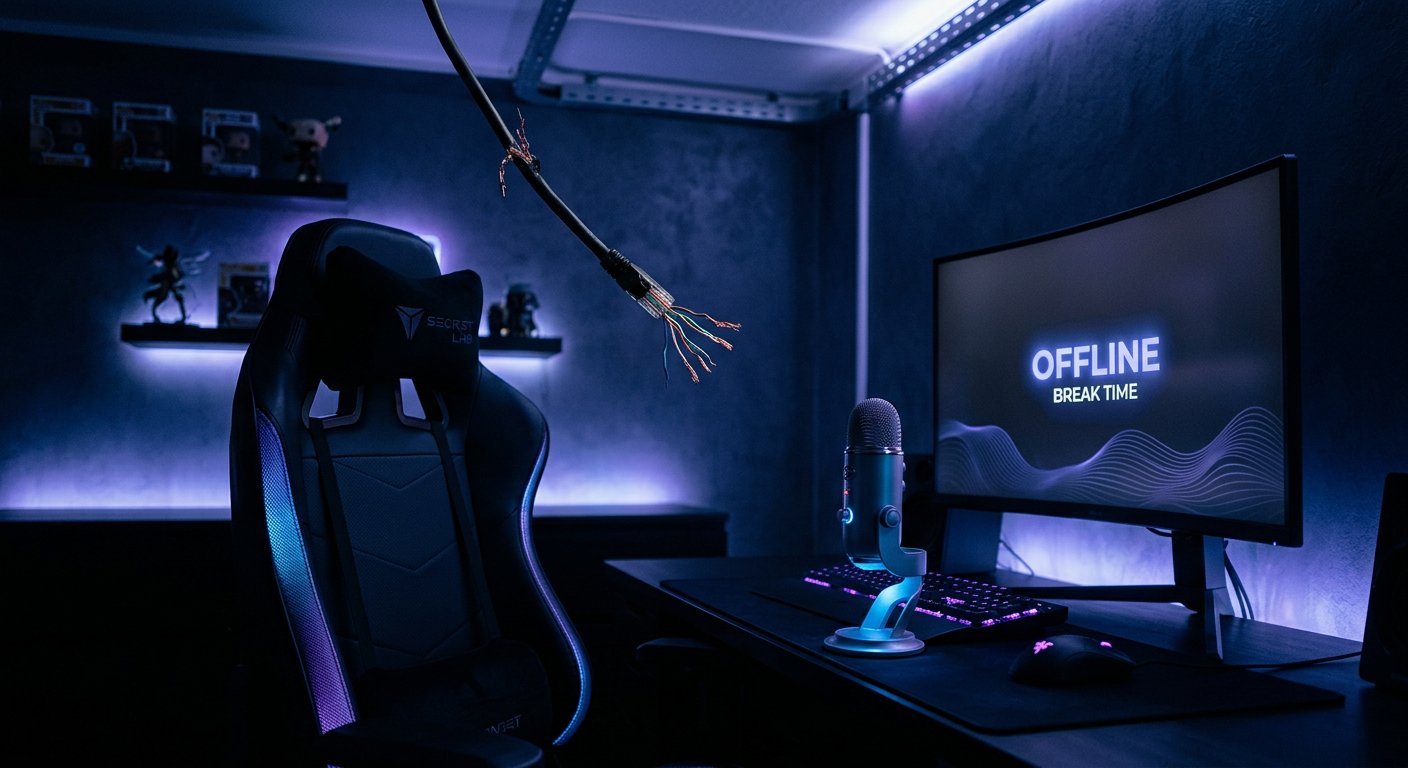
The break scene in OBS does not solve the problem of a complete internet outage on its own. If the connection to the platform is already gone, OBS can switch to the right scene locally, but new frames won't reach viewers. On the broadcast side, the last received frame will remain, a message about an unstable connection will appear, or the stream will end — this depends on the platform and the duration of the outage.
Auto-switching is only useful while OBS can still transmit a signal or once the connection has been restored. To show a placeholder to viewers during a real offline period, you need an intermediate server, a backup connection, or a second encoder on another network.
What tasks the break scene solves
An automatic break scene isn't only for emergency network disconnections. It helps hide the desktop, a diagnostics window, a game reconnecting, or attempts to switch providers. After the connection is restored, OBS will already be on a neutral scene rather than on the game screen or camera.
This logic works well for brief glitches when the connection is unstable but the stream hasn't stopped yet. Another scenario is a manual break: the streamer presses a hotkey, checks the network, and returns to the air only after things stabilize.
Prepare a separate scene that doesn't depend on the network
It's best to build the break scene from local sources. A static image, a local video loop, text explaining the reason for the pause, and royalty-free background music will work. If you use a browser source, a remote video, or an image from a website, they may fail to load exactly when you're having internet problems.
- Add an image or video file stored on your computer.
- Enable looping for the clip if it needs to run longer than a few minutes.
- Check the music volume separately from the microphone and game.
- Disable screen capture, notifications, and cameras that shouldn't appear on screen.
- Prepare a short message without promises about when you'll be back.
Set up auto-reconnect in OBS
OBS settings include auto-reconnect options. They determine whether the program will try to restore the stream after a disconnection and how often it retries. This is basic protection against brief glitches with the router, Wi‑Fi, or the route to the platform's server.
Don't set a very aggressive retry frequency without testing. If the problem is caused by network congestion, constant reconnection attempts won't fix the connection and may make diagnostics harder. Too-infrequent attempts, on the other hand, will prolong the pause. Choose a delay that suits your type of connection and test it on a private test stream.
Limitations of OBS's built-in features
OBS's standard automatic scene switcher works based on the active application window. It can change the scene when a game, browser, or chat program opens, but it doesn't analyze internet availability. The built-in auto-reconnect doesn't switch scenes either: it only tries to restore the stream.
That's why a setup like "internet lost — break scene turned on" is usually built through a plugin with macros, an external script, or a network-based OBS control system. Each method has a drawback: it reacts not to the problem itself but to a chosen indicator of that problem.
Switching based on stream state via macros
The Advanced Scene Switcher plugin lets you build rules from conditions and actions. For this task, you need a macro that monitors the output stream state: stream stopping, a connection error, or entering a reconnecting state — if such a check is available in the plugin version you're using.
When the condition triggers, the macro switches OBS to the break scene. A second macro can restore the main scene after the stream recovers. Don't tie the return to a single instant event: the connection can come back up and drop again a few seconds later.
Macro logic for the emergency scene
- Create the break scene and make sure it works without browser sources.
- Add a macro with a condition for a stream state change or output stream disconnection.
- Set the action to switch to the break scene.
- Add a short delay before switching so you don't react to a single brief glitch.
- Create a separate rule for returning after the stream transmission recovers.
- Before returning, add a wait for a stable state rather than switching the scene immediately.
The drawback of this approach is that OBS may consider the stream active during reconnection attempts. In that case, the rule will react later than when viewers actually started having problems.
Don't return to the game scene automatically without a delay
Automatic return is especially risky. The program may regain its connection, but the video stream will still be catching up, the platform may not immediately accept the stream key, and the network may still be dropping packets. If you bring back the game and camera at that moment, viewers will see jarring switches between content and the placeholder.
It's safer to keep the break scene for a few seconds after a successful recovery and only then switch back. Even more reliable is to return manually with a hotkey. The drawback of manual confirmation is obvious: the streamer needs to be at the computer and monitor the connection status.
Checking internet availability with an external script
Another approach is to check not OBS's state but network availability from the outside. A script on the computer periodically contacts several independent addresses: for example, a DNS node, a regular web page, and a server related to the stream. After a series of failed checks, it sends OBS a command to switch to the break scene.
The obs-websocket interface is used to control scenes. Access to it should be password-protected and not exposed to the external network unless necessary. It's best to keep the script and OBS on the same computer or on a local network. The drawback of this method is that monitoring can be wrong: one address being unreachable doesn't necessarily mean the stream has actually dropped.
Why a single ping check isn't enough
A ping check is convenient, but it's a weak indicator for streaming. A device may respond to ping while video transmission to the platform is unstable. The opposite is also possible: the server doesn't respond to such requests even though web access and the stream work fine.
It's better to use several different checks and trigger only after several consecutive failures. This reduces the number of false switches. The downside is that the reaction becomes slower. Too short an interval creates jittery automation; too long an interval leaves the problematic scene on air longer than necessary.
Separate internet loss from channel congestion
The internet may technically work but fail to handle the outgoing bitrate. Causes include downloads on the home network, unstable Wi‑Fi, mobile network congestion, problems on the route to the server, or a poorly chosen broadcast server. In such conditions, the break scene should be triggered not by a single event but by sustained degradation of transmission.
Watch for network-related dropped frames, reconnection messages, and the output stream state in OBS statistics. Automation based on these indicators is possible through plugins and scripts, but accuracy depends on what data they receive. It doesn't replace bitrate tuning and a wired connection.
A hotkey remains essential
Even with a fully automatic setup, assign a hotkey for the break scene and a separate key for returning. Automation may not react in time, may trigger incorrectly, or may not account for a situation where you need to hide the screen for another reason. A quick manual command remains the most predictable way to control the stream.
Don't assign a combination that's used in a game, browser, or capture program. Test the key with OBS minimized and during active gameplay. The drawback of global hotkeys is that some applications may intercept them, so you need to test with your actual set of programs.
Set up audio for emergency switching
When switching to the break scene, you can keep the music and mute the microphone, or keep your voice if you need to explain the situation to viewers. The second option only works while the connection can still transmit audio. During a complete outage, your commentary won't reach the air anyway, so don't rely on it as the only way to communicate the problem.
Check whether audio sources from the game, a call, or notifications are still active. The scene hides the video source, but audio often remains active globally. For separate control, use dedicated audio sources, filters, or macro actions that mute unwanted channels during the break.
Backup internet for uninterrupted streaming
If the goal is not just to hide a technical pause but to keep the stream available when your primary provider goes down, switching scenes alone isn't enough. You need a second transmission path: a backup mobile connection, a separate connection, a network router with channel failover, or a remote encoder.
This solution has a clear drawback: the backup connection may have traffic limits, unstable upload, and different latency. Before going live, check whether the channel can handle your chosen streaming settings. When switching between networks, the platform may also drop the current session even if OBS keeps running.
Intermediate server and a permanent placeholder
For a more complex setup, the stream is first sent to an intermediate server, which then delivers it to the platforms. If the primary encoder disappears, the server can keep showing a backup placeholder. In that case, viewers will actually see the break scene even when your home internet is down.
The drawback is that it's more complex to set up and maintain. It introduces an additional point of failure, latency, infrastructure costs, and the need to monitor the security of stream keys. This option is justified for channels where stream continuity matters more than the simplicity of a local setup.
How to test the scenario before a real stream
- Start a test stream with limited access or on a separate channel.
- Test manually enabling the break scene and returning to the main scene.
- Temporarily disconnect the network connection and observe how OBS, the macros, and the platform behave.
- Restore the internet and assess when auto-reconnect kicks in.
- Check whether the main scene returns before the stream stabilizes.
- Review the test recording and make sure no unwanted audio, desktop, or notifications ended up in the placeholder.
Common mistakes when setting up automation
The most common mistake is expecting a scene switch to save the picture after a complete connection loss. The second is using only one network address for checks and getting false triggers. The third is setting up an automatic return without a delay, which makes the stream flicker between scenes.
Also, don't store the break scene in a cloud browser source, don't leave an active microphone in it without checking, and don't expose OBS control via obs-websocket to the internet without protection. A working setup should switch scenes carefully, have a manual fallback, and be tested under conditions close to a real stream.
Last Articles
What has changed in design and functionality We have updated the website to make working with it faster and more convenient. The main changes affect ..
Good afternoon, I've collected all the news during this time.: 1. The main news is that prices for twitch viewers have been greatly reduced, while Tw..
1. Use promo code "December2025" for a 15% discount for all our viewers2. We have reduced the base prices for our configurator and the most affordable..
Twitch services are working stably, so we are ready to cooperate with squads, resellers, service owners, bot owners, and many others.Individual te..
We have completely updated our Twitch viewer services, and they are now working stably. We only use high-quality IP addresses for the viewers.The ..
Hello everyone! Today, we are announcing a new feature—"Twitch Viewer Configurator". Now, you can customize any plan for your Twitch channel. Choo..
Greetings, I have compiled a guide for streamers, which will be very relevant at the moment. Now YouTube and twitch have disabled monetization from vi..
We have finally developed the APINow it will be more convenient for our partner sites to work with us.To update the maximum tariffs for YouTube, an up..
Due to the huge popularity of the partnership services and referral program, we have made a cooperation table. The essence is very simple: more live a..
Our Services for Streamers








Our Services for Content Creators






