
How to prepare a "Technical Break" scene in OBS for a GTA VI stream
Why you need a technical break scene
A GTA VI crash during a broadcast doesn't always mean the stream has to end. The game may close, freeze on loading, lose audio, or stop sending video to OBS. While you restart the client, viewers shouldn't see your desktop, launcher, task manager, or an empty capture.
The "Technical Break" scene immediately covers the problematic image and shows that the channel is still live. It gives you time to check the game, OBS, and your connection without chaotic switching.
What the emergency scene needs to do
The emergency scene doesn't need to look better than your main gameplay scene. Its job is to switch on quickly and work when some sources are already unstable. The more complex the design, the more points of failure: video may not play, a browser widget may freeze, and music may disappear along with the output device.
For a technical pause, independence from the game and the internet matters more than complex design. The downside of this approach is that the splash screen may look simpler than your usual channel design.
Minimum set of sources in OBS
A working scene only needs a local background, a text source, and audio if necessary. It's best to prepare all these elements in advance and not edit them at the moment of failure. The text should be short, large, and readable on a mobile screen.
- A static image saved on your computer.
- Text with the technical pause status.
- The channel name or a familiar design element.
- A microphone or a local audio file if you need sound.
- A small camera frame if you want to stay on screen.
Chat, alerts, counters, goals, and recent events are optional. They give the viewer more context but may depend on browser sources and the network.
Create the scene separately from your gameplay setup
Add the scene to your current OBS collection and place it at the top of the list. A clear name works well: "00 — Technical Break." That name is easy to find with the mouse if the hotkey doesn't work or OBS is open on top of other windows.
Don't move the game capture, the GTA VI window capture, or game widgets onto this scene. If the game freezes or the capture source stops responding, the frozen frame may stay on top of the splash screen. The background and text must exist without the game client.
Make primary and backup versions
It's useful to prepare two similar scenes. The first can match the channel's style: include local video, camera, chat, or a neat animation. The second should be as simple as possible: image, text, and microphone. Name it, for example, "01 — Emergency Pause."
The primary version looks more familiar to the audience, but it has more reasons to break. The backup looks plainer, but it doesn't depend on widgets, web pages, or online elements updating.
Choose a background that doesn't create load
The most reliable background is a static image at your broadcast resolution. It doesn't require a network connection, barely loads the system, and opens quickly after an OBS restart. A neutral image in your brand colors, an illustration, or a separate screen with the channel name will work.
- A static image is stable but doesn't attract attention with movement.
- A local looping video looks livelier but adds load to the system and drive.
- Browser animation is convenient for updatable design but may fail to load if there are network or OBS issues.
Don't use a background in the emergency scene that's stored only in the cloud. If the connection fails, it may turn into an empty frame or an error message.
Set up text without time promises
It's enough for the viewer to understand that the stream hasn't been abandoned and you're working on the problem. Don't write an exact return time if it's unknown. Restarting the game, checking the capture, or restoring the connection may take longer than it seems in the first minutes.
Prepare several short text options in separate sources: "Technical Break," "Restarting the game," "Checking the stream," "Connection problem." Turn on the needed source and hide the rest.
The downside of multiple text options is that in a rush it's easy to leave a stale status on. Use short source names so you don't have to search for them in the list.
Check text placement and layers
In OBS, sources higher in the list cover the ones below. The text should be above the background, not under it. If the scene has a camera, frame, or notifications, make sure they don't cover the main caption.
Open the fullscreen preview and look at the scene from a distance. It's also better to check it from a phone: small text, thin fonts, and low contrast often become unreadable on a mobile screen.
Decide whether you need a microphone during the pause
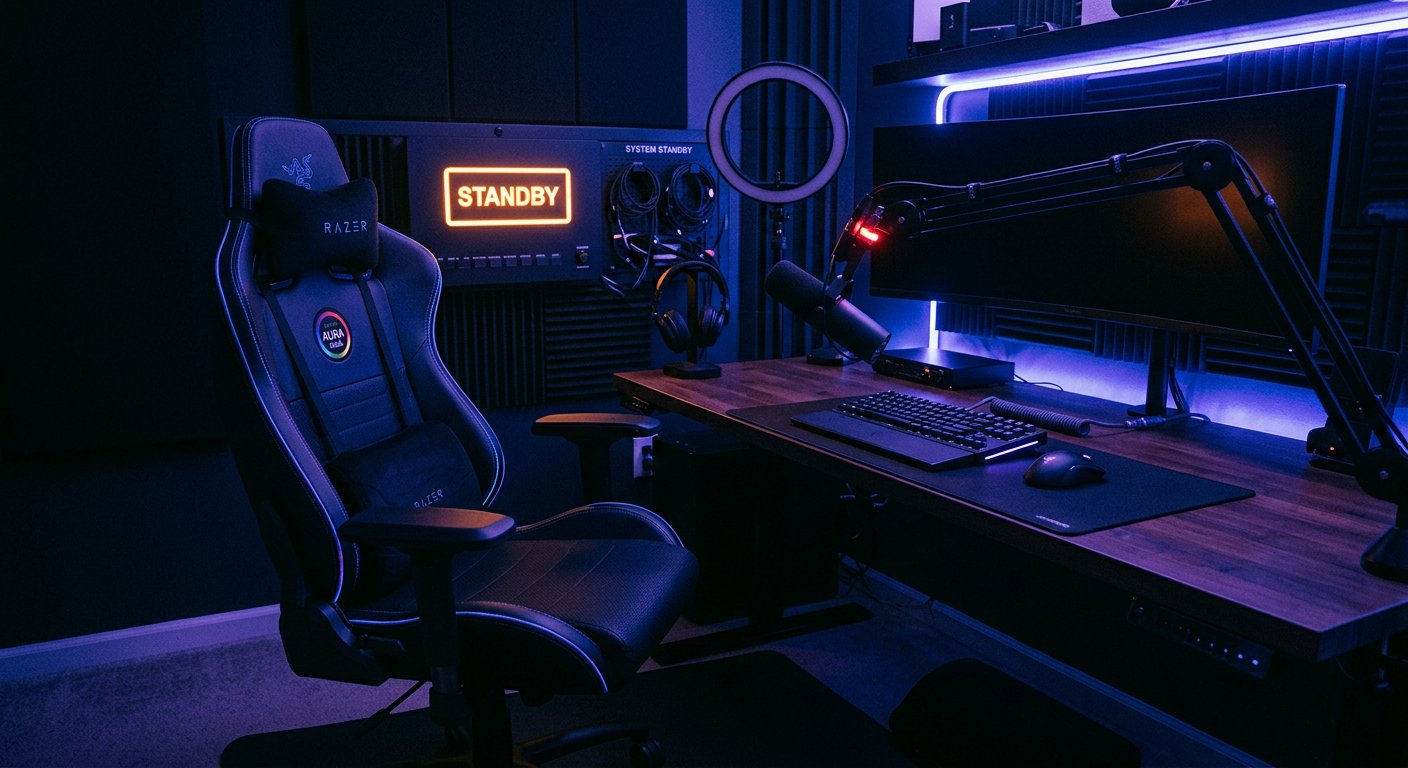
A live voice helps maintain contact: you can briefly say that the game is restarting and the stream continues. This is especially useful if recovery takes a while. You don't need to comment on every action in the system — it's enough to give a clear status periodically.
The microphone has a downside: frustrated remarks, conversations in the room, system sounds, or personal data you say aloud during diagnostics may go out on stream. If you don't want to talk, mute the microphone on the scene or prepare a short local audio file.
Use music only as an additional layer
Quiet music makes the pause feel less like a frozen stream. For this, use tracks you have the rights or permission to use. Music from the game, videos, streaming playlists, and other people's broadcasts can lead to content restrictions.
A constantly repeating file gets tiring quickly during a long break. Also, music can mask your voice or important OBS signals. If you add it, leave the option to quickly turn off the source.
Assign a switching hotkey
In OBS settings, assign a combination to switch to the technical break scene. It shouldn't match the keys of the game, graphics card driver, clip recording, voice chat, or system. A combination of several keys reduces the risk of accidental switching.
A hotkey is convenient when the game freezes on top of other windows or the cursor doesn't immediately return to OBS. Its downside is that it won't help if the system freezes completely, focus is lost, or another program intercepts the keys.
Leave a backup path: keep the scene at the top of the list and practice selecting it with the mouse. It's slower but doesn't depend on key combinations.
Choose a simple transition between scenes
An instant scene switch or a short fade works for emergency switching. The main goal is to remove the frozen game, desktop, or error window from the stream as early as possible. Complex transitions and heavy stinger inserts are better left for your regular design.
An instant transition is the fastest but looks abrupt. A fade looks neater but may show an extra frame for a split second if it's set up poorly. Check this in a recording before your first stream.
Don't use the desktop as a regular backup screen
Screen capture can help with diagnostics, but it's a risky source for a pause. Messages, website addresses, file names, notifications, personal chats, and launcher windows may appear on the desktop. Even a brief appearance of such a frame stays in the stream recording.
If screen capture is really needed for content or troubleshooting, put it on a separate scene. Turn off notifications in advance and make sure no personal windows are open on the second monitor. The downside of this option is that it requires discipline before every launch.
Switch to the pause before any actions in the system
After a GTA VI crash, first close the game frame for viewers, and only then open the task manager, file explorer, launcher, or browser. This order protects not only personal data but the stream itself: the audience immediately sees a clear status instead of chaotic window switching.
- Switch OBS to the technical break scene.
- Check the OBS indicators to make sure the stream and audio are continuing.
- Briefly tell chat or the microphone that a restart is in progress.
- Close the frozen game process if it didn't end on its own.
- Launch GTA VI and wait for it to load stably.
- Check the image, game audio, and microphone in the preview.
- Only after checking, return to the gameplay scene.
Check the GTA VI capture after a new launch
After a restart, the game may create a new process, change window mode, or launch with different access rights. OBS sometimes keeps showing a black screen, an old frame, or can't find the right window. Don't switch the stream back just because the game is already open on your monitor.
First look at the gameplay scene preview in OBS. If the capture hasn't recovered, check the selected source, capture mode, and program launch rights. Don't change many settings at once: after that it's harder to understand what exactly helped or caused a new problem.
Keep in mind the difference between capture methods
Capturing a specific window helps avoid showing extra screen content, but after a game restart it may require selecting the window again. Game capture is convenient for fullscreen mode, but its operation depends on client compatibility, overlays, drivers, and access rights.
Screen capture usually recovers more easily, but it's riskier in terms of privacy. There's no universal option: choose the method that already works stably on your system, and be sure to check it after a normal game restart.
Check the scene in a recording before streaming
It's better to test the technical pause not during a real failure. Start a local recording, open the game, switch to the splash screen with the hotkey, close the game, and return to the gameplay scene after relaunching. This way you can see whether the desktop shows, whether audio is preserved, and whether the transition works correctly.
Check not only the splash screen itself but the entire path back to the game. The downside of the test is that it doesn't reproduce all the causes of a real crash, but it does show weak spots in the scenes and capture in advance.
Save a copy of the scene collection and profile
Before changing sources, plugins, transitions, and audio devices, save a backup copy of the OBS scene collection and profile. This won't prevent a GTA VI crash, but it will help restore a working configuration if sources disappear or settings get messed up after an update.
Keep the background, audio file, and other local materials for the technical scene in a separate folder. If a file is accidentally moved or deleted, OBS may show an empty source exactly when the splash screen is needed most.
Last Articles
What has changed in design and functionality We have updated the website to make working with it faster and more convenient. The main changes affect ..
Good afternoon, I've collected all the news during this time.: 1. The main news is that prices for twitch viewers have been greatly reduced, while Tw..
1. Use promo code "December2025" for a 15% discount for all our viewers2. We have reduced the base prices for our configurator and the most affordable..
Twitch services are working stably, so we are ready to cooperate with squads, resellers, service owners, bot owners, and many others.Individual te..
We have completely updated our Twitch viewer services, and they are now working stably. We only use high-quality IP addresses for the viewers.The ..
Hello everyone! Today, we are announcing a new feature—"Twitch Viewer Configurator". Now, you can customize any plan for your Twitch channel. Choo..
Greetings, I have compiled a guide for streamers, which will be very relevant at the moment. Now YouTube and twitch have disabled monetization from vi..
We have finally developed the APINow it will be more convenient for our partner sites to work with us.To update the maximum tariffs for YouTube, an up..
Due to the huge popularity of the partnership services and referral program, we have made a cooperation table. The essence is very simple: more live a..
Our Services for Streamers








Our Services for Content Creators






