
How to Assign a Telegram Channel Administrator Only Posting Rights
What posting rights in a Telegram channel give you
In Telegram, you can assign an administrator so that they can publish new posts but don't manage the entire channel. To do this, leave the "Post Messages" option enabled in their rights card. In some versions of the app, it may be called "Posting Messages" or have a similar wording.
This kind of access suits an editor, content manager, advertising copywriter, or an employee who needs to send publications independently. The administrator will be able to create posts on behalf of the channel: add text, images, videos, files, links, polls, and other formats available in the specific channel.
Being assigned as an administrator does not hand over your Telegram account to the person. The user only gets the capabilities that are checked in their card. The channel owner can change permissions or remove an administrator from the list without changing passwords or login codes.
What to prepare before assigning an administrator
Before opening the settings, make sure Telegram can find the user you need. Usually, for this, the person must be saved in your contacts, or they must have a public username by which they can be found through search. A username looks like a name with the @ symbol, for example @username.
If the profile isn't in your contacts and the user doesn't have a searchable username, they may not appear in the list for adding an administrator. In that case, save their number in your contacts or ask them to send their exact username. You need to verify the profile of the exact person you're going to grant rights to, so you don't accidentally select someone with the same name.
It's best to set up the role from the channel owner's account. A regular administrator may not have the right to assign other administrators or edit their permissions. If several people manage the channel, check that you have the authority to change the team composition and the rights of the selected user.
How to add a user as an administrator
In the mobile app, open the channel you need and tap its name or photo. Then select "Edit" or the pencil icon, open the "Administrators" section, and tap "Add Administrator." From the list, select a user from your contacts or find them through Telegram search by name or username.
- Open the channel from the owner's account.
- Tap the channel name.
- Select "Edit" or "Manage Channel."
- Open the "Administrators" section.
- Tap "Add Administrator."
- Select the user you need from your contacts or search results.
In Telegram for desktop, the path is usually: open the channel, click the three dots in the upper right corner, select "Manage Channel," then "Administrators," and "Add Administrator." After selecting a profile, the permissions screen will open. Individual button names may differ depending on the language and app version, but the sections remain the same.
Don't confirm the assignment right after selecting the profile. First review all the toggles in the user's card and set them manually.
Which rights to leave enabled
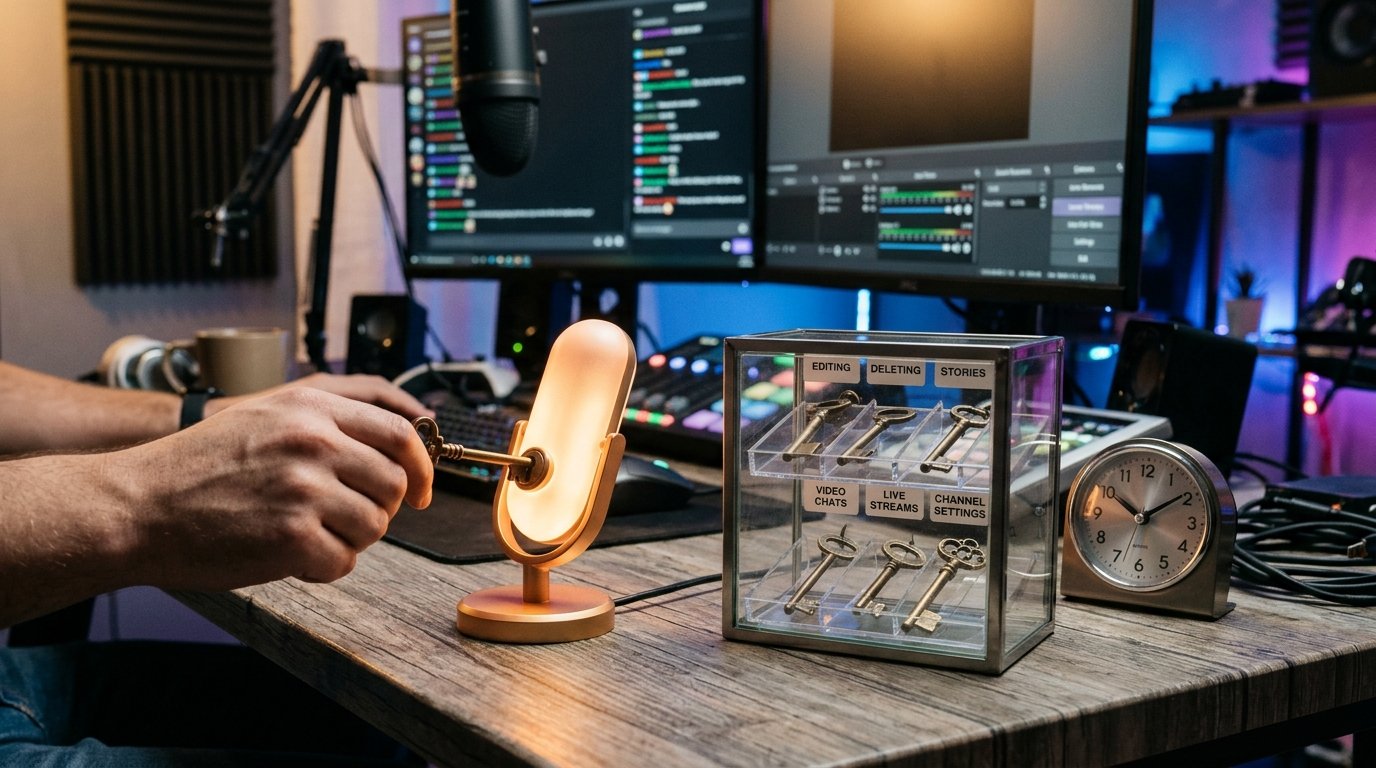
In the administrator's card, find "Post Messages" or "Posting Messages" and enable only this option. All other permissions should be turned off. Telegram doesn't always automatically set a minimal set of access, so after selecting a user, review the entire screen carefully from top to bottom.
- changing channel information;
- editing messages;
- deleting messages;
- pinning messages;
- adding subscribers or inviting via link;
- adding new administrators;
- publishing, editing, and deleting stories;
- managing video chats, live streams, and topics, if such options are displayed.
The names and composition of permissions depend on the Telegram version and the channel's features. If there's an additional toggle on the screen that isn't related to creating regular posts, leave it off. Pay especially close attention to the options related to editing and deleting messages: they give access to already published content, not just to creating new posts.
After reviewing, tap "Save," "Done," the checkmark, or another confirmation button. Closing the card without saving may leave the previous set of rights in place.
How scheduled posting works
A scheduled post is created through the same tool as a regular publication. Therefore, an administrator with the "Post Messages" right can usually write a post, open the send menu, choose a date and time, and queue the post on behalf of the channel.
Scheduling itself doesn't mean the administrator has gained the rights to edit or delete already published messages. If the corresponding permissions are turned off in the card, once the post goes live in the channel, the user shouldn't get full access to other people's publications.
There's a nuance with actions on a not-yet-published post: the ability to change the date, fix the text, or cancel the scheduled post may depend on the app version, the message type, and the author's role. If the employee only needs to prepare and schedule materials, don't enable editing automatically. First test on a draft post which actions are available in your version of Telegram.
If the administrator needs to regularly manage the entire queue of scheduled publications, the right to create posts alone may not be enough. In that case, separately assess the need for editing rights and keep in mind that it extends access beyond simple posting.
What an administrator can and cannot do
With only the posting right, the user can open the post creation field and send material to the channel. They will have access to the standard publishing tools that Telegram supports: text, formatting, images, videos, documents, links, polls, and other elements.
The administrator does not get the right to change the channel's name, description, photo, or other information. They also shouldn't manage already published messages, pin them, delete posts, or assign new administrators if these permissions are turned off.
Publications are posted on behalf of the channel. Whether the author's name is displayed depends on the administrator signature setting, if that feature is enabled. This does not turn the user into the owner and does not give them access to your personal chats, contacts, or account settings.
Rights in a channel and rights in a discussion group are different things. If comments are connected to the channel, an administrator with posting rights does not automatically become an administrator of the group. Don't give them additional rights in the discussion if the task is limited to posting in the channel.
Can an administrator see statistics
Posting rights don't mean the user is fully isolated from the channel's internal information. Telegram's standard permissions list usually doesn't have a separate toggle that universally blocks statistics.
Access to the "Statistics" section depends on the channel type, its features, the user's role, and the app version. If Telegram shows statistics to administrators with such a role, the user may see the set of metrics available to them: views, subscribers, traffic sources, and other data supported by the specific channel.
So don't assume that a role with only posting rights is guaranteed to be closed off from statistics. After assigning, ask the administrator to check whether they can see this section, or test access from a separate account with similar permissions. The interface and the set of available data may change after updates.
If statistics cannot be disclosed to an employee, don't use the administrator role just for posting. Materials can be passed to the owner for publishing, or you can organize the workflow so that the employee doesn't get access to the channel settings.
How to change the rights of an already assigned administrator
If a user has already been added with extra permissions, you don't have to remove them. Open the administrator's card and edit the role. On a phone, the path usually looks like this: channel, name, "Edit," "Administrators," user's name. On a computer, open the channel, click the three dots, select "Manage Channel," then "Administrators" and the desired profile.
- Open the selected administrator's card.
- Go to editing rights if only view mode is shown first.
- Turn off editing, deleting, pinning, and all other unnecessary permissions.
- Check the options for changing information, inviting users, and adding administrators.
- Leave only "Post Messages" enabled.
- Save the changes and reopen the card to verify.
If the toggles are unavailable, check which account you're logged in with. A limited administrator can't always change another user's rights, especially if that user has a higher priority. In that case, the changes must be made by the owner or an administrator with the appropriate authority.
After saving, ask the user to restart Telegram or reopen the channel if the old set of buttons is still displayed. This doesn't replace checking the rights in the settings, but it helps refresh the interface on their device.
How to verify the result after setup
First, reopen the administrator's card from the owner's account. Only the "Post Messages" option should be enabled in it. Don't rely only on the appearance of the profile or the user's title: what matters is the permission toggles themselves.
Then ask the administrator to publish a short test post. Check the post from another account or in normal channel viewing mode: it should appear on behalf of the channel. After checking, delete the test material as the owner or another user who has deletion rights.
Ask the administrator to open the available actions on the published post. Unnecessary functions shouldn't appear in their interface, but keep in mind that the set of buttons may differ on phone and computer. If you need to check a scheduled publication, create a test post with the nearest suitable time and separately see which actions are available before it goes live.
Don't give the employee the password, login code, or an active Telegram session. If the collaboration ends, remove the user from the administrators list or turn off all their rights. An agreement to stop working doesn't by itself revoke access.
Quick verification checklist
- The user was found through contacts or by exact username.
- Setup was done from the owner's or an authorized administrator's account.
- Only "Post Messages" is enabled in the card.
- Editing, deleting, pinning, invitations, and other rights are turned off.
- Changes are saved, and the administrator's card has been reopened.
- The administrator published a test post, and you checked its display and available actions.
- You separately checked whether statistics and scheduled publication management are accessible.
Last Articles
What has changed in design and functionality We have updated the website to make working with it faster and more convenient. The main changes affect ..
Good afternoon, I've collected all the news during this time.: 1. The main news is that prices for twitch viewers have been greatly reduced, while Tw..
1. Use promo code "December2025" for a 15% discount for all our viewers2. We have reduced the base prices for our configurator and the most affordable..
Twitch services are working stably, so we are ready to cooperate with squads, resellers, service owners, bot owners, and many others.Individual te..
We have completely updated our Twitch viewer services, and they are now working stably. We only use high-quality IP addresses for the viewers.The ..
Hello everyone! Today, we are announcing a new feature—"Twitch Viewer Configurator". Now, you can customize any plan for your Twitch channel. Choo..
Greetings, I have compiled a guide for streamers, which will be very relevant at the moment. Now YouTube and twitch have disabled monetization from vi..
We have finally developed the APINow it will be more convenient for our partner sites to work with us.To update the maximum tariffs for YouTube, an up..
Due to the huge popularity of the partnership services and referral program, we have made a cooperation table. The essence is very simple: more live a..
Our Services for Streamers








Our Services for Content Creators






