
How to Add a Scheduled YouTube Broadcast to a Playlist
When a future stream can be added to a playlist
A scheduled broadcast gets its own page before it goes live. Once the stream settings are saved, you can add it to a playlist: there's no need to wait for the stream to start, for the recording to process, or for the broadcast to end.
This is handy for playthroughs, tournaments, marathons, and regular schedules. Viewers open a single list and see past broadcast recordings right next to the next upcoming announcement. What gets added to the playlist is the page of a specific broadcast, not a link to the channel or the streams tab.
First, save the stream as a scheduled broadcast
Create a stream using the create button in YouTube Studio and open its settings. Enter the title, description, date, time, and access settings, and upload a thumbnail if needed. Then save the changes.
The event will appear in YouTube Studio under "Content" on the "Streams" tab. If it's not in the list, check the date, time, and that the settings were saved. A draft or an unfinished setup may not get a proper waiting page that you can show viewers through a playlist.
Where the "Playlists" section is in YouTube Studio
In the left menu of YouTube Studio, open "Content," then select the "Streams" tab. Find the future stream you need and open it by its title or via the edit button in its row.
In the broadcast card, go to the "Details" section. The "Playlists" section is among the settings for the selected stream. If it's not on the first screen, scroll down the page. The placement of individual sections may change due to Studio updates, interface language, or window width, but you need to look for the setting in the broadcast details, not in the channel settings.
The screenshot should show the actual "Playlists" section in the "Details" of a scheduled broadcast. It helps you confirm you're on the right screen and not on the general playlist page.
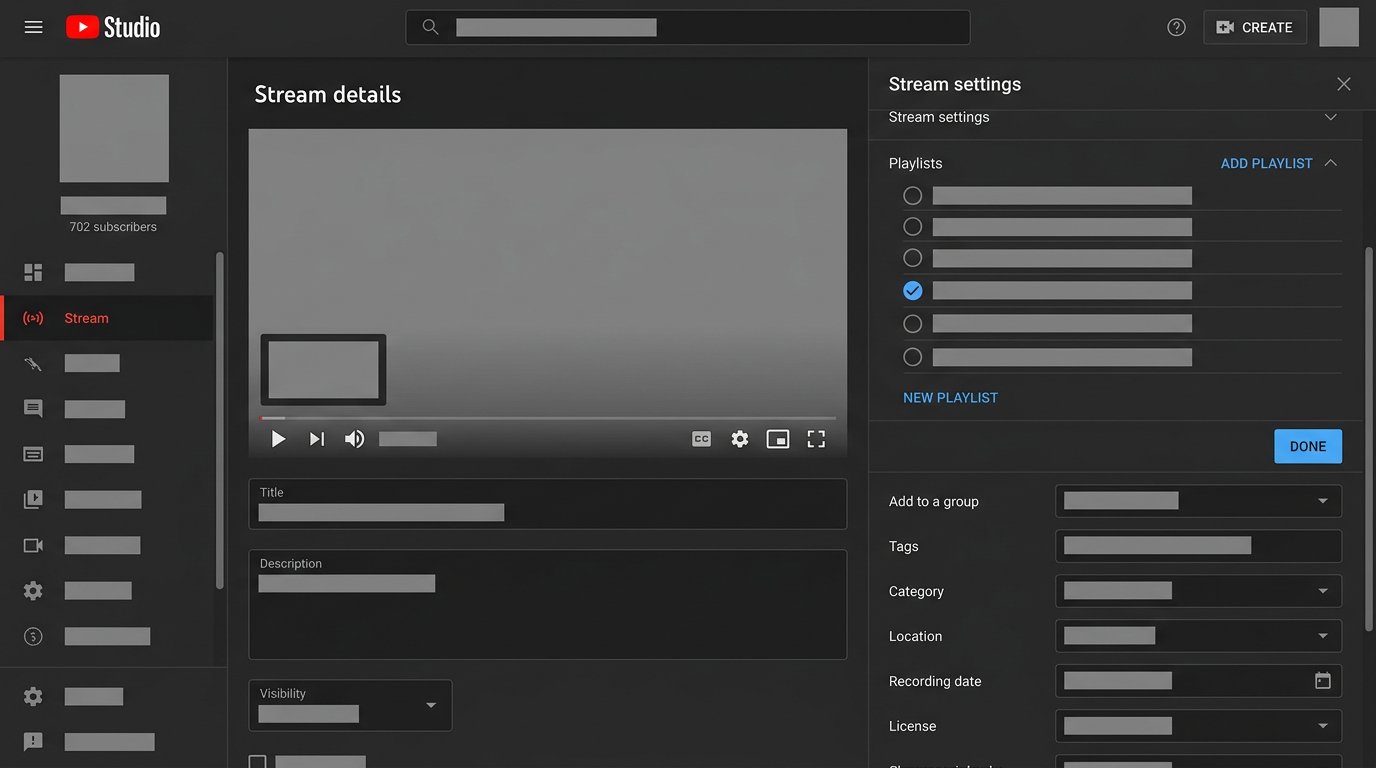
How to add a future stream to an existing playlist
- Open "Content" and the "Streams" tab in YouTube Studio.
- Select the scheduled stream and go to its "Details."
- Scroll down the page to the "Playlists" section.
- Open the section and check the playlist you need.
- If there's no suitable list, create a new playlist in the same window.
- Confirm your selection and save the changes in the broadcast card.
- Open the playlist page on YouTube and make sure the announcement card has appeared.
The downside of this method is that the card doesn't always land in a convenient position in the list right away. This is especially noticeable in a long archive, where a future stream may end up after older recordings. You need to check the order and change it separately if necessary.
What viewers see before the broadcast starts
In the playlist, a future stream appears as a separate card with the title, thumbnail, and start time, if that data is available on the event page. When viewers click it, they land on the broadcast's waiting page. There they see the description and can turn on a reminder if that feature is available for the event and channel.
After the stream starts, the same card leads to the live broadcast. When the broadcast ends, it usually stays in the list as a recording, if saving is enabled and access to the recording isn't restricted. There's no need to add the stream to the playlist again.
How stream visibility affects the playlist
Access to the broadcast and the visibility of the playlist are set separately. A public playlist doesn't make a private stream public, and a public broadcast doesn't change the status of a private playlist.
If the stream is private but the playlist is public, don't use that list as an announcement. A viewer without permission won't be able to open the broadcast page. Depending on the interface, the card may not show up at all or may appear as an unavailable item.
For a private stream, it's safer to choose a private playlist or not add the event to a public list until you change the access. An unlisted stream can be placed in a public playlist, but then visitors to the list will be able to find the broadcast page. A public playlist is only suitable for a stream that can be shown to the entire audience.
If the playlist itself is public, it can be opened from the channel, from search, or via a direct link, depending on where it's placed and how YouTube displays it. So don't add test streams, internal calls, or announcements with data that viewers shouldn't see to the list.
Which playlist to use for announcements
For regular streams, it's best to separate future broadcasts from clips, Shorts, and regular videos. That way viewers can find the schedule more easily, and the archive doesn't get mixed up with upcoming events.
- A series playlist works for playthroughs, seasons, and story-driven games.
- A schedule playlist collects upcoming streams of various formats.
- A tournament playlist brings together announcements, qualifier matches, main games, and the final.
- An archive playlist keeps only completed broadcasts.
A separate list needs to be maintained manually: add new events, change the order, and remove canceled streams. The downside of a schedule playlist is that without regular checks, it quickly shows outdated plans.
How to put the next stream first
Open the playlist under the channel owner's account and go to editing it. Order controls will appear on the list items. Drag the future stream's card to the top row, or place it elsewhere if chronology matters for the series.
If several streams are scheduled, the next one is usually placed above the rest. In a playthrough playlist, you can put the future part right after the last released stream. Automatic order saves time but doesn't always account for a date change. The downside of manual sorting is that you'll have to repeat it after every schedule change.
What to do when a stream is rescheduled, canceled, or recreated
If you change the date and time in the settings of an already created broadcast, its page usually stays the same, and the link to the playlist is preserved. After rescheduling, check the card from a viewer account: the date, time, title, and thumbnail should match the new plan.
Also check its position in the list. A stream that was the next one may remain above an earlier announcement after being rescheduled. YouTube isn't obligated to reorder cards by the new date, so it's best to fix it manually.
If a stream is canceled but its page isn't deleted, the card may stay in the playlist and mislead your audience. Remove it from the list or replace it with a new announcement if the reschedule is set up as a separate broadcast.
If you delete the old event and create a new one, a different page appears. The new stream will have to be added to the playlist again. The downside of recreating is that the previous link and the link to the list aren't preserved. For a regular reschedule, it's more convenient to change the date on the existing event.
Why the announcement isn't visible in the playlist
- Changes in the broadcast card weren't saved after selecting the playlist.
- The stream was added to a different list with a similar name.
- The event wasn't saved as a scheduled broadcast.
- The card is at the bottom of a long playlist.
- The stream is private, and you're checking from an account without permission.
- The old announcement was deleted, and the new broadcast hasn't been added yet.
- The playlist page is showing its previous state before the update.
First, open "Content" → "Streams" → "Details" and make sure the right list is checked in the "Playlists" section. Then save the changes, refresh the playlist page, and check it in incognito mode or from another account. That way you can see what a regular viewer sees.
Check before publishing an announcement
- Make sure the broadcast is saved with the date, time, and the right visibility.
- Check the playlist checkbox in the "Details" section.
- Open the playlist and place the card in the right spot.
- Check the list from another account or in incognito mode.
- After rescheduling, canceling, or creating a new stream, recheck the link, visibility, and playlist contents.
Last Articles
What has changed in design and functionality We have updated the website to make working with it faster and more convenient. The main changes affect ..
Good afternoon, I've collected all the news during this time.: 1. The main news is that prices for twitch viewers have been greatly reduced, while Tw..
1. Use promo code "December2025" for a 15% discount for all our viewers2. We have reduced the base prices for our configurator and the most affordable..
Twitch services are working stably, so we are ready to cooperate with squads, resellers, service owners, bot owners, and many others.Individual te..
We have completely updated our Twitch viewer services, and they are now working stably. We only use high-quality IP addresses for the viewers.The ..
Hello everyone! Today, we are announcing a new feature—"Twitch Viewer Configurator". Now, you can customize any plan for your Twitch channel. Choo..
Greetings, I have compiled a guide for streamers, which will be very relevant at the moment. Now YouTube and twitch have disabled monetization from vi..
We have finally developed the APINow it will be more convenient for our partner sites to work with us.To update the maximum tariffs for YouTube, an up..
Due to the huge popularity of the partnership services and referral program, we have made a cooperation table. The essence is very simple: more live a..
Our Services for Streamers








Our Services for Content Creators






