
End Screen with a Channel Subscription on YouTube: Setup for a Stream Recording
How an end screen works
An end screen is a set of interactive elements overlaid on the final seconds of a recording. You can place a channel subscription icon and a link to another video or playlist on it. Subscribing doesn't happen automatically: the viewer clicks the icon and confirms the action if needed.
The end screen is added to a saved recording rather than shown during a live broadcast. For an archive, a subscription icon and one recommendation related to the stream's topic are usually enough. The limitation of this approach is that only viewers who make it to the end will see the elements.
Which recordings are eligible for an end screen
The video must be at least 25 seconds long. An end screen isn't available on a shorter clip: you'll need to prepare a longer version and upload it separately. The new publication will have its own link and statistics.
Elements can only be placed in the last 5–20 seconds of the video. You can't put such a button in the middle of a multi-hour archive. End screens aren't available on recordings marked as made for kids. You need to set the audience based on the content of the video, not change the designation just to get a button.
What to do if the stream wasn't saved
YouTube warns that a broadcast lasting more than 12 hours may not be saved automatically. If there's no archive, you won't be able to add an end screen to it in Studio. The built-in trimming tool won't restore the unsaved portion of the broadcast either.
If you're planning a long stream, you can enable local recording in advance and check the disk space. Another option is to split the broadcast into several streams. The local file will have to be stored and processed, and if you split it, viewers will need to move to a new stream.
Do you need to split a long archive
The length of the recording alone doesn't require splitting for the sake of an end screen. If the archive was saved and the tool is available, you can add elements to the original video. That said, not every viewer will make it to the end screen at the end of a multi-hour broadcast.
Separate parts are useful when they're easier to watch by topic. For example, a tournament recording can be split into matches, with the next one suggested at the end of each. But the uploaded parts become new videos: views and comments from the original archive won't carry over, and end screens will have to be set up again.
Where to open the end screen editor
On a computer, open YouTube Studio, go to "Content," select the "Live" tab, and click the title or icon of the completed stream. The "End screen" option is on the video details page.
Another path is through the "Editor" section in the menu of the selected video. The setting applies to a specific recording, not to all of the channel's archives. If the stream has just ended and processing is still underway, the tool may become available later.
How to add a subscription and a recommendation
In the editor, you can choose a template or add elements manually using the "Element" button. The "Subscribe" option creates a round icon for the current channel. Then you need to add a video or playlist: a subscription element alone isn't enough; at least one end screen element must lead to a video or playlist.
A template speeds up setup but may place links over a face, subtitles, or important details in the frame. You can drag elements in the preview window within the zones the editor shows. After setting the timing, you need to save your changes.
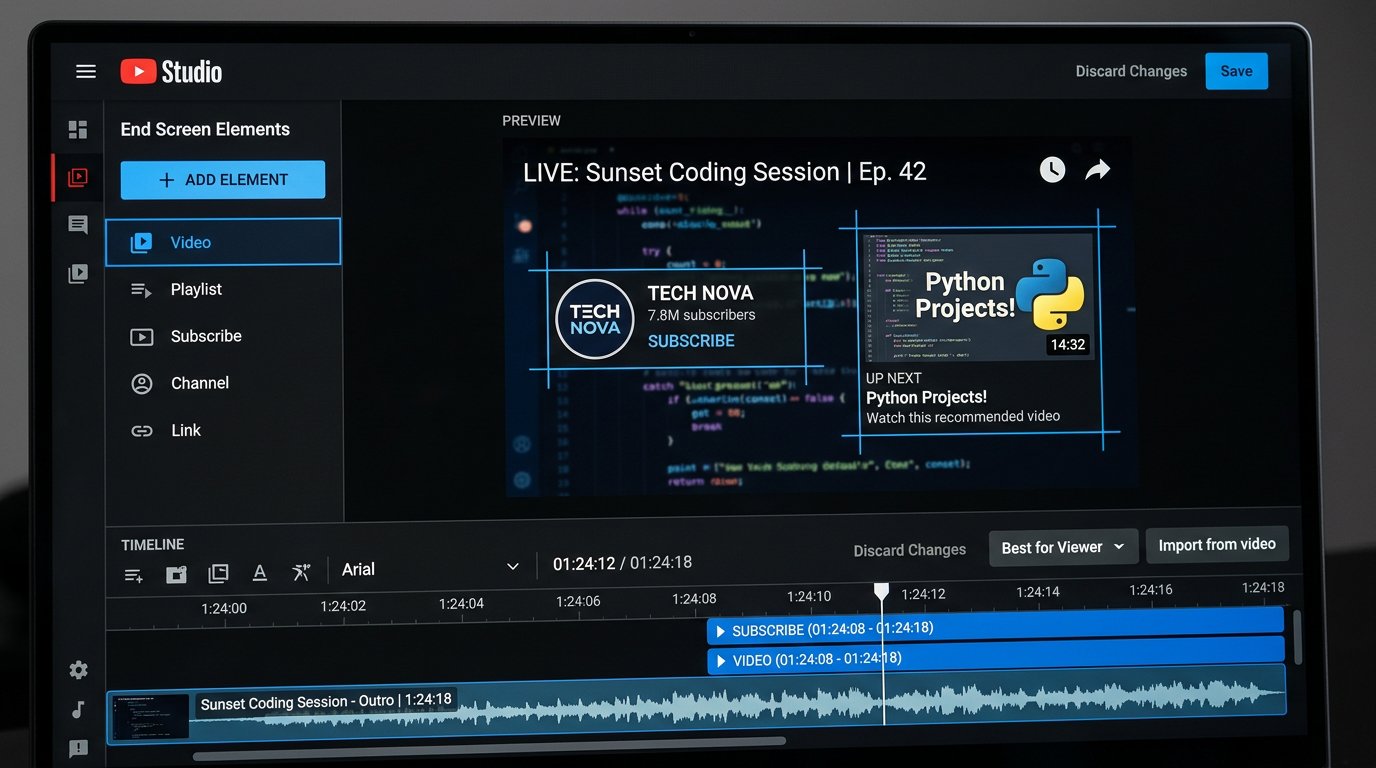
How to set the display timing
Below the preview is a timeline of the video's final seconds. Each element has a horizontal bar: its position shows when it appears, and its length shows how long it's displayed. You can move the bar and drag its edges to change the start or end of the display.
An element must be shown for at least 5 seconds and stay within the last 20 seconds of the recording. For example, you can display the subscribe icon and the recommendation together for the last 10 seconds. A later appearance will cover less of the video but leave the viewer less time to choose.
How many elements to place
For videos with a standard 16:9 aspect ratio, up to four end screen elements are available. For other proportions, the limit may be lower. The restriction applies to the entire end screen, not just to subscribe icons.
You don't have to hit the maximum: a subscription and one relevant video are often enough. Additional links offer more click options but take up space and compete for attention. The editor also limits the allowed zones and the spacing between elements.
How to choose a video or playlist
The recommendation should continue the stream's topic. After a playthrough recording, the next part works well; after a stream breaking down settings, a video where those settings are applied in practice fits. A specific video is easy to tie to the archive's content, but over time it may become outdated or unavailable.
You can let YouTube choose the recommendation. This saves you from manual selection, but you won't know in advance which video the viewer will see. A playlist is convenient for a series of streams, but it needs to be maintained: adding recordings, checking the order and availability.
How to prepare the ending of a future stream
At the end of the broadcast, you can say goodbye, suggest watching the next recording, and hold the final scene for a moment. Free space in the composition helps you add interactive elements without covering a face or useful information.
For example, the host can leave an area on the right for a recommendation and do the farewell in the left part of the frame. A static background is convenient for an end screen, but too long a pause can make the viewer leave before it appears.
What to do with the ending of a finished recording
You usually don't need to re-record a stream just for an end screen. If the ending is filled with gameplay or cuts off right after the farewell, the end screen editor won't create a free background. All you can do is place the elements where they interfere least with viewing.
You can trim the extra ending of a suitable recording in the built-in editor, but this tool is designed for videos shorter than six hours. Before editing, save the original file and check the cut point: the removed fragment may contain an important farewell or context.
How to check the end screen after trimming
Trimming changes the duration of an existing video. Afterward, you need to reopen the end screen editor and check the position of the elements relative to the new end of the recording. If necessary, set the display timing again and save.
Re-uploading works differently: the new file becomes a separate video, and the original recording's end screen isn't carried over to it automatically. Even if the video differs only by a trimmed ending, the subscription and recommendation will have to be added again.
How to check the display and clicks
After saving, open the final seconds of the recording and check whether the elements cover any important content. The selected video or playlist must be available to viewers. On a phone, small details are harder to make out, and the end screen display itself depends on viewing conditions.
In YouTube Analytics, you can evaluate clicks on end screen elements. It's best to compare recordings with similar topics and audiences: different streams get a different number of viewers reaching the end. A click on the subscribe icon doesn't equal a confirmed subscription.
Last Articles
What has changed in design and functionality We have updated the website to make working with it faster and more convenient. The main changes affect ..
Good afternoon, I've collected all the news during this time.: 1. The main news is that prices for twitch viewers have been greatly reduced, while Tw..
1. Use promo code "December2025" for a 15% discount for all our viewers2. We have reduced the base prices for our configurator and the most affordable..
Twitch services are working stably, so we are ready to cooperate with squads, resellers, service owners, bot owners, and many others.Individual te..
We have completely updated our Twitch viewer services, and they are now working stably. We only use high-quality IP addresses for the viewers.The ..
Hello everyone! Today, we are announcing a new feature—"Twitch Viewer Configurator". Now, you can customize any plan for your Twitch channel. Choo..
Greetings, I have compiled a guide for streamers, which will be very relevant at the moment. Now YouTube and twitch have disabled monetization from vi..
We have finally developed the APINow it will be more convenient for our partner sites to work with us.To update the maximum tariffs for YouTube, an up..
Due to the huge popularity of the partnership services and referral program, we have made a cooperation table. The essence is very simple: more live a..
Our Services for Streamers








Our Services for Content Creators






