
Recommended Channels on Twitch: Setup and Verification
What Are Recommended Channels on Twitch
Recommended channels are a hand-picked selection of other creators on a streamer's page. With their help, you can support colleagues, co-stream participants, and creators with a similar focus. Viewers decide for themselves whether to follow a recommendation: adding a channel doesn't subscribe the audience to it or redirect them to someone else's stream.
This selection differs from the recommendations Twitch generates on its own. The channel owner chooses the members of their list but doesn't control all of the platform's suggestions.
Where to Find the Selection Settings
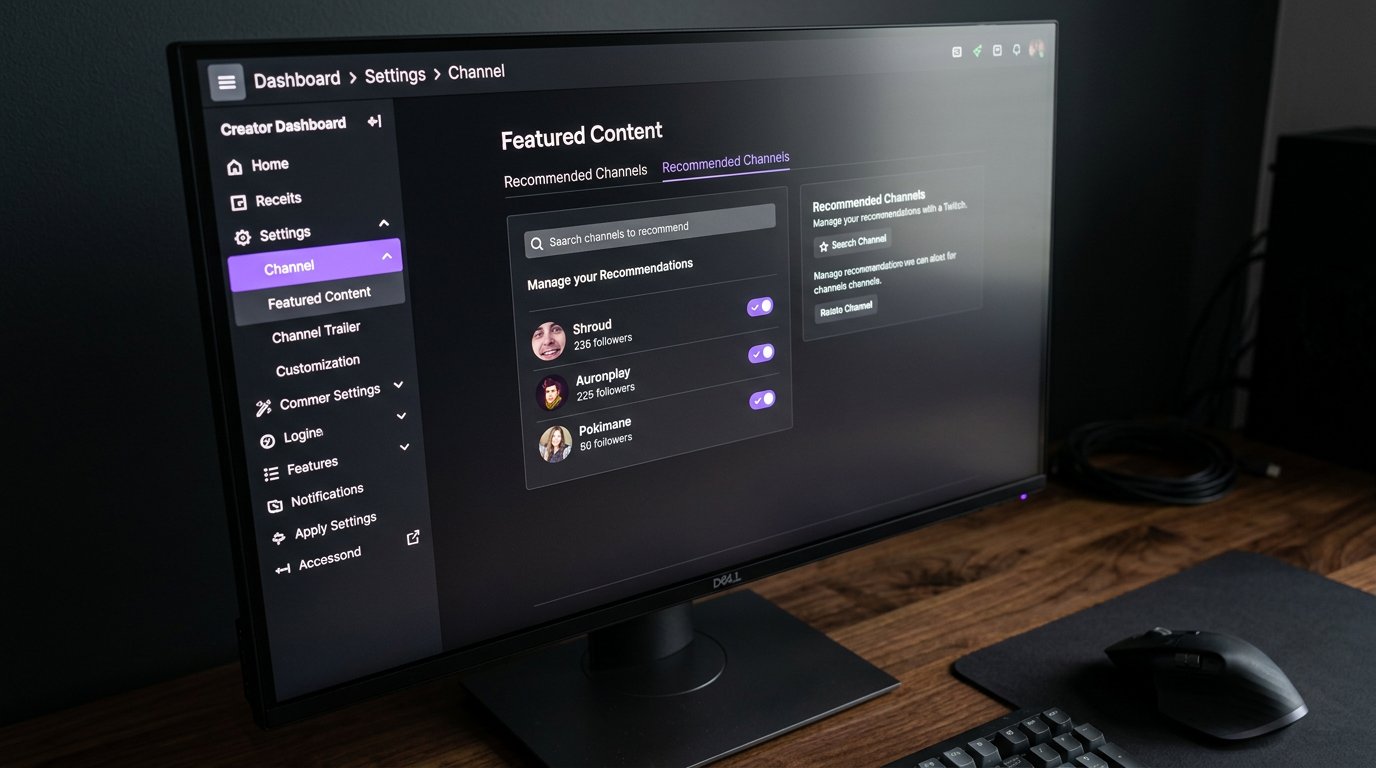
The list is managed in the Twitch creator dashboard. In the English interface, the path is Settings → Channel → Featured Content, and the block is called Recommended Channels. In the Russian localization, the names may differ.
For setup, it's more convenient to open Twitch in a desktop browser: that way it's easier to go to the profile you found, verify the login, and return to the dashboard. On a phone, the same elements may be less convenient due to screen size.
How to Add a Channel to Recommended Channels
Log in to the Twitch account you need the selection for and open the creator dashboard through the profile menu. Then follow these steps:
- In the side menu, open Settings, then Channel.
- Go to the Featured Content tab.
- Find the Recommended Channels block and open the add channel option.
- Enter the streamer's login and select the right profile from the results.
- Check that the selected channel has appeared in the recommendations list.
If you can't find the tab at the specified path, check the neighboring channel settings sections: the location of items may change after an interface update.
How to Check That a Channel Has Been Added
The reference point in the dashboard is the selected creator's entry in the Recommended Channels block. Entering a login in the search doesn't by itself mean the channel has been added to the selection: you need to select the profile from the results.
After adding, open your channel's public page and find the recommendations. Check the name and click the card to make sure the link leads to the right streamer. Checking in the dashboard shows the list's contents but doesn't replace viewing the page as a viewer would.
How to Find the Right Streamer
For searching, it's better to use the exact channel login rather than just the display name. This is especially important when names are similar or the creator uses a common nickname. You can verify the login in the streamer's page URL or confirm it with them directly.
Before adding, it's useful to open the profile and check the content. A familiar avatar isn't enough: another channel may use a similar name or design. A mistakenly selected recommendation will send your audience to the wrong creator.
Why the Search Doesn't Find a Channel
First, check the spelling of the login, similar characters, and extra spaces. If the streamer has changed their login, the old query may not return the right result. You can confirm the current address with the creator or check their active page, then repeat the search in Recommended Channels.
It's also worth checking whether the profile itself opens. If it's unavailable, the reason may be related to the channel's status. The downside of this sign is that it doesn't explain why the channel is unavailable: it's better to ask the owner.
What to Do If the Profile Opens but Isn't Found
If the public page is accessible but the search in the dashboard doesn't show the channel, try again in a desktop browser and check the current login. It's also useful to open the search later: a single failed query doesn't prove that the channel can't be recommended.
Don't automatically link the problem to a viewer being banned in chat or to a supposed privacy setting. If the error persists, you can refer to Twitch support for current instructions.
How to Remove a Channel from Recommendations
To remove a channel, go back to Settings → Channel → Featured Content, find the creator in the Recommended Channels block, and use the remove action on their entry. After that, refresh the public page and check that the recommendation has disappeared.
Removing only changes the page owner's hand-picked selection. It doesn't prevent Twitch from showing the same channel in other recommendations and doesn't affect viewers' subscriptions to the removed creator.
How to Replace a Recommended Creator
To replace a channel, first remove the old entry, then find the new streamer by login and add them through Recommended Channels. Before removing, it's useful to verify the profile: with similar names, it's easy to remove the wrong creator.
After replacing, check both results: the old entry is no longer in the selection, and the new one leads to the right page. Replacement doesn't notify viewers about why the list's contents changed, so it's better to discuss arrangements with co-project participants separately.
Can You Set Up the Selection from a Phone
On a phone, you can open Twitch in a browser, enable the desktop version of the site if needed, and go to the creator dashboard. Then you'll need the same Featured Content section and the Recommended Channels block.
The downside of a mobile browser is the small controls: it's easier to make a mistake when choosing from several similar profiles. After setup, it's useful to open the public page separately on a phone, especially if your audience mostly watches streams from mobile devices.
How to See the Page as a Viewer Would
For an independent check, it's convenient to open the channel's public page in an incognito window. That way you can view it without logging in to the owner's account and check clicks on the recommendations. It's also worth checking the page on the device your audience typically uses.
The page may look different in a browser and in the app. So the absence of the usual block in one place doesn't prove that the channel has been removed from the list: first check the entry in the creator dashboard.
Why an Added Channel Isn't Visible
First, go back to Featured Content and make sure the profile is still in Recommended Channels. If the entry isn't in the list, the selection may not have been completed: find the creator by login and add them again.
If the entry is in the dashboard, refresh the public page, open it without logging in, and check that the recommended streamer's profile is accessible. Checking only from the dashboard doesn't show how the page looks to a visitor.
Which Channels Are Suitable for the Selection
When choosing, it's useful to consider language, game or category, stream format, and community rules. The list can include co-stream participants, creators from the same community, or streamers with a similar focus.
A shared game doesn't mean both audiences will like the communication style. A recommendation is perceived as support for the creator, so it's worth watching their streams rather than judging only by category name and profile design.
Should You Exchange Recommendations
You can add a channel on your own initiative: the setup itself doesn't require approval from the other creator. If the goal is mutual support, it's better to discuss the terms in advance. Someone else's recommendation doesn't obligate the channel owner to post a reciprocal link.
The downside of exchanging for the sake of exchanging is a possible mismatch between community interests. Even with mutual placement, some viewers won't notice the block or won't be interested in a different format. Clicks and subscriptions aren't guaranteed.
How the Selection Differs from a Raid
Recommended channels serve as a hint on the creator's page. A raid helps direct viewers to another stream after your own broadcast. Adding to the selection doesn't start a raid, and a completed raid doesn't by itself add the streamer to the list.
A raid is suitable for support at a specific moment, but the chosen creator must have a suitable stream running. The selection doesn't require choosing a transition time, but the viewer may not notice it or may not open the suggested channel.
How the List Differs from Twitch Recommendations
Don't confuse Recommended Channels with suggestions in the sidebar and other parts of Twitch. The platform generates its own recommendations, and manually setting up your page doesn't let you choose the entire set of channels a visitor will see.
The advantage of a hand-picked selection is control over its contents. The limitation is that it doesn't replace the platform's recommendations and doesn't guarantee a prominent placement next to the stream.
How to Keep the Selection Up to Date
Periodically open the recommended profiles and check whether they're accessible and whether the focus still fits. If a creator has changed format or the channel is no longer connected to the community, the entry can be removed in the Recommended Channels block.
Frequent replacement without checking makes it harder to keep track of links and makes the selection less consistent. It's useful to add a new creator after getting familiar with their content, not just because of a matching category.
Last Articles
What has changed in design and functionality We have updated the website to make working with it faster and more convenient. The main changes affect ..
Good afternoon, I've collected all the news during this time.: 1. The main news is that prices for twitch viewers have been greatly reduced, while Tw..
1. Use promo code "December2025" for a 15% discount for all our viewers2. We have reduced the base prices for our configurator and the most affordable..
Twitch services are working stably, so we are ready to cooperate with squads, resellers, service owners, bot owners, and many others.Individual te..
We have completely updated our Twitch viewer services, and they are now working stably. We only use high-quality IP addresses for the viewers.The ..
Hello everyone! Today, we are announcing a new feature—"Twitch Viewer Configurator". Now, you can customize any plan for your Twitch channel. Choo..
Greetings, I have compiled a guide for streamers, which will be very relevant at the moment. Now YouTube and twitch have disabled monetization from vi..
We have finally developed the APINow it will be more convenient for our partner sites to work with us.To update the maximum tariffs for YouTube, an up..
Due to the huge popularity of the partnership services and referral program, we have made a cooperation table. The essence is very simple: more live a..
Our Services for Streamers








Our Services for Content Creators






