
Link to the Next Stream in the End Screen of a YouTube Recording
What to prepare before setting up the end screen
The end screen is an interactive block that appears in the final seconds of a stream recording. You can add a "Video" element to it and direct the viewer to the page of your next broadcast. To do this, the upcoming stream needs to be created in advance: YouTube must generate a separate watch page for it.
First schedule the next broadcast, then open the recording of the previous stream in the editor. The end screen is tied to a specific video or stream, not to the channel's schedule. If you later delete the scheduled stream and create a new one, the old element will not update on its own.
Check that the upcoming stream is accessible to your audience. Age restrictions, members-only access, or another visibility mode may prevent some viewers from opening the page after clicking. The downside of a restricted announcement is that the end screen will remain clickable, but the viewer will see a restriction instead of the stream.
Schedule the next stream and set up its page
Create a broadcast in YouTube Studio through the stream management section. Enter the title, start time, description, thumbnail, and other settings, then save the announcement. After that, the stream will have its own page that you can open separately from Studio.
The title of the upcoming stream should differ from other broadcasts on the channel. In the end screen editor, it's easier to find a stream by a clear title, especially if the list contains many past recordings and scheduled broadcasts. Don't rely only on identical working titles like "Stream tonight": it's easy to pick the wrong announcement.
Open the page of the upcoming broadcast in normal viewing mode and check the thumbnail, time, and description. It's important to do this before adding the element to the recording: the link may technically be correct, but a poorly designed page won't explain to the viewer where they landed and when to expect the stream.
Open the recording of the finished stream in the editor
After a broadcast ends, YouTube saves it as a recording on the channel if saving is enabled for the stream. In YouTube Studio, open the content list, find the recording you need, and go to its editor. In the tools menu, select the end screens section.
The end screen isn't available for every video. The recording must be long enough: if the video is shorter than the minimum length, usually around 25 seconds, the end screen won't appear and you won't be able to add elements. The downside of a too-short ending is obvious: even if you have an announcement, you won't be able to direct the viewer through the End Screen.
If the recording already has an end screen with a subscribe button, playlist, or another video, you don't have to rebuild it from scratch. You can change only the video element. This approach saves time, but the old placement may not match the new final scene, credits, or the "Next stream" overlay.
Prepare the final seconds of the recording
End screen elements appear in the final part of the video. Leave a calm area for them: a static scene, an ending screen, a frame without important gameplay, or a pre-made overlay. If the stream ends abruptly on an active moment, the upcoming stream card will look out of place and may cover a significant part of the frame.
A practical option is to add a separate final scene in OBS or another tool and hold it for a few seconds before ending the broadcast. On it, you can place neutral text about the next stream, the name of the segment, and a visual cue pointing toward the future YouTube card.
Don't draw an exact imitation of a button or the frame of a video element. The platform may change the size and design of the card depending on the device. It's better to leave an empty area and use a simple caption, such as "Next stream — on the card to the right." The downside of complex graphics is that after an interface change, they quickly stop matching the actual element.
Add the upcoming broadcast as a "Video" element
In the end screen editor, click to add an element and select "Video." YouTube usually offers several options: the most recently uploaded video, a recommended video for the viewer, or a specific video. To link to the next stream, choose the option to manually specify a specific video.
Find the scheduled broadcast by its title and select it from the list. After selection, a card for the upcoming stream will appear in the preview. It will lead the viewer to the announcement page, where they can view the stream details and set a reminder if that feature is available for the stream.
The viewer-recommended option doesn't work for this task: YouTube determines the destination itself, and the upcoming stream may not be included in the selection. "Most recent upload" is also unreliable. After you publish a clip, Shorts, or a new video, this element may start leading to completely different content.
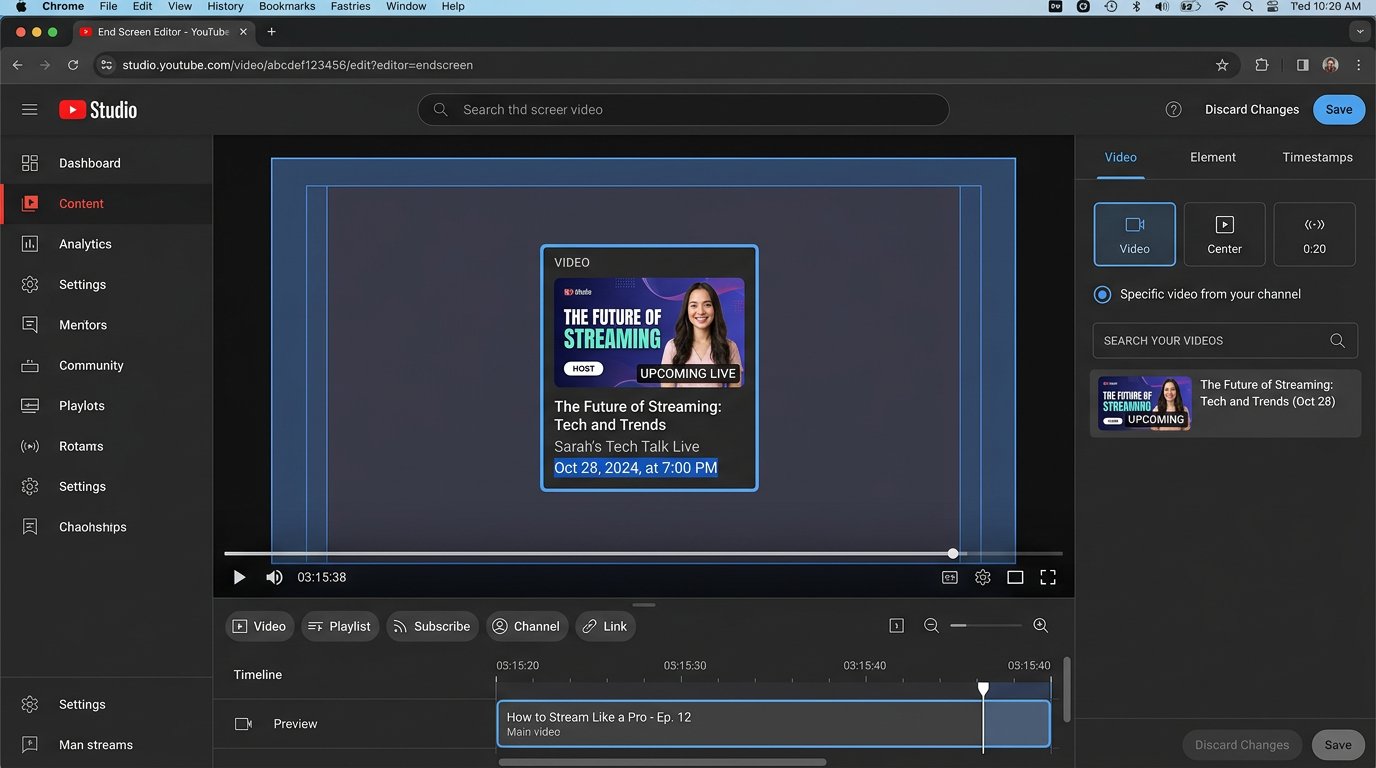
Place the card in the safe zone of the frame
Drag the element with the upcoming stream into an empty part of the final scene. Don't push it against the edge of the frame: on phones, TVs, and in different viewing modes, the YouTube interface may overlap the edge of the image. Leave a noticeable margin from the top, bottom, and side edges, not just a small gap for appearance.
Don't place the card at the bottom, where player controls may appear, and don't place it over subtitles, important text, or a face in the frame. If you added an arrow to the final scene, point it toward an empty area rather than an exact spot: the position and size of the element may differ for the viewer.
Use the editor's preview to check whether the card extends beyond the designated safe area. Then be sure to open the finished recording on a phone. The downside of checking only in the editor is that it doesn't show all the specifics of real mobile viewing: there's less free space on a small screen, and small captions on your end screen may be unreadable.
Choose one main transition or add other elements
Next to the upcoming stream, you can place a channel subscription element, a playlist, or another video. This is appropriate when the final scene is designed in advance for several cards and isn't overloaded. But each additional element competes for attention with the link to the stream.
If the goal of the recording is to gather viewers for a specific next stream, keep the scheduled stream as the main element. It's better to place the subscription in an empty part of the frame and not make it visually larger than the stream card. The downside of several equally prominent calls to action is that the viewer has to choose, so some transitions to the announcement are lost.
Don't add a channel element instead of a video in the hope that the viewer will find the stream on their own. After going to the channel page, they still need to notice the announcement among recordings, Shorts, and other posts. That path is longer and works worse than a direct link to the next stream's page.
Save the end screen and check it after processing
After placing the elements, save the changes in the editor. YouTube may not show the updated end screen instantly: the platform needs to process changes to interactive elements. The recording itself doesn't need to be re-uploaded and usually keeps its accumulated views, comments, and link.
Don't close the page until Studio confirms the save. If you're changing the trim, chapters, title, or other settings at the same time, check the end screen again. Editing the end of the recording can shift the moment the card appears or leave it over a different fragment.
After replacing the upcoming stream, check the link in the published video itself, not just in the editor. Open the recording as a regular viewer, wait for the ending, and click the card. This way you'll see the actual destination page and immediately notice if an old announcement was selected.
Check the transition on a computer and a phone
Scrub the recording to the ending on a computer and make sure the element appears at the right seconds, doesn't cover important graphics, and leads to the expected stream. After clicking, check the title, thumbnail, date, and time on the stream page. If outdated information remains in the announcement, the viewer may not understand when the stream will take place.
Then open the recording on a mobile device. Check whether the card is visible, whether there's free space around it, and whether the text on the final scene is readable. On a phone, don't evaluate the result from a static frame alone: tap the element and make sure the transition actually opens the scheduled broadcast page.
If the link leads to the wrong place, go back to the editor, remove the old video element, and select the right stream again. Simply changing the title or thumbnail of the upcoming broadcast won't fix the situation if you previously deleted that announcement and created a new one with a different page.
What to do if the scheduled stream isn't visible in the list
Make sure the broadcast is saved and its page has already been created. Refresh YouTube Studio, exit the recording editor, and open it again. Search for the stream by its exact title, not just by date: with regular streams, there may be several similar announcements in the list.
Check the access settings and restrictions of the upcoming stream. If the announcement was deleted, left as an unsaved draft, or is unavailable for selection in the editor, don't replace it with a random video. Temporarily add the stream link to the recording's description and pin a comment with the same link.
This temporary option doesn't replace the end screen: many viewers don't open the description or read comments after watching a recording. When the stream becomes available for selection, return to the end screen, add the specific video, and test the transition again in normal viewing.
Update the link after every past stream
When the scheduled broadcast ends, its page becomes a recording of the past stream. The end screen in the old video will continue to lead to it, but the viewer will no longer land on the next stream. Before a new broadcast, update the elements at least in those recordings that consistently get views from search, recommendations, and playlists.
You don't have to edit the entire archive. First check your analytics and select the recordings that continue to bring in an audience. The downside of mass-updating old videos is a large time investment with little effect if the videos are barely watched.
For the final scene, use wording without an exact date: "Next stream — on the card" or "The continuation is on the upcoming stream." It's better to update the specific date, time, and topic on the announcement page. Then, if the broadcast is rescheduled, you won't have to redo the recording itself and re-adjust the design to match the new information.
Last Articles
What has changed in design and functionality We have updated the website to make working with it faster and more convenient. The main changes affect ..
Good afternoon, I've collected all the news during this time.: 1. The main news is that prices for twitch viewers have been greatly reduced, while Tw..
1. Use promo code "December2025" for a 15% discount for all our viewers2. We have reduced the base prices for our configurator and the most affordable..
Twitch services are working stably, so we are ready to cooperate with squads, resellers, service owners, bot owners, and many others.Individual te..
We have completely updated our Twitch viewer services, and they are now working stably. We only use high-quality IP addresses for the viewers.The ..
Hello everyone! Today, we are announcing a new feature—"Twitch Viewer Configurator". Now, you can customize any plan for your Twitch channel. Choo..
Greetings, I have compiled a guide for streamers, which will be very relevant at the moment. Now YouTube and twitch have disabled monetization from vi..
We have finally developed the APINow it will be more convenient for our partner sites to work with us.To update the maximum tariffs for YouTube, an up..
Due to the huge popularity of the partnership services and referral program, we have made a cooperation table. The essence is very simple: more live a..
Our Services for Streamers








Our Services for Content Creators






