
Products and Donations in the VK Video Live Stream Description
Which links you can place in the stream description
The stream description in VK Video Live can be used for links to channel support, products from the frame, your own shop, equipment picks, chat rules, schedule, and other platforms. Usually products aren't added as separate cards inside the description but as regular URLs with a clear label.
Each link should lead to one clear action. A donation goes to the support page, a product goes to a specific item page, a shop goes to a permanent catalog. If you mix everything into one line or put several addresses in a row, the viewer won't understand where they'll end up.
In the first lines, leave only what relates to the current stream: support and the products shown. Permanent links to the shop, community, and schedule are better placed below.
Where to edit the VK Video Live stream description
Log in to VK with an account that has rights to the profile or community the stream is coming from. Open the section with videos and streams, find the scheduled, active, or past stream you need, and go to editing it.
- Open the card of the stream you need.
- Select editing the stream settings.
- Find the fields with the title and description.
- Paste the prepared text and links.
- Save the changes.
- Open the public stream page and check the result as a viewer.
The names of sections and buttons may change along with the platform's interface. Use your list of streams and the edit action for a specific stream as your guide. The capture software doesn't control the description: it's where you set up scenes, audio, the stream, and the stream key.
How to arrange donations, products, and permanent links
Start the description with the topic of the episode. The viewer should immediately see what's happening on the stream: a device test, a game playthrough, a talk stream, an unboxing, or a setup build. Next, place support and links to the items you're showing right now.
Place the channel's permanent shop, social media links, schedule, and chat rules in a separate block below. This is especially important for recordings: someone may open the stream a few days later and look for a specific model from the frame, not a general catalog.
Don't turn the description into a showcase of dozens of items. For one stream, one support link, a few relevant products, and a link to a collection are enough if there are many items. The downside of a collection is that the viewer has to make an extra click and find the right item themselves.
How to insert URLs without errors
Use the full address starting with https://. Put a label before the link: it explains the purpose of the click and helps distinguish a product from a donation or an ad. It's more convenient to place the URL itself on a separate line.
Don't rely on Markdown formatting and don't replace the address with a text name if the interface doesn't show that it will become an active link. A regular full URL is more reliable. Don't put a period, comma, or closing parenthesis after the address: the character may end up in the link when copied.
Support the stream:
https://example.com/support
The mouse from today's test:
https://example.com/mouse
After saving, open the stream page not from the editor but in regular view. If the address isn't recognized, paste it again without spaces inside the URL. Check the clicks from a computer and a phone: a long link may display differently.
How to add a donation link
First, prepare the page the viewer will land on: a donation form, a public support profile, or another chosen transfer method. Open it in a mode without the owner's authorization. The page should clearly show the recipient and the next action, without requesting access to a personal account or showing a technical error.
- Copy the full address of the support page.
- Add the label "Support the stream" or "Channel support" at the beginning of the description.
- Paste the URL on the next line.
- State the rules if donations affect the stream.
- Separate the support block from the products with an empty line.
- Save the description and check the link from the public page.
If you read donation messages at the end of the stream, say so directly. If you don't take requests for music, in-game actions, or personal favors, it's better to state that in advance too. Such a note doesn't override the platform's and support service's rules, but it reduces the number of disputed expectations in chat.
Don't add several equivalent donation methods without explanation. There should be one main address. An additional link is appropriate, for example, for a separate support subscription. The downside of several options is that the viewer may not understand which method to choose and simply close the description.
How to add a product from the current stream
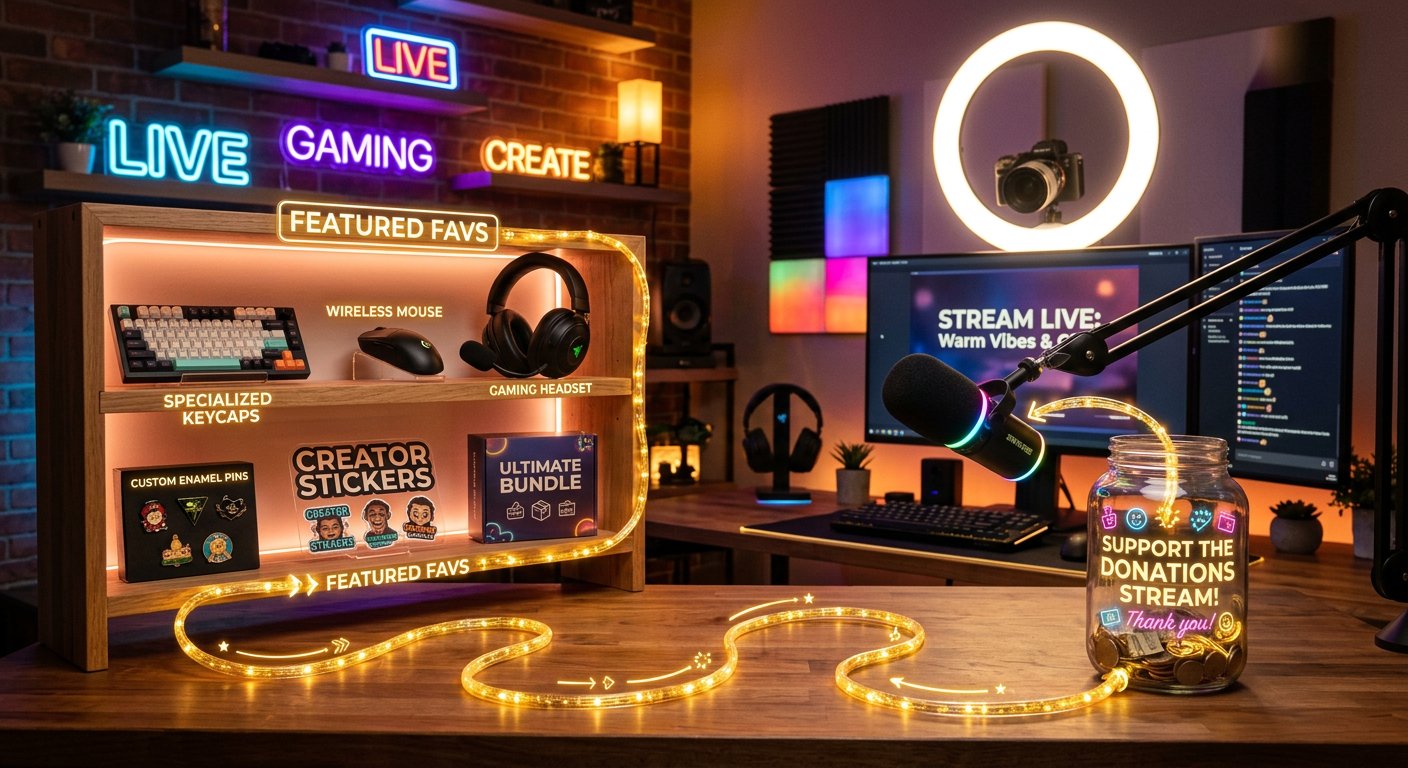
For an item you use or show in the frame, put a direct link to the product page. It could be a mouse, headset, keyboard, microphone, game, merch, or digital product. A general shop page is worse: the viewer will have to find the item themselves.
- Open the product page in your browser.
- Check the model, bundle, color, and version against what's shown on the stream.
- Check whether the product is available and whether the link leads to a different variant.
- Copy the full URL.
- Create a "Products from the stream" block in the description.
- State the exact name of the item and paste the link on the next line.
- Check the click after saving the description.
For example, the label "Wireless mouse from the test" is better than "My mouse." In the second case, a viewer of the recording won't understand which stream the link relates to and which model you mean.
A direct product page isn't perfect either: the product may be discontinued, replaced with a new revision, or redirected to a catalog. Check such links before every stream, and for recordings, update the description if the page becomes outdated.
How to set up several products and a general collection
Each item should have its own label and URL. Don't place several addresses in a row after one general phrase: the viewer won't understand which link refers to the headset and which to the keyboard. Leave an empty line between products.
If two or three items are shown on the stream, add each one separately. When there are many items, it's more convenient to make a separate collection: for example, with all the equipment on the desk or a set of recording accessories. In the label, explain what's inside.
Products from the stream:
The wireless mouse we're testing
https://example.com/mouse
Headset for talk streams
https://example.com/headset
Full list of equipment from the desk
https://example.com/setup
Don't call the collection "All links" or "Useful." Such a label explains nothing and looks like a random set of URLs. The downside of one general collection is that the viewer won't see a specific product right away and may not reach the right page.
How to separate products from the shop and ads
Products from the current stream, the permanent shop, and affiliate placements serve different purposes. Separate them with short headings. Then the viewer won't mistake channel merch for a device from the frame, and an ad link won't look like a personal recommendation without terms.
- Products from the stream — devices, games, or other items you show and discuss in the episode.
- Support — the main link for donations.
- Channel shop — a permanent catalog with merch, digital materials, or other products.
- Affiliate materials — links for which you may receive a reward for clicks or purchases.
- Useful links — community, schedule, chat rules, and other platforms.
Mark the affiliate nature of a link before the URL. The label "Affiliate link to the headset" is more honest and clearer than a neutral "Watch here." A shortened address doesn't replace such a note: it hides the domain and may cause distrust.
Description template for a stream with products and donations
You can keep the template in notes and copy it when preparing a new stream. Before publishing, replace all fields in square brackets and remove blocks that don't relate to the episode. The main downside of a template is the risk of leaving an old product, a finished promotion, or someone else's affiliate link.
Today we're testing [device name] and showing [what's happening on the stream].
Support the stream:
https://example.com/support
Products from the stream:
[Exact product name]
https://example.com/product
[Equipment or accessories collection]
https://example.com/collection
Affiliate link: [offer name]
https://example.com/partner
Channel shop:
https://example.com/shop
How to update links in a scheduled and past stream
If the support page has changed, a promotion has ended, or a product is no longer for sale, open the card of the stream you need and edit the description. This is useful not only before going live but also after the stream: the recording may keep getting views, and outdated links will send viewers to the wrong place.
- Find the stream by title or start date.
- Open editing the card.
- Replace the URL and its label.
- Remove finished promotions, unavailable products, and temporary promo codes.
- Save the changes.
- Check the public page without owner rights.
The ability to change the description during an active stream depends on the current state of the stream and the interface. If an important link has changed after the start, let people know in chat and say it out loud. Some viewers may have already opened the old address.
What to check before going live
- The topic at the beginning of the description matches the content of the stream.
- The main support link opens without the owner's authorization.
- Each product leads to the right model, bundle, or collection.
- Each URL has a clear label.
- Affiliate and ad links are marked.
- The text has no products, promotions, or addresses from the previous stream.
- The description has no stream key, personal details, or service links.
- The page and clicks have been checked from a phone.
Check not only that the link exists but also the page it leads to. A URL may open without an error but lead to a different model, a closed section, or an outdated offer.
Last Articles
What has changed in design and functionality We have updated the website to make working with it faster and more convenient. The main changes affect ..
Good afternoon, I've collected all the news during this time.: 1. The main news is that prices for twitch viewers have been greatly reduced, while Tw..
1. Use promo code "December2025" for a 15% discount for all our viewers2. We have reduced the base prices for our configurator and the most affordable..
Twitch services are working stably, so we are ready to cooperate with squads, resellers, service owners, bot owners, and many others.Individual te..
We have completely updated our Twitch viewer services, and they are now working stably. We only use high-quality IP addresses for the viewers.The ..
Hello everyone! Today, we are announcing a new feature—"Twitch Viewer Configurator". Now, you can customize any plan for your Twitch channel. Choo..
Greetings, I have compiled a guide for streamers, which will be very relevant at the moment. Now YouTube and twitch have disabled monetization from vi..
We have finally developed the APINow it will be more convenient for our partner sites to work with us.To update the maximum tariffs for YouTube, an up..
Due to the huge popularity of the partnership services and referral program, we have made a cooperation table. The essence is very simple: more live a..
Our Services for Streamers








Our Services for Content Creators






