
How to Edit a TikTok Video Description After Publishing
Can You Change the Description of a Published Video
You can edit the description of your own TikTok video after publishing if the editor is available for that post. Changes are saved to the existing post: you don't need to re-upload the video, and its link and accumulated reactions stay in place.
If there's no editor, privacy settings won't help you change the text. In that case, your only options are to clarify the information in a comment or publish the corrected video again. Both have drawbacks: a comment doesn't replace the description, and a new post doesn't inherit the old one's metrics.
Where to Find the Post Editor
Open your profile and the video you need, then:
- Tap the three-dot button or open the additional actions menu.
- Find the "Edit post" option or its equivalent.
- Fix the text in the description field and, if needed, change hashtags and mentions.
- Save your changes and return to the video.
Option names and button locations may vary depending on the app version. If there's no edit option, you won't be able to fix the description through this menu.
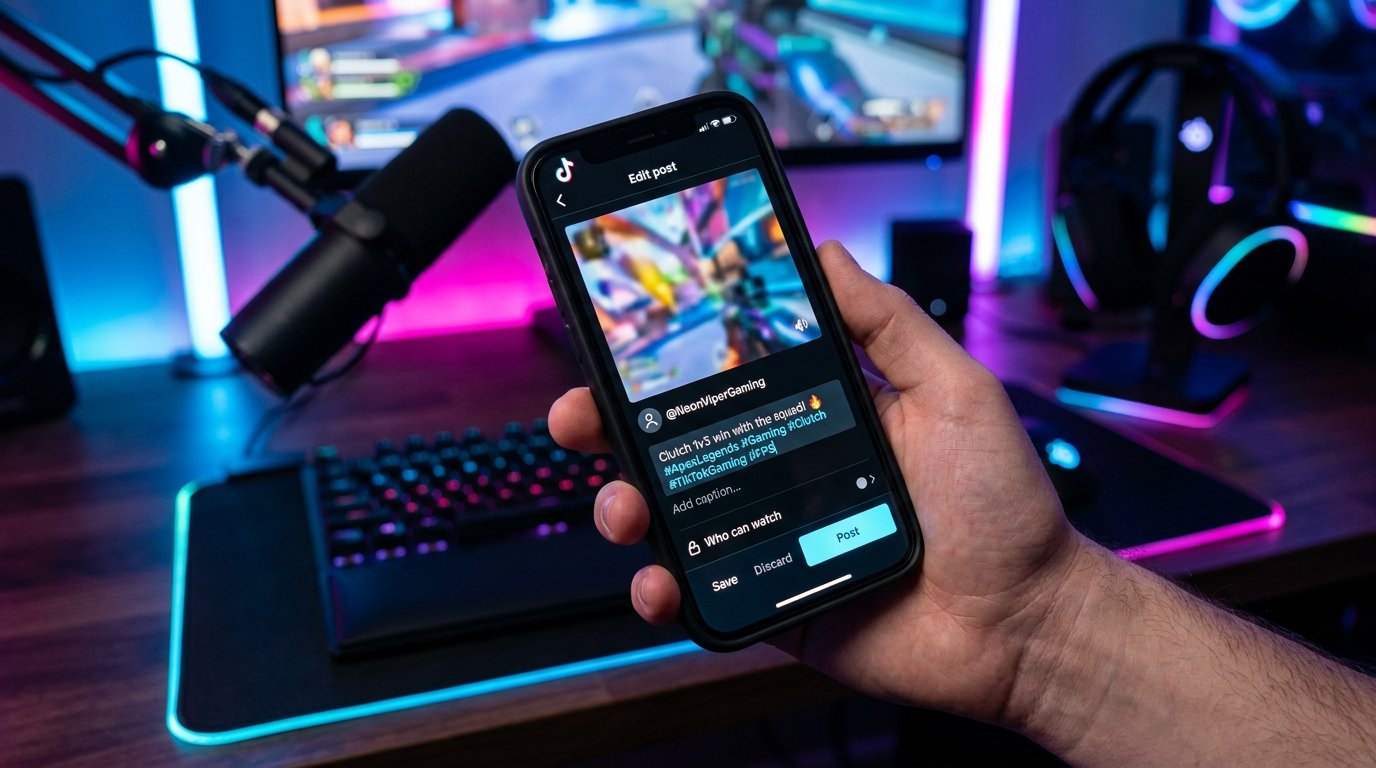
What You Can Fix in the Description
The available description field lets you remove a typo, refine the wording, or change hashtags or a mention. Before saving, double-check the name of the tagged account: a single wrong letter can send viewers to the wrong place.
The description and on-screen text are different elements. Editing the post field won't change text baked into the video file. To fix that kind of text, you'll need a version of the video with the new text and a re-upload.
Why the Editor May Be Unavailable
You can't change the description of someone else's video: the editor only applies to your own posts. Published posts may also be subject to time limits after publishing and limits on how often they can be changed. If a recent video can be edited but an old one can't, the age of the post may be one of the reasons.
Feature availability may vary by account and region. So the absence of an editor on one video doesn't mean it's unavailable for all videos on the account.
What to Do If There's No Edit Button
Make sure you're signed in to the author's account, install any available TikTok update, and reopen the app. In case of a possible glitch, it's also worth checking your network connection and signing in to your account again.
These steps don't guarantee the editor will appear and don't lift restrictions on a specific post. If the option is missing on other recently published videos too, you can contact support through the app, specifying which post needs editing. A support response can also take time and won't necessarily solve the problem.
How to Verify Your Edits Were Saved
After saving, close the editor and reopen the video in your profile. It's important to read the description in full, check the hashtags, and make sure the right account is mentioned. If you see the old version, refresh the page or restart the app.
If saving fails, you don't necessarily have to delete the video right away. First, it's worth assessing whether the error affects the meaning and whether you can temporarily explain it in a comment. However, this won't fix the post text itself.
What to Consider for an Ad Video
For a business account, it's important to distinguish a regular post from a video used in ads. The account type itself doesn't mean the description of every video is locked. But for a promoted post, the available changes may depend on the campaign status and ad settings.
In the ads manager, check which ad fields can be edited. Changing the ad text won't necessarily change the description of the original post in your profile. Pausing the campaign also doesn't guarantee the post editor will become available.
When a Comment Is Enough
A comment works for a clarification that doesn't need to go into the description itself. For example, you can announce a change in terms or explain inaccurate wording. If the pin feature is available, you can pin the correction under the video.
The drawback is that the incorrect description stays in place, and some viewers won't open the comments. A wrong hashtag or mention in the post can't be fixed this way either.
When It's Better to Re-upload the Video
Reposting makes sense if the editor is unavailable and the error is significant: the wrong account is tagged, the text misleads viewers, or the fix needs to go into the video file itself. For a video tied to advertising, you'll also need to check the campaign settings; a new ad may be required.
The new video will become a separate post. Views, reactions, and comments from the old post won't carry over, and the old link won't lead to the new version.
What to Prepare Before Deleting a Video
Before deleting, find the source file and prepare the corrected description. If the original wasn't saved, check whether downloading your own video is available. A downloaded copy has a drawback: it may retain a watermark, and some sounds or effects may be unavailable when you re-upload.
It's also helpful to save the names of mentioned accounts and important details from the comments. Deletion may be irreversible, so it's best to first make sure everything you need for the new post is ready.
How to Temporarily Hide a Video
If the description contains someone else's personal data or other sensitive information, you can restrict access to the video through privacy settings if a suitable option is available. This is a temporary measure while a fix is being prepared or a decision on deletion is being made.
Hiding doesn't change the description and doesn't eliminate copies and screenshots already made. If you need to restore access to the video, you'll have to check its visibility separately.
How to Avoid Mistakes in Your Next Post
Before publishing, read the description in the preview, check the first sentence, hashtags, and mentions. It's helpful to put information at the start of the text that helps viewers understand the video's content, and to choose hashtags that fit the topic. That said, changing them alone doesn't guarantee increased reach.
For videos with important terms, dates, or names, it's best to verify the text against the source materials before publishing and launching promotion. This check takes time, but it keeps the error out of an already published video.
Last Articles
What has changed in design and functionality We have updated the website to make working with it faster and more convenient. The main changes affect ..
Good afternoon, I've collected all the news during this time.: 1. The main news is that prices for twitch viewers have been greatly reduced, while Tw..
1. Use promo code "December2025" for a 15% discount for all our viewers2. We have reduced the base prices for our configurator and the most affordable..
Twitch services are working stably, so we are ready to cooperate with squads, resellers, service owners, bot owners, and many others.Individual te..
We have completely updated our Twitch viewer services, and they are now working stably. We only use high-quality IP addresses for the viewers.The ..
Hello everyone! Today, we are announcing a new feature—"Twitch Viewer Configurator". Now, you can customize any plan for your Twitch channel. Choo..
Greetings, I have compiled a guide for streamers, which will be very relevant at the moment. Now YouTube and twitch have disabled monetization from vi..
We have finally developed the APINow it will be more convenient for our partner sites to work with us.To update the maximum tariffs for YouTube, an up..
Due to the huge popularity of the partnership services and referral program, we have made a cooperation table. The essence is very simple: more live a..
Our Services for Streamers








Our Services for Content Creators






