
How to edit a scheduled VKontakte post
Where to find a scheduled post
Open the VKontakte community you need and go to the posts section. Above the feed, select the "Scheduled" tab. If you manage several communities, check the page name first: each one has its own publishing queue.
Find the post by the beginning of its text, its attachments, or the assigned time. If the post isn't in the list, don't create a copy right away: it may have already gone out or still be in drafts.
How to open a post on a computer
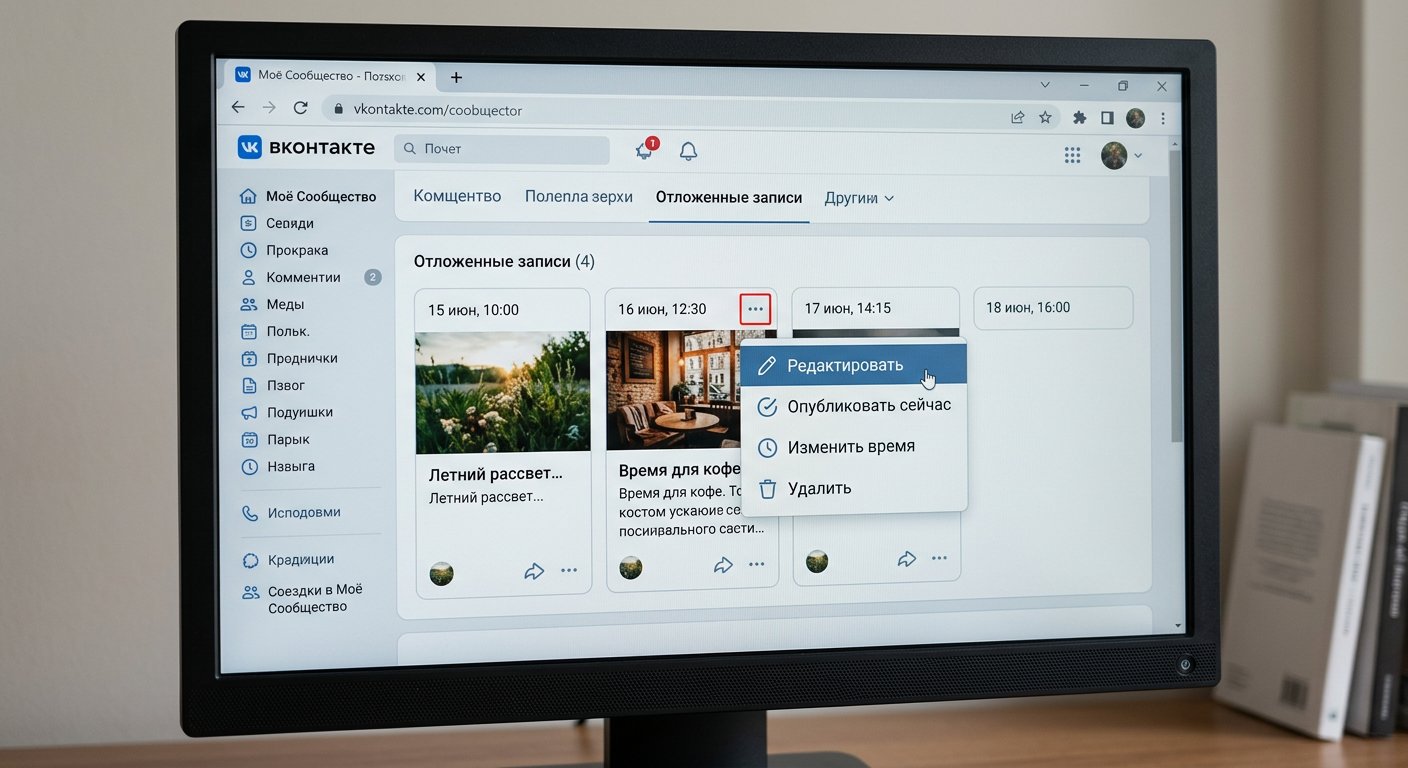
In the "Scheduled" tab, find the card you need. Click the three dots in its upper-right corner and select "Edit". A form will open with the text, attachments, and the post settings available to you.
After making changes, click "Save" and return to the card in the queue. Changes in an open form don't yet mean the post has been updated. Interface element names and locations may vary.
What permissions are needed to edit
Editing scheduled posts requires access to manage the community's publications. Usually, administrators and editors have it. The moderator role by itself doesn't replace editor permissions.
If there's no edit command, check which account the page is open under and which role it has been assigned. If necessary, ask the owner or administrator to change your access or make the edit.
How to fix the announcement text
In the editor, change the text and hashtags, then save the post. In a stream announcement, check not only the first line but the rest of the text too: the date, time, or stream topic may appear in several places.
After saving, open the editor again and review the full text. In a queue card, a long post may not be displayed in full, so it's easy to miss an old date at the end of the post from a single preview.
How to change a link
Replace the address in the text and open it separately: the link should lead to the right stream, channel, or event page. If the address has changed, also check for mentions of the old link elsewhere in the post.
After saving, see how the link card displays if one has been added to the post. The corrected text and the embedded card may each need a separate check: an old preview can confuse the reader.
How to replace an image or video
Remove the unwanted attachment using the icon on its card and attach a new file. Before saving, make sure the old image isn't still there next to the new one and that the other materials are in place.
On the poster, check the date, time, and text legibility. After replacing, check the order of the attachments: the post's layout may change. If the order matters for the announcement, open the editor again and fix it.
How to reschedule the publication date and time
Open the post via the "Edit" menu. Click the assigned date and time, or open the "Timer" setting if it's available in the form. Choose a new date, set the hours and minutes, and confirm the selection in the timer setting if the form requires it.
Then save the post itself. Find it in the queue by the new time: after rescheduling, the card may end up in a different place in the list. Check the date and time on the card, not just in the open form.
What to check in the timer form
If the time won't save, reopen the schedule setting and check the full date: day, month, and year. The selected moment must be in the future. When moving to another day, make sure both the date and the correct hours and minutes have changed.
Check whether scheduled publishing is still enabled. If the form offers a separate button to confirm the date and time, confirm them first, then save the post. Don't choose to publish right away if the post should stay in the queue.
If the time field doesn't respond
Check that you've opened the timer setting itself and not a card with a time already assigned. Close the setting and open it again. If the value is entered manually, check the format the form shows and whether the hours and minutes are valid.
Before reopening the post, copy any unsaved text: your edits may be lost. If the field still doesn't work, try changing the time in the VKontakte web version. This is a workaround, not a guarantee that the error will be fixed.
How to check the post against the stream start
The post's publish time and the stream's start time are different settings. Rescheduling the publication doesn't fix the broadcast date in the text or on the poster. When changing the schedule, check each value separately.
Include the time zone next to the stream time, especially if your audience is in different regions. Check the displayed post time against the time zone you plan to publish in, and make sure the announcement goes out before the stream starts.
Where to find the queue in the app
In the app, open the community you need and go to its posts or the publication management section. Look for scheduled posts there: the section's location depends on the app version, and there may not be a separate tab above the feed.
If the queue is available, open the menu of the post you need and find the "Edit" command. After making changes, save the post and return to the queue to check the text, attachments, and time.
If there's no editing option in the app
Editing a scheduled post in the mobile app isn't always available: the queue or the needed command may not be displayed. Open VKontakte in your phone's browser under the same account, go to the community, and find "Scheduled" above the posts.
If necessary, enable desktop mode in the browser. It's less convenient on a small screen, but you can check the settings in the web interface. If the command isn't there either, check the account's role.
Why the edit command isn't visible
Make sure you've opened the menu of the scheduled post in the right community. If you haven't been granted access to publications, ask an administrator to assign you the appropriate role or to edit the post themselves.
If you do have permissions, refresh the page and open the post menu again. Also check whether the publication time has arrived: a post that has gone out should now be looked for in the community feed, not in the queue.
Why the post isn't in the queue
Check the community name and the published feed: the assigned time may have already arrived. Check drafts too. A draft without an assigned time isn't the same as a scheduled post and won't go out on schedule by itself.
If another team member prepared the post, ask where they saved it. The post may be in an external scheduling service rather than in the VKontakte queue. Find the original version first, otherwise the new post may become a duplicate.
How to check that edits were saved
After saving, find the post by the new time or the beginning of its text. Check the date, the first lines, and the visible attachments. Then reopen the editor and check the full text, links, and files.
If the changes don't appear, refresh the page and check the card again. If the error repeats, save the prepared text separately and repeat the editing. It's best not to create a copy before checking the queue: the original post may have saved with a delay.
What to do if the post has already been published
A post can go out while the editor is open. If it has disappeared from the queue, find it in the community feed, click the three dots, and select "Edit". Make the available changes, save them, and check the published post.
A published post may have a different set of available changes. Rescheduling the time in the queue won't help anymore: the post has gone out. If the needed attachment or setting can't be changed, the information will have to be corrected another way.
How to fix an announcement that has already gone out
Fix the incorrect link, date, or stream time in the post and check the final address. If the conditions have changed significantly, post a separate clarification: subscribers may have seen the previous version and won't open the original post again.
If editing isn't available, publish a new announcement with the correct details and note that the previous one contained an error. The downside of this approach is that part of the audience will only see the old post. Before deleting it, keep in mind that its comments and any links to it will disappear along with it.
How to recreate a scheduled post
Recreating is a fallback when you couldn't edit the original post. Copy the text, reattach the materials, and assign the needed date and time via the scheduled publishing setting. Save the new post and find it in the queue.
Compare the new card with the old one: check the text, links, attachments, and schedule. Only after making sure the replacement was saved correctly, delete the original post and check the queue once more. When transferring manually, it's easy to miss a file or setting, and if you leave both posts, you'll end up with a duplicate.
Last Articles
What has changed in design and functionality We have updated the website to make working with it faster and more convenient. The main changes affect ..
Good afternoon, I've collected all the news during this time.: 1. The main news is that prices for twitch viewers have been greatly reduced, while Tw..
1. Use promo code "December2025" for a 15% discount for all our viewers2. We have reduced the base prices for our configurator and the most affordable..
Twitch services are working stably, so we are ready to cooperate with squads, resellers, service owners, bot owners, and many others.Individual te..
We have completely updated our Twitch viewer services, and they are now working stably. We only use high-quality IP addresses for the viewers.The ..
Hello everyone! Today, we are announcing a new feature—"Twitch Viewer Configurator". Now, you can customize any plan for your Twitch channel. Choo..
Greetings, I have compiled a guide for streamers, which will be very relevant at the moment. Now YouTube and twitch have disabled monetization from vi..
We have finally developed the APINow it will be more convenient for our partner sites to work with us.To update the maximum tariffs for YouTube, an up..
Due to the huge popularity of the partnership services and referral program, we have made a cooperation table. The essence is very simple: more live a..
Our Services for Streamers








Our Services for Content Creators






