
How to Change the Order of Pinned Posts in a Telegram Channel
Can You Change the Order of Pinned Posts Manually
In a Telegram channel, you cannot manually sort pinned messages: you can't drag posts around or assign each one a position. The order of pinned posts is tied to publication dates, not to the sequence in which they were pinned.
You can set the desired sequence of materials in a separate table-of-contents post. Its drawback is that the order of the other pinned posts won't change: a subscriber will have to open the table of contents and follow a link.
Where to View the List of Pinned Messages
The pinned bar is located at the top of the channel beneath its name. Using the icon next to the bar, you can open the list of pinned publications and go to any of them. The appearance of the icon and its location depend on the Telegram app.
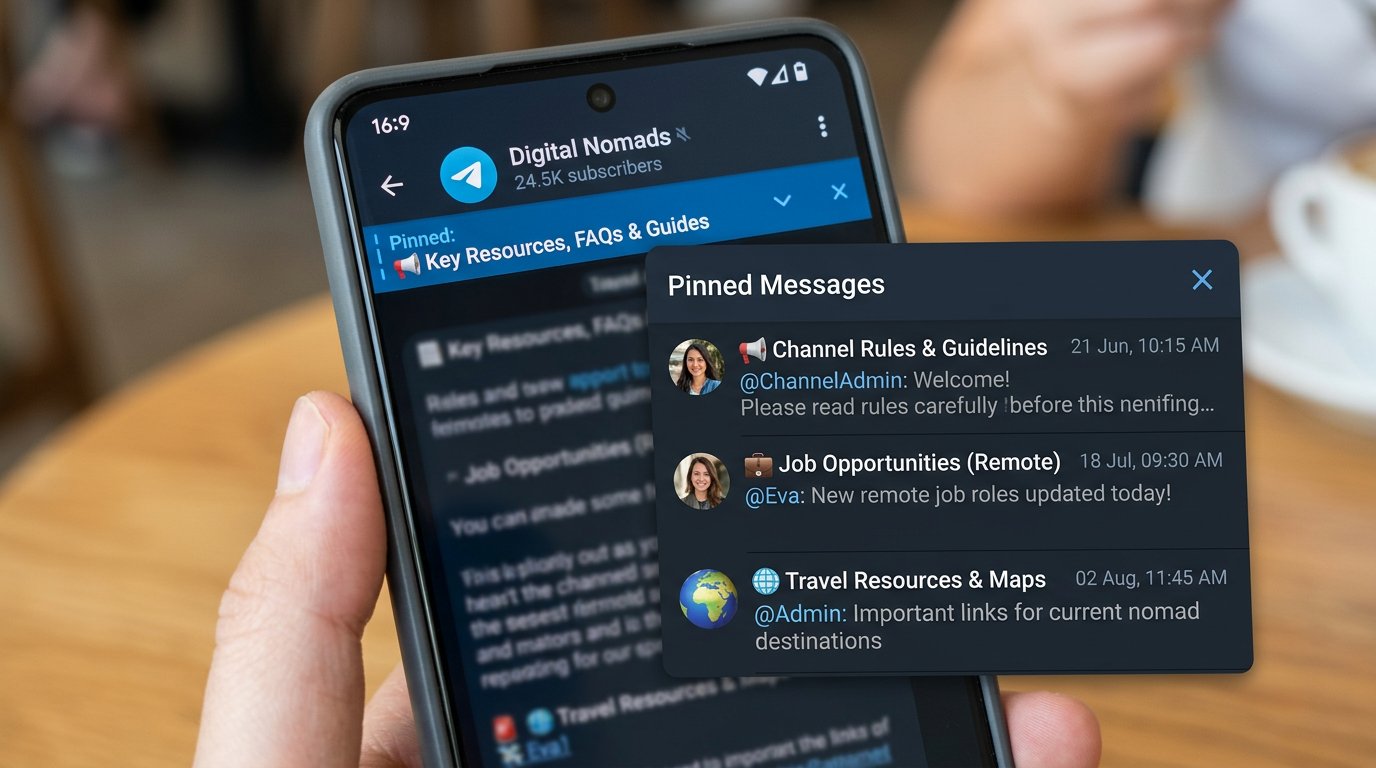
Check both the bar at the top and the full list: these are different interface elements. As you browse the channel, the bar may show a different pinned post, and tapping it may open a publication or switch between messages.
Will Re-Pinning Help
Unpinning and re-pinning an old post does not change its publication date. Therefore, this method does not reliably allow you to place a message above newer posts. It's not worth shuffling the pinning sequence just to sort them.
When you unpin a publication, it is not deleted and remains in its original place in the channel. The link to it continues to work as long as the post exists and the reader has access to the channel.
How Many Messages You Can Pin
You can pin several publications in a channel. However, without checking a specific app and Telegram version, it's impossible to name a reliable maximum number of pinned messages that would suit all clients. If the app reports that the limit has been reached, you'll have to unpin some posts.
Don't confuse pinned messages within a channel with pinned chats in the general list: these are different features, and their limits cannot be applied to one another.
How to Remove an Unnecessary Post from Pinned Posts
Open the publication in the channel or navigate to it from the list of pinned posts. On a phone, bring up the message menu with a long press; on a computer, use the right mouse button. Select the unpin command and check the list after the change.
Make sure you've chosen to unpin a single message rather than all of them at once. Clearing the list removes outdated materials but does not allow you to arrange the remaining posts arbitrarily.
How to Create a Table-of-Contents Post
Gather links to the materials subscribers need most often in a single publication: stream schedule, chat rules, broadcast recordings, and contacts. Arrange them in the desired order, publish the post, and pin it via the message menu.
The table of contents can be edited without creating a new post each time. The drawbacks of this solution are an extra click for the reader and the need to update links when materials are deleted or replaced.
Example of a Ready-Made Table of Contents
The post might look like this. In the published version, the section titles need to be formatted as links to the corresponding channel materials:
Channel Navigation
- Stream schedule — upcoming broadcasts and changes to plans.
- Chat rules — what you can and cannot write during a broadcast.
- Broadcast recordings — publications with past streams.
- Contacts and collaboration — how to get in touch with the channel author.
If the schedule changes often, it's better to direct the reader to an editable post with the schedule rather than to an announcement of a specific broadcast. Otherwise, the link will have to be replaced after every stream.
How to Add and Check Links
Copy the link to the desired post via its menu and add it to the section title in the table of contents. Before pinning, open each link: it should lead to the correct publication, and its content should match the label.
In a private channel, a link to a post does not replace access to the channel itself. Check the link from a regular subscriber's account; for readers who are not yet members of the channel, specify the joining method separately. Otherwise, they won't be able to open the materials via the links.
How to Show Only the Table of Contents
If it's important that there are no other publications in the list of pinned posts, leave only the table of contents pinned. The other posts can be unpinned: they will remain in the channel and will be accessible via the links in the navigation.
The drawback is that subscribers will no longer see these materials directly in the list of pinned posts. They will need to open the table of contents first. When pinning, also check the notification setting if Telegram offers to change it.
Why There Is No Pin Command
Managing pinned posts requires the appropriate administrator rights. If the command is missing, check your rights and make sure the publication menu is open in the correct channel. On a phone and a computer, the name or location of the command may differ.
If pinning is available but the post ends up not where you want it, changing rights won't add manual sorting. You can set your own order of materials within the table of contents, not in the list of pinned posts itself.
Last Articles
What has changed in design and functionality We have updated the website to make working with it faster and more convenient. The main changes affect ..
Good afternoon, I've collected all the news during this time.: 1. The main news is that prices for twitch viewers have been greatly reduced, while Tw..
1. Use promo code "December2025" for a 15% discount for all our viewers2. We have reduced the base prices for our configurator and the most affordable..
Twitch services are working stably, so we are ready to cooperate with squads, resellers, service owners, bot owners, and many others.Individual te..
We have completely updated our Twitch viewer services, and they are now working stably. We only use high-quality IP addresses for the viewers.The ..
Hello everyone! Today, we are announcing a new feature—"Twitch Viewer Configurator". Now, you can customize any plan for your Twitch channel. Choo..
Greetings, I have compiled a guide for streamers, which will be very relevant at the moment. Now YouTube and twitch have disabled monetization from vi..
We have finally developed the APINow it will be more convenient for our partner sites to work with us.To update the maximum tariffs for YouTube, an up..
Due to the huge popularity of the partnership services and referral program, we have made a cooperation table. The essence is very simple: more live a..
Our Services for Streamers








Our Services for Content Creators






