
YouTube stream recording: how to bring viewers to your next live broadcast
First, prepare your next live broadcast
The recording will only direct viewers to the broadcast if they understand where to go. So first, create and schedule your next YouTube stream. Prepare the link to the live page, specify the topic, date and start time, and the time zone.
Don't leave the viewer with the task of searching for the broadcast among the channel's posts. The link should lead directly to the right page. If the broadcast isn't scheduled yet, temporarily use a link to the channel page or a playlist with similar recordings, but once the broadcast is created, replace it with a direct link.
The topic of the next stream should continue the recording rather than look like a random announcement. For example, in the archive you covered game setup, and on the broadcast you plan to answer viewer questions and show the result. This connection explains why the viewer should move on.
Add a call to action right into the recording's content
A single call to action at the very end is often missed: a viewer may close the video earlier or watch the recording without sound. Mention the next broadcast in several appropriate places, but don't repeat the same phrase mechanically.
- At the beginning, briefly state when you'll continue the topic.
- In the middle, remind viewers about the next broadcast at a moment related to the question being discussed.
- At the end, give clear instructions: where to find the broadcast and what will be on it.
The wording should be specific. Instead of "subscribe and come along," it's better to say: "We'll continue the breakdown on the next broadcast. The link to the scheduled stream is in the description and the pinned comment."
Don't overload the call to action with extra steps. If you simultaneously ask viewers to like, subscribe, comment, go to another channel, and open the broadcast, some viewers will do nothing. For this recording, the main goal remains the transition to the next stream.
Format the link in the description
Put the link to the next broadcast at the beginning of the description, before the long text about the recording. Next to it, state that this is specifically the next stream, and add the topic. The viewer should understand the purpose of the link before even clicking "More."
The description can be formatted like this:
- Next broadcast: link to the scheduled stream.
- Topic: what you'll show or break down.
- Time: date, start time, and time zone.
- Additional information: participation rules or a list of questions.
If your channel features different formats, separate the link visually with a blank line from the rest of the description. Don't hide it among links to all your social networks. The more secondary options there are, the harder it is to notice the main transition.
After publishing the recording, check the link from another device or in logged-out mode. Make sure the page opens, the broadcast is scheduled publicly, and the topic and time match the text in the description.
Pin the route in the comments
A pinned comment works as a separate entry point. It's noticeable to those who go straight to the discussion, and it lets you move the call to action out of the description into the visible part of the page.
In the comment, include one link and briefly explain why the viewer should go to the broadcast. For example: "We'll dedicate the next stream to answering questions from this recording. Join via the link: … Start time — …".
Don't turn the pinned comment into a long advertisement. It's better to add a question about the recording's topic: "Which moment should we cover in more detail on the broadcast?" The answers will help you collect questions in advance and show viewers that their participation influences the content of the stream.
If the broadcast topic changes, update both the description and the comment. An outdated date or link undermines trust in the channel. After the broadcast ends, you can change the pinned comment: instead of inviting viewers to a past broadcast, put a link to a new recording or the next scheduled stream.
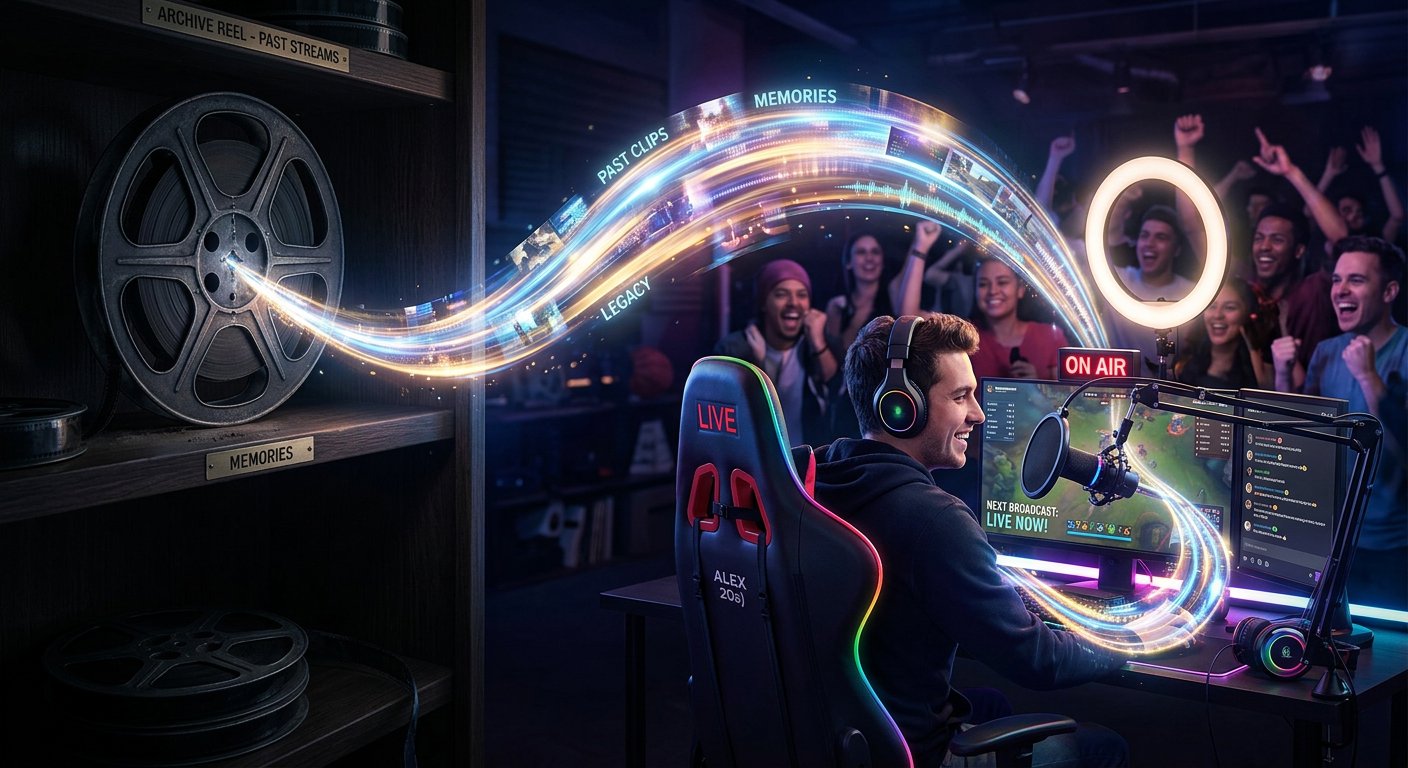
Use end screens and cards
If an end screen is available for the recording, add a relevant video, playlist, or another element that helps continue viewing. You can place the direct link to the future broadcast in the description and comment, while in the end screen you can direct the viewer to a video or playlist on the same topic if YouTube doesn't offer the option to select the desired broadcast.
Choose not the channel's most popular video, but material that logically continues the recording. This could be a tutorial, an error breakdown, or a compilation of broadcasts. Related content sustains interest until the next stream and doesn't look like a random transition.
You can place a card at the moment when you mention the future broadcast or touch on a question that will be covered later. Use it only where the transition is appropriate. Several elements without a clear connection distract from viewing.
In the final seconds of the recording, leave a calm visual block: the name of the next broadcast, the date, time, and a short call to action. Don't place important information over the final remark or an abrupt cut. The viewer needs time to read the message and choose an action.
Connect the recording with your channel and other platforms
The link from the archive shouldn't be the only reminder. After publishing the recording, announce the next broadcast in the YouTube community and on the platforms where you already have an audience. In each message, keep one main link and the same date, time, and topic.
The post should explain the reason to come to the broadcast. A question from the recording, a promise to break down a specific case, or an announcement of a new stage of work will do. A message like "the broadcast is coming soon" without substance doesn't help the viewer understand the value of the transition.
Make sure the recording's formatting and the announcement don't contradict each other. The same topic wording, a recognizable image, and an accurate time make it easier to move between posts.
Don't send viewers to several links at once. If a single message contains a broadcast, a website, a chat, and several social networks, the main action gets lost. Leave the other links as a second level — after the information about the stream.
Check what actually brings in viewers
After publishing the recording, open YouTube Analytics and see how the audience interacts with the video. Pay attention to retention at the points with the call to action, clicks on end screen elements, and traffic sources. This data helps you understand whether viewers see the invitation and whether the topic of the next broadcast interests them.
If viewers leave before the call to action, move the main information closer to the beginning and add a short reminder in the middle. If the recording is watched to the end but there are few transitions, check the wording, the visibility of the link, and the relevance of the topic. Perhaps the viewer understands when the broadcast will be but not what exactly they'll get from it.
Change one element at a time: the call-to-action text, the link placement, the thumbnail of the next broadcast, or the selected video in the end screen. This makes it easier to link the change to the result. Don't draw conclusions from a single viewer or a short period — compare several posts with a similar topic.
A short action plan
- Schedule the next broadcast and prepare a direct link.
- Specify the topic, date, time, and time zone at the beginning of the recording's description.
- Pin a comment with one link and a clear reason to go.
- Mention the broadcast at the beginning, middle, and end of the recording without repetition.
- Add an end screen, a card, or a related playlist if appropriate.
- After publishing, check the links and evaluate the transitions in analytics.
Last Articles
What has changed in design and functionality We have updated the website to make working with it faster and more convenient. The main changes affect ..
Good afternoon, I've collected all the news during this time.: 1. The main news is that prices for twitch viewers have been greatly reduced, while Tw..
1. Use promo code "December2025" for a 15% discount for all our viewers2. We have reduced the base prices for our configurator and the most affordable..
Twitch services are working stably, so we are ready to cooperate with squads, resellers, service owners, bot owners, and many others.Individual te..
We have completely updated our Twitch viewer services, and they are now working stably. We only use high-quality IP addresses for the viewers.The ..
Hello everyone! Today, we are announcing a new feature—"Twitch Viewer Configurator". Now, you can customize any plan for your Twitch channel. Choo..
Greetings, I have compiled a guide for streamers, which will be very relevant at the moment. Now YouTube and twitch have disabled monetization from vi..
We have finally developed the APINow it will be more convenient for our partner sites to work with us.To update the maximum tariffs for YouTube, an up..
Due to the huge popularity of the partnership services and referral program, we have made a cooperation table. The essence is very simple: more live a..
Our Services for Streamers








Our Services for Content Creators






