
Configuring AMD Noise Suppression for Your Microphone in OBS
What You Need for AMD Noise Suppression to Work
AMD Noise Suppression processes microphone audio using the AMD graphics card driver. Once enabled, the feature creates a virtual input device: the signal from your physical microphone passes through processing and only then reaches OBS. For streaming, you need to select this virtual input.
The feature is not available on all graphics cards or in all versions of AMD Software: Adrenalin Edition. If there is no Noise Suppression option in the driver settings, an update may help but does not guarantee support: it depends on the GPU model and software version.
Before setting up, close Discord, any browser with a voice chat, your game, and recording programs. They don't always interfere with the virtual device, but when troubleshooting, it's easier to test audio without several audio applications open at once.
Check Your Physical Microphone Before Enabling Processing
First, make sure the microphone works in Windows without AMD Noise Suppression. Open the system sound settings, select the desired input device, and check whether the level indicator responds to speech. If the system doesn't see the microphone or the audio cuts out, virtual processing won't fix it.
Also check which microphone is set as default. Streamers often still have a webcam, headset, audio interface, and old Bluetooth devices connected. If AMD receives the signal from the wrong input, you may get silence or low-quality audio in OBS.
Enabling AMD Noise Suppression in Adrenalin
Open AMD Software: Adrenalin Edition and go to the audio and video settings. The section name depends on the driver version. Find AMD Noise Suppression, enable input audio processing, and select your physical microphone as the source.
This can be a USB microphone, a headset, an analog input on your sound card, or an audio interface. After activation, a virtual AMD input should appear in the Windows device list. Its name depends on the driver version, but it usually mentions AMD, Streaming Audio Device, or Noise Suppression.
Only enable system audio and output processing when you have a clear purpose for it. It doesn't improve microphone audio and may change how your game, music, or voice chat sounds.
Why You Need to Restart OBS After Enabling the Feature
Fully close OBS and launch it again after enabling AMD Noise Suppression. OBS may only retrieve the list of audio devices at startup, so the new virtual microphone is sometimes not visible in an already open program.
Don't just minimize OBS to the tray or switch scenes: close the program completely. Then open the audio settings or source properties and check the list of inputs. If the device still isn't there after restarting, make sure it appears in the Windows sound settings.
If the virtual input isn't in Windows, the problem isn't related to OBS. Check whether your graphics card supports the feature, the driver installation, and the state of the AMD audio components. In some cases, restarting the computer after installing or updating the driver helps.
How to Select the AMD Virtual Microphone in OBS
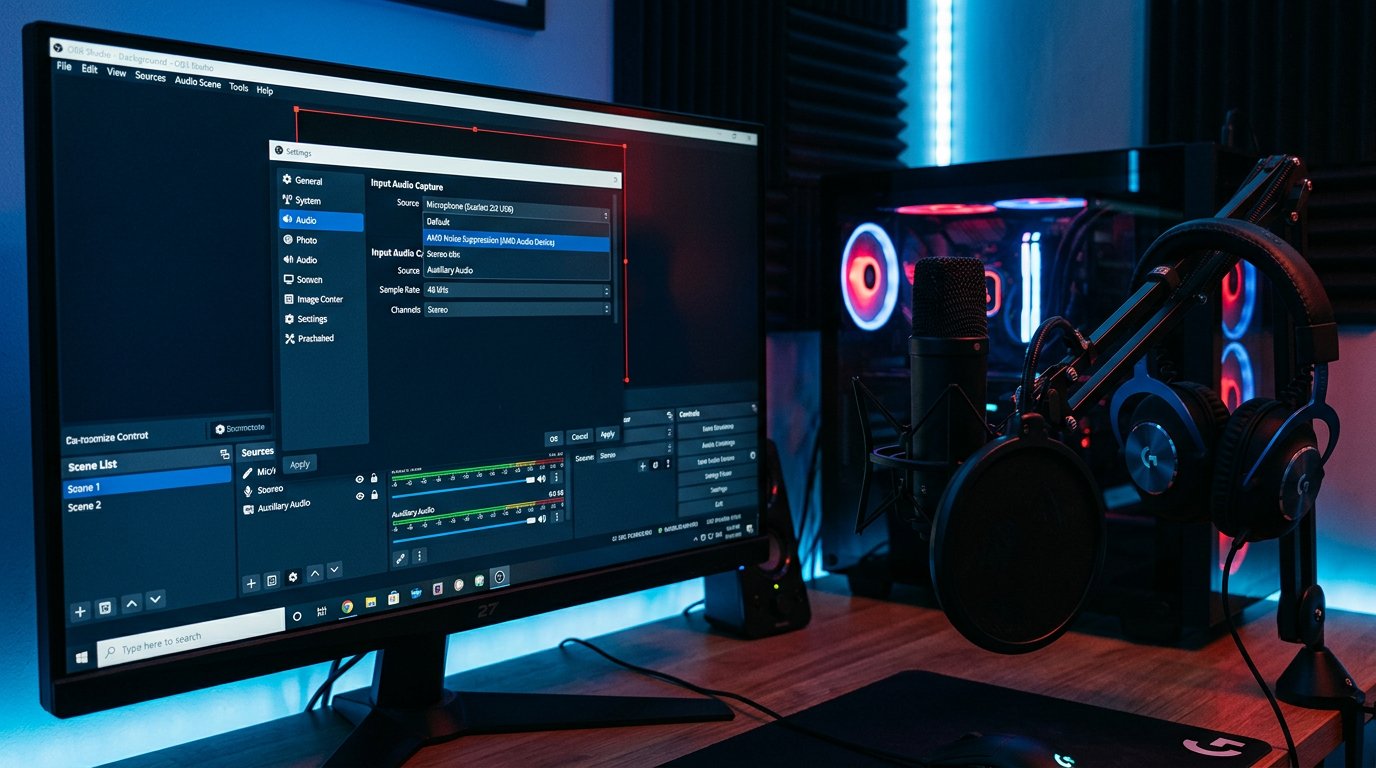
Open OBS "Settings," go to the "Audio" section, and find the global devices block. In the "Mic/Auxiliary Audio" field, select the AMD virtual device, then click "Apply."
Another option is to add an "Audio Input Capture" source to your scene and specify the AMD device in its properties. This is convenient if you need separate microphone settings for different scenes. But don't use the global device and the same source in a scene at the same time.
- Don't leave both the physical microphone and the processed AMD input in the mixer at the same time.
- Don't add the virtual device twice through global audio and a scene source.
- If you hear an echo, double voice, or increased volume, check whether both signal paths are being captured.
- Keep a single chain: physical microphone, AMD Noise Suppression, OBS.
Testing Voice and Background Noise Before Going Live
Watch the microphone channel indicator in the OBS audio mixer. It should respond to speech through the AMD virtual source. Then record a short test: say a few phrases in your normal voice, pause, rustle your clothes, and turn on a constant noise source nearby, such as a fan.
Compare the recording through the physical microphone with the version using AMD Noise Suppression. It's best to check with headphones: speakers can mask processing artifacts. Evaluate not only the background volume but also the intelligibility of quiet speech, word endings, consonants, and the naturalness of the timbre.
Noise suppression can remove hum, but with complex background noise it sometimes makes the voice sound less natural. This is especially noticeable if the microphone is far from your mouth, equipment is running loudly in the room, or music is playing nearby. The drawback of processing is that it can't completely separate voice from any noise.
AMD Noise Suppression Latency and Syncing with the Scene
The AMD virtual device adds latency because the audio goes through additional processing before reaching OBS. Its magnitude depends on the driver, hardware, system load, and other audio programs. On a stream it may be unnoticeable, but with talk content and webcam recording, the desync sometimes becomes visible.
Check the latency with a test recording: clap your hands on camera or say a short phrase in a close-up shot. If the audio noticeably lags behind your lips, don't add compensation in several places at once. Check the advanced audio properties in OBS, source filters, audio interface software, and camera settings.
Latency compensation is configured based on the recording result, not on how it feels in monitoring. The drawback of this approach is that latency can change under different PC loads. If synchronization is critical, it's better not to use extra virtual processing.
When to Choose RNNoise or OBS Filters Instead of AMD
AMD Noise Suppression is convenient when you need the processed microphone not only in OBS but also in other programs: voice chat, game, or browser. For constant moderate noise from fans, the street, or your PC case, this option can be practical.
If minimal latency and precise control only within OBS matter more, it's worth checking OBS's built-in noise suppression, including RNNoise. This filter works in the chain of a specific source and doesn't require selecting a virtual microphone. The drawback of RNNoise and other OBS filters is that the processed voice won't be available in Discord or a game outside OBS.
OBS's built-in filters are also more convenient when you need to keep different processing for different scenes or microphones. But an excessive chain of noise suppression, expander, compressor, and third-party plugins can make the voice sound dull and unnatural. Choose one main noise suppressor and check changes through recordings.
How to Use the "Noise Gate" Filter
The "Noise Gate" filter in OBS doesn't clean the voice of hum during speech. It closes the microphone when the signal level drops below a set value and opens it at louder sound. Its job is to remove keyboard, breathing, and room background during pauses.
Add this filter after the main check of AMD Noise Suppression or RNNoise. Start with a gentle setting and speak at your normal volume. If the beginnings of words disappear, the open threshold is too high or the open delay is too long. If you can hear the room during pauses, the threshold is too low.
For calm speech, an expander is often more useful: it doesn't cut the microphone abruptly but gradually attenuates the quiet signal. The drawback of a noise gate is noticeable cutoffs at the start of phrases and unnatural transitions between silence and voice. With a loud mechanical keyboard, it won't replace proper microphone placement.
Which OBS Filters You Shouldn't Duplicate
AMD Noise Suppression already processes the input signal. If you enable several more noise suppressors in OBS on top of it, the voice can become too compressed, metallic, or unintelligible. First disable the duplicate filters and make a test recording.
The compressor and limiter serve different purposes. The compressor evens out fragments that are too quiet and too loud, while the limiter protects against clipping. You can use them after noise suppression, but they need to be configured separately. A filter chain won't fix poor microphone placement or a noisy room.
What to Check If There's No Sound in OBS or You Hear a Double Voice
If OBS sees the AMD device but the meter doesn't respond, go back to Adrenalin and make sure the correct physical microphone is selected for processing. Often the driver stays bound to the webcam, a monitor with a microphone, or an old headset.
Check Windows permissions for app access to the microphone. OBS must have access to audio inputs. If access is blocked by the system, selecting the right device in OBS won't help.
If you hear a double voice, disable the physical microphone in OBS's global settings or remove the duplicate source from the scene. If the audio lags, first remove extra filters and delays, then repeat the test recording. Don't change the source, latency compensation, and filters all at once: it makes it harder to identify the cause.
Checklist Before Starting Your Broadcast
- The physical microphone works and is correctly selected in the AMD settings.
- AMD Noise Suppression is enabled for input audio.
- OBS was fully restarted after the virtual device appeared.
- Only one microphone path is selected in OBS, with no duplicates.
- A short test was recorded with voice, pauses, and constant background noise.
- Voice synchronization with the webcam was checked.
- A second noise suppressor is not enabled in OBS unnecessarily.
- The noise gate doesn't cut off the beginnings of quiet phrases.
How to Improve the Source Audio Without Aggressive Processing
Place the microphone closer to your mouth, but don't point it directly into the airflow. Position your PC case, fan, or open window outside the main capture area. The cleaner the source signal, the less noise suppression you'll need to apply and the more natural your voice will remain.
- Move the microphone off any surface that transmits vibrations from the keyboard and mouse.
- Lower the gain if the voice constantly hits the red zone on the OBS mixer.
- Use a pop filter or windscreen against plosive consonants and breathing.
- Check whether separate noise suppression is enabled in your headset or audio interface.
- If possible, eliminate the constant source of hum rather than trying to suppress it with filters.
Last Articles
What has changed in design and functionality We have updated the website to make working with it faster and more convenient. The main changes affect ..
Good afternoon, I've collected all the news during this time.: 1. The main news is that prices for twitch viewers have been greatly reduced, while Tw..
1. Use promo code "December2025" for a 15% discount for all our viewers2. We have reduced the base prices for our configurator and the most affordable..
Twitch services are working stably, so we are ready to cooperate with squads, resellers, service owners, bot owners, and many others.Individual te..
We have completely updated our Twitch viewer services, and they are now working stably. We only use high-quality IP addresses for the viewers.The ..
Hello everyone! Today, we are announcing a new feature—"Twitch Viewer Configurator". Now, you can customize any plan for your Twitch channel. Choo..
Greetings, I have compiled a guide for streamers, which will be very relevant at the moment. Now YouTube and twitch have disabled monetization from vi..
We have finally developed the APINow it will be more convenient for our partner sites to work with us.To update the maximum tariffs for YouTube, an up..
Due to the huge popularity of the partnership services and referral program, we have made a cooperation table. The essence is very simple: more live a..
Our Services for Streamers








Our Services for Content Creators






