
Auto-Publishing New Twitch Clips to Discord via EventSub
Who Auto-Posting Twitch Clips to Discord Is For
The built-in Twitch and Discord integration helps show stream status, assign roles, and announce when a stream goes live. It usually does not automatically publish new clips to a text channel. For that, you need a ready-made bot, an automation service, or your own combination of Twitch EventSub and a Discord webhook.
Ready-made solutions work if you don't need development: you connect Twitch and Discord, choose a channel, and configure a template. Before launching, check that the service responds specifically to clip creation, not just to a stream starting. The downside of ready-made solutions is dependence on pricing plans, available filters, and message formatting.
Choose a Publishing Scheme Before Setting Up Twitch
For a quick check, create a private Discord channel and test several clips manually. This will help you see delays, check the link card, and understand whether messages arrive about clips that shouldn't reach the community.
- A ready-made bot connects faster but may not support the publishing conditions you need or your own embed format.
- An automation builder lets you add branches and filters, but some triggers and actions may be limited by the service's plan.
- Your own EventSub handler gives you control over the queue, template, logs, and duplicate protection, but requires a server, OAuth, and code maintenance.
Define the rule in advance: publish all clips, only clips by the channel owner, clips from moderators, or links after manual approval. The downside of strict filtering is that a great moment created by a viewer may go unpublished.
Create a Discord Webhook for the Clips Channel
A webhook is created in the settings of the desired Discord text channel. This requires permission to manage webhooks. It sends messages under a specified name and with a chosen avatar, so a separate Discord account isn't needed for basic publishing.
- Open the settings of the text channel where clips will arrive.
- Go to the integrations section and find webhooks.
- Create a new webhook, give it a clear name, and upload an avatar if needed.
- Copy the URL and save it in an environment variable or secure storage.
- Send a test message to the private channel.
The webhook URL is a secret. Anyone who gets this link can send messages to the channel under the webhook's name. Don't add the address to a public repository, panel screenshots, or client-side code. If it leaks, delete the webhook and create a new one: changing the URL of the old address isn't enough.
Subscribe to the Clip Creation Event via Twitch EventSub
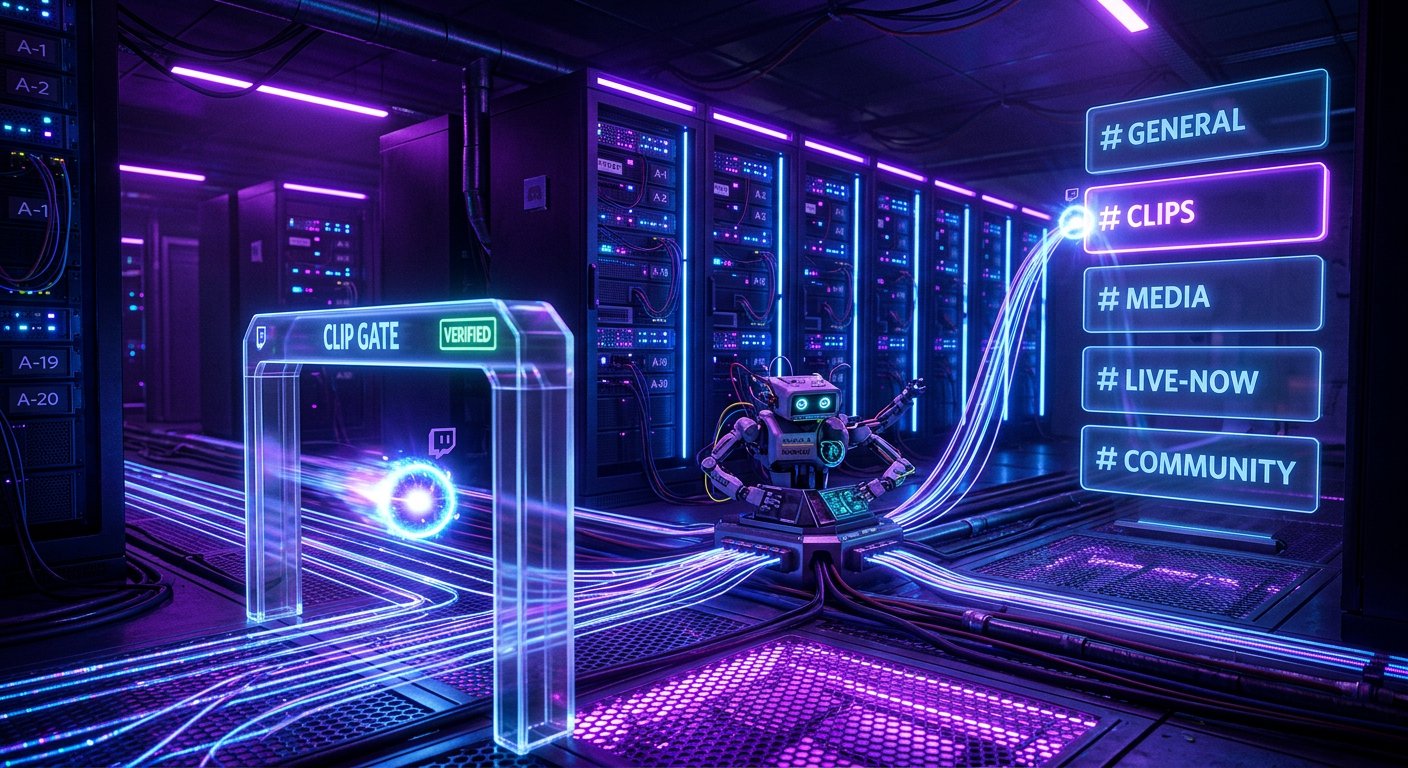
In your own setup, Twitch sends the channel.clip.created event to your handler's HTTPS address. The handler verifies the request, saves the clip data, builds a message, and passes it to the Discord webhook. The Twitch account does not get access to the Discord server in this process.
To subscribe, you'll need a Twitch application, the channel ID, a callback URL, and authorization suitable for the chosen event type. Token and permission requirements should be checked against the current EventSub documentation, as they may change. Don't use authorization parameters from old examples without verifying them.
The channel owner's user token may expire or be revoked. The downside of this scheme is that the refresh token must be stored securely and access must be renewed on time. If renewal fails, the subscription or creation of new subscriptions may stop working without a noticeable error in Discord.
Prepare an HTTPS Address for Twitch Notifications
The callback URL must be accessible from the internet over HTTPS. When creating a subscription, Twitch sends a verification request with the type webhook_callback_verification. The server must confirm the request's authenticity and return the challenge value as plain text. Until this step passes, the subscription won't become active.
Working events arrive with the type notification. For these, it's best to quickly return a successful HTTP response and pass publishing to a queue or a separate handler. If you wait for a Discord response inside the EventSub request, network latency increases the risk of the notification being redelivered.
For local development, you can use an HTTPS tunnel. Its downside is that the public address may change after a restart. A tunnel is convenient for testing but doesn't replace a permanent endpoint for working automation.
Verify the Signature Against the Raw Request Body
The EventSub signature is built from the message ID, the send time, and the raw HTTP request body. First get the body bytes and save them unchanged, then verify the HMAC. You must not parse the JSON and rebuild it before verifying the signature. Field order, whitespace, or encoding may change, and the computed signature won't match.
Verification requires the Twitch-Eventsub-Message-Id, Twitch-Eventsub-Message-Timestamp, and Twitch-Eventsub-Message-Signature headers. The string for HMAC SHA-256 is composed as follows: messageId + timestamp + rawBody. The secret set when creating the subscription is used as the key. The result in hexadecimal form is compared with the header value, which starts with sha256=.
In Node.js, the logic looks like this: create an HMAC SHA-256 with the subscription secret, pass messageId + timestamp + rawBody into it, add the sha256= prefix to the hash, and compare it with Twitch-Eventsub-Message-Signature using crypto.timingSafeEqual. Before comparing, check that the strings are the same length, otherwise the secure comparison will throw an error.
Check the Message Type and Its Send Time
HMAC verification is needed for every EventSub request, including callback verification, notification, and revocation. Only after successful verification should you read the JSON and determine the message type from the Twitch-Eventsub-Message-Type header. For callback verification, return the challenge; for notification, create a publishing task; for revocation, log the reason the subscription was disabled.
Additionally, compare the time from Twitch-Eventsub-Message-Timestamp with the server's current time. A limited acceptance window helps filter out old requests resent by a third party. This check doesn't replace HMAC: the timestamp can be read from the request, but without the secret you can't create a valid signature.
Store the subscription secret separately from the code and the Discord webhook URL. The downside of frequently changing the secret without an update procedure is that the existing subscription will stop passing verification. First create or update the subscription, then switch the secret in the handler.
Don't Publish the Same Clip Twice
EventSub may redeliver the same notification if the endpoint took too long to respond, the connection dropped, or a network error occurred. Save the Twitch-Eventsub-Message-Id in a persistent database with a unique index. If such an ID has already been processed, don't create a second task and return a successful response.
Add a second unique key based on the clip ID from the event data. This protects against re-publishing when the same video arrives in different notifications or a task was re-run after a failure. First try to write the clip_id to the published clips table, and only after a successful write send the message to Discord.
This scheme has a downside: a failure between writing the clip_id and sending the webhook may leave the clip marked as published without a message in Discord. For such cases, store the task status: created, sending, published, error. Tasks with error status can be retried manually or according to queue rules.
Build the Embed Message for Discord
It's useful to include the clip title, creator name, channel name, category, and a direct link in the message. Don't insert text from Twitch into JSON manually via string concatenation: quotes and special characters can break the request. Build the object using your language's tools and send it as JSON.
The embed template might look like this: title "New clip on the channel", description "Creator: {creator_name}", URL "{clip_url}", field "Title" with the value "{clip_title}", field "Category" with the value "{game_name}". If the event has no category or creator name, leave the field empty or don't add it.
You can add a role mention, but don't send it on every clip without limits. The downside of constant notifications is that server members will start muting the channel or role. For an active channel, it's better to publish clips without a ping or mention the role only under a separate rule.
Test the Scenario Before Publishing to the Main Channel
First use a test Discord channel and create several clips with different titles, creators, and categories. Check whether callback verification passes, whether the signature is validated before parsing JSON, whether one card appears per clip_id, and whether a message is published on EventSub redelivery.
- Check that the server reads the raw body before the JSON parser or saves the raw request bytes.
- Make sure the challenge is returned only after successful verification of Twitch-Eventsub-Message-Signature.
- Test handling of a Discord webhook error and task retry without creating a second message.
- Review logs by message ID, clip_id, EventSub message type, and send status.
Don't write the subscription secret, OAuth tokens, or the full Discord webhook URL to logs. For diagnostics, the event ID, clip ID, Discord response code, and technical error text without confidential headers are sufficient.
Last Articles
What has changed in design and functionality We have updated the website to make working with it faster and more convenient. The main changes affect ..
Good afternoon, I've collected all the news during this time.: 1. The main news is that prices for twitch viewers have been greatly reduced, while Tw..
1. Use promo code "December2025" for a 15% discount for all our viewers2. We have reduced the base prices for our configurator and the most affordable..
Twitch services are working stably, so we are ready to cooperate with squads, resellers, service owners, bot owners, and many others.Individual te..
We have completely updated our Twitch viewer services, and they are now working stably. We only use high-quality IP addresses for the viewers.The ..
Hello everyone! Today, we are announcing a new feature—"Twitch Viewer Configurator". Now, you can customize any plan for your Twitch channel. Choo..
Greetings, I have compiled a guide for streamers, which will be very relevant at the moment. Now YouTube and twitch have disabled monetization from vi..
We have finally developed the APINow it will be more convenient for our partner sites to work with us.To update the maximum tariffs for YouTube, an up..
Due to the huge popularity of the partnership services and referral program, we have made a cooperation table. The essence is very simple: more live a..
Our Services for Streamers








Our Services for Content Creators






