
Separate Discord Audio in OBS: Broadcast Mix, Headphones, and Recording
What You Can Separate in Discord and OBS
A separate Discord mix in OBS is not about splitting every call participant into separate channels. Usually it's about making the conversation from Discord adjustable separately from the game, music, microphone, browser, and notifications. This way you can make a guest quieter for viewers, keep a comfortable volume in your headphones, or record the conversation on a separate track.
The regular Discord client outputs the entire voice channel as a single outgoing audio stream. If there are several people in the call, OBS receives them together. You cannot process each person in a single Discord call separately using OBS alone: the compressor, filters, and fader will apply to all voices at once.
You can change the volume of a specific person within Discord itself. This helps even out a guest who is too loud or too quiet before the signal reaches OBS, but it does not create a separate source for that person.
Capturing Discord as a Separate Source in OBS
For the basic setup, add an application audio capture source in OBS and select Discord. A separate channel will appear in the mixer: its volume will affect the recording and broadcast without touching the game or microphone. The source name depends on the OBS version and system, but the principle is the same — it captures the audio of a specific application, not the entire desktop.
This option works when a general balance of the call is enough for viewers. It's convenient to keep Discord as a separate source and quickly mute the conversation during a cutscene, trailer, or music break.
The downside of this method is that it doesn't give you independent volume for yourself and the audience. If you move the Discord fader in the standard OBS mixer, it usually changes the level going to both the broadcast and the OBS monitoring.
How to Eliminate Double Discord Audio
Discord often ends up in the stream twice: through a separate application capture and through the "Desktop Audio" source. As a result, the voice becomes louder, and a slight echo or delayed duplicate appears. This is especially noticeable if one of the paths goes through OBS monitoring.
- Disable the general desktop capture if you don't need it for the game and other programs.
- Or route Discord to a separate output device that isn't included in the desktop capture.
- Check the sources in all scenes: Discord may be added not only in the main scene.
- Don't enable OBS monitoring for Discord if the same signal is already reaching your headphones directly.
- Make a short local recording and listen to it before going live.
The indicators in the mixer don't always help you find the duplicate: both signals may be combining after the individual sources. You need to check the finished recording in your headphones.
Adjusting a Specific Guest's Volume Before OBS Capture
If one participant is noticeably louder than the others, adjust their level in Discord. This setting is applied before the route into OBS, so the overall conversation stream arrives more even. After that, leave a little headroom in OBS to avoid clipping on sharp remarks.
Don't try to fix a bad microphone with OBS gain alone. Along with a quiet voice, you'll amplify fan noise, room echo, crackling, and codec artifacts. It's better to ask the guest to move closer to the microphone, lower the input level if it's clipping, or wear headphones instead of using speakers.
The downside of adjusting within Discord is that you have to change it manually for each guest, and in the recording and broadcast you won't be able to reverse that balance later.
Why OBS's Built-in Monitoring Doesn't Create Two Independent Mixes
In OBS's advanced audio properties for Discord, you can enable "Monitor and Output" mode. The monitoring device is selected in OBS settings: usually it's headphones connected to your interface or sound card. This mode lets you hear the source even if it isn't going through system audio.
But built-in monitoring is only convenient for checking. It doesn't give you a full separate balance "for yourself" and "for viewers": changing the source level often affects both directions. In addition, OBS monitoring adds latency, and with the wrong setup it's easy to get a second signal in your headphones.
For independent levels, you need a route before OBS where Discord is sent separately to the headphones and separately to a virtual output for the broadcast.
A Working Setup with Voicemeeter for Broadcast and Headphones
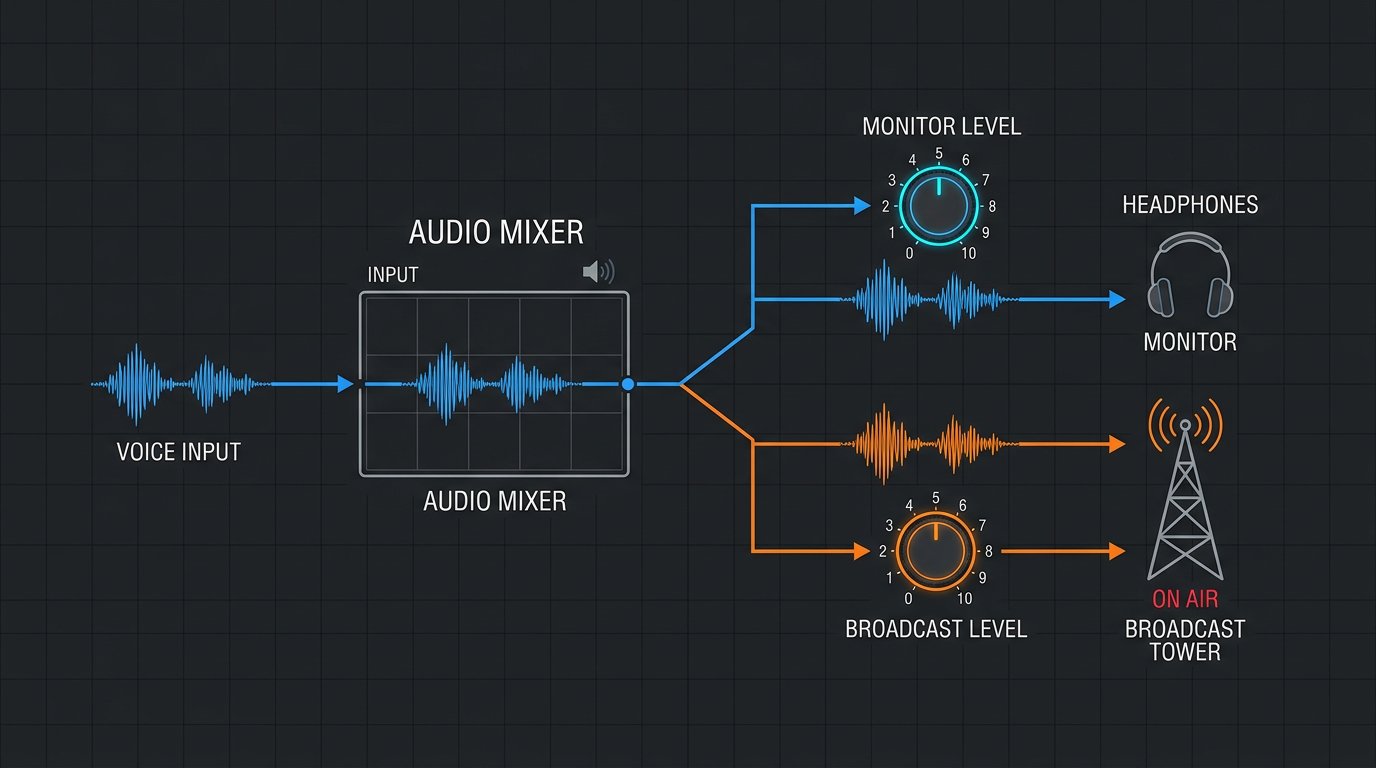
Voicemeeter can be used as a software mixer between Discord, headphones, and OBS. In this setup, Discord goes into Voicemeeter through a separate virtual input. From there it can be sent to your physical headphones and to a virtual output that OBS captures.
The setup looks like this: Discord outputs audio to a Voicemeeter virtual input, Voicemeeter sends it to the headphones via bus A1 and to OBS via virtual bus B1. OBS receives only B1 and should not additionally monitor that same source.
First, in Voicemeeter, select your headphones as the hardware output A1. Then in Discord settings, set the Voicemeeter virtual input as the output device. On that virtual input strip, enable sending to A1 and B1. In OBS, add an audio input capture source and select the Voicemeeter virtual output corresponding to B1.
How to Adjust Discord Separately for Viewers and for Yourself
After setup, don't change the fader of the Discord input itself in Voicemeeter unless necessary: it affects both buses at once. For an independent balance, use the output levels. The A1 volume determines how you hear the conversation in your headphones. The B1 level changes the signal that OBS receives and then the viewers.
In OBS, it's best to leave the virtual output source near the working level and not duplicate the adjustment without reason. If you need to quickly mute a guest only in the broadcast, lower B1 or the OBS source fader. If the guest is bothering only you, adjust A1. This is the practical separate mix for the host and the audience.
The downside of Voicemeeter is more complex routing. After changing headphones, updating a driver, or restarting the system, the program may select a different device. If the sound disappears, check the A1 output, the Discord output device, and the input selected in OBS.
How to Connect the Game Without Bringing Discord Back into the General Capture
If "Desktop Audio" is enabled in OBS, Discord should not be output to the same device that this source captures. In the Voicemeeter setup, Discord already goes to its virtual input, so it doesn't have to end up in the system output along with the game.
You can leave the game on the regular output device and capture it with general desktop audio. Another option is to capture the game with a separate application source. The second option gives you more control but requires setting up each program separately and making sure the sources don't overlap.
If you route not only Discord but also the game, music, and browser into Voicemeeter, virtual output B1 will contain the combined mix of those programs. Then Discord will no longer be a separate channel in OBS. To isolate the conversation, keep B1 for Discord only or use additional virtual routes.
A Virtual Audio Cable Without a Software Mixer
A virtual audio cable also lets you separate Discord from system audio. In Discord, you select the virtual output device, and in OBS you capture the other side of that cable as an audio input. This way the conversation isn't mixed with the game before OBS.
However, a single virtual cable isn't enough for a convenient independent mix in your headphones. You need to listen to that channel separately through the system's listen function or route it further into an audio mixer. This can add latency, and system listening isn't always easy to adjust.
The downside of the single-cable setup is less control over levels and a higher risk of accidentally sending the signal to the wrong device. For regular broadcasts, it's more practical to use a cable together with a software mixer or set up Voicemeeter right away.
A Separate Discord Track for Recording
If you'll need to edit the conversation after the stream, send the Discord source or virtual output B1 to a separate recording track. In OBS's advanced audio properties, check the desired track for it. Then in the recording settings, select a mode and format that support multiple audio tracks.
You can keep Discord on the general broadcast track and record it separately at the same time. In an editor, this will let you even out the conversation volume, cut out pauses, or process the voice without changes to the game and microphone.
The downside of separate tracks is that the streaming platform usually receives one final audio mix. A separate track is useful for local recording but won't fix the balance of a broadcast that's already been sent.
Filters for the General Discord Channel
You can add a compressor and limiter to the Discord source in OBS. The compressor will smooth out sharp jumps between quiet phrases and loud remarks, and the limiter will protect against clipping. The filters will apply to the entire call because, to OBS, it's a single source.
Noise suppression on a voice that Discord has already processed can sometimes hurt intelligibility: word endings disappear and the voice becomes metallic. Don't add filters by default. You need to evaluate the result on a local recording together with the game, music, and your microphone.
The downside of general processing is that settings that suit one guest can ruin another's voice. If there are several participants with different microphones in the call, it's safer to use gentle values or fix the problematic source on the guest's end.
Checking the Route Before Going Live
- Discord appears in the OBS mixer as a single source.
- The guest's voice isn't coming through both Discord and "Desktop Audio" at the same time.
- There's no second, delayed signal from OBS monitoring in your headphones.
- Adjusting A1 changes your level, while B1 or the OBS source changes the level for the broadcast.
- Your microphone isn't being sent back to the guest through the selected Discord output.
- The separate Discord track is actually being recorded to the local file.
- After switching scenes, the conversation source doesn't disappear or duplicate.
Ask the guest to say a few phrases in a normal voice, then louder. Check the recording together with the game and notifications, not in an empty scene. If there are problems, change only one element of the route at a time: first the Discord output device, then the Voicemeeter input, then the OBS source.
Last Articles
What has changed in design and functionality We have updated the website to make working with it faster and more convenient. The main changes affect ..
Good afternoon, I've collected all the news during this time.: 1. The main news is that prices for twitch viewers have been greatly reduced, while Tw..
1. Use promo code "December2025" for a 15% discount for all our viewers2. We have reduced the base prices for our configurator and the most affordable..
Twitch services are working stably, so we are ready to cooperate with squads, resellers, service owners, bot owners, and many others.Individual te..
We have completely updated our Twitch viewer services, and they are now working stably. We only use high-quality IP addresses for the viewers.The ..
Hello everyone! Today, we are announcing a new feature—"Twitch Viewer Configurator". Now, you can customize any plan for your Twitch channel. Choo..
Greetings, I have compiled a guide for streamers, which will be very relevant at the moment. Now YouTube and twitch have disabled monetization from vi..
We have finally developed the APINow it will be more convenient for our partner sites to work with us.To update the maximum tariffs for YouTube, an up..
Due to the huge popularity of the partnership services and referral program, we have made a cooperation table. The essence is very simple: more live a..
Our Services for Streamers








Our Services for Content Creators






