
Separate Thumbnail for a YouTube Stream Recording: A Step-by-Step Guide
What a separate thumbnail for a stream recording means
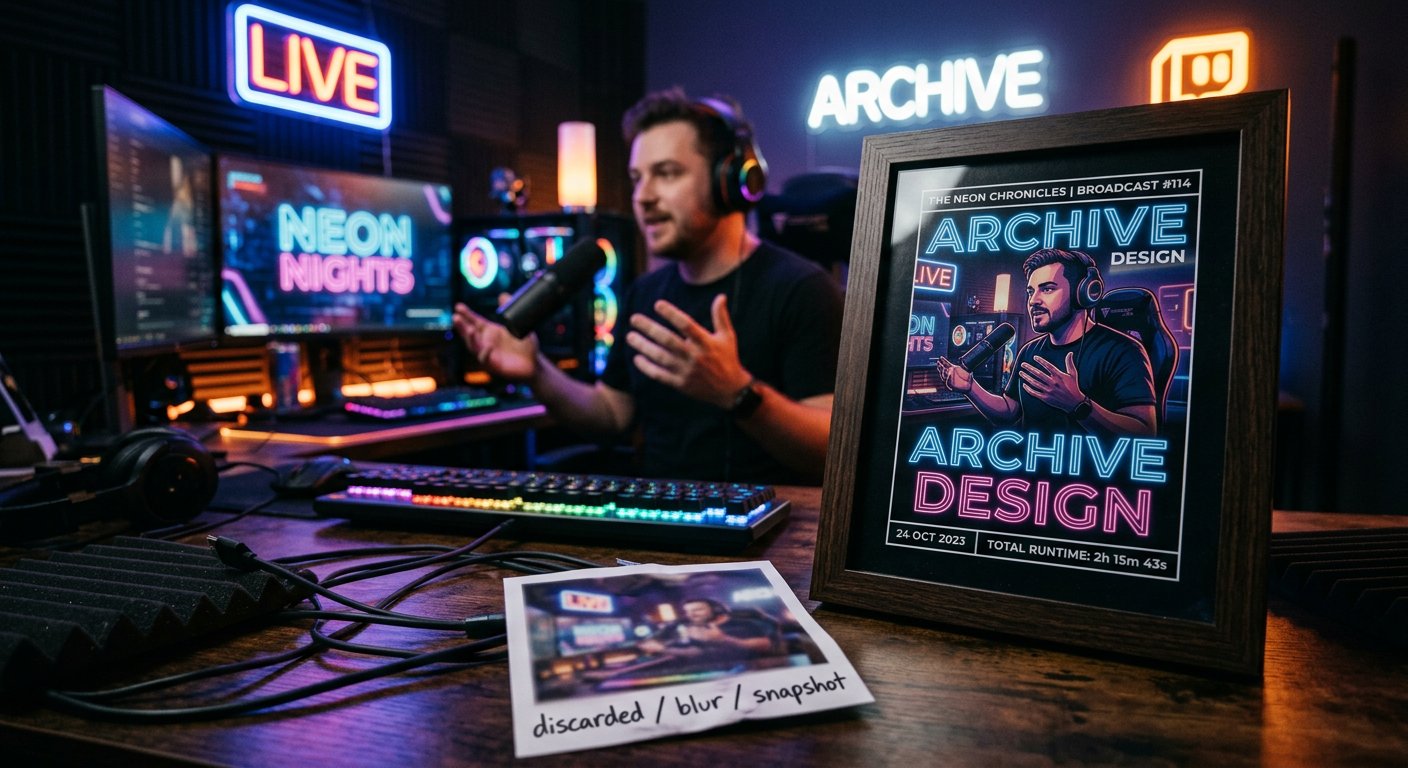
After a broadcast ends, YouTube saves it as a separate video if the recording is available in the channel archive. That video has its own thumbnail, or preview image. Viewers see it in search, recommendations, on the channel page, in the live streams tab, and in video lists.
If you don't upload your own image, YouTube may automatically pick one of the frames for the recording. That frame is sometimes a waiting screen, a technical shot, a blurry image, or a moment when you turned away from the camera. For a stream archive, that option doesn't always work.
A separate thumbnail helps present the recording as standalone content. You can put the episode topic, game title, guest name, episode number, or the main highlight of the stream on it. And you don't have to keep the same cover for the archive that was used on the scheduled live stream page.
It's important to understand the difference between a separate file and a separate setting. YouTube doesn't create a second independent copy of the same video with two covers that are always shown at the same time. First, one thumbnail is used for the live stream, and after the broadcast ends you replace it on the recording if you want to present the archive differently.
What to prepare before changing the cover
Save your image in a horizontal 16:9 format ahead of time. A practical size for a video thumbnail is 1280 by 720 pixels. That file matches the common YouTube card format and doesn't require additional cropping. JPG or PNG works well for the image.
Watch the file size. For regular videos, YouTube specifies a limit on the weight of the uploaded thumbnail, so check the requirements shown in Studio before uploading. If the file is too heavy, you can re-save it as JPG or reduce the resolution without changing the aspect ratio.
Keep the text short. A stream recording already has a title, description, and timestamps, so you don't need to duplicate the whole announcement on the image. It's enough to indicate the topic: the game title, the format of the conversation, the guest's name, or a short point. Small text is hard to read in a video list and on a smartphone screen.
Think about how the archive differs from the live broadcast. For the waiting page, the date, time, and an invitation to join matter. For the recording, it's more useful to show the content of the episode that already aired. For example, instead of "Today at 8:00 PM," you can write the game title and note that the thumbnail shows highlights or a match breakdown.
Before uploading, open the image at a reduced size. If the main subject, face, or text gets lost in the background, simplify the composition. Leave one noticeable focal point and enough free space around it. It's better not to push important details to the edges, because the card may display at a small size in different YouTube sections.
How to design a thumbnail specifically for the archive
A stream recording is usually watched for a different reason than a live broadcast. During a live stream, a viewer may join for the interaction and the current event. With an archive, they usually arrive after the episode has ended and want to quickly understand what the video is about and whether it's worth spending time watching.
That's why a specific phrasing works well on a recording's cover. Indicate the game and mode, the conversation topic, a question from the breakdown, or the event the stream was built around. If a guest took part in the broadcast, their name can go into noticeable text or be shown in the image if that matches the content of the recording.
Don't promise on the thumbnail what isn't in the video. If the stream was dedicated to breaking down an update, don't present it as a full playthrough. If there's no announced guest in the recording, don't use their photo just for attention. A mismatch between the image and the content can lead to the viewer closing the video quickly.
For recurring series, it's convenient to use a repeatable design system. For example, you can keep one color accent for gaming streams, another for talk episodes, and a third for breakdowns. At the same time, the recording's title should stay readable. A consistent style helps people recognize the channel's content, but it doesn't replace a clear topic for a specific episode.
Check the finished file in three ways: on the channel page, in a small video list, and on a smartphone. The image may look good at a large size, but in a card the small text will blend into the background. If the meaning of the thumbnail isn't clear within a few seconds, shorten the text and enlarge the main element.
How to change the thumbnail of a stream that has already ended
The easiest way to do this is in the browser version of YouTube Studio. Tab names may differ slightly depending on the interface language and YouTube updates, but you need to look for the channel's content list and the live streams section.
Open YouTube Studio and go to the "Content" section. Then select the "Live" or "Streams" tab. This list contains scheduled, current, and completed streams. If there are many recordings, use search or sorting to find the episode you need faster.
Open the settings of the completed broadcast. It's important to select the saved recording, not the management page for a new stream. After opening the video details, find the thumbnail block. Next to the automatic options, there should be a way to upload your own thumbnail or change the current one.
Select the prepared file on your computer and wait for it to upload. Then check how the thumbnail looks in the video card. If the image displays correctly, click "Save" or the corresponding button at the bottom of the page. Simply closing the tab doesn't always apply the changes you've made.
After saving, open the recording's own page, not just the Studio editor. That way you'll verify that the new image is shown to viewers. Sometimes the old image remains in one section for a while due to data refreshing. Reload the page or check the video in a separate browser window.
A recording may be editable even if it's set as public, unlisted, or private. Visibility settings don't change the thumbnail upload process itself. The main thing is that the recording has already appeared in the archive and YouTube has finished the necessary video processing.
How to keep one cover for the live stream and another for the recording
If the broadcast is scheduled in advance, you can set its cover before the stream starts. Open the scheduled event in YouTube Studio, go to the details, and find the thumbnail block. Upload the image that will represent the upcoming stream on the waiting page and in announcements.
That thumbnail can include an invitation to join, the date, time, event name, or brief information about the format. It's aimed at a viewer who isn't watching the recording yet but is deciding whether to come to the broadcast. So its purpose differs from that of the archive cover.
After the stream ends, wait until the recording appears among your saved streams. Depending on the video length and channel status, processing may take some time. While YouTube is generating the recording, some fields are sometimes unavailable or don't save right away.
When the archive is ready, open its settings again in the "Content" or "Live" section. Upload the second file in the thumbnail block and save the changes. That way you can use an announcement for the upcoming stream page and a cover with the episode's topic and content for the completed video.
If you don't want to change the image before the broadcast starts, don't edit the thumbnail of the scheduled event. Wait for the recording to appear and replace the thumbnail in its settings instead. Before uploading, save both files under clear names, such as "announcement" and "archive," so you don't mix them up.
After replacing, don't rely only on the old waiting page. It may have used the original design until the stream ended. Check the link to the saved video and the recording card in the channel section specifically.
What to do if there's no upload button
The ability to set custom thumbnails depends on the features available to the channel. If you only see automatically suggested frames in the recording settings, open YouTube Studio settings and find the section about access to channel features. There you can see which capabilities are already active and what actions are needed to enable them.
YouTube may ask you to verify the channel or take another available action. After verification, the feature doesn't always appear in an already open tab right away. Close the recording editor, sign in to Studio again, and check it after refreshing the page.
If the button is there but the file isn't accepted, first check the format, size, and aspect ratio. A corrupted image, an overly heavy file, or a file with a non-standard extension can cause an error. Re-save the image as JPG or PNG and try uploading again.
Also check that you're signed in to the channel where the recording is located. This is especially important if one account has several channels or you're working through a branded channel. The correct channel name should be selected at the top of YouTube Studio.
If you have interface problems, open Studio in another browser, refresh the page, or temporarily disable extensions that change how websites work. If the recording is still processing, wait for processing to finish and try again. Don't create a new stream just because the archive thumbnail isn't changing yet.
If the image appeared in the editor but didn't update on the video page, click the save button again and open the link in a separate tab. Sometimes different YouTube elements update with a delay. It's better to compare the result after a full page reload, not against the cache of an old tab.
How to check the result and not lose your design
After uploading, look at the recording through a new viewer's eyes. The title and thumbnail should complement each other, not repeat the same long phrase. If the title already states the game name, the cover can show the episode topic or the main highlight. If the title is short, the thumbnail can clarify the format of the conversation.
Check whether the YouTube interface covers important elements of the image. You don't need to place playback icons, video duration, or arrows that look like interface elements on the image itself. YouTube adds its own markers on top of the card, so extra imitations only clutter the composition.
You can compare several options by clarity, not just brightness. An overly contrasting image may stand out in the feed but not explain the video's content. A good thumbnail answers the viewer's main question: what will they see in the recording and why is this episode different from other content on the channel.
Don't change the cover right after every small fluctuation in views. One thumbnail doesn't guarantee growth in metrics, because the result is influenced by the stream's topic, title, retention, recommendations, and audience interest. First check the technical display and the match with the content, and only then evaluate the design together with the other elements of the publication.
Keep your source thumbnail files in a separate folder. This will let you quickly restore a previous version, use the style for the next episode, or prepare a version for another platform. It's best to give files clear names: include the topic, the type of content, and the recording number if needed.
In short: what to do step by step
- Prepare a horizontal 16:9 image in JPG or PNG format and check its size.
- Open YouTube Studio, go to "Content," and find the completed recording in the "Live" or "Streams" tab.
- Open the video details, find the thumbnail block, and upload your own thumbnail.
- Save the changes, then check the new image on the video's own page and in the channel's content list.
- If you need different versions for the live stream and the archive, set the first file on the scheduled broadcast and upload the second after the recording appears.
- If there's no upload button, check access to channel features, and if there's an error, recheck the image format and size.
Last Articles
What has changed in design and functionality We have updated the website to make working with it faster and more convenient. The main changes affect ..
Good afternoon, I've collected all the news during this time.: 1. The main news is that prices for twitch viewers have been greatly reduced, while Tw..
1. Use promo code "December2025" for a 15% discount for all our viewers2. We have reduced the base prices for our configurator and the most affordable..
Twitch services are working stably, so we are ready to cooperate with squads, resellers, service owners, bot owners, and many others.Individual te..
We have completely updated our Twitch viewer services, and they are now working stably. We only use high-quality IP addresses for the viewers.The ..
Hello everyone! Today, we are announcing a new feature—"Twitch Viewer Configurator". Now, you can customize any plan for your Twitch channel. Choo..
Greetings, I have compiled a guide for streamers, which will be very relevant at the moment. Now YouTube and twitch have disabled monetization from vi..
We have finally developed the APINow it will be more convenient for our partner sites to work with us.To update the maximum tariffs for YouTube, an up..
Due to the huge popularity of the partnership services and referral program, we have made a cooperation table. The essence is very simple: more live a..
Our Services for Streamers








Our Services for Content Creators






