
Setting Up a Welcome Message in a VK Community
What VK Considers a Welcome Message
A welcome message in a community is not sent to a person immediately after they click the "Follow" button. A community cannot mass-message new followers without them reaching out first: such messages would look like spam.
The standard welcome message arrives when a user writes to the community messages for the first time. So it is not a subscription notification but the first automatic reply in a new conversation.
The goal of a welcome message is to quickly guide a person toward one clear action. For example, open the stream schedule, go to the current broadcast, check advertising terms, or describe a task in a message.
Which Entry Points to Use Besides the Auto-Reply
Only those who open the conversation and send a message will see the welcome message. A follower may read the feed, open the menu, look at the pinned post, or leave the page without ever writing to you. That's why the auto-reply should be tied to the rest of the community's design.
- A pinned post works well for schedules, stream links, and important rules. Drawback: the user may not notice the pin.
- The menu helps organize services, materials, schedules, and contacts into separate sections. Drawback: with many items, it's harder for a person to pick the right one.
- The welcome message in messages provides a link at the moment of contact. Drawback: a follower who hasn't written to the community won't see it.
- A bot can guide the user through several scenarios. Drawback: it needs to be set up, tested, and maintained separately.
Prepare the Link and the Path Before Setup
First, decide where the welcome message leads. For a streamer, this could be a pinned post with upcoming streams, a permanent link to the channel, or a page with activity rules. For a service community, a page with work areas, an application form, or manager contacts would work.
Don't add a link to a post you'll soon have to change. If stream times shift regularly, create a single post or page with the current schedule and keep it updated. Then you won't have to rewrite the welcome message after every change.
Check the path before enabling the auto-reply. The phrase "check the menu" is useless if the menu isn't set up, and a schedule button that leads to a deleted or private page is just as bad.
How to Enable Messages and the Welcome Message in a Community
Open the community from an admin account. Go to "Management," then to the "Messages" section. Enable community messages so visitors can start a conversation.
In the same section, find the "Welcome Message" block and enable it. Enter the text of the first auto-reply, add a link if needed, and save your changes. In the mobile version, item names and element placement may differ, but the setting you need is in message management.
The welcome message is sent after the user's first incoming message, not after they follow the community.
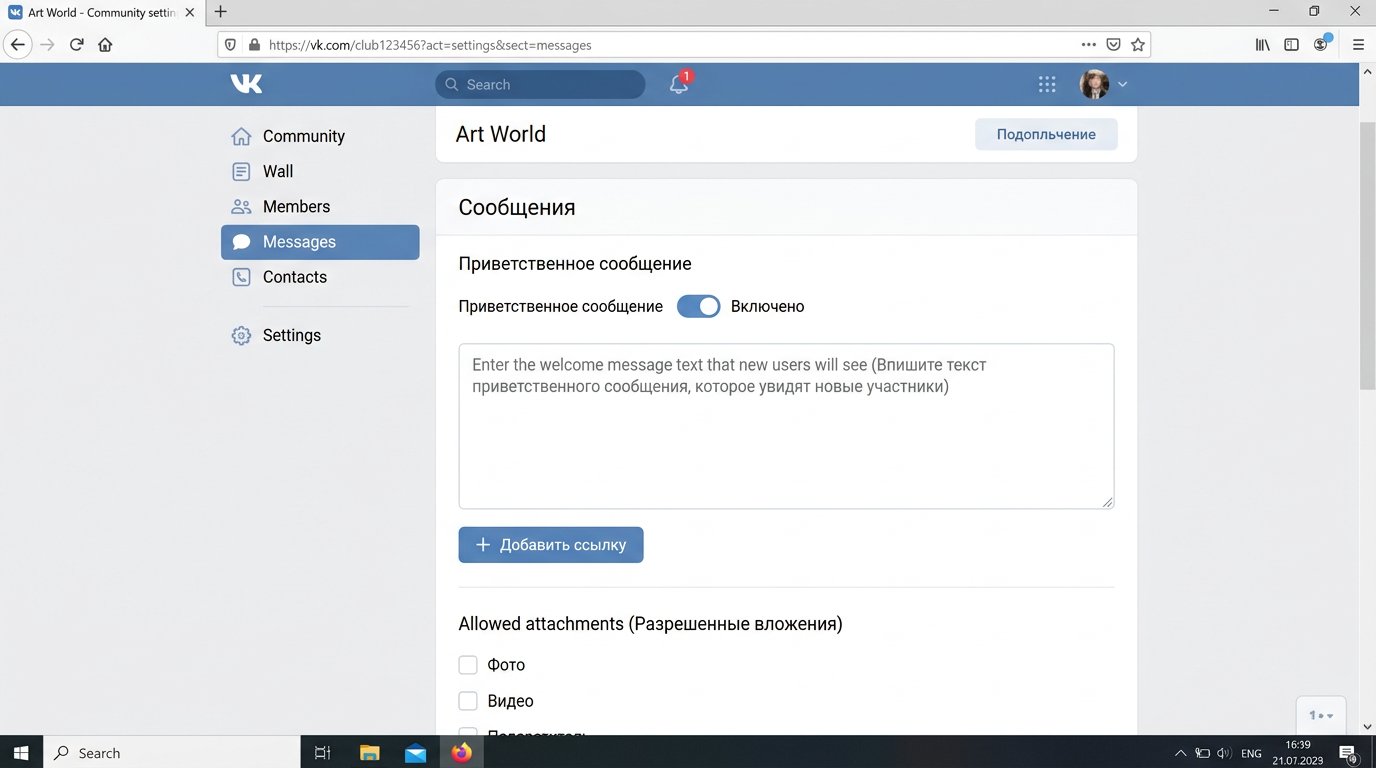
Text and Button Limits in the Welcome Message
The standard welcome message text is limited to 200 characters. That's enough for two or three short lines: state the community's topic, name the benefit, and give the next step.
You can add one button with a link to the welcome message. The button label is limited to 30 characters, so choose a short and specific name: "Stream Schedule," "View Services," "Submit a Request." Longer text is better placed on the page the link leads to.
The standard welcome message doesn't replace the menu and the bot: you can't fit several buttons, topic branching, and a sequence of messages into it. The drawback of this format is that you have to choose one main path.
How to Add a Button with a Link
In the welcome message block, click "Add Link." Enter the address of the page the user should go to and type a label for the button. After saving, the link will appear below the welcome text in the conversation.
A button is more convenient than a long URL in a message: the user immediately sees the action and doesn't have to copy the address manually. For a streamer's community, a link to the schedule, the current stream, or a list of platforms usually works. For an agency, a link to services, case studies, or a contact form.
Don't put generic text like "Learn More" on the button. The drawback of such a label is that it doesn't explain what will open after clicking. It's better to name the page or action directly.
What to Build the First Auto-Reply Text From
A short welcome message answers three things: where the user has landed, what they can get here, and what to do next. There's no need to tell the channel's history, list all services, or add a price list in the first message.
- Briefly state the community's purpose: stream announcements, broadcast recordings, promotion services, or support.
- Name the main benefit: schedule, collaboration terms, consultation, or materials.
- Give one next step: click the button, open the pinned post, or briefly describe the task.
One auto-reply — one main path for a new contact. Questions about advertising, collaborations, and other topics are better placed in the menu, the pinned post, or a bot scenario.
Ready-Made Auto-Reply Text for a Streamer
Option with a schedule button:
"Hi! Here we post announcements, recordings, and channel news. Click the button below to see upcoming streams."
This text fits within the limit and leads to one action. Drawback: if the schedule is updated irregularly, the user may land on outdated information.
Option for communication and collaboration:
"Hi! Here you'll find stream announcements and broadcast recordings. Write what you need: schedule, a joint game, or collaboration."
The drawback of this option is that some people won't know how to phrase their request. It works better when the menu or bot suggests available topics.
Welcome Message for a Service Community
For an agency community, this text would work: "Hello! We help with channel and community promotion. Click the button to view our services, or write which task you need to solve."
The message offers two clear paths: study the offerings first or start a conversation about a specific task right away. Drawback: requests will vary in detail, so the manager will have to clarify the platform, goals, promotion format, and initial data.
If there are many areas, don't list them in the welcome message. Guide the user to a services page where information is broken down by category. Otherwise, a short auto-reply turns into a set of confusing links and abbreviations.
When the Standard Welcome Message Isn't Enough
A bot is needed if the user has to choose between several scenarios: get a schedule, learn participation rules, submit an ad request, download materials, or contact a manager. The standard welcome message lacks the buttons and transition logic for this.
- For a streamer, a bot can provide links to platforms, chat rules, and information about activities.
- For a service community, it can accept a task description and route the request to the right specialist.
- For a creator, it can send materials on a chosen topic.
- For a team, it can pass non-standard questions to a live administrator.
The drawback of a bot is that template answers can be annoying, and it doesn't always understand free text correctly. Leave users the option to write a message without choosing a button, and check new conversations regularly.
When the Auto-Reply Triggers and How to Test It
The welcome message arrives after the user's first message in a specific conversation with the community. If the person has written before, the auto-reply won't trigger again, even if you've changed its text in the settings.
To test, use an account that hasn't yet contacted the community messages. Send a short test message, check the text, the button label, and the link transition. Open the link separately from a phone and a computer: the page itself may display differently.
Deleting the conversation doesn't make the user a new contact for the community. For a repeat test, you need another account that hasn't yet written in this conversation.
What to Check After Enabling the Welcome Message
- The "Message" button is visible to community visitors.
- The welcome message is enabled, and the text doesn't exceed the allowed limit.
- The button leads to a current and accessible page.
- The pinned post, menu, and auto-reply don't contradict each other.
- The administrator or manager sees new conversations and responds to questions.
- The welcome message has no outdated category names, platforms, services, or stale links.
The combination of welcome message, pinned post, and menu needs to be updated when the schedule, links, or work format change. The drawback of such navigation is that without regular checks, different points of the community start giving the user contradictory information.
Last Articles
What has changed in design and functionality We have updated the website to make working with it faster and more convenient. The main changes affect ..
Good afternoon, I've collected all the news during this time.: 1. The main news is that prices for twitch viewers have been greatly reduced, while Tw..
1. Use promo code "December2025" for a 15% discount for all our viewers2. We have reduced the base prices for our configurator and the most affordable..
Twitch services are working stably, so we are ready to cooperate with squads, resellers, service owners, bot owners, and many others.Individual te..
We have completely updated our Twitch viewer services, and they are now working stably. We only use high-quality IP addresses for the viewers.The ..
Hello everyone! Today, we are announcing a new feature—"Twitch Viewer Configurator". Now, you can customize any plan for your Twitch channel. Choo..
Greetings, I have compiled a guide for streamers, which will be very relevant at the moment. Now YouTube and twitch have disabled monetization from vi..
We have finally developed the APINow it will be more convenient for our partner sites to work with us.To update the maximum tariffs for YouTube, an up..
Due to the huge popularity of the partnership services and referral program, we have made a cooperation table. The essence is very simple: more live a..
Our Services for Streamers








Our Services for Content Creators






