
Stream Description Template in YouTube Studio: Setup and Reuse
Can You Save a Description Template Separately
YouTube Studio doesn't have a feature that saves a description template as a separate object and automatically inserts it into every new stream. Video upload settings aren't suitable for this task: they apply to regular videos and don't replace stream formatting.
The workable approach is to create a reference scheduled stream with the finished text and then create new broadcasts by reusing its settings. When you copy this way, the description carries over to the new card, so you don't need to paste the permanent part manually.
As a backup, also keep the source text in an external document or notes. This helps you update links across all templates at once, restore the text after accidental edits, and quickly copy a single block.
How to Separate the Permanent and Variable Parts
First, separate the data used in almost every broadcast from the information specific to a particular episode. The permanent part usually includes links to platforms, chat rules, contacts, channel support, and a brief description of the show. These blocks are convenient to carry over from the reference stream without edits.
The topic, game, guest, date, time, link to materials, giveaway terms, promo code, and partner integration details should remain variable. Don't add one-off links to the template base: viewers may open the recording months later and land on an outdated page.
The downside of a single shared text is that permanent links and service blocks can easily push out the main content. It's better to reserve the first lines of the description for the current stream's topic and the episode's key link.
Which Markers to Leave for Filling In Before the Stream
Instead of temporary data, use noticeable markers in square brackets. They help you quickly find the spots that can't be carried over without checking. Markers should be specific: [STREAM TOPIC], [GAME], [GUEST], [MATERIAL LINK], [PARTICIPATION TERMS].
Don't use similar wording like [LINK], [LINK 2], and [NEW LINK]. It's easy to mix them up in a hurry. If a block isn't needed for every episode, leave a marker with a clear purpose, and before publishing, replace it with text or delete the entire line.
A marker left in a published description looks like unfinished stream preparation. So before going live, search for square bracket characters throughout the entire description, not just in the first lines.
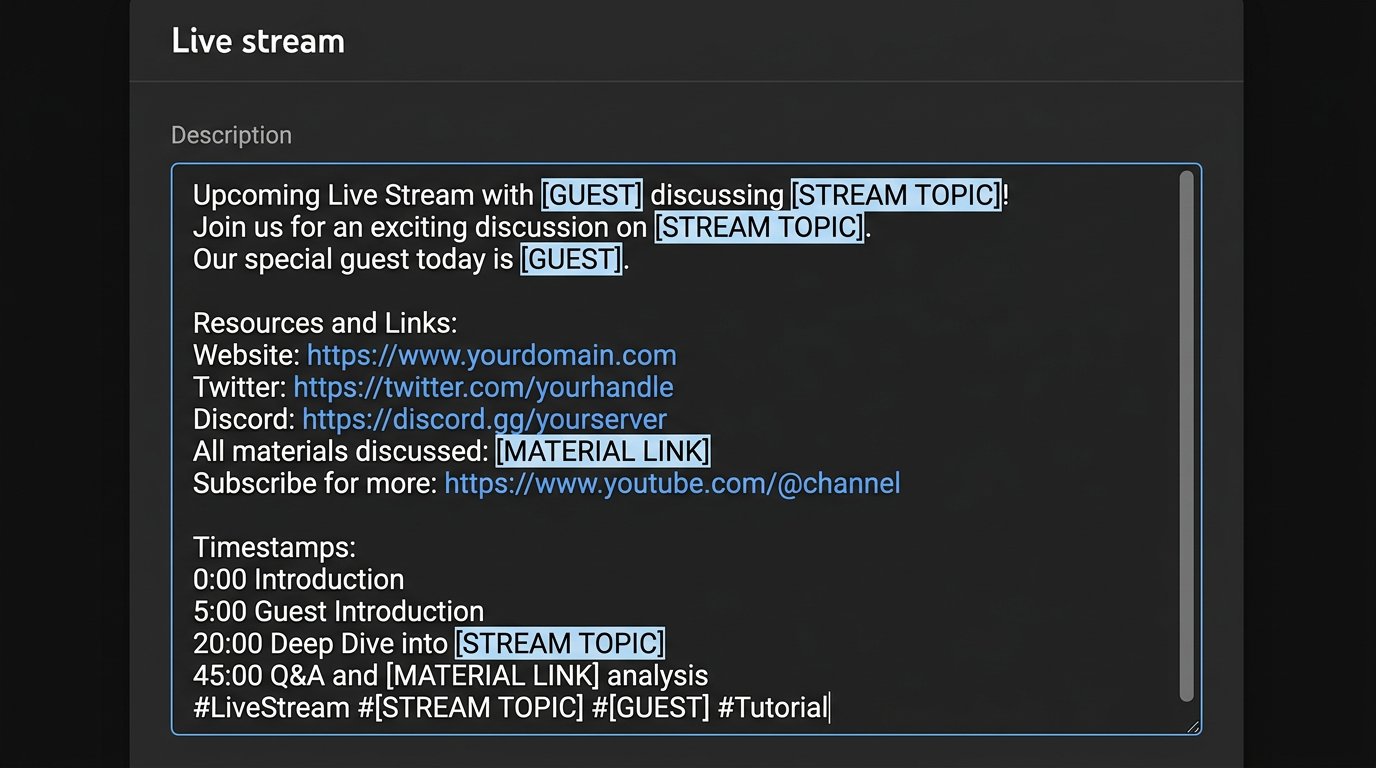
How to Create a Reference Stream in YouTube Studio
Open YouTube Studio and go to creating a broadcast via the "Create" button and the start stream option. In the stream management section, choose to schedule a new stream. Menu item names may differ slightly depending on the interface language and Studio updates, but the work happens in the scheduled stream card.
Create a separate template for a regular show: a gaming stream, interview, talk format, or co-stream. Give it a clear internal name, for example "TEMPLATE — interview." Don't leave this name for a future broadcast: the card can become public if you change visibility or start it by mistake.
The downside of a reference card is that it needs to be kept up to date. After changing the community link, donation link, or business contact, update the template itself and the external text document.
What to Fill In on the Reference Card
In the details section, paste the prepared description with permanent blocks and markers for temporary data. Choose the category, audience, and other parameters that genuinely repeat within the show. If the same access is used for all streams, set that up too, but don't rely on copying as a substitute for a final check.
Add permanent links with short explanations: where the address leads and why the viewer should click. A long list of URLs without labels is hard to check before going live and inconvenient to read in the recording. It's better to place the business contact, chat rules, and required disclaimers below the episode description.
Don't fill in the date, time, one-off participation terms, or advertising details in the reference. Copying them is the main source of errors. The less temporary information in the template, the faster it will be to prepare a new card.
Where the "Reuse Settings" Button Is Located
To create a new stream based on the template, open the stream management section in YouTube Studio. In it, find creating or scheduling a stream. Next to creating a new card, there's a "Reuse settings" action or a similarly named button that opens a list of past and scheduled streams.
Select the reference stream for the right show, not the most recent stream you did. In the list, go by the template's internal name, so it's useful to start such names with the word "TEMPLATE." After selection, Studio creates a new card based on the chosen stream.
If the button isn't visible on the first screen, open the stream scheduling menu or the section with the list of streams. In different interface versions, the action may appear as a separate button or as an option for creating a scheduled stream.
How to Reuse Settings Step by Step
- Open YouTube Studio and go to stream management.
- Choose to create or schedule a new broadcast.
- Click "Reuse settings."
- Find the reference card by name and select it.
- Confirm creating a new stream based on the template.
- Open the details of the created card and replace all variable markers.
- Check access, start time, formatting, and connection settings.
- Save changes before the stream begins.
Don't edit the reference card for the next episode. Otherwise, it will retain data from the previous stream, and the next settings reuse will copy an already spoiled base.
Is the Description Copied When Reusing Settings
Yes, when reusing settings, Studio transfers the saved description of the selected stream to the new card. Permanent links, rules, contacts, and fill-in markers will appear in the description field automatically. You don't need to paste the template manually if it was saved in the source stream.
Other card data is transferred along with the description, so check the title, category, tags, audience settings, visibility, and additional parameters. Also pay attention to the stream formatting and settings: the new stream may retain values that suit the template but don't suit the specific episode.
The downside of this method is straightforward: it copies not only the useful permanent text but also everything you forgot to remove from the reference. An old guest, a finished contest, or a partner mention can end up in a new announcement.
What to Reconfigure After Creating a Copy
Right after copying, open the details section and go through the description from top to bottom. Replace the topic, episode format, guest name, links to materials, current terms, and advertising disclaimers. If the stream is tied to a specific game, check its name in the text, category, and tags.
- the title and first lines of the description;
- the date and scheduled start time;
- all markers in square brackets;
- links to the guest, event, server, or episode materials;
- the thumbnail, if the stream needs a separate promotional visual;
- visibility and viewer access;
- giveaway terms, advertising disclaimers, and restrictions;
- connection settings and the stream key, if they're used in your scenario.
Don't treat the thumbnail as an unchanging part of the template. Even if Studio transferred it to the new card, for an episode with a separate topic, it's better to upload an up-to-date visual manually.
How to Arrange Blocks in the Stream Description
Make the order of blocks the same within each show. Viewers will find the link they need faster, and it will be easier for a moderator to check the card before going live. First place the episode information, then the links needed for this stream, and only after that the channel's permanent contacts.
- the stream topic and a short explanation of what will happen;
- a link to materials, the guest, server, or event page;
- participation terms, if they apply to this episode;
- permanent links to the community, support, and other platforms;
- chat rules, contacts, and required disclaimers.
The downside of this order is that permanent links are lower down and aren't always visible without expanding the text. If an address is important specifically for the current stream, duplicate it at the start of the description and in the pinned chat message.
Example of a Stream Description Template
This structure can be saved in the reference stream and in a separate document. In the new card, replace the markers and delete unnecessary lines entirely. An empty block about a guest or promo code looks worse than no block at all.
[STREAM TOPIC]
[BRIEFLY: WHAT WILL HAPPEN ON THE STREAM]
[LINK TO MATERIAL / SERVER / EVENT]
[GUEST AND THEIR PLATFORMS]
[PARTICIPATION TERMS OR IMPORTANT NOTE]
Support the channel: [PERMANENT LINK]
Community: [PERMANENT LINK]
Other platforms: [PERMANENT LINK]
Chat rules: [LINK OR BRIEF RULE]
Business inquiries: [CONTACT]
[ADVERTISING DISCLOSURE OR DISCLAIMER]
When You Need Different Templates for Different Shows
A single template is convenient only for similar streams. An interview requires a block about the guest and links to their platforms. A gaming stream may need server entry rules, a mod list, or a viewer participation format. A commercial stream often needs separate offer terms and advertising disclaimers.
Create a separate reference stream for each regular format. Don't try to fit all variants into one huge boilerplate: it will have too many optional lines, and the chance of forgetting an old block will increase.
The downside of multiple templates is that they'll need to be updated in sync. When chat rules, the support link, or the contact changes, check every reference stream, not just the one you used last.
Which Links Shouldn't Be Left in the Permanent Part
Don't include time-limited links, registration forms for a one-time event, one-off promo codes, or pages of completed campaigns in the template base. After the stream, they may become unavailable or mislead viewers of the recording.
Use shortened links with caution. They take up less space but hide the destination address. If a link is an affiliate link or requires disclosure, put an explanation next to it rather than hiding it at the end of a general list.
The template should only contain links that remain useful to viewers after the stream ends. Add anything tied to the deadline, topic, or partner of a specific episode when preparing a new card.
Description Checklist Before Going Live
After reusing settings, read the new card as a viewer would. Start with the first lines: they explain the stream topic before the full description is expanded. Then open the important links and make sure they lead to the right pages without access restrictions.
- the topic, date, time, and guest name have been replaced;
- all markers in square brackets have been removed;
- there are no old promo codes, contests, or terms from the previous stream;
- links to materials and platforms are up to date;
- the thumbnail relates to the new episode;
- the category, tags, and audience match the format;
- visibility and start time are set correctly;
- advertising disclaimers and participation rules have been checked.
The downside of a checklist is that you have to go through it even for a familiar show. But it helps you spot an old date, a forgotten promo code, an outdated link, or a previous episode's thumbnail before publishing.
Last Articles
What has changed in design and functionality We have updated the website to make working with it faster and more convenient. The main changes affect ..
Good afternoon, I've collected all the news during this time.: 1. The main news is that prices for twitch viewers have been greatly reduced, while Tw..
1. Use promo code "December2025" for a 15% discount for all our viewers2. We have reduced the base prices for our configurator and the most affordable..
Twitch services are working stably, so we are ready to cooperate with squads, resellers, service owners, bot owners, and many others.Individual te..
We have completely updated our Twitch viewer services, and they are now working stably. We only use high-quality IP addresses for the viewers.The ..
Hello everyone! Today, we are announcing a new feature—"Twitch Viewer Configurator". Now, you can customize any plan for your Twitch channel. Choo..
Greetings, I have compiled a guide for streamers, which will be very relevant at the moment. Now YouTube and twitch have disabled monetization from vi..
We have finally developed the APINow it will be more convenient for our partner sites to work with us.To update the maximum tariffs for YouTube, an up..
Due to the huge popularity of the partnership services and referral program, we have made a cooperation table. The essence is very simple: more live a..
Our Services for Streamers








Our Services for Content Creators






