
Configuring Microphone and Webcam Audio Delay in OBS
Why speech doesn't match the webcam image
Microphones, webcams, and processing software transmit signals with different delays. A camera spends time capturing the image, autofocusing, reducing noise, transferring data over USB, and processing frames. That's why USB microphone audio often reaches OBS before the video: you hear the voice before the lips move.
The opposite situation is also possible. Audio can be delayed by a wireless system, audio interface, VST plugins, noise reduction, voice changing, or a route through a virtual cable. Sync is set based on a local OBS recording, not on the preview window or the stream player. Browsers and platforms add their own buffering.
Preparing the scene and devices for testing
Before measuring, assemble the same chain you use on stream: enable the webcam, microphone, OBS filters, VST plugins, virtual mixer, and external voice processing. A clean microphone test won't show the real delay if your stream audio passes through additional programs.
Close the browser, messengers, the camera app, and other applications that may access the camera or audio device. After changing the USB port, driver, sample rate, plugin, or device, the measurement must be repeated. The value you find applies to that specific working configuration.
How to determine what's actually lagging
Record a short test from your working OBS scene. Make a sharp clap near your face in the frame, snap your fingers, or strike two hard objects together. The moment of contact should be visible in the frame, and a distinct peak should appear on the audio track.
- If the clap is heard before the hands touch, the microphone arrives before the camera. In this case, delay the audio using Sync Offset.
- If the hands have already touched and the sound appears later, the audio is lagging. You need to reduce the delay in the audio chain, use a negative offset if available, or delay the webcam using Render Delay.
- If everything matches at the start of the recording but the difference changes over time, a fixed offset won't help. Look for the cause in buffers, dropped frames, or unstable device performance.
How to estimate desync from an OBS recording
For an accurate check, open the recording in an editor with frame-by-frame viewing and an audio waveform. At 30 frames per second, one frame lasts about 33 milliseconds; at 60, about 17. Between frames, the exact moment of lip movement isn't visible: this is a frame rate limitation, not an OBS error.
Don't judge sync by monitoring in headphones. It's affected by the driver, Bluetooth, an external mixer, and the selected output device. Headphones are needed to avoid echo from speakers, but you should rely on the recorded OBS file. For testing, it's better to record several claps and several normal phrases.
How to delay the microphone using Sync Offset in OBS
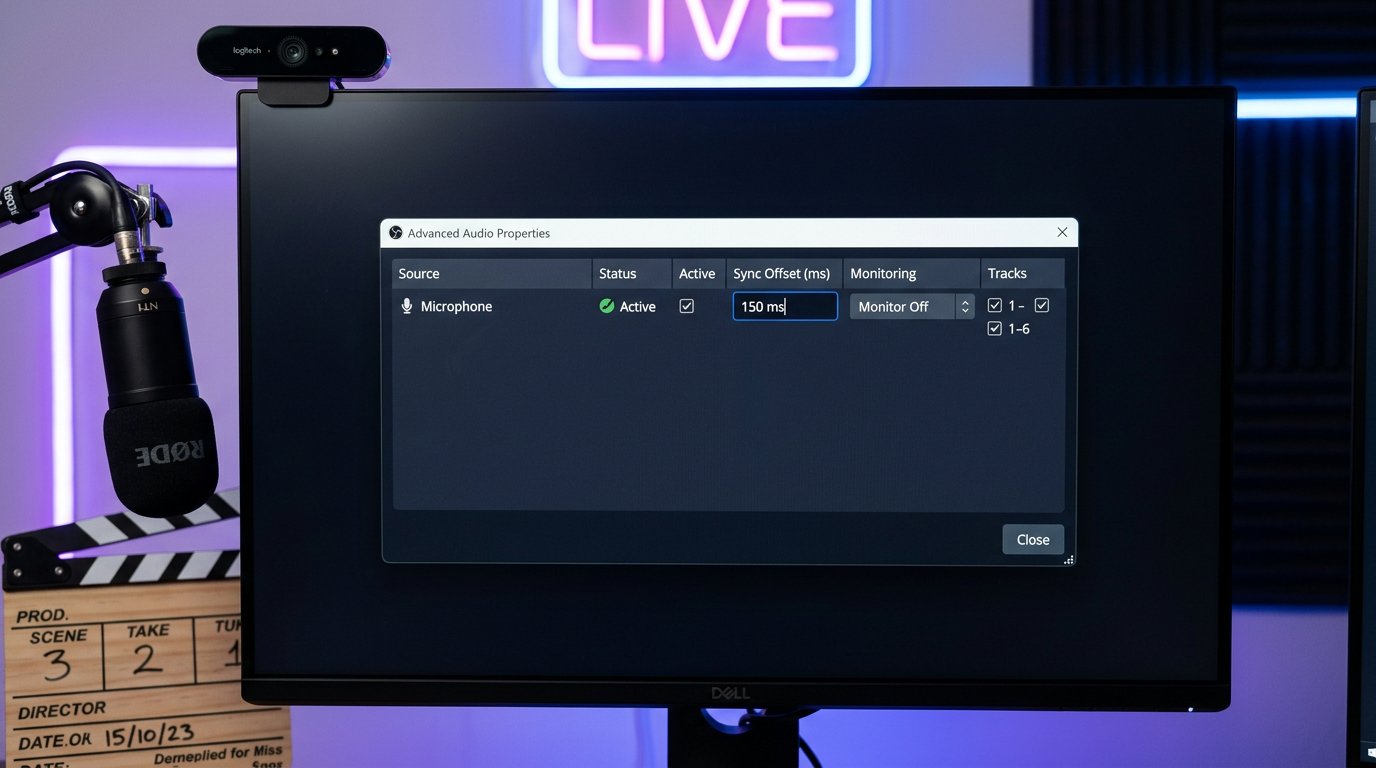
Open the advanced audio properties in OBS and find the row for the desired microphone or final virtual input. The Sync Offset field specifies the delay in milliseconds. The setting applies only to the selected audio source.
- Confirm from a local recording that the audio arrives before the image.
- For the first test, set a noticeable offset within 100–200 milliseconds.
- Record a new short clip with a clap in the same scene.
- If the difference is still visible, adjust the value in steps of about 10 milliseconds.
- Once the match is close, fine-tune the setting in steps of 2–5 milliseconds.
Cameras have different internal processing, so the working value may be smaller or larger than the starting range. If filters or a virtual mixer are added to the microphone, set the offset on the source that OBS receives after the entire audio chain.
When you can use a negative Sync Offset
A positive Sync Offset value delays the audio. If the microphone is already arriving late, it will only make the desync worse. In some versions or builds of OBS, the field accepts a negative value: it shifts the selected audio source earlier relative to the image.
A negative offset is only suitable for a small and stable audio lag. If the field doesn't accept a minus value, don't try to compensate for a late microphone with a positive delay. In that case, first reduce the delay in the audio chain or delay the camera.
The downside of a negative offset is that it applies to a single audio source. Notifications, game audio, call guests, and other inputs will stay where they were. So in a complex scene, this method may fix the lips but create a mismatch between the voice and other sounds.
When you need to delay the webcam using Render Delay
If the voice arrives after the lip movement, adding a positive Sync Offset isn't the right approach. First check whether you can reduce the audio delay: disable a heavy VST plugin, reduce the buffer in the external program, remove an extra virtual cable, or simplify the signal route.
If the processing can't be removed without a noticeable loss of quality, delay the video. For this, OBS uses the Render Delay filter. It holds the image of a specific source so the late audio can catch up with the camera.
The downside of this method is obvious: the viewer will see the reaction on camera later. In a talking-head stream this is often less noticeable, but in a dynamic scene, facial reactions to the game, a video, or a guest's actions may look delayed.
How to set Render Delay on the camera source
The filter is added to a specific webcam source, not to the audio device or the entire scene. In the Sources list, select the camera, open its filters, and add Render Delay in the effect filters section. Then specify a time in milliseconds close to the detected audio lag.
- Make a test recording and confirm that the audio lags behind the camera.
- Estimate the approximate difference using a clap or another sharp action in the frame.
- Select the webcam source and open the filters section.
- Add Render Delay to the effect filters.
- Enter a value close to the audio lag.
- Make a new recording and adjust the delay in steps of about 10 milliseconds, then in smaller steps.
What to consider when delaying the camera
If a single camera source is used in multiple scenes, the source filter will affect all those scenes. This is convenient for a permanent webcam but inconvenient if another scene uses a different audio route. In that case, it's better to create a separate camera source for this task and test it separately.
Don't delay the game capture, browser source, or video call along with the camera without measuring. Each source may have its own delay. After setting Render Delay, check not only the clap but also several phrases with natural articulation, as well as transitions between scenes.
How filters, plugins, and a virtual mixer change the delay
Standard OBS filters usually don't add a large fixed delay, but external processing can noticeably shift the voice. This is especially true for plugins with lookahead, complex noise reduction, block-based analysis, pitch correction, and voice changing. External programs and virtual devices use their own buffers.
Check the chain one link at a time: disable the suspicious filter, record a test, re-enable it, and compare the recordings. If the shift appeared after a specific plugin, you can choose a lower-latency mode, reduce the buffer, or compensate for the lag by delaying the camera with Render Delay.
A virtual audio cable and an external mixer add stages to the route. Audio may go from the microphone to the processing program, then to the virtual output, and only then reach OBS. The downside of a complex setup is more points where delay, signal duplication, or desync can occur.
What to check with a virtual audio route
- Make sure the microphone isn't added to OBS both directly and through the virtual output at the same time.
- Select the same sample rate in OBS, the system, the interface, and the processing program, if the devices support it.
- Disable unnecessary routes and duplicate monitoring so you don't mistake a copy of the signal for the main audio.
- After changing the buffer size, driver, or route, make a new test recording.
- Don't reduce the buffer until crackling and dropouts appear: the lowest latency isn't useful if the audio becomes unstable.
The Sync Offset setting should be applied to the final OBS input. If you delay the original microphone but the scene receives an already processed virtual output, the change may have no effect or may shift the wrong signal.
What to do if the desync changes during recording
If the lips and speech match at the start of the recording but drift apart after a few minutes, don't tune Sync Offset or Render Delay for each fragment. A fixed offset only works with stable sources. Drifting desync is more often related to buffers, dropped frames, or system overload.
- Open OBS stats during recording and check for dropped frames, rendering overload, and encoder overload.
- Check whether the camera delay changes during long sessions, scene switching, or when other programs are launched.
- Plug the camera into a different USB port and, if possible, move drives, capture cards, and other active devices off the same controller.
- Check the camera and microphone cables, especially if the problem appears after the equipment is moved.
- Verify the sample rate in OBS, the system, the audio interface, and external software.
- Check the buffer size in the external audio program: too small causes glitches, too large adds a fixed delay.
Typical cases: audio before or after video
If the audio is heard before the lip movement, open the advanced audio properties and add a positive Sync Offset to the microphone or final virtual input. Start with 100–200 milliseconds, then fine-tune the value using a local recording.
If the audio is heard after the lip movement, don't add a positive Sync Offset. Remove unnecessary processing and buffers from the audio chain. For a small, stable lag, you can use a negative offset if OBS accepts it. If the audio delay can't be reduced, add Render Delay only to the webcam source.
The target after setup is a discrepancy of no more than one frame of the recording. After updating a driver, changing the camera, plugins, buffer, or audio route, the test must be performed again.
Last Articles
What has changed in design and functionality We have updated the website to make working with it faster and more convenient. The main changes affect ..
Good afternoon, I've collected all the news during this time.: 1. The main news is that prices for twitch viewers have been greatly reduced, while Tw..
1. Use promo code "December2025" for a 15% discount for all our viewers2. We have reduced the base prices for our configurator and the most affordable..
Twitch services are working stably, so we are ready to cooperate with squads, resellers, service owners, bot owners, and many others.Individual te..
We have completely updated our Twitch viewer services, and they are now working stably. We only use high-quality IP addresses for the viewers.The ..
Hello everyone! Today, we are announcing a new feature—"Twitch Viewer Configurator". Now, you can customize any plan for your Twitch channel. Choo..
Greetings, I have compiled a guide for streamers, which will be very relevant at the moment. Now YouTube and twitch have disabled monetization from vi..
We have finally developed the APINow it will be more convenient for our partner sites to work with us.To update the maximum tariffs for YouTube, an up..
Due to the huge popularity of the partnership services and referral program, we have made a cooperation table. The essence is very simple: more live a..
Our Services for Streamers








Our Services for Content Creators






