
Safe CS2 Spectator Mode for Streaming Matches and Pracs
What Data CS2 Spectator Mode Reveals
Spectator mode shows more than a live player sees: ally and opponent positions on the radar, free camera, switching between players, x-ray models, inventory, killfeed, and rotation timings. For an opponent, the stream can become a source of information even without directly watching the map from above.
The risk isn't limited to an official match. In a prac, you can reveal an early setup, a retake formation, a player's usual route, or an exit plan. In a series of maps, clips are also dangerous: a setup shown on the first map may be repeated later.
The main protection is stream delay. A hidden HUD and overlay only reduce the volume of leakage.
Choose the Delay for Pracs, Leagues, and FACEIT
For a regular prac where you stream only your own perspective, set at least 120 seconds. This is enough for a shown position to usually become irrelevant by the next round, while the format stays relatively live for chat.
For league matches, qualifiers, and FACEIT, it's safer to use 180 seconds. If the stream has an observer slot, full-team radar, free camera, or a caster view of both sides, set 300 seconds or don't run such a stream until the end of the map. When observing a match from the outside, a two-minute delay may not cover the entire round and the subsequent rotation.
The downside of a long delay is obvious: chat reacts to events later, interactivity during the round almost disappears, and viewers may leave to watch the match without delay.
Where to Set the Delay in OBS and on the Platform
In OBS, open "File" → "Settings" → "Advanced" → "Stream Delay." Enable the delay, specify the duration in seconds, and leave the cutoff point saving enabled. This option is useful if you need to quickly stop the stream and not release the last seconds of the buffer after an accidental leak.
If the platform itself adds the delay, look for it in the broadcast control panel or channel settings before going live. Don't stack multiple delays without checking: OBS and the platform may produce a combined pause that turns out longer than expected.
Verify the result from a phone or a second computer. Compare not the OBS indicator but the actual event: for example, the moment a round starts or a message appears in the killfeed. Team audio and video should reach the stream with the same offset.
What You Can and Cannot Configure on FACEIT and League Servers
In FACEIT matches, a player doesn't get access to server-side observer mode settings and can't set sv_delay themselves. Server parameters, observer slots, and demo access are set by the platform or organizer. In that case, set the delay for your personal stream in OBS or in the platform panel.
Don't count on a spectator account, a real-time demo, or someone else's observer slot as a workaround. The rules of a specific league may prohibit personal streaming, require a fixed delay, or allow only the player's perspective.
The downside of this approach is that the stream format depends on the regulations. Sometimes the safe option is to leave a standby scene on during the match and show the analysis and replays after the series.
Keep Only Your Own Perspective on the Stream
For a streamer-participant, the safest mode is your own screen during a live round. While you're alive, the audience gets the same information you do. After dying, don't switch to free camera, don't open the tactical map, and don't show an overview behind the opponent.
Regular spectating of a teammate after death isn't fully safe either: the viewer will see their position, aim, grenades, and possible exit. With a 180-second delay the risk is noticeably lower, but if you suspect stream sniping, it's better to switch to a safe scene immediately.
The downside of your own perspective is that the viewer misses frags on another part of the map, trades, and important teammate actions. The stream will look less like a full match broadcast.
Disable Observer Tools If You Have Server Access
On your own training server or prac server, observer console commands are available. The command spec_show_xray 0 disables x-ray models, and spec_autodirector 0 disables automatic camera switching to the action. Enter them in the console before the broadcast starts, then reconnect to the observer to verify the result.
Free camera, player selection, and observer slot access are usually determined by the server. For this, an administrator can use server settings like mp_forcecamera and observer permissions, but a match participant won't be able to change them on FACEIT or in a closed league. If the server leaves free camera available, operator discipline remains the only protection besides the delay.
The downside of disabling x-ray and autodirector is that the picture becomes poorer, and it's harder for the observer to catch key moments. This is justified only where safety matters more than directing.
Hide the Radar and Excess HUD in CS2 or OBS
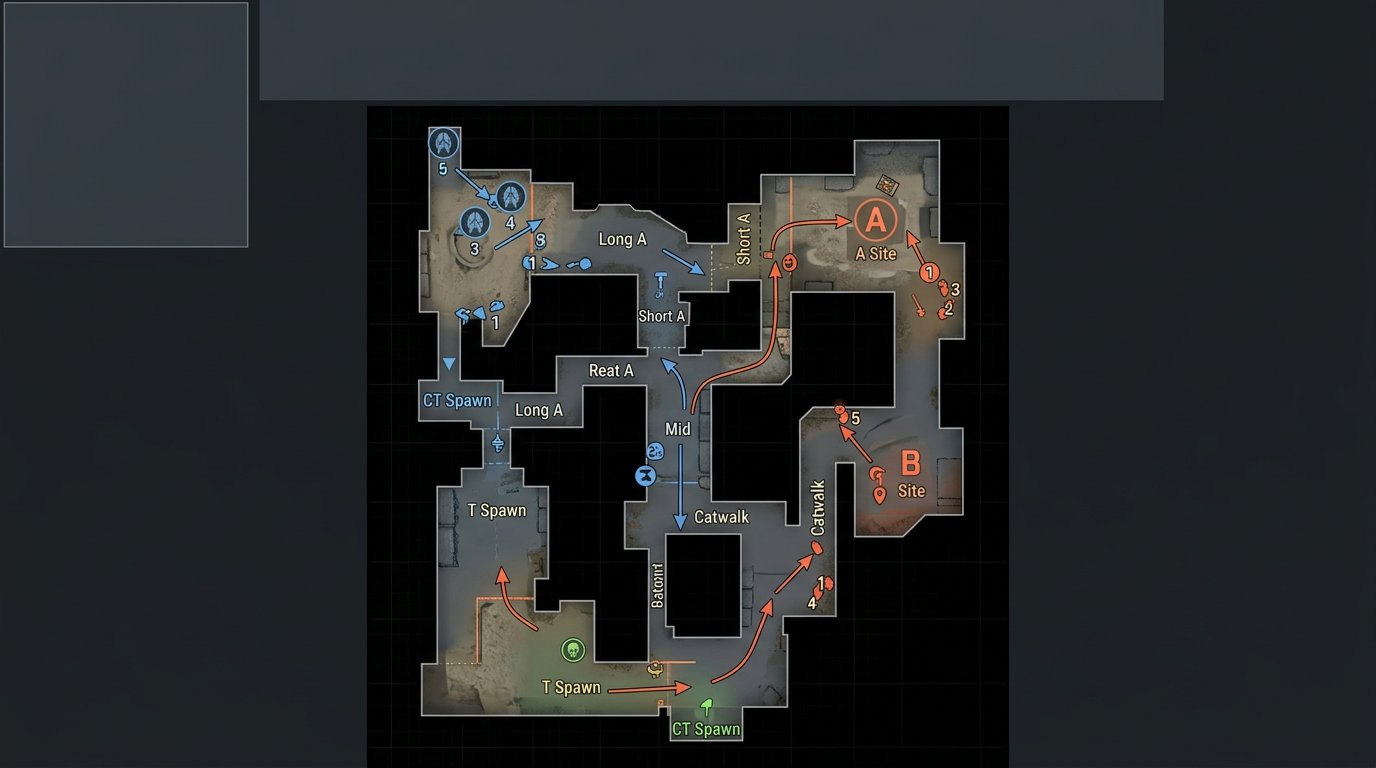
CS2's standard settings don't have a separate toggle to "hide the radar but keep the rest of the HUD." In the "Settings" → "Game" → "Radar" menu, you can change the radar size, map scale, rotation, and player centering, but not remove the minimap entirely.
To completely hide the game interface, use the command cl_drawhud 0. It removes the entire HUD, including the radar, health, ammo, and most service elements. You can bring the interface back with the command cl_drawhud 1. This option is suitable for an observer scene but is almost useless for first-person play: you stop seeing important data yourself.
It's more practical to cover only the dangerous area in OBS. In the scene, add "Game Capture," then on top of it a "Color Source" or a prepared graphic panel. Place it over the radar and lock the source in the scene list. Another option is to select the game source, hold Alt, and crop the edges in the preview. Cropping will remove part of the frame, so a panel is usually more convenient.
The downside of an overlay is that it can shift after a change in resolution, aspect ratio, or another capture source. Check it after a CS2 update and before every match.
Don't Forget the Killfeed, Scoreboard, and Notifications
The radar isn't the only source of leakage. The killfeed shows the order of contacts, the scoreboard can reveal the observed player, and a connection or pause message can confirm the lineup and match status. In observer mode, sharp camera switches are also dangerous: they often give away where a contact begins.
If you use an overlay, don't just cover the top corner with the radar. Separately check the top of the screen with the killfeed, central server messages, chat, and the scoreboard area when holding the score key. Don't show the console window: it may contain the server IP, service messages, and names of private configs.
The downside of dense masks is that it becomes harder for the viewer to understand the score, economy, and number of living players. Don't try to cover everything with one big banner: it's better to prepare a separate safe scene for spectating.
Separate the Game Scene, Observer Scene, and Pause Scene
Create at least three scenes: first-person play, observer mode with a hidden HUD, and a safe pause scene. The pause scene should not have desktop capture, a browser, Discord, a friends list, an anti-cheat panel, or a lobby window.
Assign a hotkey to switch to the pause scene. It's needed after death, during a technical break, while the map is loading, and on any overlay error. Choose a combination that doesn't overlap with CS2 binds, push-to-talk, and recording controls.
The downside of multiple scenes is that they're easy to mix up in a tense moment. Name them clearly and check the order in the OBS list before the match.
Don't Output Team Voice Before Video
If the delay is set in OBS, audio from the same sources is usually delayed along with the video. The problem appears when team voice is sent to the platform via a separate route, enabled through an external bot, or added to another stream without the same delay.
During the test, one player should make a short call, and the second should perform a noticeable action on screen. On the recording, check that the voice doesn't come before the picture. The safest option for a competitive match is not to output team communication to the public stream.
The downside of disabled voice is that the stream loses live reactions and some of the explanations. Separate audio synchronization requires testing: an error of a few seconds can make the stream uncomfortable, and audio running ahead can be dangerous.
Checklist Before Going Live
- Check the rules of the league, team, and FACEIT matchroom for personal broadcasting.
- Set 120 seconds for pracs, 180 seconds for leagues or FACEIT, 300 seconds for observer streams.
- Open the stream from a second device and measure the actual delay.
- Check that OBS outputs the correct scene, not desktop capture.
- Make sure the panel fully covers the radar at your resolution and screen format.
- On your own server, disable spec_show_xray and spec_autodirector if you use an observer.
- Check that team voice doesn't run ahead of the video and that the pause hotkey works.
Control Replays, Clips, and Recordings of the Current Series
The delay only protects the live stream. Don't publish clips from the current map until the series ends if they show setups, retake positions, or a non-standard route. Even an old moment can hint to the opponent that the team is preparing a repeat exit.
Before publishing a recording, review the player's death, pauses, the loading screen, scene switches, and the end of the map. These are the places where the observer interface, voice chat window, desktop, or an uncovered radar most often appear.
The downside of manual review is that it takes time after a long stream. Automatic clipping is faster but doesn't understand the competitive context and may pick the most sensitive moment of the match.
Last Articles
What has changed in design and functionality We have updated the website to make working with it faster and more convenient. The main changes affect ..
Good afternoon, I've collected all the news during this time.: 1. The main news is that prices for twitch viewers have been greatly reduced, while Tw..
1. Use promo code "December2025" for a 15% discount for all our viewers2. We have reduced the base prices for our configurator and the most affordable..
Twitch services are working stably, so we are ready to cooperate with squads, resellers, service owners, bot owners, and many others.Individual te..
We have completely updated our Twitch viewer services, and they are now working stably. We only use high-quality IP addresses for the viewers.The ..
Hello everyone! Today, we are announcing a new feature—"Twitch Viewer Configurator". Now, you can customize any plan for your Twitch channel. Choo..
Greetings, I have compiled a guide for streamers, which will be very relevant at the moment. Now YouTube and twitch have disabled monetization from vi..
We have finally developed the APINow it will be more convenient for our partner sites to work with us.To update the maximum tariffs for YouTube, an up..
Due to the huge popularity of the partnership services and referral program, we have made a cooperation table. The essence is very simple: more live a..
Our Services for Streamers








Our Services for Content Creators






