
How to Invite a Co-Host to a Telegram Live Stream
Who Is a Co-Host in a Telegram Live Stream
Telegram doesn't have a separate role called "co-host." This is what people usually call a participant who has been allowed to speak during a channel's live broadcast. In the broadcast settings, they get speaker status: they can turn the microphone on and off, and if video mode is supported, the camera as well.
You can make a channel administrator or a regular user a co-host. You don't need to grant them administrator rights. If the person only needs to take part in the conversation, it's enough to invite them as a speaker.
Speaker status doesn't grant access to posts, channel settings, or managing other users. A participant can't change permissions on their own, edit the channel, or invite administrators. These options only appear after an administrative role is granted separately.
Before the broadcast, check the "Manage video chats" permission in the channel's administrator settings. Without it, the "Start live stream" and "Invite speakers" options may be unavailable. The names of individual buttons sometimes differ depending on the language, app version, and device type.
What to Check Before Starting the Broadcast
Update Telegram on the device you'll use to start the stream. An up-to-date app version also matters for the co-host: an outdated client may not show the invitation or certain broadcast control buttons.
The participant will need a Telegram account and a stable internet connection. If they'll be speaking from a phone, allow the app access to the microphone. For video, camera permission will also be required. On a computer, check these permissions in the operating system settings and confirm the selected audio input device.
Agree in advance on which account the person will connect from. The invitation is tied to a specific Telegram profile. If the user opens the stream from a different account, they may not appear in the list of available participants.
A link to the channel or stream by itself doesn't make someone a co-host. First the user has to open the stream, and then accept the invitation to speak. If the notification doesn't appear, they can join the broadcast manually as a listener — after that, it will be easier for the host to find them in the participant list.
How to Start a Live Stream and Find Speaker Controls
Android
Open the desired channel, tap its name at the top of the screen, and open the three-dot menu. Select "Start live stream." If the broadcast needs to happen later, use the "Schedule live stream" option. After starting, open the participants panel: it may be behind the "Participants" button or an icon showing people.
In the control panel, select "Invite speakers" or tap the desired participant and open the "Invite to speak" action. Find the user among your contacts or select them from the listener list.
iPhone and iPad
Go to the channel and tap its name to open the channel page. Tap "More" or the three-dot button, then select "Start live stream." For a scheduled broadcast, use the "Schedule live stream" option.
During the broadcast, open the participant list and tap "Invite speakers." If the desired user has already joined as a listener, tap their name and select "Invite to speak." The sent invitation will appear in the user's stream interface.
Telegram Desktop
Open the channel in Telegram Desktop, click its name, and then click the three-dot button in the top panel. Select "Start live stream." In some versions, a window first appears to choose the source: microphone or camera.
After starting, click "Participants" or open the list of people in the broadcast. Find the user, right-click them or open the menu next to their name, and select "Invite to speak." To add speakers in bulk, use the "Invite speakers" option.
On a computer, Telegram may show the same actions in the context menu rather than as separate buttons on the panel. If the participant list is closed, click "Participants" again and open a specific user's card.
How to Assign a Co-Host During a Live Stream
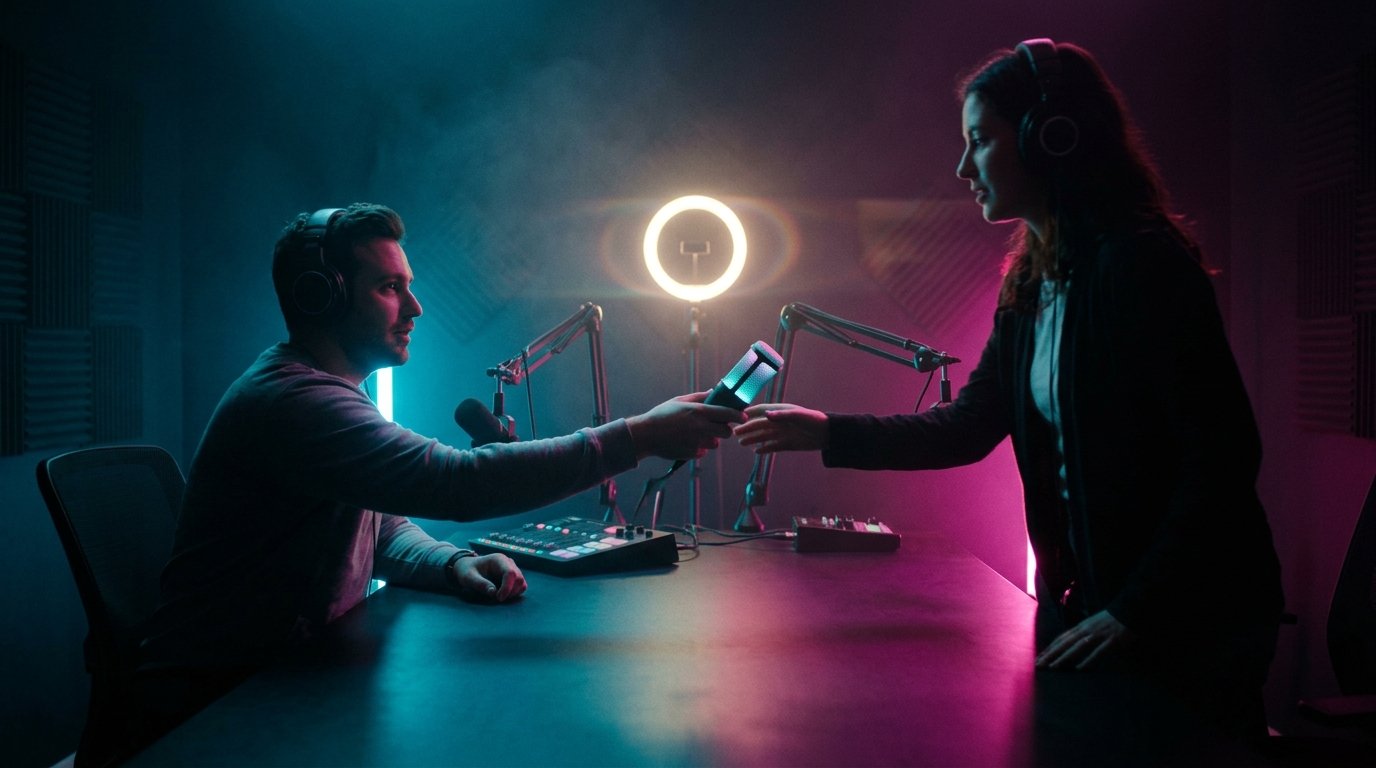
Start the broadcast and open the participant list. If the person has already joined the stream, find them in the listeners section. Tap the user's name or avatar and select "Invite to speak." In some versions of Telegram, you first need to open "Participants," then "Add speaker" or "Invite speakers."
If the user hasn't joined yet, use "Invite speakers" and select them from your contacts. This option isn't available in every situation and may depend on whether the person is in the host's contacts. A more reliable way is to send the stream link and ask the user to join it first as a listener.
After the invitation is sent, the co-host must accept it. They may see an "Accept invitation" button or a prompt to turn on the microphone. Until confirmation is given, the user won't appear among the active speakers.
Once connected, ask the co-host to check the sound. If video mode is needed, they must allow Telegram to use the camera and turn on video with a separate button. The ability to show video depends on the format of the specific stream and the app version.
How to Manage an Already Assigned Speaker
The host can change the co-host's status at any point during the broadcast. Open "Participants," find the person in the speakers section, and tap their name. On Android and iPhone, a card with actions usually opens, while in Telegram Desktop it's a right-click context menu.
To temporarily mute the microphone, select "Mute microphone." This is useful if background noise gets into the broadcast, a participant forgets to mute the sound, or the connection starts breaking up. A muted microphone can be allowed again through the same user's menu, if such a button is available in your version of Telegram.
To remove a person from the speakers, select "Move to listeners." The co-host will stay in the stream but won't be able to speak until you invite them to be a speaker again.
If a participant is disrupting the broadcast or should no longer be present, use "Remove from stream." This command removes the user from the current broadcast but doesn't mean an automatic ban in the channel. Restricting access to the channel itself requires separate administrative actions.
The co-host can also mute the microphone, turn off the camera, or leave the broadcast on their own. However, the host shouldn't count on this: control over microphones and the speaker lineup remains with the administrator who has broadcast management rights.
If the Co-Host Doesn't See the Invitation
First, ask the user to open the stream manually. The notification may not arrive because of disabled notifications, Do Not Disturb mode, or an unstable connection. Inside the broadcast, the invitation often appears above the participant list or after tapping the microphone icon.
Check that the person joined from the correct account. If they have multiple Telegram profiles, the invitation may have been sent to a different account. Also make sure the user has actually opened the right stream, not just the channel page or a recording of an old broadcast.
If the person is connected as a listener, open "Participants," find their name, and send the invitation from the user's card. An invitation sent before joining the stream may not appear right away. In this case, cancel the pending invitation, wait for them to connect, and repeat the action.
Ask the co-host to update Telegram, close the app, and reopen the stream. With an unstable internet connection, switching between Wi-Fi and mobile data helps. Don't send many invitations in a row: first check whether the prompt to accept the speaker role has already appeared.
Why You Can't Invite a Speaker
The main reason is the absence of the "Manage video chats" permission. Open the channel profile, go to "Edit" or "Manage channel," then to the administrators section, and check your role's permissions. If another administrator started the stream, ask them to invite the co-host or grant you the necessary permission.
Make sure you're working with the right channel. If you have several channels, it's easy to open a similar page and look for a participant in the wrong broadcast. It's worth checking the channel name and avatar before starting the stream.
If the button disappeared after the broadcast started, close the participant's profile and reopen "Participants." Some Telegram commands only appear after tapping a specific name. On a computer, check the right-click menu, and on a phone, check the three-dot menu in the user's card.
Don't grant someone administrator rights just so they can speak. Speaker status is enough for a conversation. Administrative access is only needed when the co-host has to publish content, moderate the channel, or perform other separate tasks.
Sound and Camera Issues
If the co-host is connected but can't be heard, check three things: whether speaker status has been accepted, whether the microphone is on in the broadcast, and whether Telegram has permission to access the microphone. On a computer, also open the app settings and make sure the correct audio source is selected.
Echo occurs when the broadcast sound plays through speakers and gets picked up by the microphone again. Ask the co-host to wear headphones, close the stream on a second device, and close extra Telegram tabs. If the host and guest are in the same room, it's best to leave only one microphone active.
If there are camera issues, check the video permission, the selected camera, and whether video mode is available. If the image doesn't appear, turn the camera off and on again, or reconnect to the stream. Restarting the app helps when the camera is being used by another program.
Before an important broadcast, connect the co-host in advance and do a quick check. That way you'll have time to switch devices, change the audio source, or move the guest to listeners before the main part of the stream begins.
Quick Step-by-Step Summary
- Check that you have the "Manage video chats" permission and update Telegram.
- Open the channel, tap its name, select "Start live stream," and start the broadcast.
- Open "Participants" or "Invite speakers."
- Find the user in the listener list or contacts and select "Invite to speak."
- Wait for confirmation, check the microphone, and the camera if needed.
- During the broadcast, use "Mute microphone," "Move to listeners," or "Remove from stream."
Last Articles
What has changed in design and functionality We have updated the website to make working with it faster and more convenient. The main changes affect ..
Good afternoon, I've collected all the news during this time.: 1. The main news is that prices for twitch viewers have been greatly reduced, while Tw..
1. Use promo code "December2025" for a 15% discount for all our viewers2. We have reduced the base prices for our configurator and the most affordable..
Twitch services are working stably, so we are ready to cooperate with squads, resellers, service owners, bot owners, and many others.Individual te..
We have completely updated our Twitch viewer services, and they are now working stably. We only use high-quality IP addresses for the viewers.The ..
Hello everyone! Today, we are announcing a new feature—"Twitch Viewer Configurator". Now, you can customize any plan for your Twitch channel. Choo..
Greetings, I have compiled a guide for streamers, which will be very relevant at the moment. Now YouTube and twitch have disabled monetization from vi..
We have finally developed the APINow it will be more convenient for our partner sites to work with us.To update the maximum tariffs for YouTube, an up..
Due to the huge popularity of the partnership services and referral program, we have made a cooperation table. The essence is very simple: more live a..
Our Services for Streamers








Our Services for Content Creators






