
Restricting Media in a Telegram Group During a Stream Announcement
Why restrict media after a stream announcement
After a broadcast announcement, memes, clips, screenshots, GIF animations, and files quickly appear in an active group. The message with the start time, the link to the platform, or a schedule change gets pushed up. Some viewers don't see it, even if they join the chat shortly before the stream.
Banning attachments leaves room to discuss the stream in text but removes heavy previews and accidental flooding. A media ban does not replace pinning the announcement. The message with the main link and start time still needs to be pinned.
Which actions to disable in the group permissions
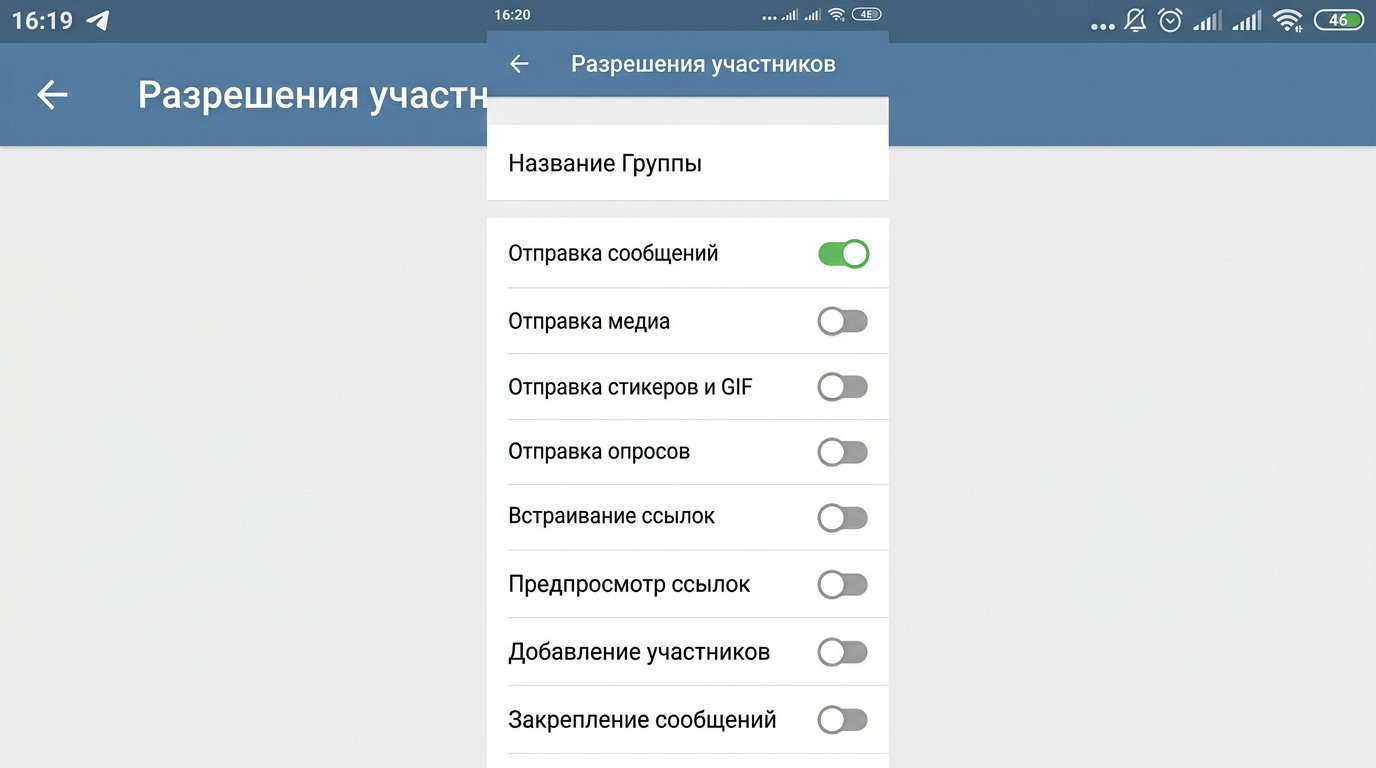
For a temporary mode, you don't need to close the chat completely. In the "Permissions" section, you can leave text messages enabled for members and separately turn off media posting. This restricts photos, videos, documents, music, voice messages, and video messages.
Stickers and GIF animations, polls, and link previews are disabled with separate toggles. If viewers need to share stream links, it's better not to ban previews: the link card helps distinguish an official announcement from a random address.
- "Send messages" — leave it on for questions and discussion.
- "Send media" — turn it off to remove photos, videos, files, and audio.
- "Send stickers and GIFs" — turn it off if the chat gets flooded with reactions.
- "Send polls" — turn it off if only the team publishes polls.
- "Link previews" — disable only if there's a real problem with cards.
The downside of a blanket restriction is that a viewer won't be able to send a screenshot of a stream error or a clip of an important moment. For such cases, provide a moderator's contact or a separate chat for materials.
Path to the "Permissions" section on phone and computer
Below are the paths for the Russian-language Telegram interface. They can be changed by the group owner or an administrator with the "Change group profile" right and permission management.
- Android: open the group, tap its name, then the pencil icon, and select "Permissions."
- iPhone: open the group, tap its name, select "Edit," then "Permissions."
- Telegram Desktop: open the group profile, click "Manage group," then "Permissions."
In the section, turn off "Send media" and other unwanted actions, then save the settings. The restriction takes effect immediately for regular members. You need to check it from an account without admin rights: the owner and administrators can still send attachments after the ban.
How to enable restrictions before an announcement
- Prepare the announcement: stream time, broadcast link, and a short description.
- Publish the announcement and pin it in the group.
- Add a short rule: until the stream starts, text messages and links are available in the chat.
- Open "Permissions" and turn off "Send media."
- If needed, turn off stickers, GIF animations, and polls.
- Check the settings from a regular user account.
- After the stream, restore the previous permissions if the ban was temporary.
Don't count on the restrictions lifting themselves. If a moderator is responsible for toggling them, assign a specific person and a time when they must reopen media. The downside of manual mode is that it's easy to forget to restore the rights, and viewers will be left without attachments after the stream ends.
Why administrators and bots will still be able to send attachments
Group permissions apply to regular members. Member restrictions do not apply to administrators and admin bots. That's why a moderator can post an image with a reminder, and a bot can send a message about the stream start with an attachment while viewers can't upload media.
This is convenient for announcement mode: the team retains the ability to publish the schedule, covers, rules, and service messages. The downside is that any administrator gets the ability to bypass the restriction. Don't give admin rights to someone who only needs access to the discussion.
How to grant a bot rights to publish announcements
Add the bot to the group, then open the group profile → "Administrators" → "Add administrator" and select the bot. In the admin rights, leave only what its task requires. To publish messages, the bot doesn't need rights to remove members, ban, change the group profile, or add new administrators.
The bot itself, its token, commands, and privacy mode are configured via @BotFather. Rights within a specific group are granted in that group's admin panel, not via @BotFather. If the bot needs to read members' messages for moderation or respond to commands without being mentioned, check its privacy settings in @BotFather.
After assigning, send a test command or trigger a test notification. Check not only the text but also the image, video, or file the bot will use in the announcement. If the bot is not an administrator, the media ban will prevent it from publishing attachments just like regular members.
Which rights to leave for moderators
During an announcement, a moderator needs rights related to order in the chat: deleting messages, restricting or blocking violators, and pinning service messages. The right to publish attachments is only useful for those who actually post materials on behalf of the team.
- deleting messages — for cleaning up spam, ads, and link-based bypasses;
- restricting members — for temporarily blocking a violator;
- blocking members — for repeat spam and malicious links;
- pinning messages — for the announcement, rules, and start notification;
- managing video chats — only if the moderator helps run the broadcast inside Telegram.
Don't give all moderators the "Add new administrators" right and the ability to change the group profile. The downside of broad rights is that a mistake or a compromised moderator account will affect the entire chat, not just one disputed comment.
When to restrict a specific member instead of the whole group
A blanket ban isn't needed if attachments are a problem because of a few users while the rest of the audience shares clips and screenshots normally. Open the member's profile in the group, tap "Restrict user," and disable the needed actions. The restriction duration is set there as well.
A targeted measure preserves the usual communication format for most viewers. Its downside is that moderators have to constantly monitor the feed, and a decision without clear rules may look selective. For repeat violations, define the procedure in advance: warning, temporary restriction, removal from the group.
Rule text for the pinned message and group description
It's best to explain the technical restriction with one short note next to the announcement. The viewer should understand that the ban is about navigation before the stream, not a punishment for the whole audience.
A suitable wording: "Until the stream starts, text messages and links are available in the group. Send clips, memes, screenshots, and files after the stream or to the chat for materials. Write your questions about the broadcast in a message under this announcement."
The rule won't stop attempts to bypass the ban with text flooding, links, or symbols. Its purpose is to give the moderator a clear basis for deleting messages and to direct viewers to the right chat.
When you need a separate chat for clips and files
If viewers actively post edits, fan art, moment recordings, and files after every stream, split the tasks between two groups. Keep announcements, stream questions, and team messages in the main one. Collect clips, subscriber works, and technical materials in the second.
Place links to both chats in the pinned announcement and the group description. This format doesn't force you to constantly ban media in the main community. The downside is that the audience will split, some viewers won't move to the second chat, and moderators will have to monitor two feeds.
Last Articles
What has changed in design and functionality We have updated the website to make working with it faster and more convenient. The main changes affect ..
Good afternoon, I've collected all the news during this time.: 1. The main news is that prices for twitch viewers have been greatly reduced, while Tw..
1. Use promo code "December2025" for a 15% discount for all our viewers2. We have reduced the base prices for our configurator and the most affordable..
Twitch services are working stably, so we are ready to cooperate with squads, resellers, service owners, bot owners, and many others.Individual te..
We have completely updated our Twitch viewer services, and they are now working stably. We only use high-quality IP addresses for the viewers.The ..
Hello everyone! Today, we are announcing a new feature—"Twitch Viewer Configurator". Now, you can customize any plan for your Twitch channel. Choo..
Greetings, I have compiled a guide for streamers, which will be very relevant at the moment. Now YouTube and twitch have disabled monetization from vi..
We have finally developed the APINow it will be more convenient for our partner sites to work with us.To update the maximum tariffs for YouTube, an up..
Due to the huge popularity of the partnership services and referral program, we have made a cooperation table. The essence is very simple: more live a..
Our Services for Streamers








Our Services for Content Creators






