
How to Prevent Video Downloads on TikTok
What Disabling Downloads Does
On TikTok, you can turn off the standard download option for your videos. After that, other users won't be able to save your videos using the app's button. The setting applies at the account level: you don't need to change it for each post individually.
However, turning off downloads does not protect against screen recording or other ways of copying. It also doesn't change a video's audience: a public video remains available for viewing.
Where to Find the Download Toggle
You can turn off downloads in your account's privacy settings:
- Open TikTok and go to "Profile."
- Tap the menu button in the top right corner.
- Select "Settings and privacy," then "Privacy."
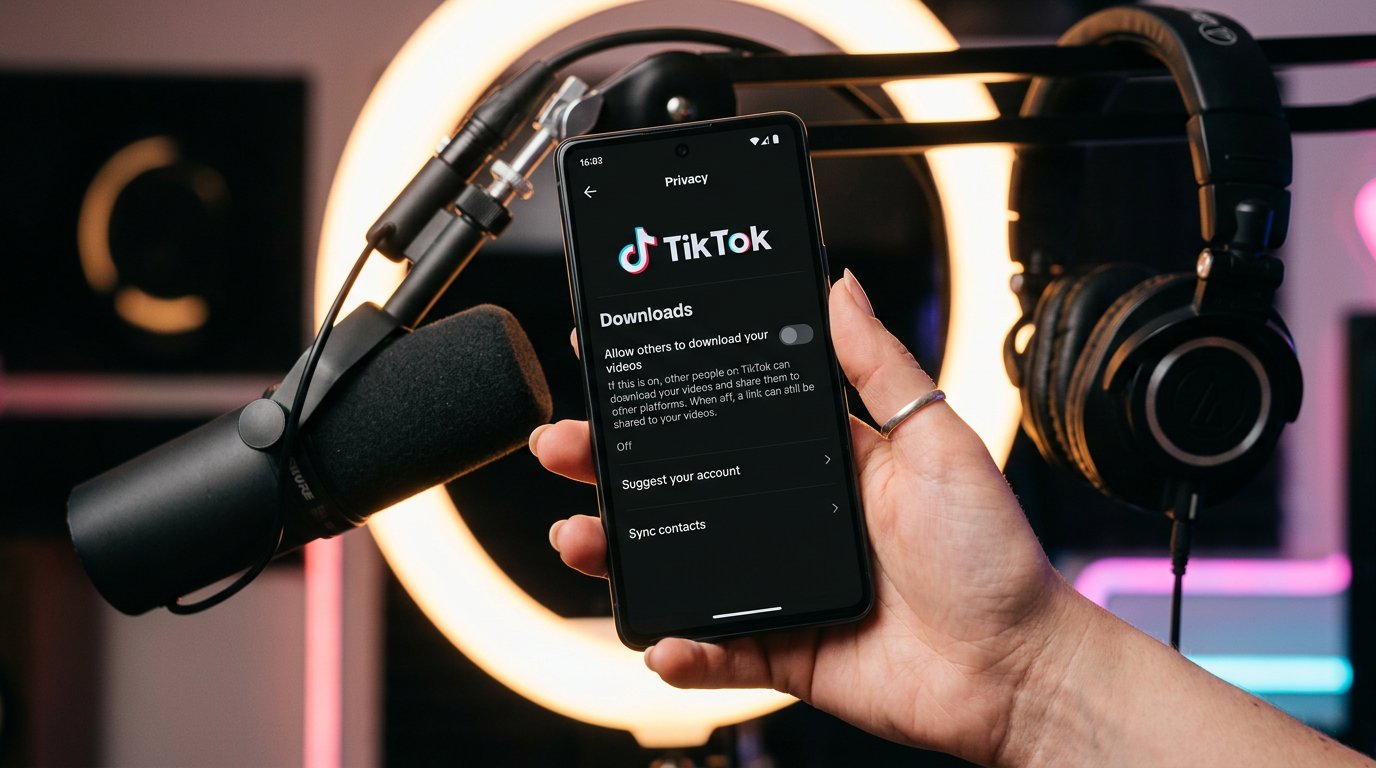
- Open the "Downloads" section.
- Turn off the "Download videos" toggle.
Names may differ slightly across app versions or translations. Look for the video download setting within your account's privacy section, not in the menu of an individual post.
How to Verify Downloads Are Disabled
Go back to the "Downloads" section and make sure the toggle is off. Then open your public video from another account, tap the "Share" button, and check whether the "Save video" option is available. With downloads turned off, a viewer should not be able to save the file using that button.
To verify, you need an account that is allowed to view the post. If the video isn't available to that account, the absence of the button won't tell you anything about whether the setting works.
Which Posts the Setting Affects
The global toggle applies to both published and future videos on the account. Once it's turned off, viewers should not be able to get new copies through the standard download feature, including for videos that could previously be saved.
If you turn downloads back on, downloading videos that are available to viewers may become possible again. After changing the setting, it's a good idea to check both a new post and one of your older posts from another account.
What Happens to Files Already Downloaded
The restriction applies to new downloads through TikTok. Files saved earlier will remain on users' devices: the app does not delete them from other people's galleries. The same applies to copies that have already been uploaded to other platforms.
The setting does not undo reposts already made within TikTok and does not control posts on other platforms. If a copy has been posted outside TikTok, you'll have to deal with it according to that platform's rules.
Can the Author Still Save Their Own Video
Turning off downloads for viewers doesn't mean the author loses the ability to save and send their own videos. However, the available buttons and export methods depend on the specific post and app version.
If you need a file for editing or posting on another platform, it's better to keep the original separately. A version saved from TikTok may differ from the original, for example by including the platform's watermark.
Can You Still Share the Link and Repost
Downloading creates a file on the viewer's device. A link leads to the post, and reposting within TikTok helps show it to other users. Disabling downloads is not the same as disabling links or reposts.
Sending a link doesn't give access to those who aren't in the video's chosen audience. Reposting also doesn't make a private post public. If the ability to share a video matters for promotion, check it separately from downloads.
What to Check in the Share Menu
With downloads turned off, viewers can still share the link, but directly sending the video itself to third-party platforms may be unavailable. In the "Share" menu from another account, check the copy link option and the sending method you need, such as to another social network or via message.
Make sure the recipient opens the TikTok link rather than receiving a video file. Menu items depend on the app and device, so checking one method doesn't confirm that the others work.
How to Limit Access to a Single Video
The download toggle applies to the entire account. If you need to limit just one post, open it in your profile, tap the additional actions button, and go to "Privacy settings."
Under "Who can watch this video," select the available audience, such as "Only me." This limits viewing, not just downloading: the video will no longer attract a broad audience.
Is There a Button on Videos With a Limited Audience
If "Only me" is selected for a video, other users won't be able to open it or use the save button. However, the actions available to the author don't show what viewers see.
For a post available only to a specific audience, you can't judge the download button based solely on the viewing restriction. Check the menu from an account that is in that audience. If global downloads are turned off, that account should not be able to save the video with the standard button.
How to Keep Your Account Private
Under "Settings and privacy" → "Privacy," you can enable a private account. Posts will become available to approved followers, subject to individual video settings. You'll have to review follow requests yourself.
With a private account, downloading videos by other users through TikTok is unavailable: viewers should not be offered the save button. But approved viewers can still record their screen. The downside of privacy is that posts won't be able to attract a new audience the way videos on a public account do.
What Happens When You Switch to a Public Account
Account privacy and video downloads are separate settings. If you make a private account public again, check the "Downloads" section and the toggle position before counting on downloads being disabled.
Also check the audience for individual videos: making an account public again doesn't necessarily mean every post is open to everyone. The downside of manual checking is that you have to repeat it after changing settings.
How to Turn Off Duets and Stitches
Duets and stitches let others use your video when creating a new one. Disabling downloads doesn't control them. To limit these features for your account, open "Settings and privacy" → "Privacy" and find the settings for content reuse, duet, and stitch.
Choose who can use your posts, or turn off the relevant options if available. The names and locations of the items depend on the app version and account settings.
How to Disable Reuse for a Single Video
Open the post you need, bring up the additional actions menu, and go to "Privacy settings." Find the "Allow content reuse" toggle or the separate duet and stitch settings, if shown, and turn them off.
The global toggle may affect more than just duets and stitches. Before turning it off, read the description in the app: the restriction reduces opportunities for unwanted use, but it also removes a way for authors and viewers to interact with the video.
Why the Download Restriction Can Be Bypassed
A viewer can record the screen while watching, film it with another device, or use a third-party downloader. The availability of such methods varies, but TikTok's toggle doesn't guarantee that a copy can't be obtained.
For sensitive material, it's safer to limit the audience before posting or not post it at all. The downside of privacy is a smaller reach, and not posting means you can't use that video to promote your channel.
Does a Watermark Help
An account name or another visible mark within the image helps indicate authorship when a video is shared without a link to the original. Place it so it doesn't cover important details and remains legible during normal viewing.
A watermark doesn't prevent copying: it can be cropped, covered, or removed. An overly large mark interferes with viewing, so for material that must not be shared, it doesn't replace limiting the audience.
Why the Toggle Is Unavailable
Check that you've opened your account's privacy section and that the latest app version is installed. If there's no "Downloads" item, look for a setting under a similar name: the interface may differ depending on the language and TikTok version.
The ability to change download settings also depends on account parameters, including age and privacy. With a private account, the download feature for other users is disabled; additional restrictions apply to some age categories. Check the terms in TikTok's help center and don't change your date of birth just to access a feature.
What to Do If the Button Is Still Visible
First check the toggle and the video's audience. Then open the post specifically from a viewer's account: the author's menu may contain actions unavailable to other users. Check not only whether the item is present, but also whether you can actually save the file through it.
If a viewer can still download the video, update the app and check again. If the problem persists, report it through TikTok support, specifying the device model, app version, and a link to the post.
What to Do About Someone Else's Post of Your Video
If your video was posted without permission, save the link to the copy and evidence confirming authorship: the original file, a link to your post, and other available materials. This will come in handy if the copy is later changed or deleted.
Open the other person's post and use the report function. In case of copyright infringement, you can use TikTok's designated procedure; the requirements for a request are listed in the platform's help center. A report doesn't guarantee removal: the decision depends on the circumstances and the service's rules.
Last Articles
What has changed in design and functionality We have updated the website to make working with it faster and more convenient. The main changes affect ..
Good afternoon, I've collected all the news during this time.: 1. The main news is that prices for twitch viewers have been greatly reduced, while Tw..
1. Use promo code "December2025" for a 15% discount for all our viewers2. We have reduced the base prices for our configurator and the most affordable..
Twitch services are working stably, so we are ready to cooperate with squads, resellers, service owners, bot owners, and many others.Individual te..
We have completely updated our Twitch viewer services, and they are now working stably. We only use high-quality IP addresses for the viewers.The ..
Hello everyone! Today, we are announcing a new feature—"Twitch Viewer Configurator". Now, you can customize any plan for your Twitch channel. Choo..
Greetings, I have compiled a guide for streamers, which will be very relevant at the moment. Now YouTube and twitch have disabled monetization from vi..
We have finally developed the APINow it will be more convenient for our partner sites to work with us.To update the maximum tariffs for YouTube, an up..
Due to the huge popularity of the partnership services and referral program, we have made a cooperation table. The essence is very simple: more live a..
Our Services for Streamers








Our Services for Content Creators






