
Transferring Twitch Moderators to a New Channel: A Step-by-Step Guide
Can You Transfer Twitch Moderators Automatically
If you've created a separate new channel, Twitch won't transfer your moderator list to it automatically. The platform has no standard button for exporting roles from an old channel and importing them into a new one. A moderator role belongs to a specific channel, so it has to be assigned again.
The situation is different if you didn't create a new channel but only changed the name of an existing account. In that case, the channel stays the same, and assigned roles are usually preserved. Still, before changing any settings, it's worth checking the list in the dashboard.
How to Get the Moderator List on Your Old Channel
Open the old channel's chat as the owner and type the /mods command. Twitch will show the users who have moderator rights. Write down or copy the names into a separate document. Check the spelling carefully: similar characters and extra spaces can lead to the role being assigned to the wrong user.
If the list is hard to review in chat, open the Creator Dashboard and find the channel roles management section. The menu item names may vary depending on the interface language and updates. There you can also check moderators, VIPs, editors, and other roles. The /mods command shows only moderators, so other users won't appear in that list.
What to Check Before Transferring
You don't have to assign every person from the old list to the new channel. Over time, some moderators may have stopped watching your streams, switched accounts, or no longer help with chat. Ask your active team who's willing to continue.
- Cross-check current usernames against the old list.
- Write down bots, VIPs, and editors separately if you need them on the new channel.
- Decide in advance who will monitor chat during your first streams.
AutoMod settings, blocked words, and the banned users list aren't part of transferring moderators. They need to be checked and configured separately.
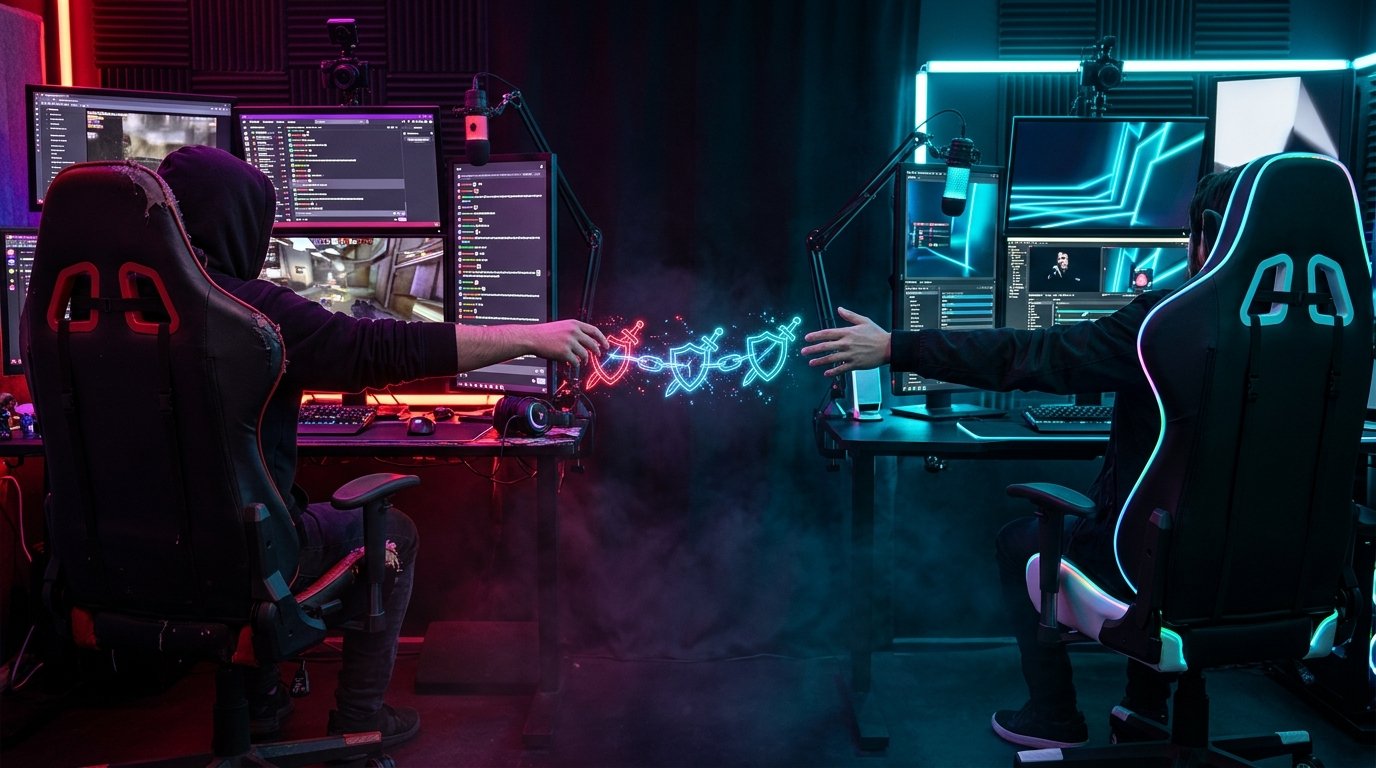
How to Assign Moderators on the New Channel
Go to the new channel's chat as the owner and, for each user, send the command /mod username. For example: /mod username. Twitch will assign the moderator role to that account. Don't paste the whole list into a single line at once: commands need to be sent separately.
You can also assign the role through role management in the Creator Dashboard. Find the channel roles section, choose to add a moderator, enter the username, and confirm the action. This method is more convenient if the list is small or you want to check already added accounts right away.
If someone no longer needs the rights, use the /unmod username command or remove them from the roles list in the dashboard. First, make sure you're working with the new channel.
How to Verify the Result and Settings
After assigning, run the /mods command again on the new channel or open the roles list in the dashboard. Compare it with the document you prepared. If a user doesn't appear, check the spelling of the name and make sure the command was sent from an account with channel owner rights.
Ask your moderators to join the new chat and check the available tools. If needed, configure AutoMod, blocked words, chat rules, and notification settings. If you used a bot on the old channel, its connection and permissions also need to be checked separately.
Don't share your account password with others just to assign roles. Standard Twitch commands and the role management section are all you need for the transfer. Third-party services for bulk role assignment require separate vetting and aren't necessary for a regular list.
Quick Step-by-Step Summary
- On the old channel, run /mods and save the moderator names.
- Remove inactive users from the list and confirm your team's current accounts.
- On the new channel, assign each moderator with the /mod username command or through the Creator Dashboard.
- Check roles, AutoMod settings, bots, and other moderation elements separately.
Last Articles
What has changed in design and functionality We have updated the website to make working with it faster and more convenient. The main changes affect ..
Good afternoon, I've collected all the news during this time.: 1. The main news is that prices for twitch viewers have been greatly reduced, while Tw..
1. Use promo code "December2025" for a 15% discount for all our viewers2. We have reduced the base prices for our configurator and the most affordable..
Twitch services are working stably, so we are ready to cooperate with squads, resellers, service owners, bot owners, and many others.Individual te..
We have completely updated our Twitch viewer services, and they are now working stably. We only use high-quality IP addresses for the viewers.The ..
Hello everyone! Today, we are announcing a new feature—"Twitch Viewer Configurator". Now, you can customize any plan for your Twitch channel. Choo..
Greetings, I have compiled a guide for streamers, which will be very relevant at the moment. Now YouTube and twitch have disabled monetization from vi..
We have finally developed the APINow it will be more convenient for our partner sites to work with us.To update the maximum tariffs for YouTube, an up..
Due to the huge popularity of the partnership services and referral program, we have made a cooperation table. The essence is very simple: more live a..
Our Services for Streamers








Our Services for Content Creators






