
Post-Match Analysis for YouTube: From Stream Recording to Finished Video
Define the goal of the post-match analysis
A full stream recording preserves the course of the match, the streamer's reactions, and the conversation with chat, but a YouTube viewer doesn't always need all of that material. A post-match analysis serves a different purpose: it quickly shows key moments, explains decisions, and connects them to the outcome.
Start not by watching the file, but by formulating your main thesis. It could be a single mistake before a lost fight, an analysis of tactics, an explanation of a winning decision, or a breakdown of how the opponent adapted to your habit. It's better to build one video around one clear topic than to try to recap the entire match.
Determine who the episode is for. A beginner will need terminology explained and the basic logic of an action shown. An experienced player is more interested in hidden information, resource management, positioning, and alternative options. You can mix levels, but the complexity of explanations should gradually increase rather than change randomly from scene to scene.
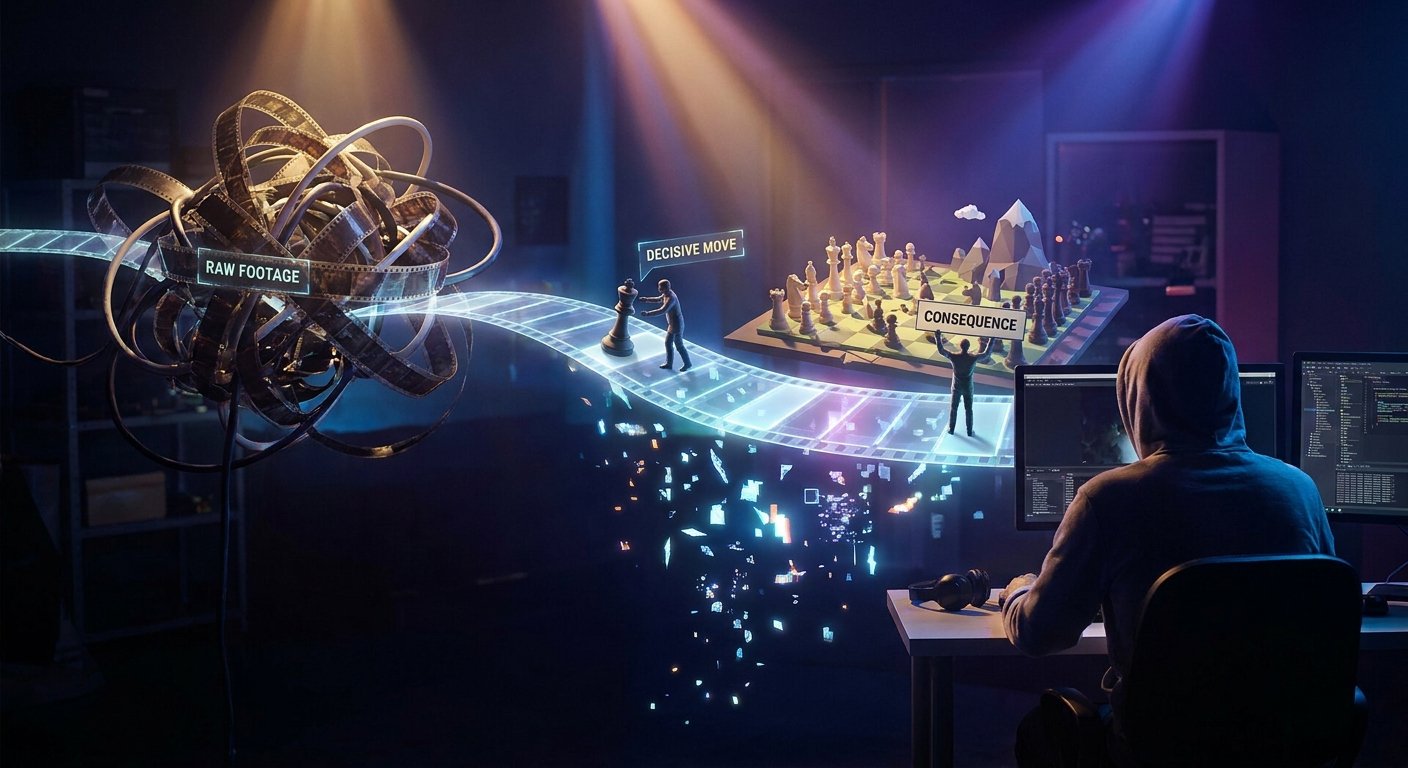
The analysis shouldn't turn into a highlight reel. Each episode needs a chain: the situation before the action, the player's choice, the opponent's reaction, and the consequence. If you only show the final shot, combo, or objective takedown, the viewer sees the event but doesn't understand why it was decisive.
Mark the recording during the stream
If you know in advance that a analysis will be made from the stream, set up marking in OBS. In the hotkeys section, assign the "Add Marker" command if it's available in your version of the program. If there's no built-in command, use a script or plugin for markers, or record the time in your notes in parallel.
Don't only place a marker after a successful moment. Mark the start of a questionable situation, the appearance of important information, a position change, the use of a resource, the reaction to a mistake, and the end of the episode. One mark on the final event is worse than a short chain of several points: it's easier to reconstruct the causes and consequences from it.
During the game, don't try to write long comments. Short notes like "no vision," "early exit," "didn't use resource," "opponent read the habit" are enough. These words aren't for the viewer but for you during later review, so they should be quick to type or say out loud on stream.
If the recording is already done, review it in a player that displays time and build a table of candidates: start, end, event, possible conclusion. Separately note technical glitches, long pauses, and conversations unrelated to the topic. Don't cut them out right away: first build a map of the material, then decide what goes into the script.
Choose episodes that change the course of the match
Spectacle isn't the main criterion. A good clip for analysis shows a decision that changed the space of options: opened up an attack, gave up position, deprived the team of a resource, or allowed the opponent to predict the next step. Even an unsuccessful moment works if you can derive a practical rule from it.
When selecting, ask four questions for each episode: what information did the player have, what options did they have, why was one of them chosen, and what happened right after. If one of the questions has no answer, the scene needs additional checking or the conclusion needs to be shortened.
Don't call any action that ended in failure a mistake. The player may have taken a reasonable risk with insufficient information. Separate the observable event from the evaluation: the fact is that the opponent got a free angle; the evaluation is that the exit turned out to be too risky; the alternative is to wait for support or check another zone.
After the first pass, group the candidates by meaning, not just by chronology. For example, several episodes may reveal one problem: lack of information, starting a fight too early, or repeating the same technique. This way you get a story with development rather than a set of identical clips.
Consider the specifics of the game genre
In a shooter, the moment of a hit isn't the only thing that matters. Show how the player got information, where the opponent could come from, which angles have already been checked, why a specific position was chosen, and what changed after the first contact. For a lost firefight, analyze not the single miss but the actions before it: noise, an open passage, lack of support, bad timing on the exit, or poor space control.
In a MOBA, the decision a few seconds before a team fight is often decisive. The frame should show lane state, ally positioning, vision, available abilities, resources, and the nearest objective. In a freeze-frame, you can highlight the rotation route, the area without vision, or the moment when one of the teams has already spent an important tool.
In a fighting game, don't limit yourself to a long combo. Break down the distance, a repeating attack, an unprotected recovery after a whiff, or a change in behavior after the first round. First show the usual exchange, then the moment when one player recognized the pattern and chose a response. A term like "punish" should be immediately translated into plain language: after a failed attack, the character is briefly left without defense.
In strategy games and chess-like games, it's useful to show not only the move but also the change in position evaluation. Highlight the threat, the free square, the overloaded resource, or the sequence that became possible after the decisive decision. An image of the board with arrows works better here than a long verbal listing of options.
Build a script with clear timestamps
The script should answer the question "why should the viewer watch the next episode." For a single-match analysis, you can use this working scheme:
- 00:00–00:20 — the hook: a short clip of the decisive moment and the problem to be analyzed.
- 00:20–00:50 — the promise of the episode: which match is being examined and what conclusion the viewer can verify along with you.
- 00:50–01:30 — minimal context: mode, score, team state, and conditions before the key episode.
- 01:30–07:30 — analysis of two or three scenes using the scheme "situation — action — reaction — consequence — alternative."
- 07:30–08:30 — the takeaway: which pattern repeated and what should be changed in the next game.
The times in the example aren't a mandatory template. They help estimate proportions: the intro shouldn't take up a significant part of the video, and context shouldn't crowd out the analysis itself. For one or two decisions, a working starting length might be 8–15 minutes. If the material requires analysis of several rounds or episodes, the video can be longer, but each new fragment should add a separate idea.
The intro should be clickable but not misleading. Show the consequence or a tense moment, name the problem, and leave a question whose answer will appear in the analysis. A long intro, a greeting, and a recap of the stream schedule in the first seconds delay the content and can cause viewers to leave.
Don't reveal the entire conclusion in the first sentence, but don't hide the topic behind artificial intrigue either. A phrasing like "here's why the exit looked winning but gave away the round" creates anticipation for analysis. The promise of "the secret tactic of champions" doesn't fit if the video shows one ordinary gameplay moment.
Edit a draft in DaVinci Resolve or Premiere
In DaVinci Resolve, open the recording in the Media Pool, set In and Out points in the Source Viewer, and create subclips for the selected scenes. On the timeline, place markers with the M key: one for the start of the explanation, another for the moment of action, a third for where a freeze-frame will be needed. In Premiere Pro the logic is similar: mark In and Out in the Source Monitor, create a subclip or move the range to the Sequence, and add markers with the M key.
First assemble a rough sequence without decorative effects. Lay out the fragments, record a temporary voiceover, and check whether the logic works without fancy transitions. At this stage it's convenient to use Blade in Premiere or Blade Edit in Resolve to remove pauses, repeated phrases, and unnecessary searching for action. If a scene loses its cause after trimming, bring back a few seconds before the decision itself.
For annotations in Resolve, use Fusion with Text+, Shape, and line nodes, and for simple captions use the Titles and Text tools. In Premiere, Essential Graphics, text layers, and shapes on a separate layer will work. An arrow to a position, a frame around an ability, or darkening an unnecessary part of the map is best done as a separate graphic layer: you can move it, duplicate it, and enable it only on the needed segment.
Do slow motion via Retime Controls and Optical Flow in DaVinci, or via Time Remapping and Optical Flow in Premiere. If interpolation produces distortions, use regular slow motion with frame repetition rather than hiding the error with an effect. For complex cases, you can apply Twixtor or a similar interpolation plugin, but first check the result on moving objects and the game interface.
A zoom on a key moment usually doesn't require a separate plugin. In Resolve, use Dynamic Zoom or animate the Transform parameters in the Inspector; in Premiere, use keyframes for Scale and Position on the Motion effect or Transform. Ready-made animation packs, such as Motion Bro, speed up work with callouts and zooms, but they shouldn't be added to every fragment automatically.
Show the episode in full, then break it down
It's better to show a complex scene in two passes. First let the viewer see the episode at natural speed without arrows and pauses. Then rewind the recording a few seconds back, pause it before the decisive action, and add only the hints that help see the information, position, or moment of choice.
After the freeze-frame, play the scene again at normal speed. This way the viewer connects the individual detail with the real pace of the game. Constant slow motion turns a tense moment into a slow demonstration of the interface, and an excess of arrows and captions makes it hard to follow what's happening.
Each annotation should have one purpose. An arrow shows direction, a frame highlights an object, darkening removes a secondary area, a short caption records a conclusion. Don't place several long phrases, arrows, and large logos at once over a small game window.
Connect scenes with transitions by meaning. After analyzing an early loss of position, explain which options disappeared afterward. After an episode with an unused resource, show how it affected the next exchange. This kind of editing holds attention not through constant effects but through the consistent development of thought.
Keep the live reaction but remove the stream noise
The original voice is useful where it shows the player's state before the outcome: doubt, confidence, a wrong assumption, or an instant reaction. You don't need to replace the entire stream with dry voiceover. Keep live lines if they complement the analysis rather than just repeating what's already visible.
Post-match commentary can differ from what was said on stream. During the game, information was incomplete, but during editing you already know the consequences. Use this difference: first give a short reaction from the recording, then explain in voiceover what data was unavailable and why the final evaluation changed.
It's better to process the voice, game, music, and alert tracks separately. In DaVinci, this can be done on separate audio tracks with a compressor, equalizer, and volume automation; in Premiere, via Essential Sound or manual volume keyframes. In the analytical part, music should noticeably give way to the voice, and game sounds should support the scene without drowning out the explanation.
Keep chat only where it reveals a disputed moment or shows different interpretations. Remove random messages, long donations, personal data, and insults. If an important chat line is too small, it's better to retell it in voice and show a short quote than to leave an unreadable feed on screen.
Set the pace to hold the YouTube viewer
On YouTube, the viewer should regularly receive a new portion of meaning. This doesn't mean the frame needs to change every second. The editing rhythm is determined by the purpose of the fragment: during action, a continuous gameplay shot is acceptable; during explanation, you need a freeze-frame, a map, a replay, or a change in shot size.
For an analysis of a single decision, aim for 8–15 minutes if the match doesn't have several independent storylines. An episode of 15–25 minutes is justified when each part adds a new type of analysis: for example, an early mistake, the opponent's adaptation, and the final decision. If the thought is finished, don't stretch the video to a conventional length.
In the first 20–30 seconds, show the topic and the conflict. By 60–90 seconds, the viewer should already understand which episode is being analyzed and why it matters. Between major scenes, use short links rather than repeating the intro. When the next moment obviously continues the previous one, the transition can take a single sentence.
Check retention not just by feel. After publishing, look at where viewers leave most often and where they rewatch fragments. A sharp drop after the intro will indicate a too-long beginning, a dip before the key scene will indicate a drawn-out explanation, and repeat views will indicate a place worth analyzing in more detail in the next episode.
Design the video so the promise matches the content
The title and thumbnail should quickly communicate what conflict is inside the video. Name the game and the specific problem if it helps with search and video selection: early exit, mistake before a fight, wrong rotation, a read technique. Don't create the impression of a full tournament analysis if you've analyzed one round.
Leave one visual focus on the thumbnail. For a shooter, this could be the player's position and attack direction; for a MOBA, a section of the map and an objective; for a fighting game, the moment before a counter hit. A short phrase should complement the title, not duplicate it with a paragraph. Check the layout at a reduced size: small arrows and captions often disappear.
Put the topic, match name, main episodes, and a link to the full stream recording in the description if it's published. Add timestamps with specific names: "no information before the exit" is more useful than "important moment." Don't fill the description with repeated keywords.
If the video is aimed at search for a specific game, use its name naturally in the title, description, and speech. Recommendation systems consider not only keywords but also whether the packaging matches the content, audience interest, and retention. These factors can't be turned into a guarantee of views, so clickbait should remain honest.
Check the finished episode and add navigation
Watch the final file all the way through without skipping. Note places where the thought repeats, the conclusion appears too late, or the scene ends before the viewer can understand the consequence. Then listen to the video separately and watch it without sound: this is how you detect volume jumps, subtitle errors, unreadable captions, and incorrect arrows.
Check each annotation against the recording. If an arrow points to the wrong object and the freeze-frame appears after the action, the explanation loses accuracy. Make sure the slow motion hasn't created a false impression of reaction time, and that the replay hasn't cut off the beginning or end of the scene.
Add timestamps to the description: intro, context, each individual episode, and the takeaway. Section names should help choose the needed part, not hide the content behind words like "moment analysis." Check the links after publishing and see how the title, thumbnail, and description display on a computer and a small screen.
After uploading, open the published version specifically. Check the subtitles, timestamps, thumbnail, and first seconds of playback. If you find a noticeable error in the conclusion or annotation, fix the project and upload a new version, or add a clear clarification rather than leaving the viewer with an incorrect hint.
Quick preparation plan
- Formulate one topic for the episode and determine the audience level.
- Mark the recording in OBS with markers or build a map of episodes with time, event, and conclusion.
- Choose scenes that change the course of the match and remove moments without an independent thought.
- Write the structure: hook, promise, short context, analysis, takeaway.
- Assemble a draft in DaVinci Resolve or Premiere using In/Out, subclips, and markers.
- Add freeze-frames, arrows, frames, slow motion, and zoom only where they help the analysis.
- Tune the pacing, voice, game sounds, title, thumbnail, description, and timestamps for YouTube.
- Watch the published video all the way through and fix places where the viewer loses the thread of the analysis.
Last Articles
What has changed in design and functionality We have updated the website to make working with it faster and more convenient. The main changes affect ..
Good afternoon, I've collected all the news during this time.: 1. The main news is that prices for twitch viewers have been greatly reduced, while Tw..
1. Use promo code "December2025" for a 15% discount for all our viewers2. We have reduced the base prices for our configurator and the most affordable..
Twitch services are working stably, so we are ready to cooperate with squads, resellers, service owners, bot owners, and many others.Individual te..
We have completely updated our Twitch viewer services, and they are now working stably. We only use high-quality IP addresses for the viewers.The ..
Hello everyone! Today, we are announcing a new feature—"Twitch Viewer Configurator". Now, you can customize any plan for your Twitch channel. Choo..
Greetings, I have compiled a guide for streamers, which will be very relevant at the moment. Now YouTube and twitch have disabled monetization from vi..
We have finally developed the APINow it will be more convenient for our partner sites to work with us.To update the maximum tariffs for YouTube, an up..
Due to the huge popularity of the partnership services and referral program, we have made a cooperation table. The essence is very simple: more live a..
Our Services for Streamers








Our Services for Content Creators






