
GTA VI Stream Series After Release: Plan, Setup, and Promotion
Start the series with an idea that's relevant after release
After GTA VI releases, attention to the game will be high, but a title alone isn't enough to keep viewers on your channel specifically. There will be plenty of new broadcasts, so your series needs a clear presentation: a playthrough with reactions, world exploration, completing missions, roleplay, breaking down mechanics, or chatting with the audience during free roam.
First, decide who your GTA VI broadcasts are for. Newcomers need a calm pace and explanations of what's happening. Experienced players are more interested in unusual approaches, hunting for details, and experimenting with open-world possibilities. Regular viewers care about your reactions, your communication style, and the chance to influence where the series goes next.
Don't try to combine everything into a single format. If in one broadcast you're playing through the GTA VI story, discussing news, reading chat, and constantly switching to random activities, it's harder for viewers to grasp the point of the episode. It's better to pick a main direction and leave room for the live moments that emerge during gameplay.
Sum up your series idea in one sentence. For example: "Exploring GTA VI at a relaxed pace, making decisions together with chat, and pointing out unusual open-world details." This phrase will help you craft titles, descriptions, announcements, and short posts.
Check game availability, platform settings, and restrictions only after the version of GTA VI you need is in your hands and has received current updates. Don't build broadcasts on rumors about the release date, other versions, or features that haven't been officially confirmed yet.
Check the platform and rules after release
After release, cross-check the official Rockstar Games pages, the store, and your chosen platform. Verify whether your version of GTA VI is available in your region, whether your system supports the streaming method you need, and whether requirements have changed after a game or console update.
If you're streaming from a PlayStation 5 or Xbox Series X|S, check the built-in broadcast, your account connection to Twitch or YouTube, and the available quality settings. If you're using a computer and capture card, separately test the signal transmission from the console, the audio, and scene switching. The feature set depends on your hardware, region, and system updates.
Review the current rules of your chosen platform and the rights holder regarding live broadcasts and recordings. Requirements around music, advertising, age ratings, spoilers, and specific story segments can matter. Even if GTA VI runs fine, a recording may get restricted because of a soundtrack or other third-party material.
If a scene that can't be captured appears on screen or the signal temporarily drops, switch to a neutral scene explaining the pause. Don't leave viewers staring at a frozen image, and don't mask a technical issue with a random clip. Note in the stream description that story spoilers may be present.
Choose a format and a promise to the viewer
The format explains what someone gets if they click on your GTA VI stream. It's not a decorative phrase but a working rule for every episode. For example, each broadcast can focus on one goal: starting the playthrough, exploring a district, hunting for unusual events, completing a certain type of mission, or choosing a route together with chat.
A linear playthrough with reactions works well for viewers who want to follow the story alongside you. Open-world exploration is better framed as standalone episodes: "hunting for interesting places," "checking out random events," "exploring the city and the coast." A roleplay approach requires defining the character's persona and behavior rules in advance, while a chat-driven format requires setting the boundaries of viewer influence on decisions.
A series can be sequential or made up of standalone broadcasts. In the first case, use numbering and a brief recap of the previous part. In the second, each GTA VI stream should make sense to someone seeing it for the first time. Don't force a new viewer to dig through hours of recordings to understand the topic of the current episode.
Define what result each broadcast should have. It could be a completed segment, a tested mechanic, an explored district, or a decision made together with chat. If the result isn't known in advance, use words like "trying," "searching," and "checking" in your announcement instead of promising a specific find.
Draft a plan for the first three GTA VI episodes
You don't need to script every line of dialogue and every minute in advance. It's enough to define the goal, an approximate route, a backup activity, and material to publish after each broadcast. The plan should stay flexible: an update, a technical issue, an unexpected event in GTA VI, or viewer activity can change the order of things.
Below are working titles and goals for the three opening broadcasts. You can adjust them after your first launch of the game if the actual pace of the playthrough or the available activities turn out to be different.
"GTA VI After Release: Starting a Spoiler-Free Playthrough | Part 1." The goal is to check that the game launches, introduce the format, set the pace, get through the opening segment, and explain the communication rules. If the opening turns out shorter than expected, a backup topic could be discussing first impressions and planning the next route.
"GTA VI: Exploring the City and Coast at a Relaxed Pace." The goal is to devote the broadcast to free exploration, point out interesting places, and see how interested viewers are in random events, vehicles, and world details. Don't reveal anything in the thumbnail or title that could spoil the story for other players.
"GTA VI: Choosing the Next Step Together with Chat." The goal is to test collaborative choice: continue the story, do a side activity, or head to a particular part of the map. Set up the voting options right away and explain which decisions remain yours to make.
For each episode, keep a main and a backup topic. If the server, console, capture, or the game itself become unavailable, you can pivot the broadcast into a discussion of first impressions, a breakdown of a previous recording, or chatting with the audience. Don't promise GTA VI content in the title that might not happen.
Prepare your setup, scenes, and backup plan
Do your testing after installing the available version of GTA VI and before a specific broadcast. Launch the game on the system you'll stream from, record a short clip, and review it through a viewer's eyes. Assess image smoothness, latency, interface readability, camera behavior, and the placement of overlays.
Run a separate scene test. Switch from the intro screen to the gameplay screen, check the pause scene, the end-of-stream scene, the new-viewer alert, and transitions between sources. See whether the camera or chat covers important GTA VI interface elements. Make sure that when one source disconnects, the scene doesn't turn into a blank screen.
Check your audio levels separately. Your voice should stay intelligible over music, traffic, gunfights, and loud story scenes. Listen to a test recording on headphones: a volume meter is no substitute for a real check. Make sure there's no echo, fan noise, phone notifications, doubled game audio, or sharp swings between the mic and GTA VI.
Prepare backup scene and source settings. Save a copy of your profile, keep the necessary cables and chargers within reach, and plan replacements for critical components. Write down your troubleshooting sequence: check the source, restart the scene, reconnect the capture, post about the pause on social media, and decide whether to continue the broadcast.
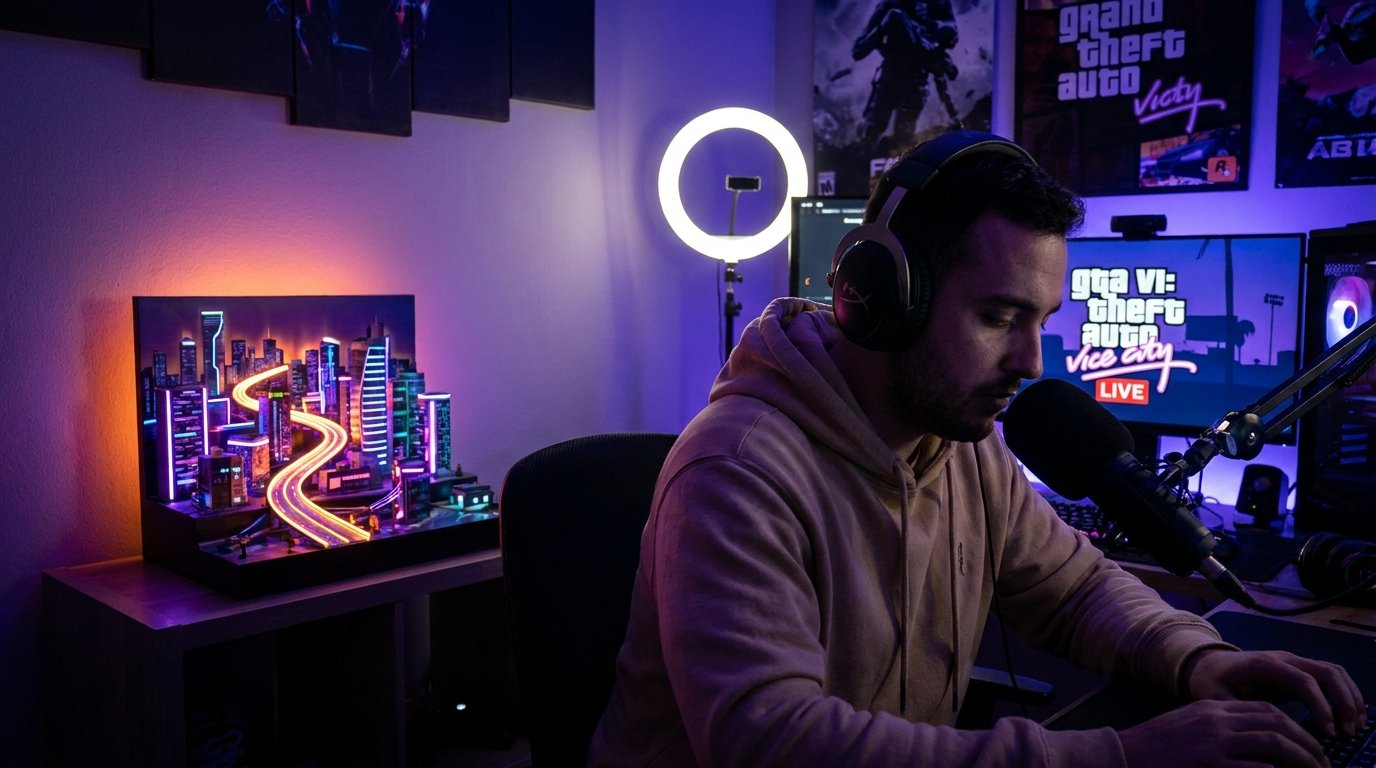
If the gameplay screen is unavailable, switch to a pre-prepared scene instead of leaving the stream without explanation. On it, you can display a short message about the technical pause and how to find out about schedule changes.
Your branding doesn't have to be complex. For GTA VI, a readable channel name, a tidy camera if needed, and elements that don't get in the way of watching the game are enough. After launch, be sure to repeat your check: updates, image settings, and the behavior of a specific scene may differ from a test on another version of the game.
Do a technical check before going live
It's best to go through the technical checklist in the order the signal travels from the game to the viewer. That makes it easier to pinpoint where a problem arose: in the console, the capture card, the streaming software, the connection, or the platform settings.
Capture. Select the correct image and audio source, check the resolution, refresh rate, latency, and whether the game signal is present in your streaming software. Record a short clip instead of just watching the preview window.
HDCP. If you see a black screen instead of the game or the capture card doesn't detect the signal, check HDCP compatibility on the source, capture card, and monitor. Use only manufacturer-approved methods for configuring your equipment.
Bitrate. Set a value within the current recommendations of your chosen platform and your connection's capabilities. During the test, watch for dropped frames, stutters, unstable-connection warnings, and recording quality.
Backup screen. Prepare a scene with a message about a pause, technical issue, or end of stream. Test it manually and make sure it appears after the gameplay source disconnects.
Signal. Check the cables, power, image and audio transmission, response to scene switching, and recovery after a brief disconnect. If the signal doesn't come back on its own, decide in advance what actions you'll take.
Add checks for the microphone, camera, notifications, and a local recording to this list. See whether personal messages, extra windows, or account details end up on screen. Don't start a full broadcast until you know what the viewer will see and hear.
Plan your first broadcast after GTA VI's release
The first stream sets expectations for the whole series. Don't try to cram in all your ideas at once. Define the starting point, the main goal, and the ending condition in advance: for example, complete the opening segment, get acquainted with the available area, and pick the topic for the second episode.
If GTA VI requires additional downloads or setup, factor that into the plan but don't stretch out the wait without commentary. Tell viewers what's happening and switch to the backup scene if the gameplay screen is temporarily unavailable. That way, a technical pause won't look like the streamer suddenly vanished.
Before the broadcast, post a short announcement with the time, platform, game, and specific topic. Instead of "GTA VI stream today," use "starting a spoiler-free playthrough" or "exploring the city and testing free roam." If viewers can influence the route, let them know in advance.
In the first few minutes, introduce yourself, lay out the communication rules, and say what will happen in the episode. Warn about spoilers and the age rating if they're possible. Don't drag out the intro: the viewer came for GTA VI and should see gameplay quickly.
Prepare a few chat topics for pauses. You can discuss the pace of the playthrough, route choices, impressions of the characters, or the direction of the next broadcast. However, questions shouldn't turn the stream into a mandatory quiz. If chat is quiet, keep the commentary going yourself and tie it to what's happening in GTA VI.
Structure each episode
Even a freeform GTA VI stream benefits from a simple structure. At the start, state the goal of the current episode. If the series is linear, briefly recap what happened in the previous part. In the middle, leave the bulk of the time for gameplay. At the end, sum up the result, the unfinished tasks, and the possible topic for the next broadcast.
Keep recaps short. A few sentences are enough for a new viewer, and regular subscribers won't have to sit through the entire previous stream again. If important GTA VI context can't be explained quickly, add it to the recording's description or prepare a separate short video.
Keep an eye on the pace. A pause during an important scene can be appropriate, but long travel along a familiar route, waiting for a load, or hunting through a menu are better accompanied by calm commentary. You don't need to talk nonstop: what matters more is that your speech is tied to the game and doesn't wear viewers out.
Plan your chat interaction so it doesn't break the GTA VI playthrough. You can set aside specific moments for reading messages, hold votes before making choices, and explain in advance which decisions the streamer makes and which are handed to the audience. After the broadcast, note where viewers engaged more, when the pace dropped, and which technical issues recurred.
Craft titles and descriptions for Twitch and YouTube
The title should include GTA VI and the specific topic of the episode. "GTA VI — stream" is too vague: it doesn't explain what will happen during the broadcast. State the goal, the format, or the part number if the series is linear. For the first broadcasts, it's best not to reveal important story details and not to use phrasing in the title that could spoil the experience for viewers.
Template for Twitch
Title: "GTA VI Spoiler-Free: Starting the Playthrough | Part 1."
Description: "Starting a GTA VI playthrough after release. In this broadcast, we get acquainted with the game and choose the direction for the next episode. Spoilers: only events from the current broadcast. Chat rules: no story hints unless requested, no insults, no spam. Next announcement is in the profile."
For an exploration broadcast, this template works: "GTA VI: Exploring the City and Coast | No Story Reveals." If spoilers are unavoidable, replace the warning with a more precise one: "Story spoilers possible after the opening segment."
Template for YouTube
Title: "GTA VI — Exploring the Open World and Choosing a Route | Stream."
Description: "GTA VI stream after release. Episode topic: free exploration and choosing the next goal together with chat. Important warning: the recording may contain spoilers for events shown during the broadcast. We'll add timestamps after the stream ends. Links to upcoming announcements are in the channel description."
After the broadcast, update the description, add timestamps, and clarify which story moments are in the recording. Don't copy the same text unchanged across all episodes: the description should match the specific topic and spoiler level.
Follow spoiler and moderation rules
After GTA VI releases, part of the audience will actively avoid story details. Mark the presence of spoilers in the title, description, and posts. For short videos, place a warning before the clip starts if the content could reveal an important event. Don't put a story twist on the thumbnail just for clicks.
Separate broadcasts by their level of story disclosure. An opening playthrough can be labeled as a stream without spoilers beyond the current part. An exploration episode can be described as a broadcast with possible spoilers if you've already moved past the beginning of the game. This labeling helps viewers pick the right recording.
Set chat rules in advance: your stance on spoilers, insults, spam, unrequested hints, and discussion of other streamers. If you have moderators in chat, agree on which messages get deleted immediately and which can be left without reaction. The rules should be short and clear even to someone visiting a GTA VI stream for the first time.
If choices are handed to chat, set boundaries: a few options, a voting time, and the conditions under which a decision counts. This helps you keep control of the playthrough and keeps GTA VI from turning into an argument between a few active participants. Don't let mass spam change the rules mid-broadcast.
Check your chosen platform's requirements for age ratings, music, advertising, and displaying game content. The rules of Twitch, YouTube, and the built-in PlayStation or Xbox broadcast may differ. Don't use third-party material without permission and don't promise viewers something you can't show.
Turn GTA VI streams into short-form content
One GTA VI broadcast can yield several standalone pieces: an emotional reaction, a funny exchange, an unusual solution, a useful explanation, or a snippet of chat interaction. Pick moments that make sense without watching the whole stream. If a scene isn't understandable without a long preamble, add a short caption or pick a different clip.
Before publishing, check the audio, vertical framing, and presence of spoilers. For a short video, getting to the point quickly matters. Don't leave in a long intro from the stream if it doesn't help make sense of the scene. In the caption, mention GTA VI and briefly explain what the viewer will see.
It's better to use social media not just to announce "we're live." Post announcements with a specific topic, clips after the broadcast, polls about the series direction, and reminders about the next episode. Pair the link with a reason to click: to see what happens next, to influence a choice, or to watch the full scene.
If you use paid promotion, point it at clear content and check the ad platform's requirements. A short GTA VI clip can draw attention, but a lasting audience is built through a regular schedule, a recognizable style, and substantive broadcasts. Don't post all your clips back to back: pick the strong moments and spread them across episodes.
Analyze the series and adjust the plan
After a few GTA VI episodes, compare more than just view counts. Look at how many viewers return, at what moments people leave, which posts drive clicks, and which topics spark discussion. This data doesn't give you a ready-made answer, but it helps you figure out what to test in future broadcasts.
If one episode got more attention, break down its content. Maybe a specific GTA VI topic worked, or good timing, an active chat, a short video, or a clear thumbnail. Don't draw conclusions from a single metric and don't copy a lucky success without testing it.
You can gather audience feedback directly: offer a choice between two topics, ask viewers to rate the pace of the playthrough, or ask which GTA VI activities deserve a closer look. At the same time, don't only consider the loudest messages. Viewers who rarely write in chat can also be regulars who keep coming back to your streams.
Adjust your schedule, length, and format gradually. Start by changing one element: the title topic, the intro structure, the way you announce, or the format of your short videos. Then compare the reaction with previous broadcasts. If interest in your chosen direction is fading, wrap up that phase and announce the next one instead of continuing the GTA VI series without a goal.
Quick takeaways: what to do step by step
After release, check the availability of GTA VI on your chosen platform, updates, streaming rules, and restrictions on video recordings.
Decide on the series format: playthrough, world exploration, roleplay, experiments, or chat interaction.
Prepare working titles, goals, and backup plans for the first three episodes.
Test capture, HDCP, bitrate, signal transmission, audio, scenes, and the backup screen.
Set up the first broadcast with a specific goal, a spoiler warning, and clear chat rules.
Use separate title and description templates for Twitch and YouTube, updating them to match each episode's content.
Post announcements, short clips, and polls, tying them to the full broadcast.
After each broadcast, study the audience reaction and change the format gradually.
Last Articles
What has changed in design and functionality We have updated the website to make working with it faster and more convenient. The main changes affect ..
Good afternoon, I've collected all the news during this time.: 1. The main news is that prices for twitch viewers have been greatly reduced, while Tw..
1. Use promo code "December2025" for a 15% discount for all our viewers2. We have reduced the base prices for our configurator and the most affordable..
Twitch services are working stably, so we are ready to cooperate with squads, resellers, service owners, bot owners, and many others.Individual te..
We have completely updated our Twitch viewer services, and they are now working stably. We only use high-quality IP addresses for the viewers.The ..
Hello everyone! Today, we are announcing a new feature—"Twitch Viewer Configurator". Now, you can customize any plan for your Twitch channel. Choo..
Greetings, I have compiled a guide for streamers, which will be very relevant at the moment. Now YouTube and twitch have disabled monetization from vi..
We have finally developed the APINow it will be more convenient for our partner sites to work with us.To update the maximum tariffs for YouTube, an up..
Due to the huge popularity of the partnership services and referral program, we have made a cooperation table. The essence is very simple: more live a..
Our Services for Streamers








Our Services for Content Creators






