
Adding a Stream Marker on Twitch
What Is a Twitch Stream Marker?
A marker is a mark on a stream's timeline. It helps you quickly find the right moment in a stream recording: a great round, an important mistake, a funny episode, a win, a reaction to a donation, or the start of an event.
A marker doesn't stop the stream, start a separate recording, or create a clip automatically. It only saves a reference point in the current broadcast. After the stream, you can use this mark to open the right segment of the VOD, select the exact start and end of the fragment, and then create a clip or prepare material for editing.
You can add a marker through the stream control panel or with a chat command. Both methods work during an active broadcast and require channel management permissions.
Markers are only available to the channel owner and their editors. Viewers don't see these marks on the channel page and don't receive them as separate notifications. That's why a marker is suited to internal work with the recording rather than flagging a moment directly on the stream.
Limits and Rules for Working with Markers
You can add no more than 20 markers per stream on Twitch. The limit applies to a specific broadcast, not to all of a channel's recordings. If you've already used 20 marks, the next attempt may not create a new marker.
A description for each mark is optional, but it helps distinguish adjacent moments. Without a label, several markers on the timeline look the same, and you'll have to check the right episode manually.
Use short names related to the event:
- win in the final;
- tournament start;
- funny bug;
- important comment;
- reaction to a donation;
- moment for a clip.
A marker records the time Twitch receives the command. Due to stream delay, the mark may land slightly before or after the moment viewers saw. This isn't an error: the marker serves as a reference point, and you need to select the exact fragment boundaries after the stream manually.
How to Add a Marker via Stream Manager
The most visual way is to use the Creator Dashboard and the Stream Manager section. The names of the elements may differ slightly depending on the Twitch interface language, but the quick actions block is your reference.
- Open the Twitch Creator Dashboard.
- Go to the Stream Manager section.
- Find the Quick Actions block.
- Click Add Stream Marker.
- If Twitch shows a description field, specify what happened at that moment.
- Confirm the action if the interface asks you to.
After you click, the mark will be tied to the current stream. If there's no Add Stream Marker button, open the quick actions settings and add it manually. It's better to do this before going live so you don't have to search for the function among the other panel elements during the game.
Descriptions can be very short. A phrase like "win," "mistake in the final," or "match start" is more useful than long text: it makes it easier to quickly understand the purpose of the mark when viewing the VOD.
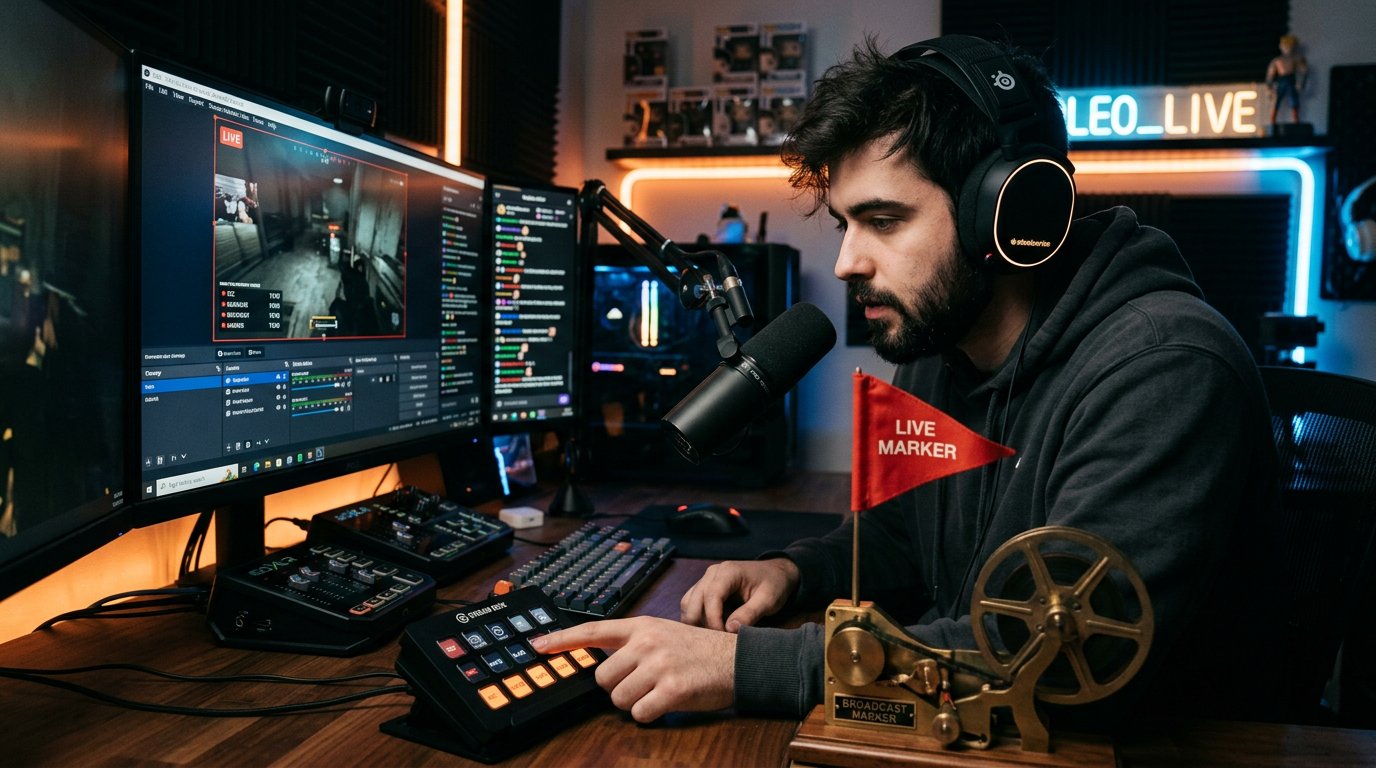
How to Add a Marker with a Chat Command
The second option is to send a command in your own channel's chat. In the message field, type:
/marker
To add a description right away, type the text after the command:
/marker tournament start
After you send it, Twitch will create a mark in the current broadcast. This method is convenient if the chat is already open in front of you and switching to the Creator Dashboard during the game is inconvenient.
The command works for the channel owner and editors with the appropriate permissions. If you manage someone else's channel as an editor, check that this role is actually assigned to the account. A regular viewer can't add a marker on someone else's stream.
If the command didn't work, make sure you're sending it specifically to your own channel's chat and that the stream is already running. Also check the spelling: there should be no extra characters before the command, and the name should start with "/".
The chat command can be less convenient during an intense gameplay moment: you have to send the message manually, and the event can end quickly. For important broadcasts, prepare both methods in advance and use whichever is faster to access in the specific situation.
How to Prepare Markers Before Going Live
During dynamic gameplay, opening the Creator Dashboard on your main screen is inconvenient. Place Stream Manager on a second monitor, a tablet, or a separate window. If you work with chat, keep it open next to the game so the /marker command is available without searching for the right tab.
Before starting the stream, check a few things:
- the stream is starting on the right account;
- Stream Manager has an Add Stream Marker button;
- you can see the quick actions panel;
- the /marker command is sent to your own channel's chat;
- the necessary permissions are assigned to the editor account.
You can add a test marker after going live and then remove it from the recording. Such a check helps detect a permissions or interface problem before an important moment.
Twitch doesn't have a universal hotkey that automatically adds a marker in all streaming programs. Don't assign a random key in OBS hoping it will work as a Twitch marker. A hotkey can only send a command through a separately configured integration or macro, so such an action needs to be tested first.
Don't use up all your marks on insignificant events. With a limit of 20 markers, it's better to mark moments you actually plan to review, cut, or use for a short video.
Where to Find a Marker After the Stream
After the broadcast ends, open the Creator Dashboard, then go to Content and Video Producer. In the list, find the recording you need and open its viewing or editing page.
Markers are visible on the VOD timeline in Video Producer. They usually appear as separate marks on the timeline. Click the marker you need or move the pointer to its position to open the corresponding segment of the recording. If the mark has a description, it helps you understand which event was marked.
In different interface versions, section names and button locations may change. Look for the saved recording specifically in Video Producer, not the regular channel page. A marker belongs to a specific VOD and isn't displayed as a standalone object for viewers.
A mark doesn't replace a clip. It only helps you quickly jump to a spot in the recording. To get a short public fragment, open the right segment of the VOD and create a clip in the usual way. Before publishing, review a few seconds before and after the marker: the event may have started slightly earlier or continued after it.
If the VOD wasn't saved, the marker won't help you recover the broadcast. Check whether saving past streams is enabled and whether the recording itself is available in Video Producer. A mark exists within the recording, so without an available VOD it can't be used for viewing.
How to Delete an Accidental Marker
You can delete a mistaken mark in Video Producer via the timeline of the relevant VOD. Open the recording, find the marker on the timeline, and click it. In the mark's card or in the menu next to it, select Delete Marker or Remove, then confirm the action if Twitch shows a prompt.
Depending on the interface version, the delete command may be under a trash icon, three dots, or in the marker list next to the timeline. If no separate menu appears after clicking the mark, open the video editing mode and find the Stream Markers list. Markers can be deleted by the channel owner and editors with the appropriate permissions.
After deleting, refresh the page or reopen the VOD if the old mark temporarily stays on the screen. Don't confuse deleting a marker with deleting the video itself: only the reference point on the timeline is deleted, while the stream recording and its content stay in place.
Why a Marker May Not Match the Event
The mark saves the moment when Twitch received the action from the panel or the command from chat. The stream may run with a delay, so viewers will see the event later than it's marked on the recording's internal timeline.
A chat command also takes time to send and process the message. It's better to add an important marker right after the event rather than trying to hit a specific frame. Then, in Video Producer, you can open a few seconds before the mark and choose the exact start manually.
For editing, it's useful to mark not only the win or mistake itself but also the start of a conversation, round, or reaction. Then after the stream you won't have to search for all the context around a single second.
If several marks are placed in one spot, check the descriptions. Clear labels let you quickly separate a gameplay moment from a comment, a technical pause, or a reaction to a viewer's message.
What to Do If a Marker Won't Add
- Check that the stream is actually running, not just open in the panel.
- Make sure Stream Manager belongs to the right channel.
- Add Add Stream Marker to the Quick Actions block.
- Check the account's permissions if an editor is adding the marker.
- Make sure the command is sent to your own channel's chat.
- Check the command spelling: /marker.
- Refresh the Creator Dashboard and repeat the action.
- Check whether the limit of 20 markers per stream has been reached.
- After the stream, check whether the VOD you need was saved in Video Producer.
If a marker appeared during the broadcast but isn't visible in the recording, first open the specific VOD it belongs to. Then check the timeline, the editing mode, and the marker list. Don't look for the mark on the public channel page: viewers don't see these internal reference points.
In Short: What to Do Step by Step
- Before the stream, open the Creator Dashboard and set up Stream Manager.
- Add the Add Stream Marker button to quick actions.
- During the broadcast, click this button or send the /marker command in chat.
- If needed, add a short description of the event.
- Remember that you can add no more than 20 markers per stream.
- After the stream, open the relevant VOD in Content → Video Producer.
- Find the mark on the timeline, review the fragment, and create a clip.
- If a marker was added by accident, select it on the timeline and click Delete Marker.
Last Articles
What has changed in design and functionality We have updated the website to make working with it faster and more convenient. The main changes affect ..
Good afternoon, I've collected all the news during this time.: 1. The main news is that prices for twitch viewers have been greatly reduced, while Tw..
1. Use promo code "December2025" for a 15% discount for all our viewers2. We have reduced the base prices for our configurator and the most affordable..
Twitch services are working stably, so we are ready to cooperate with squads, resellers, service owners, bot owners, and many others.Individual te..
We have completely updated our Twitch viewer services, and they are now working stably. We only use high-quality IP addresses for the viewers.The ..
Hello everyone! Today, we are announcing a new feature—"Twitch Viewer Configurator". Now, you can customize any plan for your Twitch channel. Choo..
Greetings, I have compiled a guide for streamers, which will be very relevant at the moment. Now YouTube and twitch have disabled monetization from vi..
We have finally developed the APINow it will be more convenient for our partner sites to work with us.To update the maximum tariffs for YouTube, an up..
Due to the huge popularity of the partnership services and referral program, we have made a cooperation table. The essence is very simple: more live a..
Our Services for Streamers








Our Services for Content Creators






