
How to Hide Your CS2 Lobby Code During a Stream
Why You Should Never Show Your Lobby Code on Stream
A lobby code gives viewers and random stream visitors a chance to try to join the group. Even if entry requires confirmation, constant requests are distracting, create confusion in the roster, and can derail the start of a match. On a public stream, the code quickly ends up in clips, screenshots, chat, and third-party communities.
The risk doesn't only arise in the CS2 menu. The code can appear on the invite screen, in the Steam window, in a notification, in team messages, or on a second monitor. A code that appears on screen for even a few seconds should be considered compromised. Don't count on nobody having read or saved it in time.
Where the Code Most Often Gets Exposed
Check more than just the main game window. Viewers often spot the code during a brief scene switch, in a pop-up notification, or in a full-monitor capture. If the broadcast is recorded, the segment can be paused and examined even at low stream quality.
- The lobby panel and the code copy window in CS2.
- The Steam window with the friends list, invites, and direct messages.
- Overlays, notifications, and widgets that display text from chat.
- A second monitor when capturing the desktop instead of a specific window.
It's hard to completely rule out every accidental situation. The downside of multi-layered protection is that before going live you have to check several leak sources rather than a single setting.
Set Up a Private Scene for Assembling Your Team
The most reliable option is not to show CS2 while creating the lobby, copying the code, and sending invites. Prepare a separate scene in your streaming software: a waiting screen, a camera, a standby image, or a chat scene. Switch to it before opening the group menu and return to the game after closing all private windows.
Give the scene a clear name and assign a separate hotkey that doesn't conflict with your CS2 binds. It helps to place it next to your mic mute key or another familiar command. The downside of this method is obvious: you need to build the habit of switching in advance. One late switch will leave the code on stream.
Cover the Lobby Panel with a Mask Over the Game
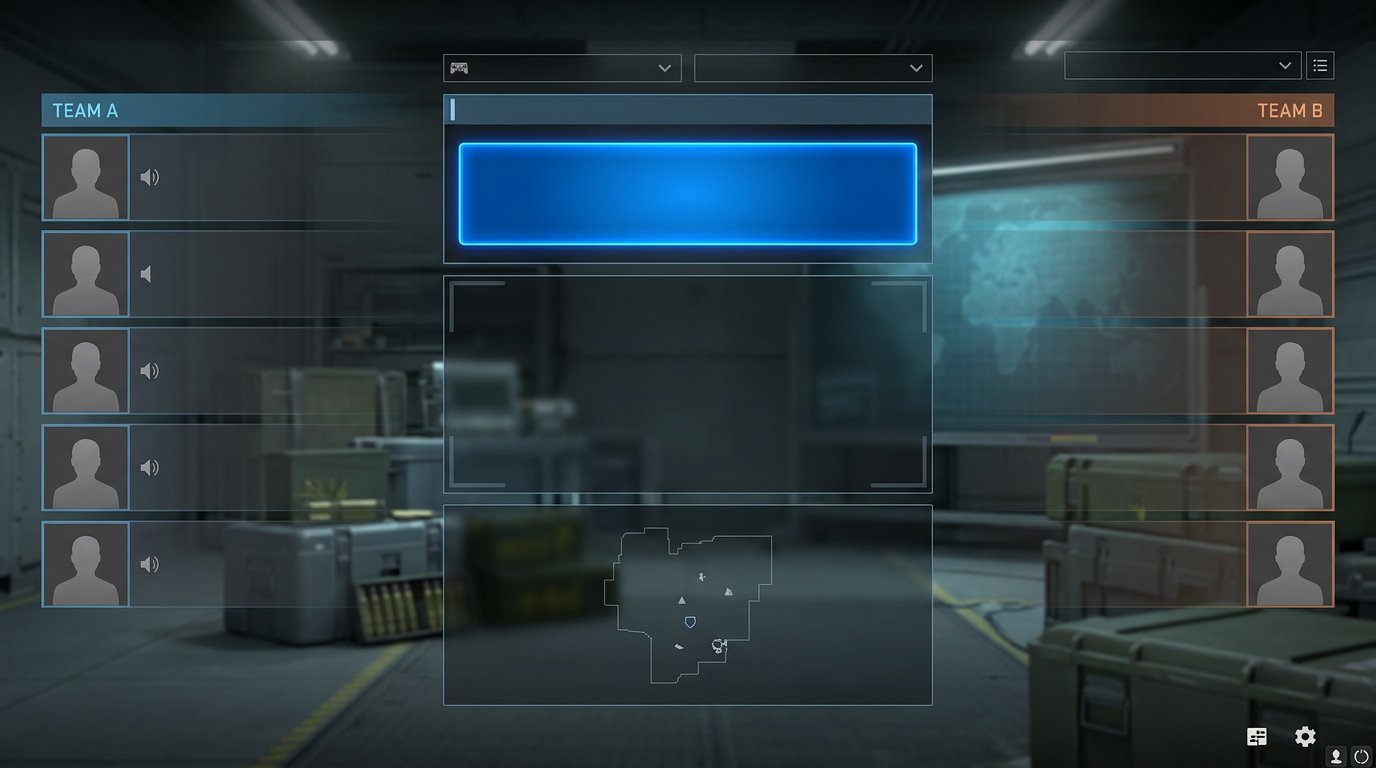
If you don't want to take the game off stream while recruiting, cover the interface area with a mask in your capture software. Instead of a random black rectangle, use a neat banner in your channel's style, a camera block, a schedule, or a team roster. It should cover the code, the copy button, the hints, and the adjacent fields.
For a 1920×1080 capture, you can start with a banner around 620×180 pixels in the central part of the frame, for example near the coordinates X 650 and Y 430. This is just an example: the panel's position depends on resolution, interface scale, screen format, and game version. Open your lobby before going live and adjust the mask to the actual window.
Recheck the Mask After Changing Settings
You can't set up a mask once and forget about it. When switching to a different resolution, changing the aspect ratio, adjusting the interface scale, or updating CS2, elements can shift. For 2560×1440, don't just stretch the old banner: part of the code or the copy button may end up exposed.
Do a test recording, open the lobby, and review the clip on a computer and a phone. That makes it easier to spot readable characters along the edges of the mask. The downside of this method is that the banner covers part of the game interface and requires rechecking after any capture changes.
Use Window Capture Instead of Desktop Capture
Capturing the specific CS2 window reduces the risk of accidentally showing your desktop, direct messages, friends list, and notifications. This is especially useful if you have to switch between the game, voice chat, and Steam during a stream. Only the selected window goes on air, not the entire contents of the monitor.
But window capture doesn't hide elements inside CS2 itself. If the code is open in the game interface, viewers will see it just as they would with screen capture. Some capture methods may also work unreliably after a game update or a change in fullscreen mode. Use this option as extra protection, not as a replacement for a mask or a private scene.
Invite Players Without Publishing the Code
For a regular roster, it's more convenient to assemble the team through the friends list or a private voice channel. You can invite players before going live or pass the details to the team coordinator outside public chat. If the current mode offers invite restrictions, enable them while recruiting.
For viewer matches, set a clear process in advance: a queue, applications through a moderator, registration in a private community channel, or selecting participants from a list. Then the code isn't the only way to get into the game. The downside of direct invites is more manual work: you have to watch the slots, vet participants, and filter out repeat requests.
Set Up Chat Moderation and Code Filtering
The code can leak through chat even if you hid it on screen quickly. A viewer can retype the characters in full, split them with spaces, send them across several messages, or swap in similar letters. Add a rule to your channel banning the posting of lobby codes, links to private groups, and participants' personal data.
In your bot or built-in moderation, set up filters for typical code patterns if the platform's tools allow it. An auto-filter is useful for obvious messages, but it won't catch every workaround and sometimes removes harmless text. The downside of automation is false positives and filters being bypassed with spaces, symbols, and splitting the code.
Divide Tasks Among Your Moderators
While assembling the lobby, it's best to have one moderator watching the chat specifically. Their job is to quickly delete a message with the code, issue a timeout for repeat posting, and not let the discussion spill into the main channel. The longer the code stays in a message, the higher the chance someone copies it.
Tell your moderator in advance where you're gathering players and what to do if there's a leak. For example: delete the code from chat, alert the host, don't confirm requests from unfamiliar accounts. The downside of manual moderation is that it depends on the person: if the moderator is busy playing or absent, the response may come too late.
Why Stream Delay Doesn't Solve the Problem
Delay buys a little time to notice an open window and switch scenes, but it doesn't invalidate the code itself. A viewer will see it later and can use it while the same lobby still exists. A recording, clip, or screenshot remains a leak source even after the match ends.
Delay is useful against stream sniping and gives moderation extra time to react. For lobby protection, it only works together with a mask, a private scene, invites without a code, and chat filtering. The downside of a long delay is worse contact with your audience, slower interactivity, and harder coordination of viewer matches.
What to Do If the Code Already Went Out on Stream
Immediately switch to a private scene or disable the game capture. Close the window with the code, check the group roster, and remove unfamiliar participants. If someone has already joined the lobby without an invite, kick them manually before starting matchmaking. Don't wait for suspicious requests: the code could have been saved in a clip or forwarded to other viewers.
The safest move after a leak is to create a new lobby. Leave the current group, create a new one, and invite the players you need through friends or a private channel. If the mode you're using has a separate action to refresh or revoke the code, check that the old code no longer works, but recreating the lobby remains the safer option.
Remove Traces of the Leak from Chat and the Recording
After recreating the lobby, delete the messages with the code from chat and ask your moderators to check for variants with spaces or split into parts. If the platform lets you hide, cut, or delete a segment of the recording, process the moment of the leak. This doesn't remove the need to change the lobby: the code could already have ended up in screenshots and third-party clips.
Then check why the protection failed: the mask was too small, the scene switched too late, a notification showed the code, or a viewer posted it in chat. The downside of an emergency scenario is that you'll have to reassemble part of the team, and a viewer match may be delayed. That's why it's best to keep invites and participant contacts on hand.
Pre-Stream Checklist
- Check that the private scene is triggered by a separate hotkey.
- Open a test lobby and make sure the mask covers the code, the copy button, and the hints.
- Check the mask at the resolution, aspect ratio, and interface scale for the current stream.
- Make sure the capture doesn't show your desktop, Steam, and notifications.
- Prepare a way to invite your regular roster without publishing the code.
- Set up rules, chat filters, and moderator actions for when a code is posted.
- Keep a ready action plan: hide the screen, kick unfamiliar players, leave and recreate the lobby.
- Watch a short test recording: small text may remain readable along the edges of the banner.
Last Articles
What has changed in design and functionality We have updated the website to make working with it faster and more convenient. The main changes affect ..
Good afternoon, I've collected all the news during this time.: 1. The main news is that prices for twitch viewers have been greatly reduced, while Tw..
1. Use promo code "December2025" for a 15% discount for all our viewers2. We have reduced the base prices for our configurator and the most affordable..
Twitch services are working stably, so we are ready to cooperate with squads, resellers, service owners, bot owners, and many others.Individual te..
We have completely updated our Twitch viewer services, and they are now working stably. We only use high-quality IP addresses for the viewers.The ..
Hello everyone! Today, we are announcing a new feature—"Twitch Viewer Configurator". Now, you can customize any plan for your Twitch channel. Choo..
Greetings, I have compiled a guide for streamers, which will be very relevant at the moment. Now YouTube and twitch have disabled monetization from vi..
We have finally developed the APINow it will be more convenient for our partner sites to work with us.To update the maximum tariffs for YouTube, an up..
Due to the huge popularity of the partnership services and referral program, we have made a cooperation table. The essence is very simple: more live a..
Our Services for Streamers








Our Services for Content Creators






