
Hide Server Coordinates and IP on Stream
What Data Minecraft Can Reveal on Air
Coordinates end up in the frame not only through the F3 debug screen. They're displayed by HUD clients, mods, minimaps, fullscreen maps, death messages, teleport commands, warps, home points, and plugin notifications. Sometimes there are no numbers, but the location can still be figured out from the route, portals, roads, a rare biome, nearby builds, or the view from a base window.
The server IP or domain is most often exposed through the server list, direct connect, the launcher, a login error, connection history, and the browser. Even more dangerous is the hosting panel, server console, logs, and configuration files: they can contain internal addresses, ports, tokens, and player IPs.
Hiding the Frame Doesn't Replace Server Protection
Coordinates can be removed from the interface and dangerous menus kept out of view. The address is trickier: if the domain is published on Discord, on a monitoring site, in the channel description, or is already known to players, hiding the server list won't make it private. OBS protects against accidental leaks, not against an address that's already out there.
Hide data in the frame and configure server access separately. A private world needs a whitelist, roles, claims, and control over invitations. For a public server, what matters more is protection against unwanted connections, moderation, backups, and being ready for the address to be found or passed on to other players.
Don't Open F3 and Debug Screens in the Game Scene
In Java Edition, F3 shows exact coordinates, dimension, view direction, chunk data, client version, and technical information about the world. One frame is enough for a viewer: the recording can be paused, the image enlarged, and the needed values written down.
If you need F3 for navigation or checking the game, switch to a safe scene first. The same applies to mod debug menus, the statistics screen, the mod list, and technical overlays. This approach has one drawback: you need to build the habit of switching scenes before pressing the key, not after.
Disable Coordinates in the HUD and World Settings
In Bedrock Edition, coordinates can be enabled in the world settings and displayed constantly. Before going live, check them in the world itself, not just in the client menu. In Java Edition, coordinates are usually added by mods, client packs, minimaps, and separate HUD panels.
Inspect the interface during gameplay, in the pause menu, inventory, death screen, and after teleporting. Separately check the distance to home, the direction to a waypoint marker, the region name, claim entry notifications, and navigation mod hints. Fully disabling such elements makes movement less convenient, especially on large maps.
Configure the Minimap and Fullscreen Map
A minimap reveals the base even without coordinates. It can show the coastline, tunnel network, farms, portal, roads, building outlines, and movement direction. A fullscreen map often shows even more: cursor coordinates, point labels, the route, and private markers.
Hide waypoint names, cursor coordinates, the path home, and markers that shouldn't be shown to viewers. If the mod doesn't let you hide the needed elements separately, only open the map under a placeholder. The drawback is that you'll have to navigate without a map in the frame or take short pauses during navigation.
Check the Chat, Commands, and System Messages
In-game chat often reveals coordinates through home, warp, teleport, structure-finding, death, and territory-protection commands. Plugins may send the location of a claim, clan, player, last death, or the place where a restriction was triggered. Private messages from staff can also appear in the main chat window.
Before going live, test your usual commands in a safe environment and see what responses the client gets. Only enter commands with coordinates after switching to the placeholder. Hiding chat has a drawback: viewers may miss some of the conversation and game events, so for regular chat it's better to keep a separate clean format without technical messages.
Use Window Capture of the Minecraft Window in OBS
For the game scene, the safer option is the "Window Capture" source set to the Minecraft window. It doesn't capture the launcher, browser, file explorer, messenger, hosting panel, and other desktop windows. This won't hide F3, the map, or chat inside the game, but it noticeably reduces the risk of showing the IP and service data outside the client.
Check that the OBS preview shows exactly the gameplay, without the taskbar, neighboring windows, and system notifications. After changing the launcher, pack, screen mode, or client version, look at the source again: window capture sometimes goes black, latches onto another window, or stops working due to different launch permissions for OBS and the game.
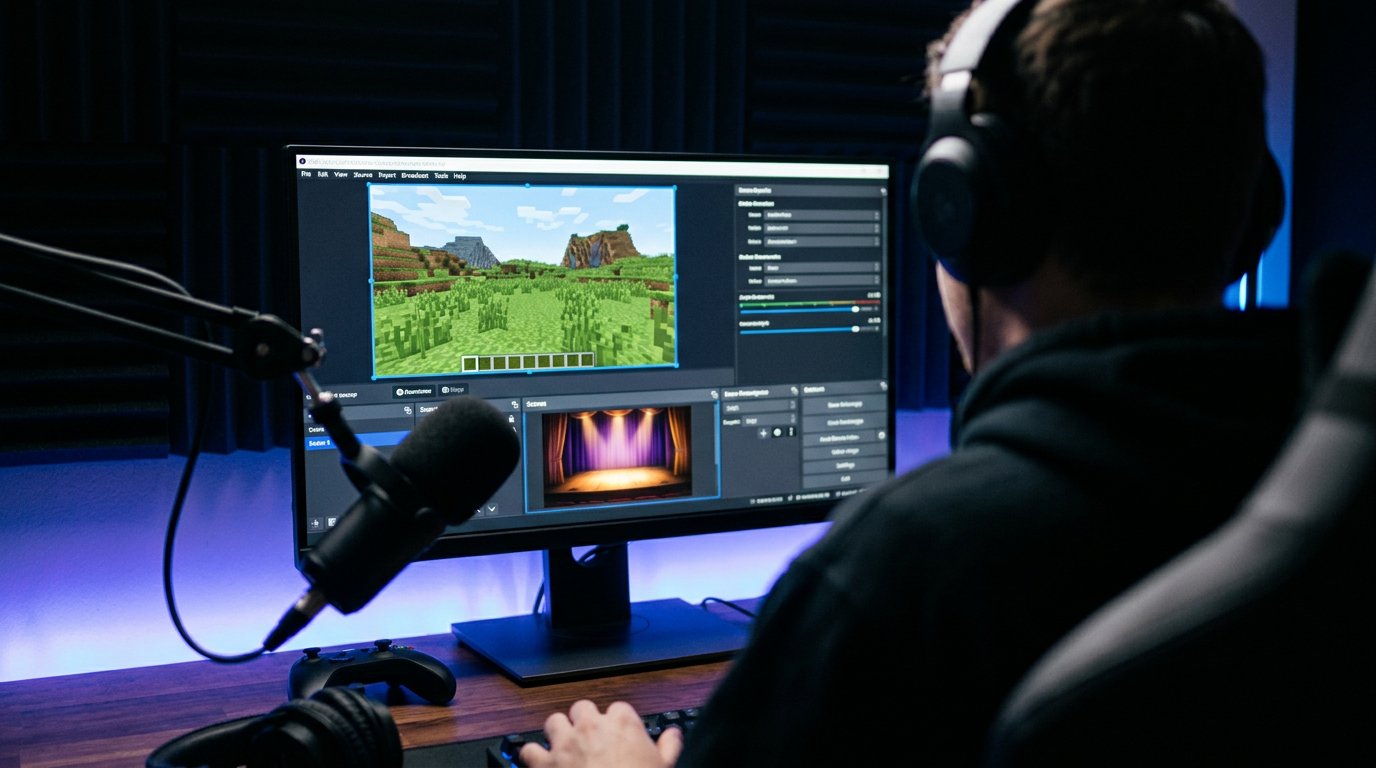
Prepare a Separate Scene for Dangerous Actions
A placeholder scene is needed for joining the server, opening the launcher, the server list, direct connect, the map, commands, and technical windows. It shouldn't have desktop capture, the Minecraft window, the browser, or notification sources. A static image, a safe chat screen, or a pre-prepared camera scene will do.
Assign separate hotkeys for the game scene and the placeholder that don't overlap with Minecraft controls, mods, and voice chat. Test the switching with a local recording. The drawback of a placeholder scene is that pauses become noticeable, and a hotkey mistake can lead to the opposite result.
Hide the IP in the Client and Launcher
Don't show the server list and the direct connect window in the game scene. They can contain domains, IPs, ports, project descriptions, links, connection history, and names of internal test worlds. Even if players connect through a domain, you shouldn't consider the address safe for public display without a separate decision from the server owner.
Before going live, remove technical addresses, test servers, and staff entries from the visible list. In the launcher, close tabs with the account, settings, logs, and launch options. The drawback of cleaning the list is that saved addresses will have to be kept in a separate config or restored after the stream.
Don't Show the Hosting Panel, Console, and Logs
The address players enter may differ from the real server IP: a domain, proxy, or another protective layer is sometimes used in front of the game server. But the technical IP from the control panel, DNS records, console, and configuration reveals the project's internal setup and is usually more valuable to an attacker than the public entry address.
Don't open connection logs, configuration files, the console, the hosting panel, and backup codes on air. They can contain player IPs, bot tokens, file paths, service ports, and admin data. For a technical stream, it's better to prepare a separate test server with cleaned configurations.
Disable External Notifications and Extra Windows
A notification from the browser, email, Discord, launcher, or server panel can reveal the address indirectly: through a link to the world, a moderator's message, a private channel name, or a bot log. Such leaks happen especially often when the game runs in a window and the streamer accidentally switches between applications.
Enable do-not-disturb mode, close unnecessary tabs, and move the moderator chat to a monitor that isn't captured. The drawback of a second monitor is that the window can accidentally be dragged into the frame, so it's still better not to use desktop capture for the main game scene.
Don't Lead Viewers to the Base in Real Time
A hidden HUD won't save the base if the stream shows the road from spawn to the entrance. Viewers can track the direction, biomes, travel time, railway, portals, forks, and noticeable landmarks. After the stream, the route can be reviewed and repeated without exact coordinates.
Don't demonstrate the approach to a secret object from the air, don't show hidden tunnels and portal exit points. Stream delay makes instant pursuit harder, but it doesn't remove the data from the recording. Its drawback is that chat reacts later, and interaction with the audience becomes weaker.
Limit Access and Player Permissions
For a private server, use a whitelist, personal invitations, and roles with the minimum necessary permissions. Don't give access to commands, logs, and admin menus to those who don't need it. On a public project, configure claims, rules, moderation, and world backups separately.
Territory claims and backups are needed even if the coordinates never made it on air. Restrictions make it harder for new players to join and increase the load on moderators, but an accidental leak of the address or route doesn't immediately turn into access to valuable builds.
What to Do After an IP or Coordinate Leak
If an address, coordinates, or technical data made it on air, switch to the placeholder and stop showing the dangerous window. After the stream, delete or trim the recording, clips, and short fragments with the leak. This doesn't guarantee the information disappears: viewers could have saved the frame, but it reduces the number of new views.
Assess what exactly was shown: a public domain, entry IP, internal host address, base coordinates, or the route to it. If necessary, change the entry address, update invitations, restrict access, and relocate valuable objects. Changing the address creates inconvenience for players and requires checking connections.
Check the Stream with a Local Recording Before Going Live
Make a short recording and go through the usual scenario: launching the client, joining the server, inventory, chat, death, teleportation, pause, map, exiting to the menu, and switching scenes. Watch the file at full size, not just the OBS preview: small labels and notifications are more noticeable in it.
Repeat the check after installing a mod, changing the launcher, updating the pack, adding a widget, or reconfiguring scenes. The only drawback of a test recording is the time spent, but it helps find a leak before viewers see it.
Checklist Before a Minecraft Stream
- The OBS game scene uses Minecraft "Window Capture", not desktop capture.
- The preview has no taskbar, browser, launcher, messengers, or external notifications.
- The placeholder scene is switched with a hotkey and contains no game or screen capture.
- F3, the coordinate HUD, the debug screen, and technical overlays are not opened in the frame.
- The minimap hides private markers, the route to the base, point names, and cursor coordinates.
- Commands, chat, death messages, warps, and claims don't show coordinates.
- The server list, direct connect, and launcher are only opened under the placeholder.
- The hosting panel, console, logs, and configurations are not added to OBS sources.
- Notifications are disabled, and moderation windows are outside the capture area.
- A test video with joining the server and switching scenes has been recorded and reviewed.
Last Articles
What has changed in design and functionality We have updated the website to make working with it faster and more convenient. The main changes affect ..
Good afternoon, I've collected all the news during this time.: 1. The main news is that prices for twitch viewers have been greatly reduced, while Tw..
1. Use promo code "December2025" for a 15% discount for all our viewers2. We have reduced the base prices for our configurator and the most affordable..
Twitch services are working stably, so we are ready to cooperate with squads, resellers, service owners, bot owners, and many others.Individual te..
We have completely updated our Twitch viewer services, and they are now working stably. We only use high-quality IP addresses for the viewers.The ..
Hello everyone! Today, we are announcing a new feature—"Twitch Viewer Configurator". Now, you can customize any plan for your Twitch channel. Choo..
Greetings, I have compiled a guide for streamers, which will be very relevant at the moment. Now YouTube and twitch have disabled monetization from vi..
We have finally developed the APINow it will be more convenient for our partner sites to work with us.To update the maximum tariffs for YouTube, an up..
Due to the huge popularity of the partnership services and referral program, we have made a cooperation table. The essence is very simple: more live a..
Our Services for Streamers








Our Services for Content Creators






