
How to Protect Private Messages and BattleTag in WoW During a Stream
What data can end up on screen
In World of Warcraft, a viewer can see more than just the text of a private conversation. Pop-up notifications, the Battle.net friends window, group invites, guild requests, community messages, and chat history all create risk. BattleTag is sometimes shown not in the conversation itself but next to a notification, in the friends list, or in the invite window. If the entire game interface is on screen, hiding just one line of chat isn't enough.
You need to check the settings in the exact OBS scene that's used on stream. The game window on your main monitor may look safe, while the captured area still contains the chat panel, notifications, or a second screen.
Enable streamer mode in WoW settings
Current versions of the WoW client have a streamer mode that limits the display of some personal data. Section names and available toggles may differ depending on the game version and client language, so after enabling it, open the social panels and check the result yourself. Pay special attention to the friends list, Battle.net messages, and invites.
This mode is useful as a baseline layer of protection, but it doesn't replace chat and OBS setup. It doesn't make all addons safe, doesn't clear old message history, and doesn't prevent a character name or BattleTag from appearing in a non-standard interface window. Its downside is that some of the usual social information may become less convenient to read during gameplay.
Create a separate chat tab for streaming
The most reliable option is not to put your main tab on stream — the one where whispers, friend messages, and system notifications arrive. Create a separate chat tab for streaming and leave only the channels you need in it: combat, loot, party, raid, or guild — depending on your broadcast format. In the tab's filter settings, disable private messages and any categories that could reveal personal data.
You can keep the main tab with private conversations separate and move it somewhere it won't end up in the scene. The downside of this approach is that important messages are easy to miss: an invite from a teammate or a warning from a moderator may stay in the hidden tab.
Clear private message history before going live
A tab filter doesn't always solve the problem if old conversations are already in the visible area. Before starting the stream, clear or close the chat you used for private conversations, and make sure it doesn't return to its previous spot when the interface reloads. If you use a chat addon, check its separate tabs, message log, and pop-up windows.
Addons often save history between game sessions, add account labels, or display messages on top of the standard interface. Disabling such an addon before streaming may be safer than trying to configure it on the fly. The downside is that you may lose convenient features: link copying, advanced filters, quick message search.
Turn off pop-up notifications and the whisper sound
Even a hidden chat won't save you from a pop-up notification. Check notifications for new messages, invites, friend requests, community activity, and Battle.net messages. If the interface or an addon displays whisper text in a separate window, you need to disable it or move it outside the captured area. You should also turn off the private message sound: it won't reveal your BattleTag, but it can draw viewers' attention to a hidden conversation.
Don't rely on "Do Not Disturb" status as a way to block conversations. It helps signal that you're busy, but it doesn't replace filters and doesn't guarantee a message won't appear in the interface. Fully ignoring a specific player also only works against that player and can get in the way of communicating with your group or raid.
Don't show social windows in your main scene
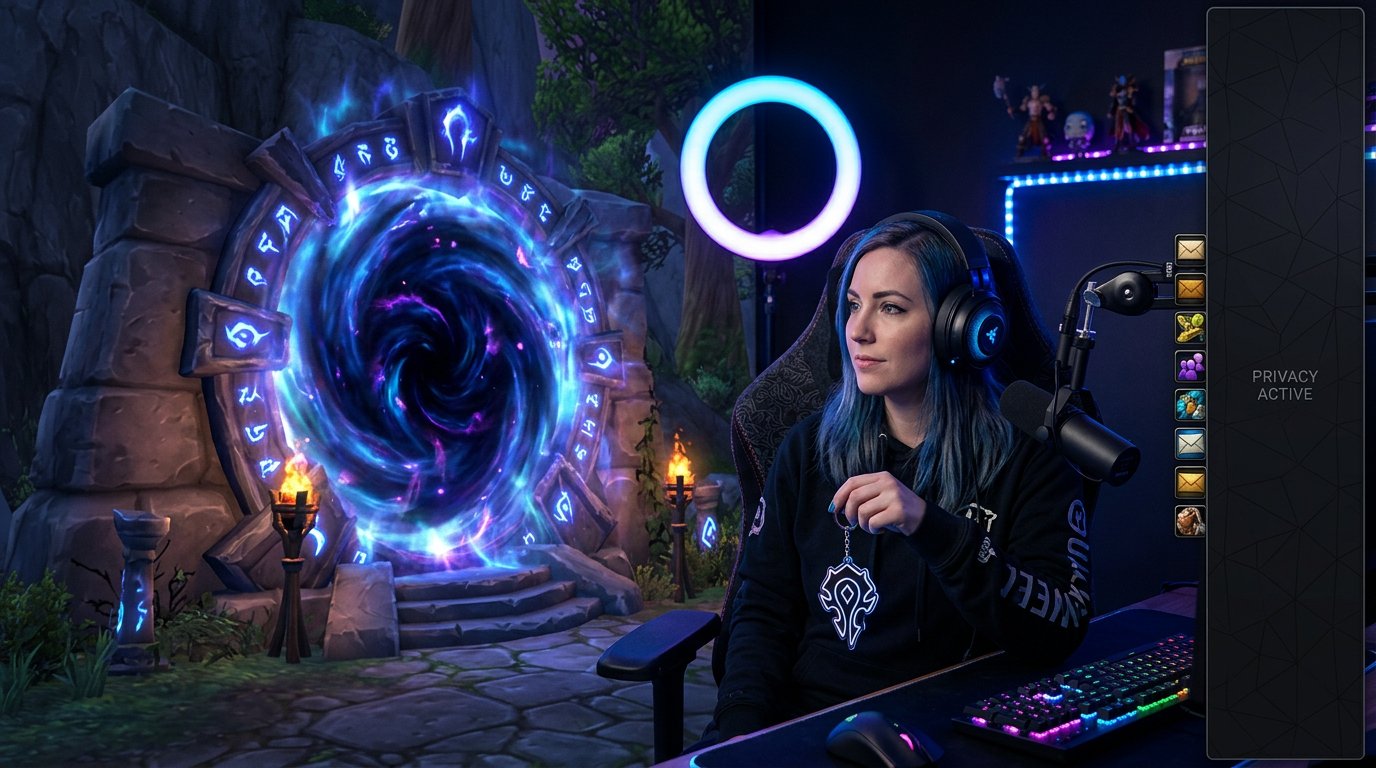
BattleTag most often appears when you open social features: the friends list, the Battle.net window, a group invite, or a conversation with a friend. Make a separate OBS scene for breaks, group setup, and out-of-game communication. In the gameplay scene, don't open these windows, even if streamer mode is enabled. If you need to accept an invite, switch to a placeholder screen or temporarily disable the game capture.
Cropping the interface in OBS only hides a fixed area, but it doesn't protect you from windows that appear in the center of the screen. The downside of a separate scene is that you'll have to switch manually, and a hotkey mistake can still expose personal data.
Set up World of Warcraft capture in OBS
For gameplay streaming, it's usually safer to use window or game capture rather than full display capture. That way, messengers, the browser, work folders, and system notifications won't end up on screen. This doesn't hide elements of WoW itself: chat, BattleTag, and in-game pop-up windows will still be visible if they're inside the client.
If you use display capture, turn off operating system notifications and close programs that could show your account name, messages, or email. Don't place the Battle.net window, Discord, a browser with your personal account, or your channel dashboard on a second monitor if that monitor is sometimes added to the scene. The downside of window capture is that after changing screen mode or restarting the client, the OBS source may need to be checked again.
Check addons, macros, and interface tooltips
Raid and social addons can display notifications about invites, messages, requests, and friend statuses on top of the game interface. Check chat, group finder, guild, calendar, and raid management addons separately. If an addon shows a notification with the sender's name, make sure it doesn't display BattleTag or another account identifier.
Check macros and keybinds that open social windows. Accidentally pressing a hotkey during combat can put your friends list right on stream. It's convenient to move such actions to key combinations you don't use in the game, or temporarily remove them before broadcasting. The downside is that some quick actions become slower, especially when putting a group together.
Test your protection before going live
Start a local recording or a private test stream and ask a friend to send you a private message, a group invite, and a friend request. Open the relevant game panels, switch OBS scenes, minimize and restore the client. Check what happens after an interface reload, a character switch, and logging back into the game: those are the moments when chat and addons can return to their default positions.
- Make sure whispers aren't visible in the streaming chat tab.
- Check notifications for invites and Battle.net messages.
- Open the friends list only in the test scene or outside the capture.
- Watch the recording in full screen: a small BattleTag is easy to miss in the OBS preview.
- Check whether addons display old private conversation history.
What to do if a private message has already appeared on screen
Immediately switch to a safe scene or temporarily stop the game capture. Don't try to close the window while it's still on the live stream: viewers will see it for longer. After that, change the setting that caused the message to appear and repeat the test. If you're saving a local recording, note the moment of the leak so you can cut it from the VOD or restrict access to the recording on the platform.
Deleting the clip doesn't undo the fact that the information may have been seen on the live stream. So it's better to limit visible channels in advance, remove social windows from the main scene, and test the interface after every major WoW update or set of addons.
Last Articles
What has changed in design and functionality We have updated the website to make working with it faster and more convenient. The main changes affect ..
Good afternoon, I've collected all the news during this time.: 1. The main news is that prices for twitch viewers have been greatly reduced, while Tw..
1. Use promo code "December2025" for a 15% discount for all our viewers2. We have reduced the base prices for our configurator and the most affordable..
Twitch services are working stably, so we are ready to cooperate with squads, resellers, service owners, bot owners, and many others.Individual te..
We have completely updated our Twitch viewer services, and they are now working stably. We only use high-quality IP addresses for the viewers.The ..
Hello everyone! Today, we are announcing a new feature—"Twitch Viewer Configurator". Now, you can customize any plan for your Twitch channel. Choo..
Greetings, I have compiled a guide for streamers, which will be very relevant at the moment. Now YouTube and twitch have disabled monetization from vi..
We have finally developed the APINow it will be more convenient for our partner sites to work with us.To update the maximum tariffs for YouTube, an up..
Due to the huge popularity of the partnership services and referral program, we have made a cooperation table. The essence is very simple: more live a..
Our Services for Streamers








Our Services for Content Creators






