
How to Hide Ally and Opponent Nicknames in League of Legends on Stream
Which nicknames appear on screen during a stream
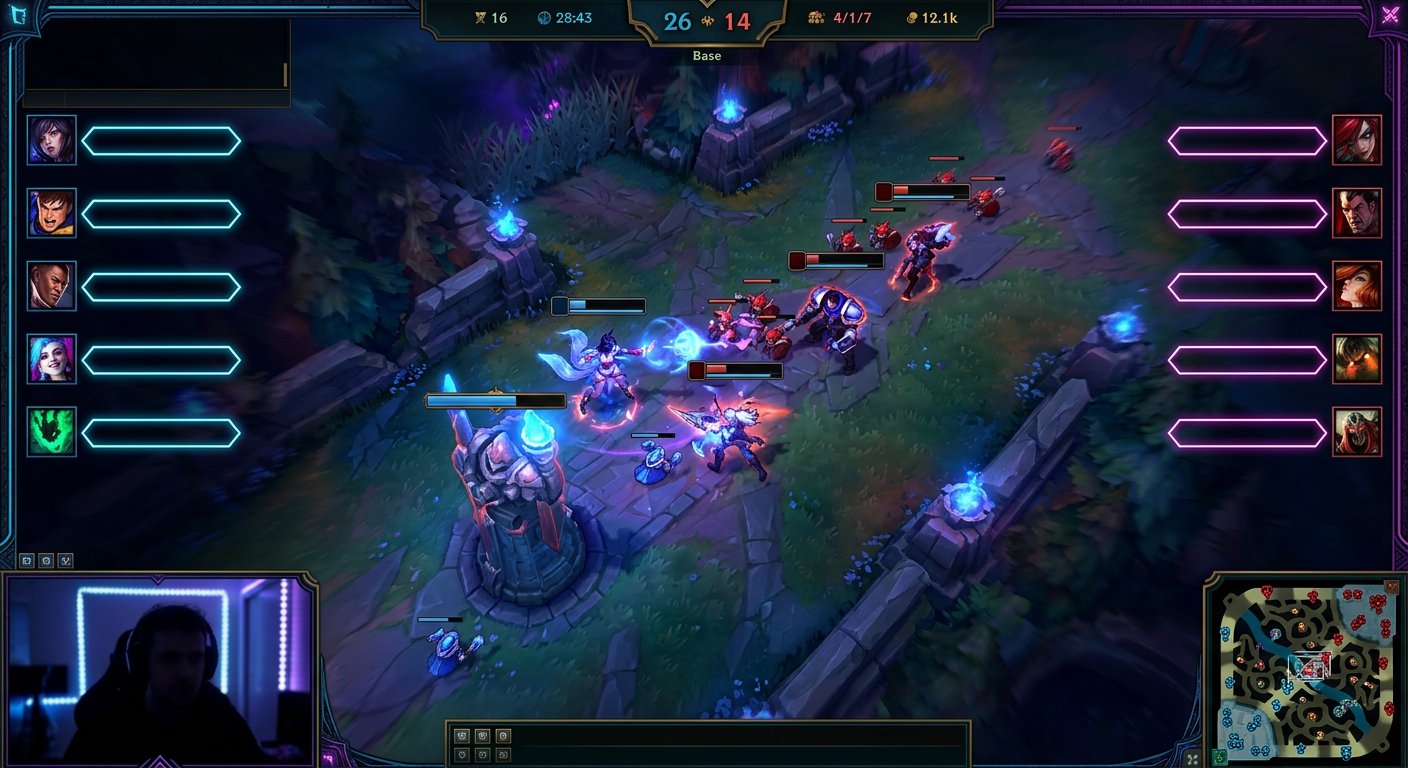
In League of Legends, player names are visible not only above champions. They are shown in the lobby, champion select screen, loading screen, scoreboard via the Tab key, in-game chat, friends list, group invitations, notifications, and post-match statistics.
Disabling names in the game settings does not make your stream fully anonymous. It affects the in-match interface, while the client, draft, and pop-up windows need to be covered with a scene or capture separately.
Where to disable summoner names in a match
During a match, press Esc, open the "Interface" section, and uncheck the "Show Summoner Names" option. In the English client, this option is called Show Summoner Names.
After disabling it, champion names will be displayed above champions instead of players' Riot IDs. This setting is specifically for allies and opponents on the playing field.
- Open practice mode or a custom game.
- Point the camera at an ally and an opponent.
- Check the labels above the health bars.
- Open the scoreboard with the Tab key.
Drawback of this setting: it does not hide nicknames in all interface elements. In particular, names may remain in the scoreboard, chat, or on client screens — this depends on the specific screen.
What the "Hide my name outside of game" setting does
The setting is located in the League of Legends client: click the gear icon in the upper right corner, open "General," and enable the "Hide my name outside of game" option. In the English client, it is called Hide my name outside of game.
This option hides only your name in the client: for example, in the friends list and certain lobby elements. It does not replace allies' and opponents' Riot IDs in a match, does not hide their names on the loading screen, and does not mask the scoreboard.
"Hide my name outside of game" is not a mode that anonymizes all players on your stream. To hide allies and opponents in a match, disable "Show Summoner Names," and cover the client with a separate scene.
Drawback of this setting: viewers can still see other players' nicknames, and people you know may not immediately realize that you are online.
How to cover the lobby and champion select
In the lobby and on the champion select screen, participants' names are usually fully visible. The built-in "Show Summoner Names" setting does not apply to these screens. The most reliable option is to not broadcast the League of Legends client until the match loads.
Prepare a separate scene in OBS or another program: a splash screen, camera, stream chat, or waiting screen. Switch to it before creating a lobby and return the game capture after the loading screen or after the in-game interface appears.
Drawback of this method: the audience will not see picks, bans, the draft timer, and preparation for the game. For viewers who follow ranked matches or tournaments, this is a noticeable loss of content.
OBS mask for the scoreboard and chat
If nicknames remain in a specific area, add a rectangle, image, or overlay panel on top of the game source. A mask works well for areas with a fixed position: the top of the scoreboard, the in-game chat block, or notifications.
In OBS, it is more convenient to make the mask a separate source in the game scene. Place it over the desired area, then check the capture in windowed and fullscreen modes. If you change the game resolution, the mask's position needs to be checked again.
Drawback of a mask: along with nicknames, it covers useful data — the score, KDA, items, team messages, or timers.
Cropping the game source instead of a mask
For capturing the client, it is more convenient not to cover nicknames but to crop the window source. In OBS, select the capture source, hold Alt, and drag its edges. This way you can remove the side friends panel, the top part of the client, or the notifications area.
Cropping is useful when the scene only needs the center of the lobby or part of the draft. It does not require fitting a decorative frame to the interface and does not cover the screen with a separate object.
Drawback of cropping: along with the side panel or the top part of the window, the timer, pick list, chat, or other important information may disappear.
Chat, friends, and pop-up notifications
Before going live, close private conversations and the friends list. Do not capture the entire desktop if "Game Capture" or "Window Capture" is sufficient for the stream. When capturing the display, client notifications, messengers, and the browser may end up on screen.
- Close dialogs in the League of Legends client.
- Do not leave the friends list open on the scene with the client.
- Check group invitations and friend online notifications.
- Hide the in-game chat with a mask if Riot IDs are visible in it.
- Do not minimize the game on a scene with desktop capture.
Drawback of notification restrictions: you may miss a message from your team, a lobby invitation, or another important signal during the stream.
Stream delay versus sniping
Hidden names make it harder to find a match by Riot ID, but they do not protect against sniping on their own. A viewer can match up the queue time, champion picks, rank, group composition, and actions on the map. For this risk, a delay is used on the platform or in the streaming program.
Delay does not hide nicknames: it only shows what is happening later. If an ally's name remains on the loading screen, in chat, or on the scoreboard, the viewer will see it after the delay ends.
Drawback of delay — chat reacts to the game with a lag. It is harder to answer questions about the current moment and to run joint activities with viewers.
Checking scenes before going live
Make a test recording and go through the entire route that appears in a regular stream: client, lobby, champion select, loading, match, scoreboard, and post-match screen. You need to watch the finished recording, not just the OBS preview.
- Check whether the "Show Summoner Names" setting is enabled in the "Interface" section.
- Open the scoreboard with the Tab key and the in-game chat.
- Check the scene with the client, lobby, and champion select.
- Make sure the masks are in the right places at your resolution.
- Look at the post-match screen, match history, and notifications.
- Check that the desktop does not appear on stream when the game is minimized.
Drawback of the test: it will not show all possible notifications and scenarios. After changing the resolution, rearranging scene elements, or updating the client, the check will have to be repeated.
Last Articles
What has changed in design and functionality We have updated the website to make working with it faster and more convenient. The main changes affect ..
Good afternoon, I've collected all the news during this time.: 1. The main news is that prices for twitch viewers have been greatly reduced, while Tw..
1. Use promo code "December2025" for a 15% discount for all our viewers2. We have reduced the base prices for our configurator and the most affordable..
Twitch services are working stably, so we are ready to cooperate with squads, resellers, service owners, bot owners, and many others.Individual te..
We have completely updated our Twitch viewer services, and they are now working stably. We only use high-quality IP addresses for the viewers.The ..
Hello everyone! Today, we are announcing a new feature—"Twitch Viewer Configurator". Now, you can customize any plan for your Twitch channel. Choo..
Greetings, I have compiled a guide for streamers, which will be very relevant at the moment. Now YouTube and twitch have disabled monetization from vi..
We have finally developed the APINow it will be more convenient for our partner sites to work with us.To update the maximum tariffs for YouTube, an up..
Due to the huge popularity of the partnership services and referral program, we have made a cooperation table. The essence is very simple: more live a..
Our Services for Streamers








Our Services for Content Creators






