
How to Change Your YouTube Handle and Keep Your Channel
What a YouTube handle is and what changes after you switch it
A YouTube handle is a unique channel name with an @ symbol. It appears on the channel page, in comments, mentions, and in links like youtube.com/@username. Viewers can use this name to find your channel and tag it in posts or streams.
A handle is not the same as a channel name. You can change the name separately, and different creators can use identical names. A handle must be unique: the same version can't be assigned to multiple channels at once.
Changing your handle doesn't delete your channel or create a new one. Videos, stream recordings, subscribers, comments, playlists, analytics, settings, monetization, and access permissions all stay on the same channel. Only the public name with the @ symbol and the URL that uses it change.
The channel ID, links to individual videos, and stream URLs also stay the same. So you won't need to move your posts or ask viewers to subscribe again. You just need to check the new address and replace the old handle in any materials you placed manually.
What to check before changing your handle
First, make sure you've opened the right channel. This matters especially if you've created several channels under one account or you're using a brand account. You can switch between channels through the profile menu, and only then go to settings.
Decide on your final name before opening the edit form. Check the spelling, the character count, and how the handle looks in a link. A typo will end up not just in your profile but in the youtube.com/@username address you'll be sending to viewers.
Choose a name that's clear to your audience and won't seem out of place if your content focus shifts. If your channel is about streaming, you don't have to include the name of one game in your handle: that version can quickly become outdated. For a personal channel, a nickname, a project name, or a short combination of both usually works well.
Don't use a phone number, address, password, date of birth, or other personal data in your handle. It's a public name that channel visitors can see. Also check whether it's easy to say and type on a phone, especially if you'll be saying the link out loud during a stream.
YouTube checks the length and allowed characters right in the edit field. A handle usually needs to be between 3 and 30 characters with no spaces. The allowed set of characters may depend on the spelling you choose, so follow the hint next to the field rather than a random version that doesn't pass the check.
How many times you can change your handle
YouTube lets you change your handle no more than twice every 14 days. This limit applies to saved changes, so don't hit confirm after every test version. If you first pick one name and then decide to go back to the previous one, the revert may also count toward the limit.
Before saving, double-check three things: whether you've selected the right channel, whether there's a typo, and whether you're happy with the final URL. If you've already used up the limit, you won't be able to change your handle before the 14-day period ends.
After a change, YouTube reserves your previous handle for your channel for 14 days. During this period, both the old and new addresses usually continue to open the same channel. Once the period ends, the previous version may become available to another user, so don't count on the old link as a permanent one.
If you're rebranding, write down the new version in advance and make a list of the places where the old address is used. That way you won't waste one of your available changes on testing a random name, and you'll update all the important links faster.
How to change your handle on a computer
On a computer, it's easier to use YouTube Studio. Sign in and check the channel name in the top right corner. If the wrong profile is selected, first switch to the right channel through the account menu.
Open YouTube Studio, then in the left menu go to "Channel settings" or "Customization." The menu item name may differ depending on your interface language. Then open the "Profile" tab and find the "Handle" field with a name starting with the @ symbol.
Enter the new version over the old one and wait for the availability check. If YouTube says the name is taken or contains invalid characters, fix it right in that field. Once the version is accepted, click "Publish," "Save," or a button with a similar name.
Don't close the tab right after clicking the button. Make sure the new handle appears in your profile and that a save confirmation shows up. Then open your channel page in a new tab and compare the spelling of the name with the one you plan to send to viewers.
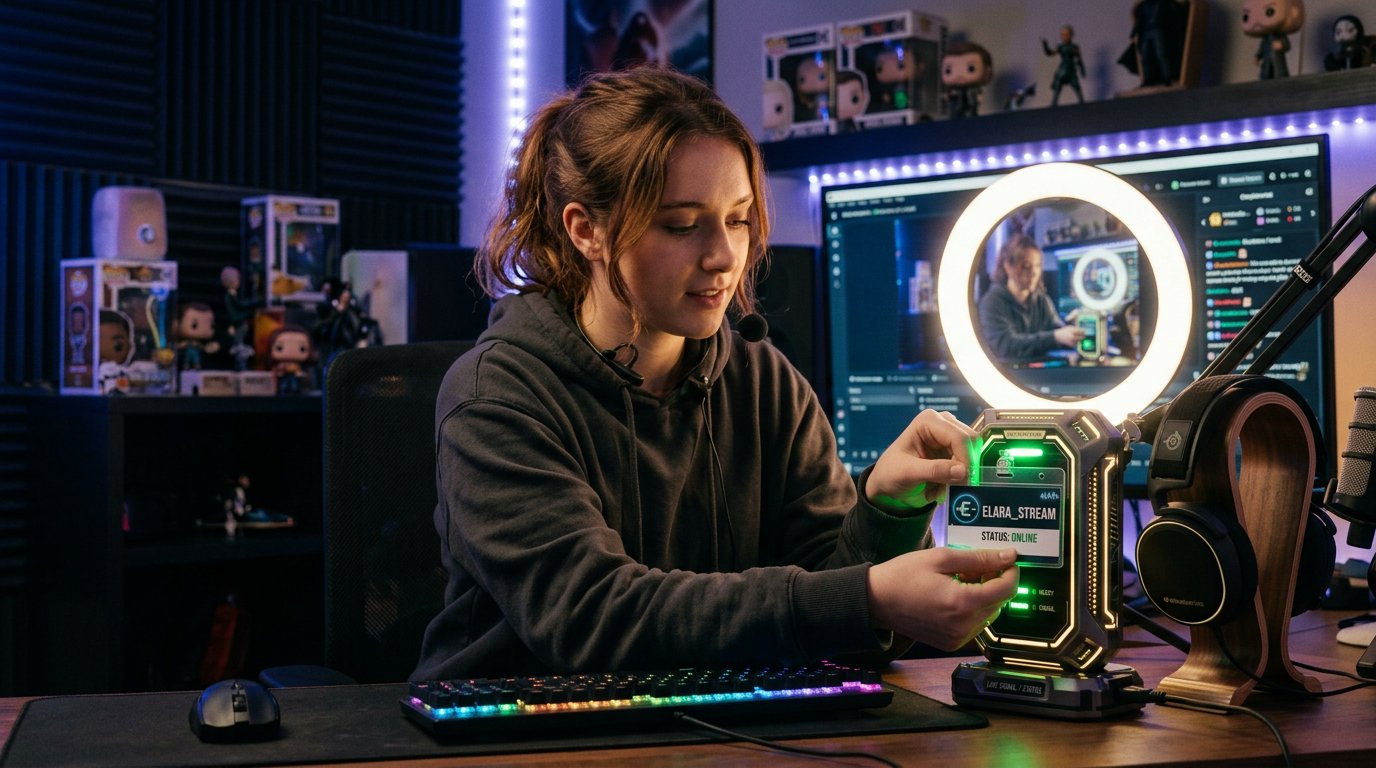
If the new address doesn't open right away, don't change your handle again. First refresh the page, try another browser or incognito mode. Public data may take a while to display, even though the change is already saved in YouTube Studio.
How to change your handle from a phone
You can change your @username in the YouTube mobile app. Open the app, tap your profile picture, and go to "Your channel" or "View channel." Check that the right page is open if you have multiple channels.
Tap "Edit channel," "Edit," or the button with a pencil icon. In the editor, find the field with the @ symbol, delete the previous version, and enter the new one. After the availability check, save your changes with the button at the top of the screen or at the bottom of the form.
Button names and the field's location may differ on Android and iPhone. If the handle doesn't appear, update the app and open channel editing again. You can also sign in to YouTube through your phone's browser and switch to the full site version if the mobile interface doesn't show the setting you need.
After saving, copy the channel link and open it in a separate tab. For an extra check, use incognito mode: that way you'll see the page without data from your current session. If the update appears in your profile but not in one of the places right away, wait and don't create a new channel.
What happens to old links
The new handle is used in the new channel URL, future mentions, and profile elements. Already published texts, images, and descriptions aren't rewritten automatically. If the old address is printed on a banner, listed in a stream description, or built into your branding, you need to replace it manually.
For 14 days after the change, the old URL with the handle usually continues to lead to your channel alongside the new one. This helps you update materials without links breaking abruptly, but it doesn't replace checking. Once this period ends, the previous name may become available, and following the old link can no longer be considered a reliable way to find your channel.
Links to videos, Shorts, and stream recordings stay the same if they're built on the post ID. You don't need to delete, re-upload, or recreate them. It's enough to edit the description, pinned comment, or post if it lists the old address of the channel itself.
First, update the handle in your channel description, on your banner, in video and stream descriptions, pinned comments, community posts, social media profiles, and messengers. Also check your personal website, group page, stream overlays, templates, presentations, ad materials, and QR codes.
What to do if the handle you want is already taken
You can't claim a taken handle just because another channel looks inactive. YouTube will show that the name is unavailable and suggest choosing another version. Don't try to get around this limit by saving repeatedly or creating a copy of your channel: such actions won't free up the name and may split your audience.
Keep the core of your handle — the project name, nickname, or a recognizable word — and try changing it as little as possible. Depending on YouTube's hint, you can add a period, hyphen, or underscore. If that's not enough, use a short qualifier related to your content: for example, your stream focus, project name, or a fitting word for your niche.
Don't add a long random string of numbers. That kind of address is hard to remember, dictate on air, and place on graphics. Also don't use another creator's name with a small change if that could make viewers mistake your channel for an official account.
Check several options without saving each one. First find an available name, reread it in the field, and only then confirm the change. This approach will help you avoid using up the limit on test combinations.
Why YouTube won't accept your new handle
The reason is usually shown next to the field. The handle may be taken, too short or too long, or contain spaces or invalid characters. Sometimes the problem is that you've already changed your name twice in the last 14 days.
Also check which channel is selected. If your account has multiple profiles, the form may have opened for a different channel. When working with a brand account, make sure your account has permission to edit channel details. If the field is missing entirely, it may be due to insufficient permissions or the wrong profile being open.
If you hit a technical error, refresh the page and sign in to the right account again. Then try another browser, disable conflicting extensions, and check your connection stability. In the mobile app, install the latest version of YouTube and try again later if the form won't save.
Don't create a new channel because of a temporary error or a display delay. A new profile won't automatically transfer your videos, subscribers, watch history, and analytics. For a standard @username change, it's enough to edit your current channel and wait for the data to update.
If the old handle still shows up
Different parts of YouTube may not update at the same time. The new version will already appear in YouTube Studio, while comments, the app, or an open page may still show the old one for a while. This doesn't mean the change was canceled.
First check the handle in your channel settings, then open the page without signing in using incognito mode. Compare the address and the name on the page. If the new version is saved in Studio, don't click the change button again because of a temporary delay.
For 14 days, the old URL may continue to open your channel — that's an expected part of the transition period. After it updates, check the most important places viewers come to you from: your stream description, pinned message, social media profiles, and links on your website.
You don't need to delete old videos and streams. If their descriptions still contain the previous address, edit the text manually. In all new posts, use only the verified link with your current handle.
Quick takeaways: what to do step by step
- Choose a new handle and check its spelling, length, meaning, and availability.
- Open the right channel in YouTube Studio or the YouTube app.
- Go to profile editing, change the field with the @ symbol, and save one final version.
- Check the new link in a separate tab or incognito mode.
- Update the old address on your website, social media, video descriptions, streams, overlays, and ad materials.
- Keep the limit in mind: no more than two changes every 14 days, and the previous handle is reserved for your channel for 14 days.
Last Articles
What has changed in design and functionality We have updated the website to make working with it faster and more convenient. The main changes affect ..
Good afternoon, I've collected all the news during this time.: 1. The main news is that prices for twitch viewers have been greatly reduced, while Tw..
1. Use promo code "December2025" for a 15% discount for all our viewers2. We have reduced the base prices for our configurator and the most affordable..
Twitch services are working stably, so we are ready to cooperate with squads, resellers, service owners, bot owners, and many others.Individual te..
We have completely updated our Twitch viewer services, and they are now working stably. We only use high-quality IP addresses for the viewers.The ..
Hello everyone! Today, we are announcing a new feature—"Twitch Viewer Configurator". Now, you can customize any plan for your Twitch channel. Choo..
Greetings, I have compiled a guide for streamers, which will be very relevant at the moment. Now YouTube and twitch have disabled monetization from vi..
We have finally developed the APINow it will be more convenient for our partner sites to work with us.To update the maximum tariffs for YouTube, an up..
Due to the huge popularity of the partnership services and referral program, we have made a cooperation table. The essence is very simple: more live a..
Our Services for Streamers








Our Services for Content Creators






