
Guest Echo in Discord on a Stream: How to Find and Remove the Repeat
Why the guest's voice starts repeating
Echo occurs when the guest's voice reaches the broadcast or voice chat through two routes. The most common scenario is related to OBS: the program simultaneously captures "Desktop Audio" and a separate Discord source. The first source already contains the interlocutor's voice, and the second additionally transmits the same signal. Viewers hear two identical phrases with a slight delay.
Another cause is sound from headphones or speakers getting into the microphone. The guest speaks, their voice plays back on your end, and the microphone sends that sound back into Discord. Then the guest hears their own voice with a delay, and the repeat sometimes ends up in the broadcast as well.
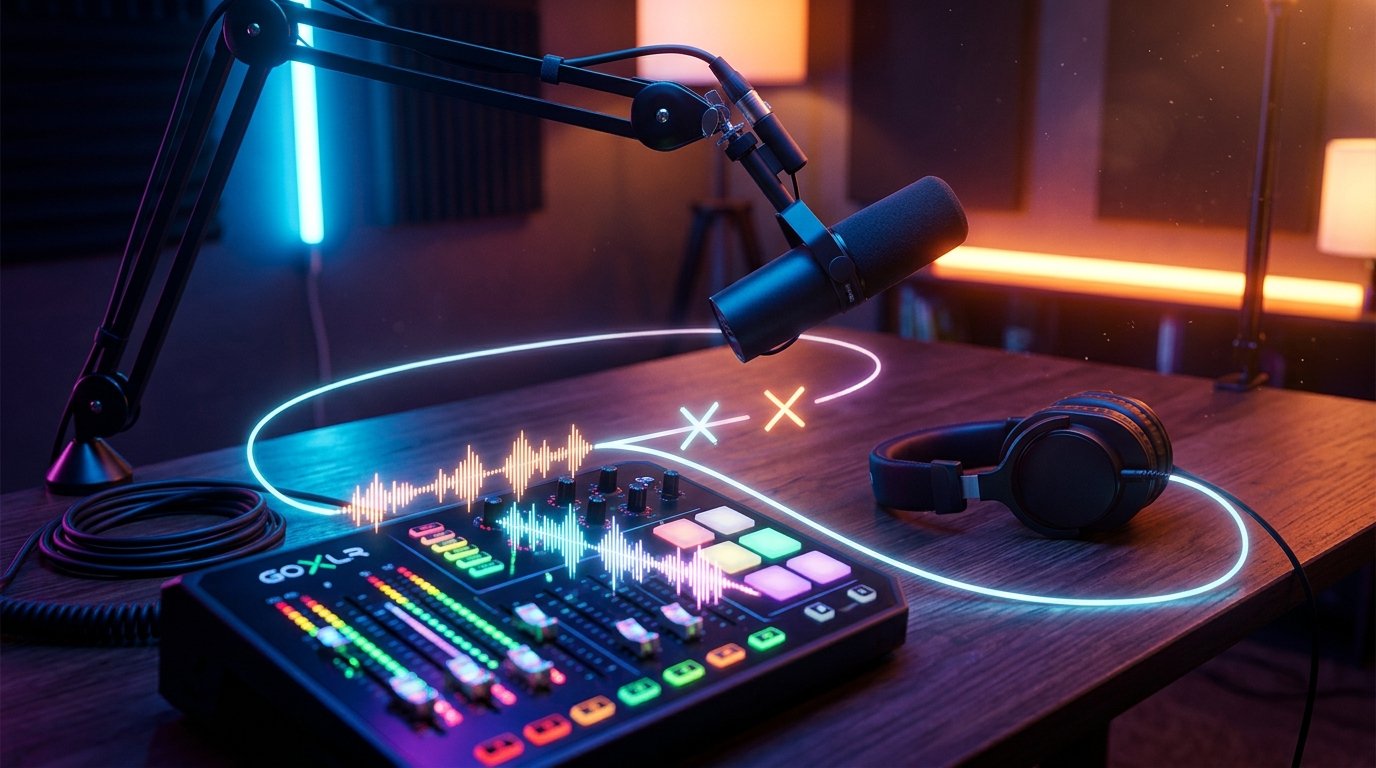
A loop can also occur through virtual devices. For example, OBS sends audio to monitoring, a virtual mixer returns it to the microphone channel, and Discord receives that channel as voice. A similar effect appears if a stream page is open during the broadcast without muting the sound: the guest's voice comes back through the player with a delay.
It's important to distinguish real echo from crackling or desynchronization. With duplication, you hear two versions of the same phrase. When the sample rate doesn't match, the sound may crackle, become metallic, or gradually drift out of time. To the viewer, this sometimes sounds like a repeat, even though the cause isn't two sources but the audio device settings.
First determine who hears the repeat
If the guest hears their own voice, check the headphones, microphone, monitoring, and Discord routing. If only viewers hear the echo, focus on OBS and its sources. When only you hear the repeat, the cause is often local microphone monitoring or double playback of sound to the headphones.
Ask the guest to say a few phrases and don't change all the parameters at once. First disable the separate Discord source in OBS, then "Desktop Audio," then the microphone. Check each change with a short test recording. That way you'll see which channel removes the second voice.
If the guest hears themselves even with OBS capture turned off, the problem is most likely in Discord or Windows: sound is coming out through the speakers, returning through the microphone, device listening is enabled, or the wrong input is selected in Discord. If the repeat only appears in the OBS recording, you need to look for it among the scene sources and monitoring settings.
Separately, check whether the guest is watching the stream with sound. Pausing the page doesn't always mute the audio, so it's safer to press the mute button in the player or close the tab. The broadcast delay in this case creates a repeat even with correctly configured Discord and OBS settings.
Remove the main duplication in OBS
In OBS, the Discord voice should reach the broadcast in only one way. Usually people use either desktop audio or a separate application capture. Running "Desktop Audio" and "Application Audio Capture" for Discord at the same time is the most common reason the guest's voice sounds twice.
Open the OBS mixer and find all sources capable of transmitting the interlocutor's sound. These could be "Desktop Audio," a separate Discord source, a window capture source with audio, audio from the browser, Stereo Mix, or a virtual input. Leave one Discord channel and temporarily disable the rest. Also check other scenes and nested scenes: the same track may have been added again.
If you capture Discord through "Desktop Audio," don't add a separate application capture for it. This option works when you can send all computer sound to the broadcast. But along with the guest's voice, viewers will hear games, notifications, the browser, and other applications.
A separate application capture is more convenient if you need to send only Discord to the broadcast. In this case, it's better to disable desktop audio completely rather than just lower its slider. A disabled or removed source can't quietly add a second signal.
How to add Discord via Application Audio Capture
In Windows, open the required OBS scene and click "+" in the "Sources" block. Select "Application Audio Capture." In different OBS versions, the name may differ slightly, and the feature may only be available in a supported version of the program.
- Create an Application Audio Capture source and give it a clear name, for example "Discord — guest."
- In the source properties, select the Discord window or process. If the program doesn't appear, launch Discord and open the list again.
- In the OBS settings, open the "Audio" section and set "Desktop Audio" to "Disabled."
- Check the mixer: only the separate Discord channel and your microphone should remain, without a second track with the same voice.
- Make a short recording with a few phrases from the guest and listen to it before going live.
This breaks the typical loop: OBS receives Discord audio directly from the application, not through the shared Windows output. If the voice is still duplicated after adding the source, check whether an old Desktop Audio, a window capture source with audio, or a copy of Discord in another scene is still in the scene.
Check monitoring and audio return in Discord
In the OBS advanced audio properties for the Discord source, the "Monitor Off" mode is usually sufficient. If you enable "Monitor and Output," OBS will send the voice to the selected playback device. With incorrect routing, this signal can get into the microphone or return to Discord.
If you need to hear a separate channel through OBS, select monitoring to headphones only and make sure this output isn't used as a Discord microphone. In Discord, the input device should be a physical microphone, not Stereo Mix, "Microphone with monitoring," the computer's shared output, or a virtual channel with the guest's voice.
In Windows, open the microphone properties and go to the "Listen" tab. The "Listen to this device" option should be off unless you're deliberately setting up a monitoring scheme. Otherwise, Windows will play the microphone to the headphones, and a complex audio scheme can send this signal back.
Don't leave monitoring enabled in OBS, Windows, and a virtual mixer at the same time. For diagnostics, disable all options except normal voice listening in Discord. Once the echo is gone, add monitoring one at a time and check whether the signal returns to the microphone channel.
Set up Discord and check the devices
In Discord, open the "Voice & Video" settings. For input, select a specific microphone, and for output, select specific headphones. Don't leave the "Default" option if Windows automatically switches the active device. When you change headsets, Discord may start outputting voice through the speakers or select a different microphone.
Echo suppression in Discord helps when the interlocutor's voice from the speakers gets into the microphone. It's worth enabling if a participant is talking without headphones, but this function doesn't fix duplication of two sources in OBS. Noise suppression is designed for background sounds and also doesn't remove the second channel with the same voice.
Automatic microphone sensitivity can let sound from the headphones through if it's too loud. If necessary, disable automatic adjustment and set the threshold manually. The microphone should open for normal speech but not react to the guest's voice in the headphones or desktop sound.
Discord's built-in microphone check makes a test recording, so it doesn't require a live broadcast and you don't need to ask the guest to speak in turns. Start the check and listen to the result. If the repeat is already audible in the Discord test recording, leave OBS alone for now: first fix the input and output devices, acoustics, or local monitoring.
Disable exclusive mode in Windows
Applications can gain exclusive access to the microphone or headphones and change the format in which the device operates. Because of this, Discord and OBS access different modes of the same device, sound may be switched to another output, and after processing, delay, crackling, or a repeat appears.
In Windows, open "Sound settings," then "More sound settings" or "Additional sound settings." On the playback tab, select the headphones you're using, open "Properties," and go to the "Advanced" tab. Uncheck "Allow applications to take exclusive control of this device" and "Give exclusive mode applications priority."
Repeat the same steps on the recording tab for the microphone. If you're using an audio interface, virtual cable, or additional output, check those too. After changing the parameters, fully restart Discord and OBS so they reopen the devices with normal access.
Exclusive mode isn't the only cause of echo, but disabling it helps eliminate unpredictable device switching. It's especially useful to check this parameter if sound suddenly started going through a different output after launching OBS, Discord, or an audio processing program.
Match the sample rate
OBS and Windows devices should operate at the same sample rate. For streaming, 48 kHz is usually chosen: in OBS this is found in "Settings" → "Audio" → "Sample Rate." Then the same rate is set for the headphones, microphone, audio interface, and virtual devices involved in the route.
In the properties of each Windows device, open the "Advanced" tab and check the default format. If one channel runs at 44.1 kHz and another at 48 kHz, the driver or mixer will resample the stream. This can cause crackling, a metallic voice, floating delay, and sound resembling echo or a double phrase.
Discord usually uses the rate set by the selected system device, so there may not be a separate switch inside the app. It's important to check not only OBS but also both Windows devices, as well as the control panel of the audio interface or virtual cable. After changing the rate, restart the applications and make a new test recording.
Isolate Discord through a virtual audio route
If you need to separate the guest's voice from games, music, and notifications, you can use Voicemeeter or Virtual Audio Cable. Discord is routed to a separate virtual output, OBS receives this virtual channel as a source, and "Desktop Audio" is disabled. This way the guest's voice isn't mixed with the entire desktop and isn't captured again.
With this scheme, Discord should receive only your microphone as input. Don't send to its input a virtual bus that already contains the guest's voice. In Voicemeeter, check the routing buttons on each bus, and in Virtual Audio Cable, check which application sends the signal to the virtual input and which one receives it.
Virtual devices add extra points where a loop can appear. So start with a simple scheme: physical microphone → Discord, virtual Discord channel → OBS, monitoring off, desktop audio disabled. After that, connect music or other sources one at a time.
Check order if the echo remains
First, completely disable Discord capture in OBS and ask the guest to say a few phrases. If they still hear themselves, the cause is in Discord, Windows, headphones, speakers, or watching the stream. If the echo is gone, enable only one capture method and check it separately.
Then leave only the microphone and Application Audio Capture for Discord in OBS. Disable "Desktop Audio," monitoring, and virtual inputs. If the recording is clean, add the remaining sources one at a time. When the repeat appears, the last enabled channel will be the main suspect.
If viewers hear the echo but the guest doesn't, check the OBS mixer and a short recording. If only one Discord participant hears the repeat, ask them to check their own speakers, microphone, device listening, and sound on the stream page. For a Bluetooth headset, it's better to use wired headphones during diagnostics: the wireless connection delay makes it harder to assess the result.
Quick summary: what to do step by step
- Determine who hears the repeat: the guest, the viewers, or only you.
- Ask participants to use headphones and mute the sound on the stream page.
- In Discord, select specific microphone and headphones, and in Windows disable microphone listening.
- In OBS, choose one method of capturing Discord. For a separate channel, add Application Audio Capture and disable "Desktop Audio."
- In the OBS advanced properties, turn off monitoring if it isn't needed, and check that the virtual channel isn't returning to Discord.
- Disable exclusive mode for Windows recording and playback devices.
- Set the same sample rate, for example 48 kHz, for OBS and all involved devices.
- Make a short recording and enable the remaining sources one at a time until you find the duplicating channel.
Last Articles
What has changed in design and functionality We have updated the website to make working with it faster and more convenient. The main changes affect ..
Good afternoon, I've collected all the news during this time.: 1. The main news is that prices for twitch viewers have been greatly reduced, while Tw..
1. Use promo code "December2025" for a 15% discount for all our viewers2. We have reduced the base prices for our configurator and the most affordable..
Twitch services are working stably, so we are ready to cooperate with squads, resellers, service owners, bot owners, and many others.Individual te..
We have completely updated our Twitch viewer services, and they are now working stably. We only use high-quality IP addresses for the viewers.The ..
Hello everyone! Today, we are announcing a new feature—"Twitch Viewer Configurator". Now, you can customize any plan for your Twitch channel. Choo..
Greetings, I have compiled a guide for streamers, which will be very relevant at the moment. Now YouTube and twitch have disabled monetization from vi..
We have finally developed the APINow it will be more convenient for our partner sites to work with us.To update the maximum tariffs for YouTube, an up..
Due to the huge popularity of the partnership services and referral program, we have made a cooperation table. The essence is very simple: more live a..
Our Services for Streamers








Our Services for Content Creators






