
Setting Up Subscribers-Only Chat on YouTube Live
What the subscribers-only chat mode changes
The "Subscribers only" mode restricts sending messages in the live chat. All viewers can still watch the public stream and read the conversation, unless other restrictions are set for the stream itself. The chat setting does not make the stream private, paid, or accessible only via a link.
A subscription creates an additional barrier against random flooding, bots, and viewers who come to the chat only to advertise. This is a chat entry filter, not a replacement for moderation. An already subscribed user can still spam, insult participants, or circumvent the rules through new wording.
When subscribers-only mode is appropriate
The restriction is useful during a raid, a wave of identical messages, a contentious topic, or a fast-paced stream that the team doesn't have time to moderate. It is also used on streams where the host cares more about reading messages from the regular audience than the entire flow from recommendations.
The downside of the mode is direct: a new viewer won't be able to ask a question or join the discussion right away. On a small talk-style stream, this can noticeably reduce activity. If the problem is only the frequency of messages, sometimes slow mode, filtering unwanted phrases, or a moderator's work is enough.
Where to enable subscriber access
The parameter is set in the chat settings of a specific broadcast via the Live Control Room in YouTube Studio. It is not located in the general channel settings, in the menu of an individual message, or in the chatbot panel. For a scheduled stream, the setting can be configured in advance; for an active one, it can be changed right during the broadcast.
In the interface, you need the "Chat settings" section or the block with chat modes. It contains the "Who can send messages" field with a dropdown list of access options. The names of individual items may differ slightly due to the interface language or a Studio update, but the reference point remains the same: selecting the audience allowed to write.
How to enable the mode in the Live Control Room
- Open YouTube Studio in a browser and go to live stream management.
- Select the current stream or the scheduled broadcast you need.
- Open the Live Control Room and go to the chat settings.
- Check that the live chat is enabled for this stream.
- Find the "Who can send messages" field.
- Select the "Subscribers" option.
- Specify the subscription duration if a separate field appears after selecting the mode.
- Save the change if Studio shows a save button.
After that, reopen the settings and make sure the subscribers mode is actually selected. Streams created by copying may retain the parameters of the original broadcast. The downside of this check is that the owner's or moderator's account does not show restrictions the same way as a regular viewer.
What the right item in the settings looks like
In the "Chat modes" block, the "Who can send messages" dropdown is displayed. It may contain options for all viewers, subscribers, and channel members. After selecting subscribers, a "Subscription duration" setting may appear below: it determines whether any subscription is enough or the viewer must be subscribed to the channel for a certain time.
Don't confuse subscribers with channel members. A subscriber gets the status after a regular subscription to the channel, while a member signs up for paid membership if it is enabled. The members mode restricts the chat more strongly: regular subscribers won't be able to write in it.
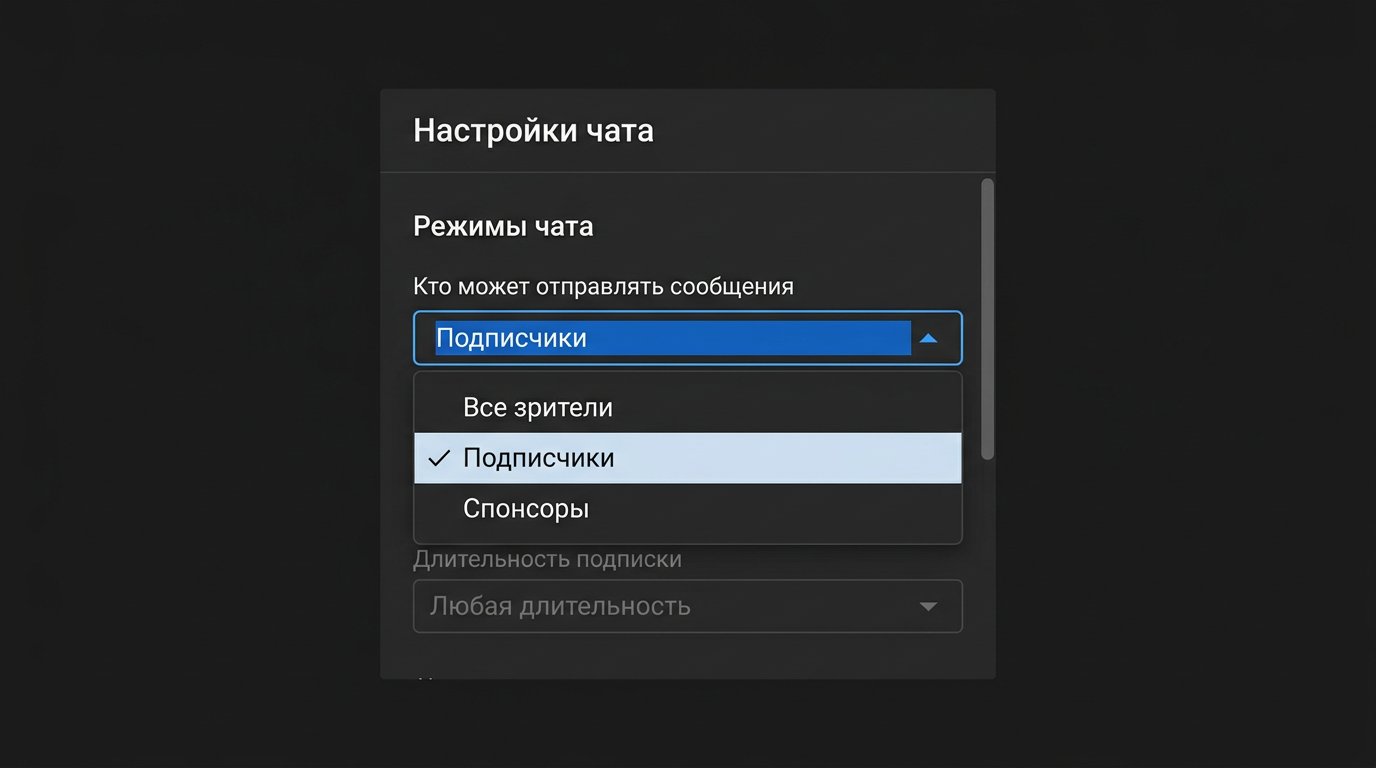
How to choose the subscription duration
If Studio shows the "Subscription duration" field, select the appropriate condition before saving the settings. The any-duration option allows writing immediately after subscribing. A longer period filters out accounts created only for flooding during the stream.
The subscription period has a downside: a new viewer may genuinely want to join the conversation but won't get access to the input field. For public streams focused on audience growth, a strict condition is usually used only when there is a noticeable spam problem. Don't promise viewers an exact time when access will appear: authorization and page refresh also affect it.
Can the mode be changed on an already running stream
The mode can be switched during the broadcast via the Live Control Room. After saving, the change applies to the current chat; there is no need to restart the stream. Viewers who opened the chat before the switch may not see the new restriction instantly: sometimes they need to refresh the stream page or reopen the chat.
Messages sent before the new rule was applied will remain in the chat history. After enabling subscribers-only mode, viewers without the required status won't be able to send new messages. The downside of a sudden switch mid-stream is that part of the audience will perceive the inactive input field as a technical error.
How to explain the restriction to viewers
If the mode is enabled in advance, it's enough to state the rule in the stream description, the starting screen, or a pinned message: "Chat messages are available to channel subscribers." This reduces the number of repeated questions about why text isn't being sent.
When switching because of spam, announce it briefly by voice or through a moderator. Don't link the subscription to a guaranteed answer from the host, participation in a giveaway, or removal of a block. A subscription only grants the right to write in the chat if other conditions are met and the channel rules are followed.
Can subscribers-only chat be set up from a phone
The full set of chat parameters is more reliably changed in the browser version of YouTube Studio via the Live Control Room. In the YouTube mobile app and the YouTube Studio app, the set of available tools for streaming may differ: some chat settings, including the selection of audience and subscription duration, may not be displayed.
If the settings screen for the current stream is available on the phone, look for the same block with chat modes and the "Who can send messages" item. It looks like a list of access options, and after selecting subscribers, a duration field may appear. If these items are missing, don't try to replace the setting with actions via a widget or bot: open the Live Control Room in a browser.
Why the "Subscribers" item may not be displayed
First, refresh the Live Control Room page and reopen the chat settings. Check that you are editing the current or future stream, not the recording of a finished broadcast. Make sure the live chat is enabled: when the chat is disabled, access parameters may be hidden or not affect viewers.
For content with platform restrictions, chat capabilities may be unavailable in full or in part. It's also worth checking notifications in Studio: they may indicate a problem with stream features or the account. If the required option is missing after refreshing, it cannot be added through moderators, the stream description, or a third-party service.
How to check the mode before the stream starts
Check access from a separate account without the owner, editor, or moderator role. First, open the stream from a profile that is not subscribed to the channel: it should see the broadcast and the chat but not be able to send a message. Then subscribe, refresh the page, and check whether access to input has appeared.
If a minimum subscription duration is set, a test account that just subscribed won't be able to write — this is expected behavior. The downside of checking with a single profile is that it doesn't cover all cases: for example, restrictions for a blocked viewer or a user whose message is held by a filter.
Why a subscriber still can't write
Ask the viewer to check whether they are signed in to the same account they used to subscribe to the channel. A subscription is often made on one profile while the stream is open on another. After subscribing, it's worth refreshing the page, reopening the chat, or switching accounts if the wrong profile is active in the browser.
On the channel side, check the selected mode, the subscription period, and the state of the live chat. The cause may also be a user block, a moderator's action, the potentially inappropriate messages filter, account restrictions, or a temporary platform glitch. Don't remove a block automatically just because of a complaint about inaccessible chat.
Which settings to combine with subscribers-only chat
Subscribers-only mode can be combined with slow mode, a list of blocked words, review of potentially inappropriate messages, and manual moderation. Slow mode limits how often a single user can send messages, while filters help hold unwanted texts before they appear in the public chat.
Every additional restriction has a cost: slow mode hinders active discussion, filters may delay a legitimate question, and broad blocked words cause false positives. Don't enable the whole set by default if the task can be solved with a single access setting for subscribers.
What to check after the stream
Open the chat log and compare not only the volume of spam but also the quality of communication. See whether important questions went unanswered, whether viewers kept talking to each other, and whether the chat became empty after the restriction was introduced. This will help you choose a softer mode for the next run.
Before a new stream, check the settings of the specific broadcast, especially if it was created from a template or by copying a past stream. A permanent subscribers-only mode protects against some random flooding, but its downside is the loss of messages from new viewers who could have become active community members.
Last Articles
What has changed in design and functionality We have updated the website to make working with it faster and more convenient. The main changes affect ..
Good afternoon, I've collected all the news during this time.: 1. The main news is that prices for twitch viewers have been greatly reduced, while Tw..
1. Use promo code "December2025" for a 15% discount for all our viewers2. We have reduced the base prices for our configurator and the most affordable..
Twitch services are working stably, so we are ready to cooperate with squads, resellers, service owners, bot owners, and many others.Individual te..
We have completely updated our Twitch viewer services, and they are now working stably. We only use high-quality IP addresses for the viewers.The ..
Hello everyone! Today, we are announcing a new feature—"Twitch Viewer Configurator". Now, you can customize any plan for your Twitch channel. Choo..
Greetings, I have compiled a guide for streamers, which will be very relevant at the moment. Now YouTube and twitch have disabled monetization from vi..
We have finally developed the APINow it will be more convenient for our partner sites to work with us.To update the maximum tariffs for YouTube, an up..
Due to the huge popularity of the partnership services and referral program, we have made a cooperation table. The essence is very simple: more live a..
Our Services for Streamers








Our Services for Content Creators






