
Subscriber-Only Chat on YouTube Live: Setup and Timeframes
What the "Subscriber-Only" Mode Changes
The "Subscriber-Only" mode restricts sending messages in YouTube Live Chat. Everyone can watch the public stream, read the conversation, and see other viewers' reactions. Only users who have been subscribed to the channel for at least the timeframe chosen by the stream owner can write.
This setting is useful during a flood of spam, a contentious topic, a raid, or an overly fast chat. It does not close the stream and does not replace members-only chat for paid channel members. The terms of paid membership do not change when this mode is enabled.
The main drawback is that new audiences cannot participate in the conversation right away. On a stream that gains viewers from recommendations, search, or external links, the chat may become noticeably quieter.
Who Can Use This Setting and What to Check
To enable this mode, the channel must have at least 1,000 subscribers. Monetization and paid members are not required for this feature. If the audience is smaller, the "Subscribers" option usually does not appear in the chat settings.
The channel must also have the ability to run live streams, and the chat for the specific stream must be enabled. If Live Chat is disabled entirely, the subscriber restriction will not work: no one will be able to send messages.
YouTube may change the set of features for individual channels, regions, and restricted accounts. Before an important launch, check the available options in Live Control Room rather than relying only on old instructions or saved stream templates.
Where to Find the Setting in YouTube Studio
Open YouTube Studio, click "Create," and select to start a stream. In Live Control Room, open the current stream or the scheduled event you need. The restriction is set for a specific stream, so first check its title and start time.
Click "Edit" and go to the "Chat" tab. In the message access section, select the "Subscribers" option. A field for choosing the minimum subscription duration will then appear.
Do not confuse this section with the Live Chat window near the preview. In the chat window itself, you can delete messages, assign moderators, and hide offenders, but viewer access rules are changed in the stream settings.
How to Enable Subscriber Chat
- Open the desired stream in Live Control Room.
- Click "Edit" and go to the "Chat" tab.
- In the message access setting, select the "Subscribers" mode.
- Specify the minimum subscription duration.
- Click "Save."
The restriction applies to new messages after saving. Comments published before the mode was enabled will remain in the history. If you switch the mode during a stream, warn viewers by voice or with a pinned message: some of the audience will not immediately understand why the input field has become unavailable.
Subscriber mode does not replace moderation. A long-time subscriber can also spam, insult participants, or post links. For such cases, you need moderators, chat filters, message deletion, and hiding users.
Which Subscription Timeframes You Can Choose
In the subscriber-only chat setting, the available options are no waiting period, from a few minutes to an hour, as well as 1 day and 1 week. The names of the options may differ slightly depending on the interface language, but the logic of selection remains the same: the longer the timeframe, the narrower the circle of users who can write.
The no-waiting option opens the chat immediately after subscribing. It is suitable if you need to slightly cut down random flooding but preserve the ability to communicate for new traffic. The drawback is obvious: a spammer can subscribe and send a message almost immediately.
A timeframe from a few minutes to an hour creates a small barrier for one-time accounts. A viewer who arrived at the start of the stream can still join the conversation before it ends. The downside is that questions from new viewers will appear with a delay, and on short streams they may not appear at all.
When to Choose a One-Day or One-Week Timeframe
A 1-day timeframe is suitable for regular streams with an already established audience. It is useful when it is important to maintain chat readability but there is no need to completely cut off new viewers from future streams. Someone who subscribes during a stream will not be able to write immediately, but will gain access on the next stream if enough time has passed.
The drawback of a 1-day timeframe is that it pairs poorly with streams where you collect questions from viewers from recommendations, conduct work reviews, consultations, or reactions. The new audience will be able to watch and read the chat but will not be able to clarify details during the stream.
A 1-week timeframe is appropriate during constant raids, active spam, or a contentious topic, when the priority is conversation with a verified audience. It leaves the ability to write for longer-term subscribers and cuts off users who came for a single stream.
The weekly restriction has the most noticeable drawback: new viewers and recent subscribers effectively remain readers. For a regular conversational stream, this mode is often too strict. One day is better chosen for regular content with moderate protection, a week for streams with a high risk of spam and chat attacks.
What a Viewer Without Message Access Sees
A viewer without a subscription continues to watch the video, read Live Chat, open the description, and use the normal functions of the stream page. The restriction applies only to sending new messages, not to watching the stream.
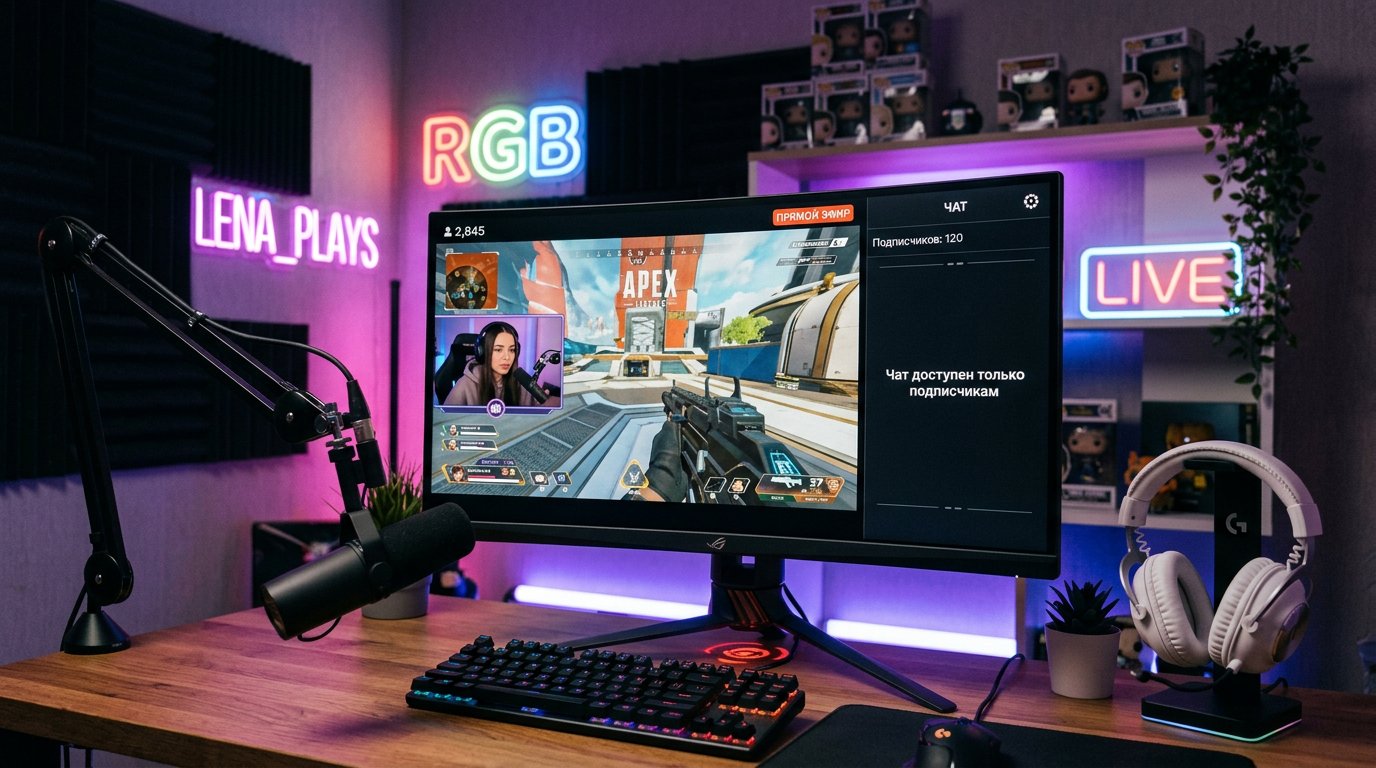
Instead of the usual input field, the chat shows a system notification that only subscribers can participate in the discussion. If a minimum timeframe is selected, a viewer who subscribed recently will see a waiting message. A new subscription does not cancel the established period.
Paid members are not moved to a separate chat by this mode and do not lose the benefits of their membership. Subscriber mode and members-only chat are different access settings.
Can the Timeframe Be Changed During a Stream
The minimum subscription timeframe can be changed after saving the setting, including during an active stream. Return to "Edit," open the "Chat" tab, select a different value, and save the changes.
When the timeframe is reduced, access will be granted to viewers who have already been subscribed longer than the new value. For example, after changing 1 week to 1 hour, users with a subscription longer than an hour will be able to write.
When the timeframe is increased, some viewers will lose the ability to send messages if their current subscription does not meet the new rule. The change affects access immediately after saving. The drawback of switching mid-stream is that viewers may not understand why the chat rules suddenly changed.
How to Remove the Restriction During and After a Stream
During the stream, return to Live Control Room, open "Edit" and the "Chat" tab. To return to the normal mode, select the option where all viewers can write, then save the changes.
You do not have to disable the restriction entirely; you can shorten the minimum subscription timeframe. This is convenient if the spam wave has passed but the chat still requires control. The drawback of partial relaxation is that the pace of the conversation may sharply increase again.
After the stream ends, check the settings of each scheduled event separately. Do not assume that the restriction chosen for one launch will automatically suit all future streams.
How This Mode Differs from Other Chat Restrictions
Subscriber chat is available to regular channel subscribers after the chosen timeframe. Members-only chat is intended for viewers with paid membership. It restricts the circle of participants more strongly but almost entirely excludes the new audience from the dialogue.
Slow mode does not require a subscription: it limits the frequency of messages from a single account. This is an option for a fast chat without harshly cutting off viewers. Its drawback is that active participants may not be able to keep up with replying to each other in a dynamic conversation.
Disabling chat entirely removes the flow of messages altogether. This option is suitable for streams where communication is not intended but deprives the stream of feedback.
How to Verify the Restriction Before a Public Launch
Test the setting from a separate viewer account without owner, editor, or moderator rights. The channel account will not show the real picture: it has extended capabilities in Live Chat.
- Open the stream from an account without a subscription and make sure the video and chat messages are visible.
- Check that sending a message is unavailable and a restriction notification is displayed.
- Subscribe from the test account and make sure access did not appear before the chosen timeframe.
- Check an account subscribed longer than the chosen time: the input field should be available on it.
- After testing, restore the required settings if a different mode is planned for the public stream.
Why the "Subscribers" Option Does Not Appear
First, make sure you have opened the stream control panel in YouTube Studio, not the stream viewing page. Check whether chat is enabled and whether the account has permission to edit stream settings.
Check the subscriber count: with an audience of fewer than 1,000, the feature may be unavailable. Also make sure that live streaming is enabled on the channel and that there are no restrictions affecting YouTube capabilities.
If the conditions are met, refresh Live Control Room, reopen the "Chat" tab, and check another scheduled stream. When the option does not appear, review the notifications in YouTube Studio and the channel status in the help section. Mass blocking of users will not replace the missing setting and will only increase the load on moderators.
Last Articles
What has changed in design and functionality We have updated the website to make working with it faster and more convenient. The main changes affect ..
Good afternoon, I've collected all the news during this time.: 1. The main news is that prices for twitch viewers have been greatly reduced, while Tw..
1. Use promo code "December2025" for a 15% discount for all our viewers2. We have reduced the base prices for our configurator and the most affordable..
Twitch services are working stably, so we are ready to cooperate with squads, resellers, service owners, bot owners, and many others.Individual te..
We have completely updated our Twitch viewer services, and they are now working stably. We only use high-quality IP addresses for the viewers.The ..
Hello everyone! Today, we are announcing a new feature—"Twitch Viewer Configurator". Now, you can customize any plan for your Twitch channel. Choo..
Greetings, I have compiled a guide for streamers, which will be very relevant at the moment. Now YouTube and twitch have disabled monetization from vi..
We have finally developed the APINow it will be more convenient for our partner sites to work with us.To update the maximum tariffs for YouTube, an up..
Due to the huge popularity of the partnership services and referral program, we have made a cooperation table. The essence is very simple: more live a..
Our Services for Streamers








Our Services for Content Creators






