
Slow Mode in YouTube Live: Setting the Pause Between Messages
What Slow Mode Does in YouTube Live
Slow mode limits how often a single viewer can send messages in a live stream chat. After posting a message, the user must wait the selected time before writing the next one. This reduces the flow of repeats, caps, identical questions, and emotional flooding during active moments of a stream.
The restriction affects message frequency, not content. It does not remove insults, ads, links, or messages from multiple accounts. That requires moderators, chat filters, timeouts, and hiding offenders from the channel.
When Message Restriction Is Useful
Slow mode is needed when the feed moves faster than the host or team can read messages. This happens during premieres, tournaments, giveaways, heated discussions, raids, or when a channel is mentioned by a major creator.
The mode prevents a few active viewers from taking over the entire feed and makes moderation easier. The downside is obvious: normal conversation slows down too. A viewer can't immediately follow up on a question, correct a mistake, or react quickly to a game moment.
Where to Find the Slow Mode Setting
Open YouTube Studio, start a stream, or select a scheduled broadcast in Live Control Room. In the stream settings, find the live chat section. The option may be called "Slow mode," Slow mode, or "Message delay" — the name depends on the language and interface version.
During an active stream, the setting is usually also available through the chat's own moderation tools. Open the chat management menu next to the message window, go to settings or moderation controls, and find slow mode. If there's no such item in the chat, open the current stream settings in Live Control Room.
How to Enable the Mode Before Going Live
- Open the desired stream in Live Control Room.
- Click "Edit" or open the stream settings.
- Go to the live chat section.
- Enable slow mode or select the message delay.
- Choose one of the available intervals.
- Save the changes if the interface shows a "Save" or "Done" button.
The setting applies to a specific stream. Before your next broadcast, check the chat separately: a delay that's useful for a tournament or premiere may get in the way of a regular conversational stream.
What Pauses Are Available in Slow Mode
YouTube Live settings use fixed intervals: 1, 5, 10, 30, 60, 120, and 300 seconds. The countdown starts after each message is sent. With a 30-second delay, a viewer can only post their next message after half a minute.
The chat won't let you send a new message before then. Usually the viewer sees a notice to wait and either a timer or an indication of the remaining time. The wording and appearance of the message may differ in the app, browser, and different interface versions. That's why some viewers may think the chat isn't working if they aren't warned about the active restriction.
The channel owner and assigned moderators are usually not subject to the restriction. For channel members, this behavior may vary depending on region, platform, and interface version. Don't count on an exception for members without verifying it on a specific stream.
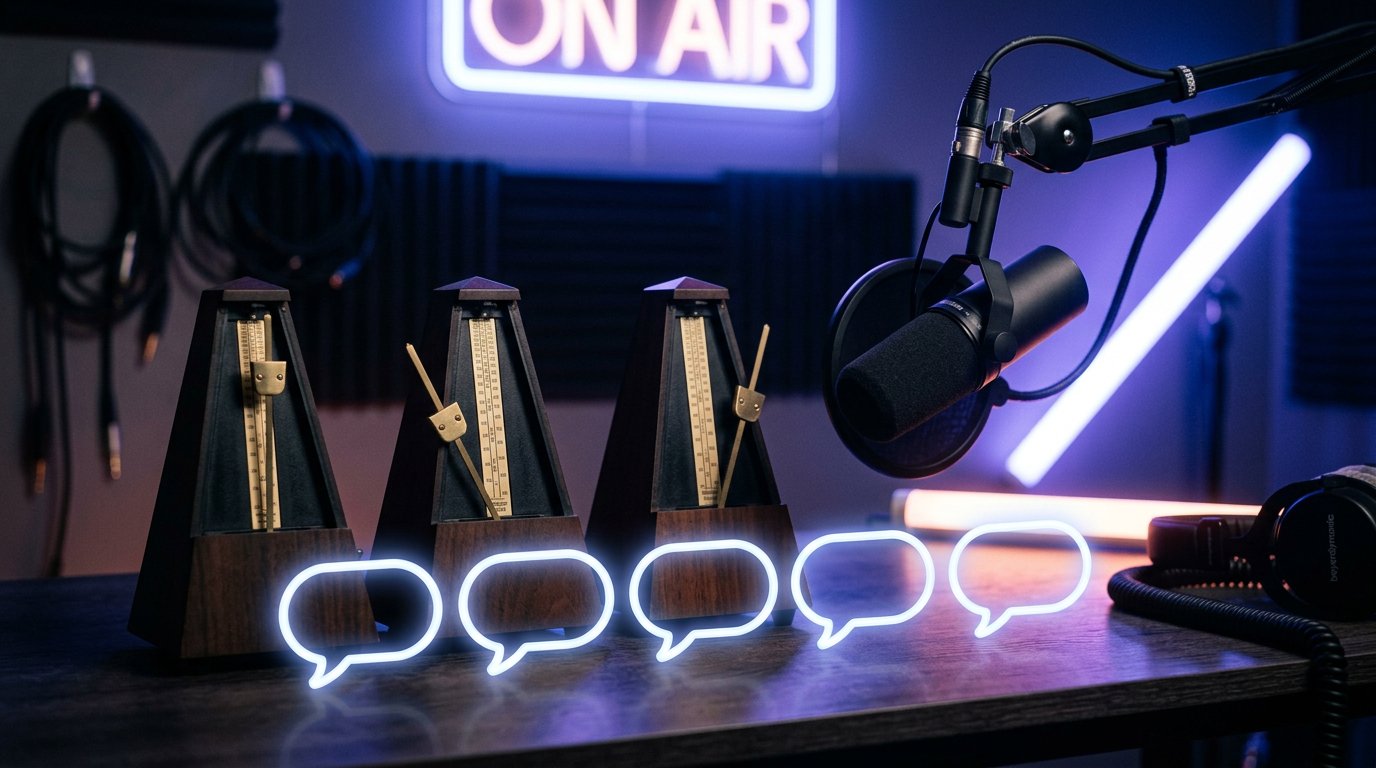
When to Choose an Interval from 1 to 10 Seconds
- 1 second is suitable for minimal restriction. The chat pace barely changes, but with active flooding, such a pause helps little.
- 5 seconds can be set for a calm gaming, conversational, or co-streaming session. The delay curbs rapid repeats but doesn't break the dialogue.
- 10 seconds works for reactions, discussions, and streams with a steady flow of messages. This is an option for when messages start disappearing quickly from the visible part of the feed.
Short intervals keep the conversation lively but don't stop mass spam. If several accounts take turns posting identical phrases, one delay won't be enough.
When to Set a 30-Second Pause
A 30-second delay works for premieres, tournaments, giveaways, and large discussions where the chat should still remain part of the stream. During this time, a viewer can formulate one thought instead of a series of short messages. This interval is useful when the host needs to keep up with reading questions but audience reaction to what's happening matters.
A 30-second pause also works as a transitional option: for example, if 10 seconds no longer handles the flow but 60 seconds would slow the chat too abruptly. The downside of this setting is slow feedback. A viewer won't be able to immediately clarify giveaway terms, correct data, or send a follow-up question.
When to Use 60, 120, and 300 Seconds
A 60-second pause is needed with noticeable flooding when a single host is reading the chat or there are few moderators. It limits a series of repeats but leaves the ability to participate in the discussion roughly once a minute. The downside is that the chat reacts worse to dynamic moments in a game, music, or co-watching.
A 120-second interval is useful during conflict, a surge of identical messages, or while moderators are reviewing violations. A viewer can leave a substantive message, but quick dialogue is no longer possible. This reduces flooding but noticeably cuts the number of replies from the regular audience.
A 300-second pause essentially turns the chat into a format of rare comments. It should be enabled temporarily during a strong wave of spam, not used as a permanent communication mode. The main downside is that normal viewers may stop writing because they can't keep up a conversation.
How to Enable or Change the Pause During a Stream
To change the interval, you don't need to stop the stream or restart the encoder. Open the moderation menu in the current stream's chat and find slow mode. Depending on the interface, the item may be in chat settings, the additional actions menu, or the moderation controls section.
- Open the chat moderation tools.
- Enable slow mode if it was off.
- Choose a new interval, for example, change 10 seconds to 30 seconds during a sudden surge of messages.
- Confirm the change if the interface asks you to save.
- Check whether a system notification has appeared in the chat.
If chat-based controls aren't available, open the current stream in Live Control Room, go to the chat settings, and change the same parameter there. The new delay applies without ending the stream. Previously sent messages remain in the feed, and new ones will be limited by the selected interval.
How to Disable Slow Mode During a Live Stream
Open the chat moderation menu or the current stream settings in Live Control Room. Turn off the slow mode toggle or select the option without a delay if it appears in the list. After confirmation, viewers can send messages without a pause again.
It's worth lifting the restriction when the message flow has returned to a normal pace and the team can keep up with reading it. The downside of abruptly disabling it is that flooding may quickly resume. If the chat is still unstable, first reduce the interval, for example from 120 to 30 seconds, and assess the situation.
How Viewers React to an Enabled Mode
After their first message, a viewer can usually write as normal until they try to send the next message before the time is up. Then the input field or chat shows a warning: they need to wait for the delay to end. On some devices a countdown is displayed, on others only a text notification.
The restriction especially often raises questions if it was enabled mid-stream. Briefly announce by voice or with a pinned message that the chat has been switched to slow mode due to the flow of messages. Don't present it as a punishment for the entire audience: viewers are more likely to accept the measure when the reason is clear.
How to Test the Setting from a Regular Account
To test it, you need an account without owner or moderator status. It's also best to rule out channel member status, since the restriction may apply differently to such users. Send one short message and immediately try to write a second one.
If it's working correctly, the chat will show that you need to wait before your next message. The downside of testing on a public stream is that test messages may distract viewers. One neutral message is enough, and if possible, it's better to test the setting on a private or test stream.
What to Add to Slow Mode During Spam
Slow mode doesn't replace moderation. If one user keeps posting identical messages at the allowed interval, a moderator can give them a timeout. For repeated violations, the account can be hidden from the channel.
If dozens of accounts are spamming, a delay for a single viewer will have a limited effect. Check blocked words, filtering of potentially unwanted messages, and the moderator lineup. The downside of automatic filters is that they sometimes hold up normal messages due to a match with a word or phrase on the list.
Last Articles
What has changed in design and functionality We have updated the website to make working with it faster and more convenient. The main changes affect ..
Good afternoon, I've collected all the news during this time.: 1. The main news is that prices for twitch viewers have been greatly reduced, while Tw..
1. Use promo code "December2025" for a 15% discount for all our viewers2. We have reduced the base prices for our configurator and the most affordable..
Twitch services are working stably, so we are ready to cooperate with squads, resellers, service owners, bot owners, and many others.Individual te..
We have completely updated our Twitch viewer services, and they are now working stably. We only use high-quality IP addresses for the viewers.The ..
Hello everyone! Today, we are announcing a new feature—"Twitch Viewer Configurator". Now, you can customize any plan for your Twitch channel. Choo..
Greetings, I have compiled a guide for streamers, which will be very relevant at the moment. Now YouTube and twitch have disabled monetization from vi..
We have finally developed the APINow it will be more convenient for our partner sites to work with us.To update the maximum tariffs for YouTube, an up..
Due to the huge popularity of the partnership services and referral program, we have made a cooperation table. The essence is very simple: more live a..
Our Services for Streamers








Our Services for Content Creators






